
If you have been using the Wax Blockchain you would know how fast NFT sales goes by. Sales from known projects such as R-Planet, Uplift, Dark Country gets sold out in the blink of an eye, which means every second counts during these sales. Today I'll be listing all the tips that has helped me attend and purchase NFT drops during sales.
Know When The Sale Will Happen
Figuring out exactly when the sale is happening is crucial. That is why having a calendar of all the important sales that will be happening on the Wax Block Chain is crucial to your success. Luckily, there is a website that lists them all.
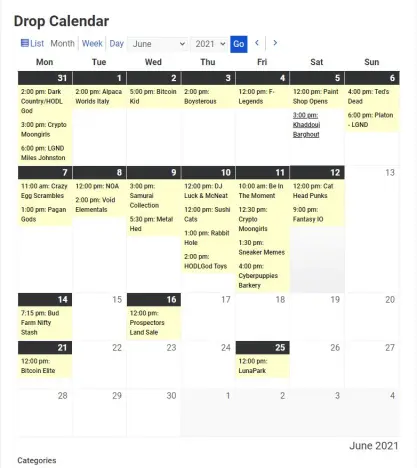
To use the calendar click here.
From this point, you would want to save this date on your phone and set a reminder for yourself. Personally I would set a timer 15 minutes ahead of the sale since Atomic Hub tends to be a bit slow during these high-demand sales.
Fix Your Computer's Clock
I've missed out on a few sales because my computer clock is somehow 16 seconds earlier than the standard time. When you are too early to the sale, it will give you an error button when you purchase an NFT on Atomic Hub, this would set you back by 30+ seconds and risk you on missing the drop. To know if your computers clock is ahead or behind, you can use the website time.is.
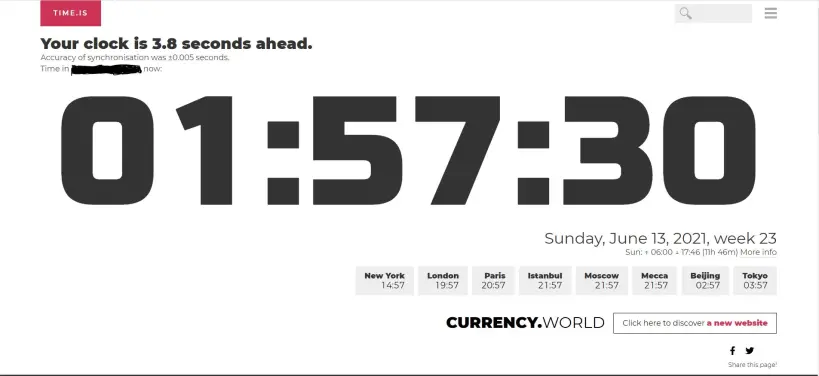
To use time.is click here.
From this picture, you can see that my clock is ahead by 3.8 seconds. Which means if I click the purchase button early by 3.8 seconds - I would get an error message. We can fix this, by changing our internet time. Here is a step by step:
First head to settings and find Time & Language.
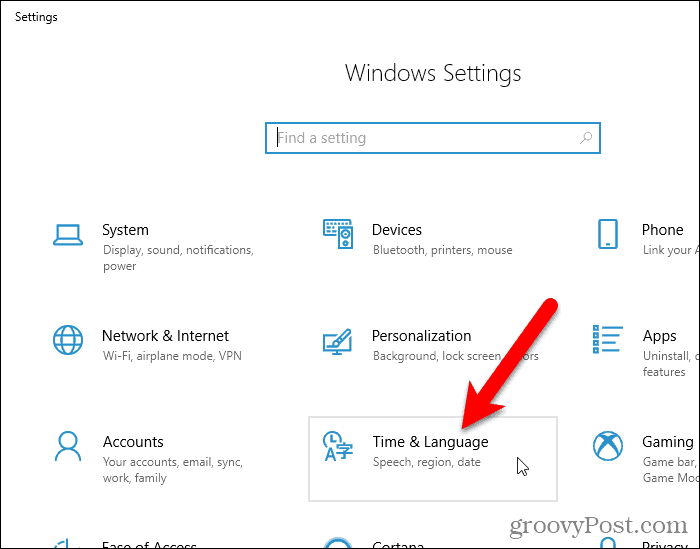
Head to Additional date, time, & regional settings.
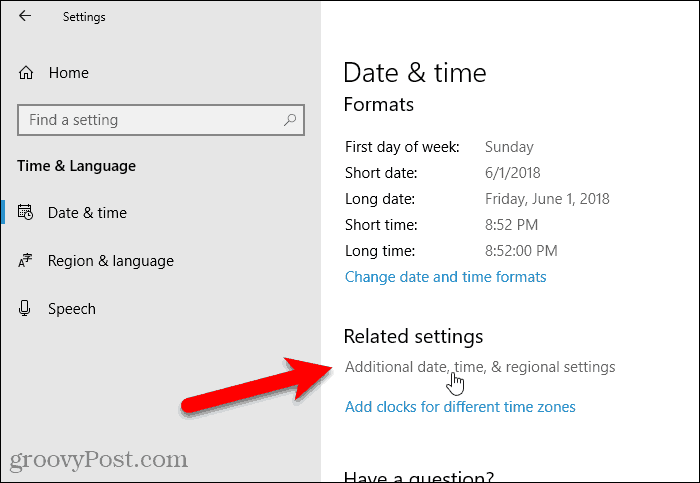
From there, click on the Date and Time.
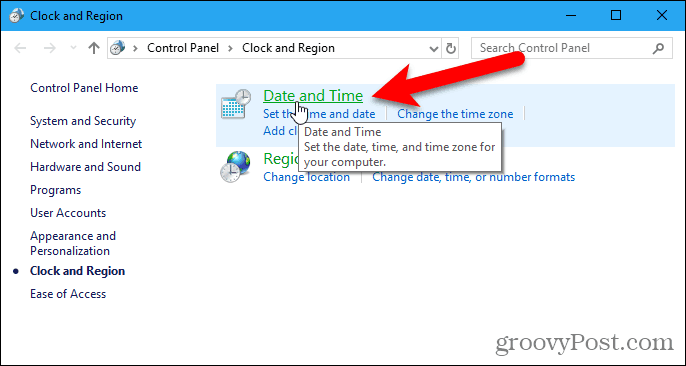
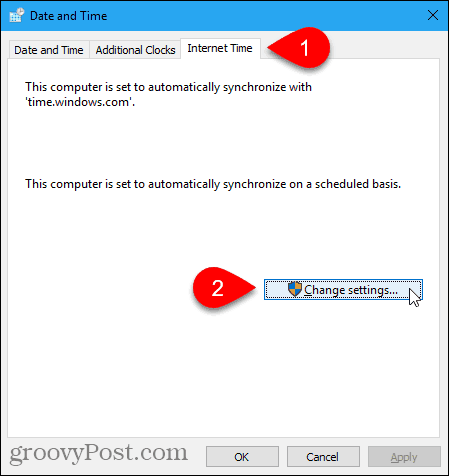
Click the Internet Time tab on the Date and Time dialog box. Then, click Change settings.
Change the server to: time.nist.gov (this is the one that works for me, you can try and use other servers too), then hit update now.
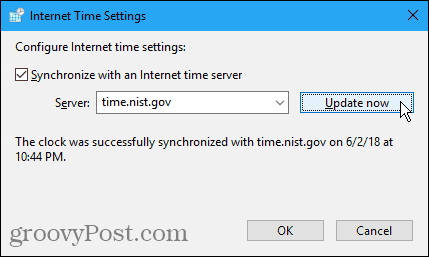
You're all set, you can try and head back to time.is and check whether your clock is synchronized or not.
What To Do During The Drop
As I have previously mentioned, it is important to open the drop site 15 minutes before it drops or earlier. Another great thing to do is to have at least two tabs open for the drop. This way, if Atomic Hub decides to load too long during a purchase and risk you on missing the drop, you can try and use the other tab and re-do the payment.
Additional Things
During sales, there would often be captcha's when you click purchase. Some people have found using browsers such as google chrome to lessen the chance of getting a captcha. Note that you would need to log in to a google account to have this on full effect.
Clearing your browser history and cache has also worked for some people, since it helps your computer runs a bit faster. This is especially helpful if you are using a slow computer/laptop.
Thank you for taking the time to read my blog, if you have any feedback and criticism on how I can improve my writing you can leave them down on the comments below. Your like & share would also be greatly appreciated!
Useful referrals to earn crypto:
CryptoTab - Mine Bitcoin for FREE on your browser
RollerCoin - Earn $1 a day passively playing
You've gotten this far, do yourself a favour and tip yourself :)






