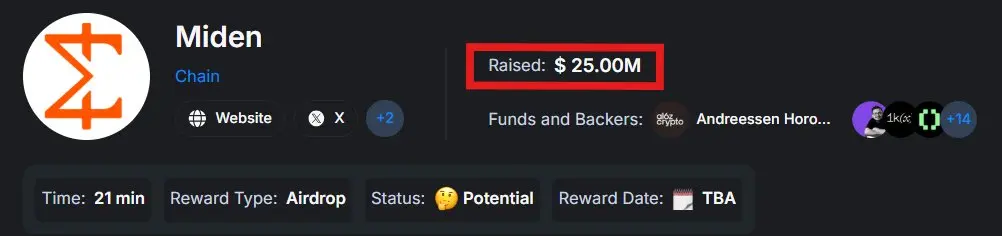
The number of testnet opportunities appearing in the crypto space continues to grow, but only a few stand out because of the teams behind them and the amount of attention they receive from the industry. One of the projects that has been gaining quiet traction recently is Miden. The project has already raised around 25 million dollars and has backing connected to the Polygon ecosystem along with several other investors. What makes it even more interesting for many users is that participating in the current testnet activities costs nothing. Everything can be done for free, which is why many people are beginning to explore it step by step.
Let's get started:
Step 1: Install Miden Wallet
The first thing anyone needs is the Miden Wallet extension. Install extension, create a new wallet, save private key.
Step 2: Claim Faucet
After setting up wallet, now head over to Faucet, to claim Miden testnet faucet.
Step 3: Claim Your Miden Domain
Secure your unique on-chain identity on Miden network by going to miden.name connect your Miden wallet, search for available name and claim your domain on the Miden network. One thing to keep in mind is that network is slow, so you may have to wait to claim.
Step 4: Playground Platform Testing
Go to Playground, connect your Miden wallet and click on Start Tutorial.
To see all the tutorials, click on the left sidebar, click on Home, scroll down, check on all the available tutorials, now click on Tutorial 1 to start.
Step 5: Tutorials:
TUTORIAL 1
Click Create New Account and either rename it or keep the default name “Wallet A.” After that, click Create Account, scroll down, and press Next Step to continue. Next, click MDN Faucet, then select Create New Transaction. Choose New Mint Transaction, select your newly created Wallet A, and enter the amount of MDN you want to mint. Click Preview and then Submit. Wait until the transaction status shows Success. After that, go to the Notes section on the sidebar and click on the note address. Select Consume note with A, then click Submit. Once the transaction is successful, click Next Step.
Tutorial 1 DONE
TUTORIAL 2
Click Home, scroll down to Tutorial 2, and click Start Tutorial to begin transferring assets between wallets. On the left sidebar, click Accounts and select Miden Account 1. Then click Create New Transaction and choose New Send Transaction. Select Wallet B as the target account, choose MDN as the asset, and enter any amount. Click Preview, then Submit. Wait until the transaction status shows Success. After that, scroll down and click Next Step, then click Next Step again. Next, go to the Notes section from the left sidebar and select the first note address. Click Consume note with Wallet B, then click Submit. Wait for the transaction to complete successfully, then scroll down and click Next Step.
Tutorial 2 DONE
TUTORIAL 3
Click Home, scroll down to Tutorial 3, and click Start Tutorial to begin connecting your wallet and signing transactions. Click Select Wallet and connect your Miden Wallet. After connecting, go to the left sidebar and click Accounts, then select Miden Account 1. Click Next Step, then click Mint. Once the mint is successful, click Next Step. Next, go to Notes and click the address. Select Consume note with Miden Account 1, confirm the transaction in your wallet, and wait for it to process. After it completes, click Next Step. Then go to Accounts, click Create New Account, and select Import Account. Under Name, type Test Wallet. Copy the test wallet address shown and paste it under Address, then click Import. The Test Wallet should now appear in your accounts list. Now under Accounts, select Miden Account 1 again and click Create New Transaction. Choose New Send Transaction, select Test Wallet as the Target Account, and choose Miden as the Asset. Enter any amount, click Preview, and confirm the transaction in your wallet. Wait for the transaction to refresh.
Tutorial 3 DONE
TUTORIAL 4
Click Home, scroll down to Tutorial 4, and click Start Tutorial to begin the Private Transfers tutorial. On the left sidebar, click Accounts and select Miden Account 1. Then open your Miden wallet extension and create a private account. Click the wallet dropdown in the extension, select Add Account, choose Off-chain Account (Private), and click Create or Restore Account. After it is created, switch to Private Account 1. Now go back to the Miden Playground. Click the Mint button to publicly request 100 tokens from the faucet. Scroll down to check Consumables, then click the ⋮ (three dots) button in the Consumable Notes table and consume the note with your wallet.
Next, click Accounts and then Create New Account. Import a new account using the following details:
Name: Test Wallet
Address: mtst1ap8vw68t4j007yr7nhnsee4j8yxslvkd_qruqqypuyph
Click Import to add the wallet. After that, click the three dots (⋮) icon on your Private Wallet, choose New Send Transaction, select Test Wallet as the target, choose MIDEN as the asset, and enter the amount you want to send.
Tutorial 4 DONE
TUTORIAL 5
Click Home, scroll down to Tutorial 5, and click Start Tutorial to begin interacting with the Counter Contract. Under Scripts, click Counter Contract, then click Next Step three times to continue. On the left sidebar, click Accounts, then select Create New Account and choose Import Account. Enter the following details:
Name: Counter Contract
Address: mtst1ap8vw68t4j007yr7nhnsee4j8yxslvkd_qruqqypuyph
Click Import to add the account.
After importing, click Counter Contract under Accounts, then click Next Step. Go to the Components tab (next to Information), scroll down, and click Invoke for Get Count. After that, click Invoke again for Increment Count.
Tutorial 5 DONE
TUTORIAL 6
Click Home, scroll down to Tutorial 6, and click Start Tutorial to begin deploying a Counter Contract. First, click Create New Script, enter any name you like, and set the Script Type to Account Component (for example: Counter Contract). Then click Create and proceed by clicking Next Step. Scroll to line 32, replace 1 with 2, and click Compile. After the compilation is successful, click Next Step. Next, click Components in the sidebar and select Create New Component. Enter any name you prefer, keep the Type as Account Component, and under Script, choose the script you just created. Click Create, then click Next Step. Now click Add Storage Slot. Copy the storage slot name from the right side and set the Type to Storage Map. Click Add Key Value Pair, set Key = 1 and Value = 1, then click Create. After that, click Next Step.
Go to Accounts, click Create New Account, and select Deploy Account. Enter your preferred contract name, select the account component you created, and click Deploy. Then click Next Step. Finally, click the contract name you just deployed, switch to the Components tab (next to Information), scroll down, and click Invoke.
Tutorial 6 DONE
TUTORIAL 7
Click Home, scroll down to Tutorial 7, and click Start Tutorial to begin the Timelock P2ID Note tutorial. First, click Create New Script, enter any name you like, change the Type to Note Script, and choose the example P2ID Note. Click Create, then scroll down and click Next Step twice.
Next, go to lines 19–21 in the script and add the following three lines (you can copy them from the right sidebar):
let timelock_height = inputs[2];let block_number = tx::get_block_number();assert!(block_number >= timelock_height);
After adding the code, click Compile, then click Next Step. Now go to Notes from the left sidebar and click Add Note, then select Create Note. Choose Test Wallet as the recipient and select the recently created script. Keep the Note Type as Public. Click Add Note Assets, choose Miden as the asset, and enter 10 as the amount. Then click Add Note Input and enter the Prefix and Suffix exactly as shown on the right side. For the Note Input, check the value on the right side and enter it accordingly. Finally, click Create, confirm the transaction in your Miden Wallet, and wait for it to process.
Tutorial 7 DONE
TUTORIAL 8
Click Home, scroll down to Tutorial 8, and click Start Tutorial to begin the Network Transactions tutorial. First, click Create New Account and select Deploy Account. Enter any name you prefer, set the Type to Regular, choose Network for Storage Mode, select No Auth for Auth Component, and choose Counter Contract for the Account Component. After that, click Deploy, then click Next Step. Next, go to Accounts from the left sidebar and select the account you just deployed. Switch to the Components tab (next to Information) and click Invoke. After that, click Next Step twice. Then click Notes on the left sidebar, select Add Note, and click Create Note. Set the Recipient Account to the deployed counter, select Counter Note as the Script, and keep the Note Type as Public. Do not add any note asset. Finally, click Create and confirm the transaction in your wallet.
Tutorial 8 DONE
TUTORIAL 9
Click Home, scroll down to Tutorial 9, and click Start Tutorial to begin the Foreign Procedure Invocation tutorial. First, click Count Reader under Components, then click Count Reader next to Script. After that, click Next Step twice. Next, go to Accounts, click Create New Account, and select Deploy Account. Give your new contract any name you prefer and select Count Reader as the Account Component. Click Deploy, then open your recently deployed account and click Next Step. Now switch to the Components tab, click Invoke, and select the Counter Contract. Copy the get_count procedure hash from the right side, paste it where required, and click Invoke.
Tutorial 9 DONE
TUTORIAL 10
Click Home, scroll down to Tutorial 10, and click Start Tutorial to begin creating Your First Smart Contract and Custom Note. First, go to Scripts in the left sidebar and click + Create New Script. Enter the following details:
Name: Counter Account
Type: Account Component
Example: Counter Contract
Click Create, then click Next Step. Click Compile, then click Next Step twice. Next, click + Create New Script again and enter:
Name: Increment Note
Type: Note Script
Example: Counter Note
Click Create, then go to Metadata (top right) and click + Add Dependency. Select counter-account, click Add, then click Next Step. Switch to Rust (top right), click Compile, and click Next Step. Go to Accounts in the left sidebar and click + Create New Account, then select Deploy Account. Enter the following:
Name: Counter Contract
Type: Regular (Updatable)
Storage Mode: Public
Auth Component: No Auth
Account Component: Counter Contract
Click Deploy, then click Next Step. Next, click Notes in the left sidebar, click + Add Note, and select Create Note. Set the following:
Recipient Account: Counter Contract
Script: Increment Note
Note Type: Public
Click Create, confirm the transaction in your wallet, and click Next Step. Finally, go to Accounts, select Counter Contract, scroll down to Consumable Notes, click the ⋮ (three dots), and select Consume Note with Counter Contract. Click Submit to complete the process.
Tutorial 10 DONE
TUTORIAL 11
Click Home, scroll down to Tutorial 11, and click Start Tutorial to begin the Contract Verification tutorial. First, go to Scripts in the left sidebar and click + Create New Script. Enter:
Name: Counter Account
Type: Account Component
Example: Counter Contract
Click Create, then click Next Step. Delete the entire Rust code in the editor. Next, go to https://hypernotepad.com/n/b2091cb710ee1bd2 and copy the entire code carefully. Return to the playground tutorial page, paste the copied code, click Compile, and then click Next Step. Go to Accounts in the left sidebar, click + Create New Account, and select Deploy Account. Enter:
Name: Verified Counter Account
Type: Regular (Updatable)
Storage Mode: Public
Auth Component: No Auth
Account Component: Counter Contract
Click Deploy, then Next Step. Click ⤓ Import (on the right side), then click Next Step. Return to Scripts in the left sidebar, click the ⋮ (three dots) next to your script, and select Export Script. A file named counter-account will be downloaded. Leave the playground, go to your Downloads folder, right-click the counter-account file, and select Extract All. Go back to the playground tutorial page and click Next Step. Click Accounts in the left sidebar, select Unverified Contract, then go to Components (top right) and click Verify Account Component. Click Choose File, select the extracted counter-account file, click Upload twice, then click Verify, and click Next Step. Scroll down to Procedures, click Invoke on increment-count, then click Invoke on reset-count. Finally, click Back to the tutorials list.
Tutorial 11 DONE
Step 6: Swaps on Miden
1. Lumina Public Beta (currently not the best)
Go to Lumina connect your Miden wallet, Claim testnet tokens (BTC, ETH, USDC), make transactions with encrypted notes.
2. Zoro Swap (currently not the best)
Go to Zoro Swap claim testnet faucets (BTC & ETH), swap tokens, provide liquidity.
3. Dome Transfer (This is for private transfers and tokens shield)
Go to Dome Transfer connect your Miden wallet. You can use Dome Transfer to send assets on Miden network privately, shield assets, unshield assets, and bridge cross-chain.
Final Thoughts:
Exploring the Miden testnet is an excellent way to gain hands-on experience with a privacy-focused blockchain and its unique features. From creating wallets and claiming test tokens to deploying contracts and interacting with custom notes, the tutorials provide a comprehensive guide for newcomers and experienced users alike. Miden is still in its early stages, and for those willing to engage patiently, it offers a structured environment to practice, experiment, and prepare for what comes next in the ecosystem.
Disclaimer:
Please note that all activities described here take place on the Miden testnet. Tokens, rewards, or assets earned during the testnet are for testing purposes only. Participation does not guarantee any future rewards, airdrops, or real-world value once the mainnet launches. Always exercise caution and always DYOR.