
Hello guys,
this article will combine all my tips for tweaking your PC at home to be able to mine at full efficiency to get the most profit. The most important part is to note that this is not meant for the veteran miners simply because every single one of them is aware of the tips ahead.
Let's start with the GPU settings.
First of all let's clear what overclocking is. Overclocking is increasing default memory and core clocks of the GPU with the goal that they run on higher velocities than they were intended to run by the manufacturer. While overclocking, you could also raise the power limit and additionally voltage, however remember that this will increase your electric bill. This can be moderately sheltered to explore different avenues regarding, yet note that outrageous tickers and temperatures may harm your equipment quicker than they ordinarily would. With proficient overclocking, you can accomplish higher mining benefits and lower power use!
On the contrary - Underclocking is exactly doing the opposite -> lowering memory and core clocks which will reduce the performance. It would also reduce the power usage.
When it comes to mining, the important thing to remember is that there are no universal values for all video cards, or even for each model or even for each specific card. The reason for that is because, not all devices are created equal. And I know this sounds like a cliche, but it's a fact. There are multiple factors to account of how much certain card can be overclocked. Here are some of them:
1) type of microchips used for the manufacture
2) video memory speed and brand used
3) power supply used
4) motherboard specifics - the same card on two different motherboards can have different possible settings
5) overall temperature in the system
6) RAM memory clock of the system
And I'm sure there are others which I am not aware of right now, but just keep in mind about this and do not try to reach some suggested settings you found somewhere on the internet where someone was able to achieve. Do not get upset if you can't. You should find your sweet spot by testing yourself on your system.
So for mining - there are two things you should remember ->
1) increasing Video Memory/Core clocks will increase the mining speed/rewards.
2) decreasing the power limits will decrease your electricity bill.
There is a sweet spot usually for each card that you could find where you can increase the Core/Memory clock and decrease the power consumption at the same time.
For this, you guys need a specific software that can help with changing those settings. I usually prefer MSI Afterburner. I know this developed by MSI company, but I guarantee it is compatible with all video cards - both Including MSI and AMD. It is often new software releases so you should update it often when it asks you. The new releases are optimized to work with the new graphic drivers/video cards released.
Another overclocking software I know of is EVGA Precision X1. It has all the same capabilities as MSI Afterburner, BUT It does not support AMD cards, due to the fact that EVGA GPU manufacturer is only producing Nvidia GPUs.
This is why I will focus here on MSI Afterburner.

MSI Afterburner allows you to set overclocks, fan speed, temperature limit, fan curve, etc. It also allows you to monitor your hardware temperatures, usage and much more. It is important to note that NVIDIA and AMD GPU overclock in slightly different way. When changing the setting for NVIDIA cards you add or subtract value from the default value, while in AMD you set the absolute value. Ultimately there are only 3 settings you need to change in order to overclock:
- Power Limit
- Core Clock
- Memory Clock

Follow these steps to overclock your GPUs with MSI Afterburner. Start the software and:
1. Unlink Power Limit and Temperature Limit. This will allow you to change the Power Limit without changing the Temperature Limit. When increasing the following parameters you have to gradually increase each one and always test the stability with a benchmark or a stress test (running a game or some benchmark tool). If the system is stable - does not crash, does not show blue screen of death or restarts then you can try with higher settings.
2. Set Power Limit.
3. Set Core Clock.
4. Set Memory Clock.
5. Click the check mark to apply the settings.
6. Change the GPU and repeat the steps 3,4,5 and 6. This is only required if you have multiple GPUs.
7. Click on Save icon and select profile number.
8. Save the profile.
9. Make sure that Startup is enabled. This will make MSI Afterburner start on Windows startup and apply all settings on start-up.
Increasing Memory/Core settings is okay until the machine is stable while mining or GAMING, depending of why you doing it for. Keep in mind overclocking can have positive effect on your gaming experience -> you will be able to squeeze few more frames per second in gaming overclocking the GPU. What you should keep in mind of is the temperature of the GPU:

You can switch between Celsius and Fahrenheit while having the card under load. Reason for this is that it is never good idea to overheat any kind of computer hardware. I know this depends largely on multiple factors, but you should know that around 75 degree Celsius is the max temperature which you should have your GPU work on for longer periods of time. Keep the following factors for this in mind:
1) Room temperature.
2) Overall fan setup in the case - if the air can leave the case fast enough.
3) The GPU Fan speed ->

It can be manually modified, when you disable the "Auto" on the right and move the lever to specific percentage. This is useful for mining, when the card will remain at the same temperature for a long time. Also remember that most video cards over 80% fan speed can be little loud.
4) PC case -> if it is Open or Closed. This matters hugely. Back in time, when I was mining, opening the case was reducing the GPU temperature from about 80 degree to 65, which is very big difference.
And remember this, the higher Core/Memory/Power Limit are - the higher temperature is. Sometimes it can be beneficial if you add additional fans to ether bring cold air in the case or one that is bringing out the hot air from the chassis, when it is closed.
Lets talk a little bit about the specific AMD and NVidia GPU settings.
For the green teams cards you should remember this:
- 75% Power Limit
- +100 Core Clock
- +200 Memory Clock
This will work on most Nvidia GPUs. If you experience issues with these settings, you can try lowering Core or Memory clocks. If the settings are stable, you can increase the clocks by 50. Repeat this until mining/Gaming is not stable. Again, always increase the parameters gradually and stress test the system before the next increase.
For Team Red's cards, you should slowly increase your base Core and Memory clocks by 50 MHz, and keep repeating that until mining/Gaming is not stable anymore. Always increase the parameters gradually and stress test the system before the next increase.
CPU mining
With the CPU being quite profitable at the moment perhaps it is a good idea to give you some details on how you can maximize your profitability if you decide to use your PC to earn some coins. Those tips are valid for all CPU's, however I will go into some overclocking details over AMD Ryzen processors due to the fact that they are way more capable in that area and I simply does not own a single Intel with which I can experiment for the past few years.
As you probably know, at the end of 2019 Monero switched to the Random X algorithm which is very CPU friendly and this started the current rise of CPU mining. Anyway, let's get started.
(all those tips are valid for Windows users)
The first thing to do is to enable the Lock Pages in Memory. This is by far the biggest boost you will get on your PC.
To enable Lock Pages in Memory, follow these steps when logged in to your Windows account:
1. Click Start and type "gpedit.msc" and press Enter.
2. In the window that opens navigate to Computer Configuration > Windows Settings > Security Settings > Local Policies > User Rights Assignment
3. On the right panel, scroll down until you find Lock pages in memory.
5. Click Add User or Group.
6. Type your Windows account name in the empty text box.
7. Press OK & restart your PC.
Overclocking AMD Ryzen
The next step would be to overclock your AMD CPU(overclocking Intel is also beneficial, just I'm not in a position to explain how that goes). Download and install the AMD Ryzen Master software. This is an overclocking tool that allows you to change CPU core speed and lower or increase voltage.
Setting Core Speed and Peak Core(s) Voltage
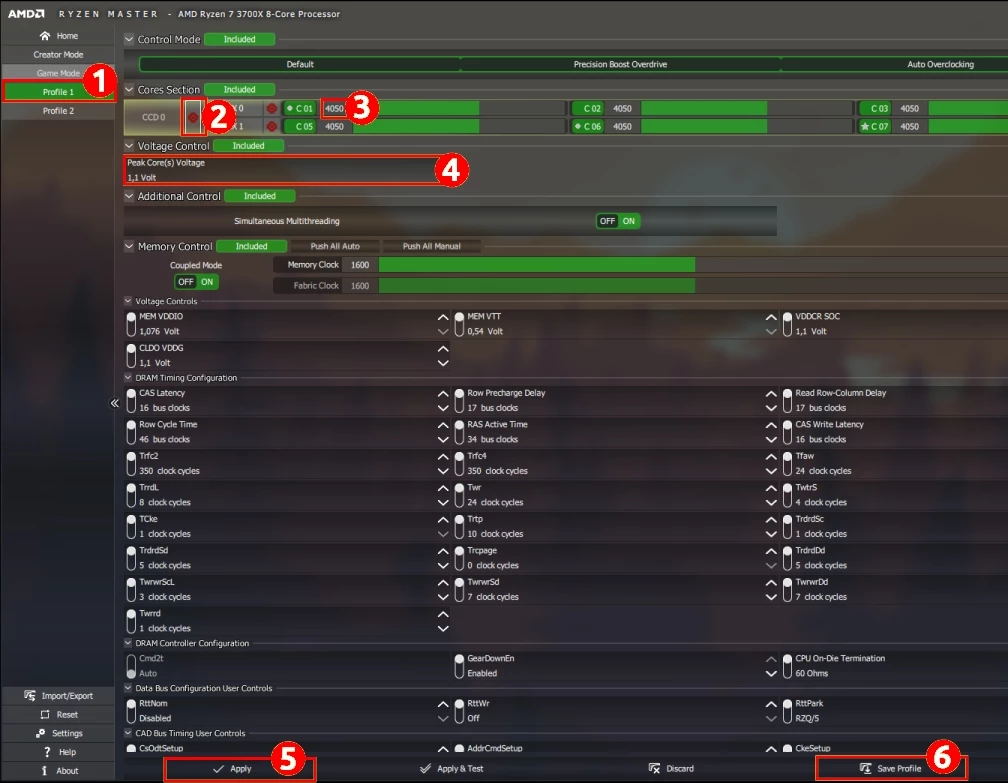
1. Select Profile 1(fig. 1).
2. Enable Speed Mirroring of one core to all other cores (fig. 2).
3. Increase core speed (fig. 3) by 50Mhz. This depends on your CPU capabilities.
4. Click Apply (fig. 5).
5. Start mining.
6. If you do not experience any issues, repeat this process until your PC becomes unstable. If PC restarts on itself, the Ryzen Master settings will be set to default. This is why we prefer to overclock CPU via Ryzen Master instead of directly through BIOS.
7. If you ran into an unstable PC, you can increase Peak Core(s) Voltage (fig. 4). Doing this will allow higher Core Speed, but will yield in higher power usage and higher temperatures.
8. When the overclocks are stable, click one Save Profile (fig. 6).
My next tip is to change few settings in your Windows in order to get few more hashes.
Change your power plan to High Performance.
Control Panel-> Power Options and switch your plan to High Performance. Normally a Windows by default will be set on "Balanced" plan.
A disclaimer here -> there is a chance that your High Performance plan is not available or grayed out for some reason. There are multiple reasons that can be, which I am not able to cover here. However in such cases Youtube is your friend. Search for videos that explain how to deal with such situation. There is always a solution which usually takes 5 minutes to be fixed.
Select a performance settings for your Windows.
Open a Windows Explorer and find "My Computer"/"This PC" or however your PC is called and right click on it and select the "properties" option. This will open the "System" window. On the right side there is a option "Advanced system settings".
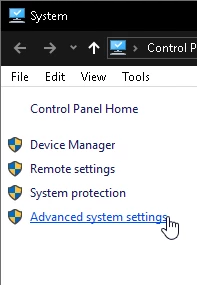
Go ahead and click on it. This is make another window to appear with several tabs. You need the "Advanced" tab. There you will see several options to select from and hit the "performance" button. This will open the performance options window. Over there go ahead and select "adjust for best performance" radio button and select apply.
This setting will both slightly improve your VGA and CPU mining speeds.
Another beneficial setting you can amend is what programs your Windows loads on startup. The point here is to have less programs holding your system's resources in order to have fully available CPU and GPU for the mining. This is quite easy to do. Right click on the task bar and select "Task Manager":
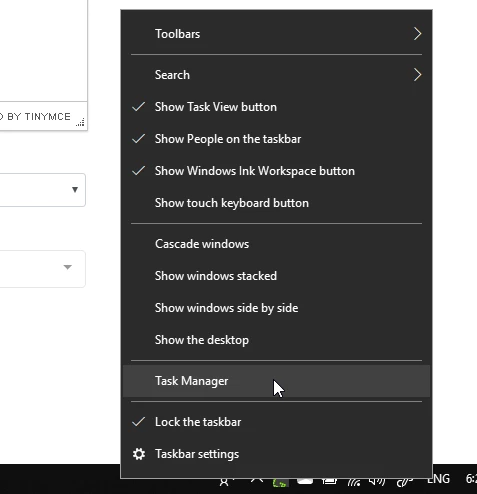
Once the window is open, go to the "Startup" tab:
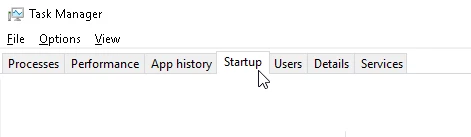
There you will be able to see a list of programs that are being loaded with every startup of the windows. This affects your Windows loading time and consequentially your mining speeds if you do not go and "kill" each program separately by hand. This is how the list looks:
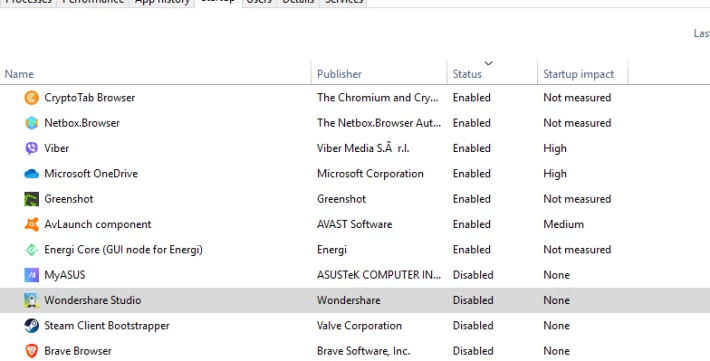
Ignore my setup, as this is a laptop which is not used for active mining(besides CryptoTab), but you should remember that in order to have best performance it is best that you have only software that you need to start with the Windows like:
Antivirus
- VideoCard Drivers(AMD/Nvidia)
- MSI Afterburner - Very important (Or any other similar software you are using).
- Any other software that is not Windows system process and you do not need it(especially those with High/Medium startup impact).
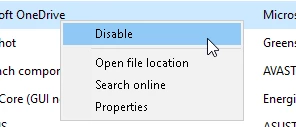
The way to disable/enable a startup program is to right-click on it and select disable/enable:
Another beneficial tool you can use is called Ultimate Windows Tweaker. I will not go into details here, but I will leave you a link to my article covering it. Briefly explained it's a tool that offers great kit of settings that will positively affect your Windows Performance. And this will improve your mining speeds due to the fact that when tuned up - Windows is using less system resources which will become available for the miners to utilize.
The last important tip I will provide today is to always add your miners to your Antivirus's exceptions list. Point here is that it does not block your mining. This is not going to improve your mining, but will solve those annoying AV messages and actions that delete the executables of your miners. I have several articles with videos where I cover the most popular AV software - McAfee, BitDefender, AVAST, Malwarebytes, Kaspersky,
And never ever install more than one AV on your PC. This is not just related to mining, I mean in general.
I hope you guys like it.






