
Hi everyone
Today I am going to show you how I add text into my YouTube videos. To begin you will need to create an account on Typito here https://typito.com/home for free.
Once you have signed in the first thing you need to do is select new project on the top right of your screen.

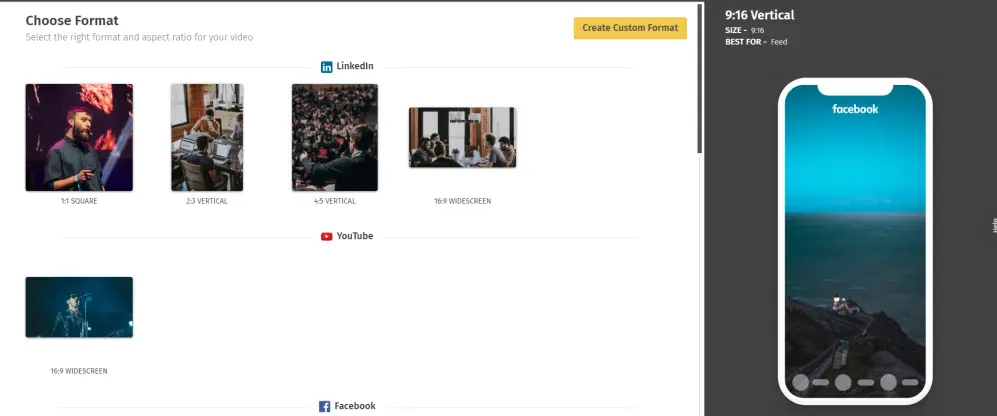
You will then be asked to choose the format of the video you are creating. I chose YouTube for my video.
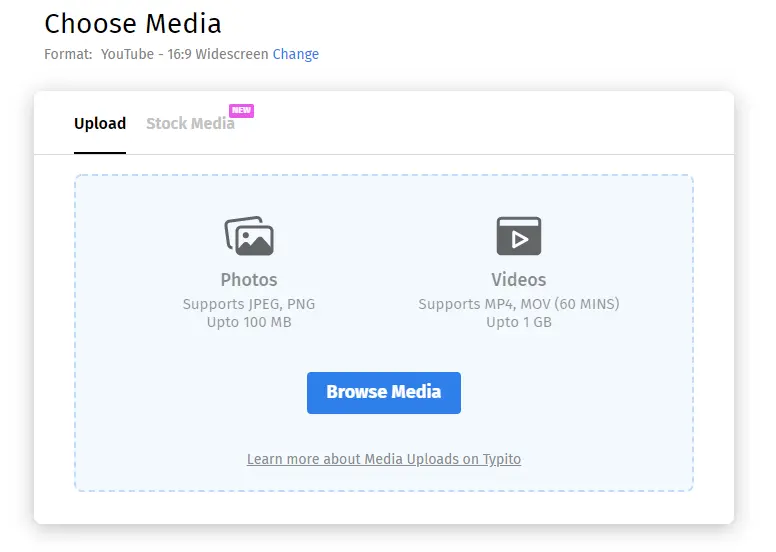
Next you need to select the media that you want to upload
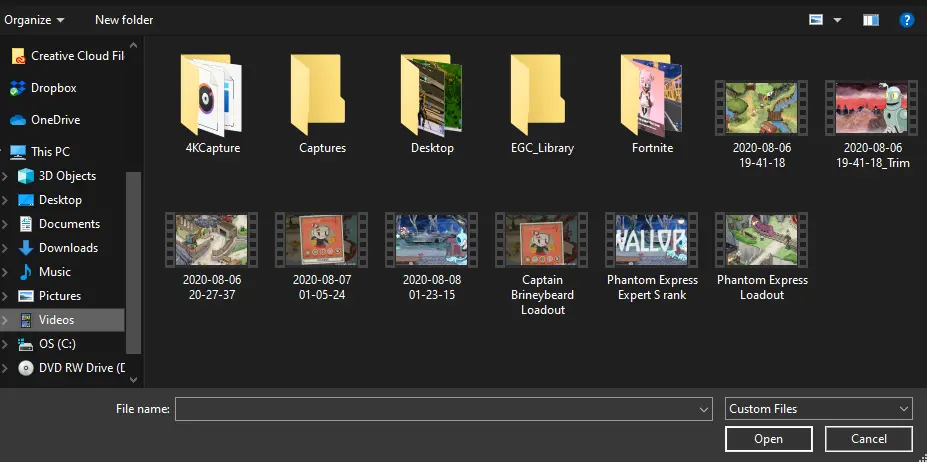
I am creating a tutorial video for Cuphead so I chose two Cuphead videos that I had saved on my PC
You will need to wait for the videos to be uploaded. The length of time you will need to wait will depend on the size of your video. My video was about three minutes in length and took seven or eight minutes to upload.
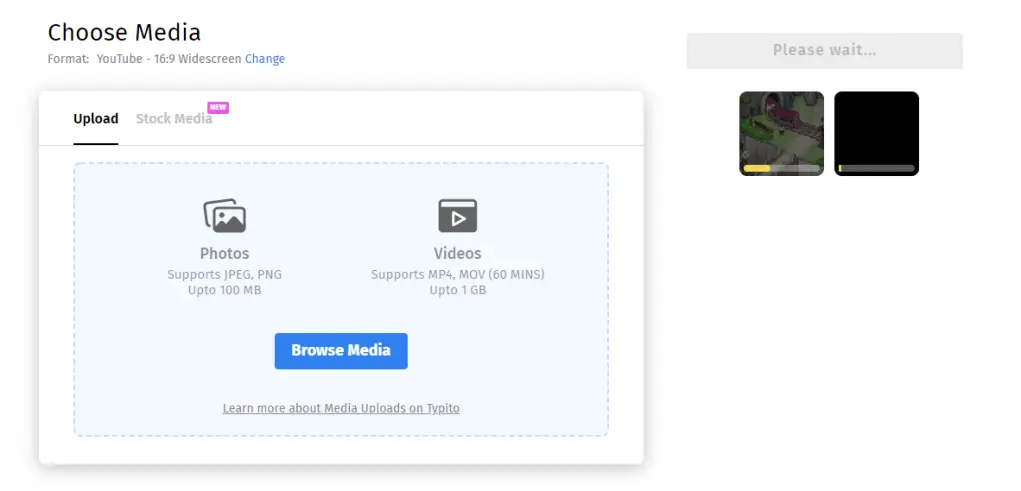
When your video finishes uploading select create project
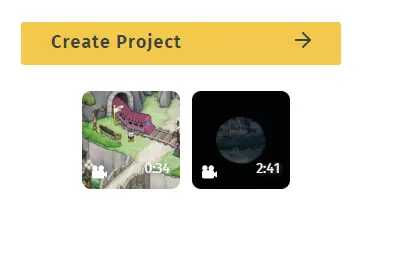
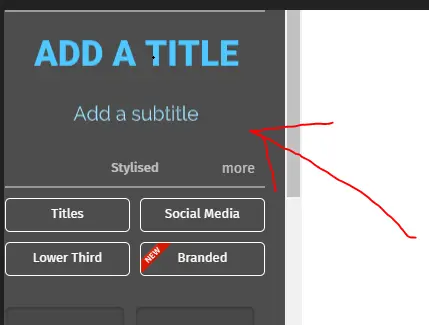
select add a title in the top left to add some text which will then appear on your video.
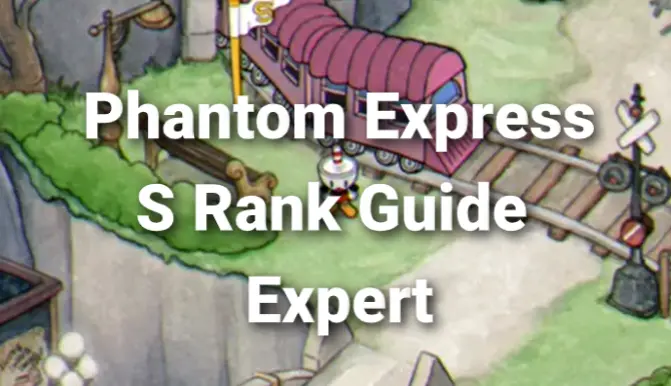
The length this text appears on your screen can be altered in the bottom left corner by extending the white line above the smaller version of the video.

When you are happy with your video you need to select export video in the top right.
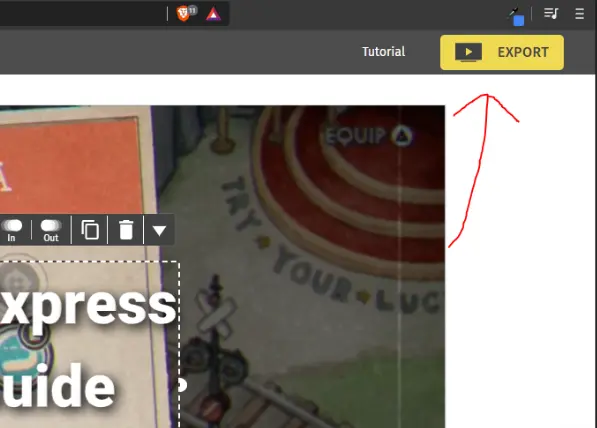
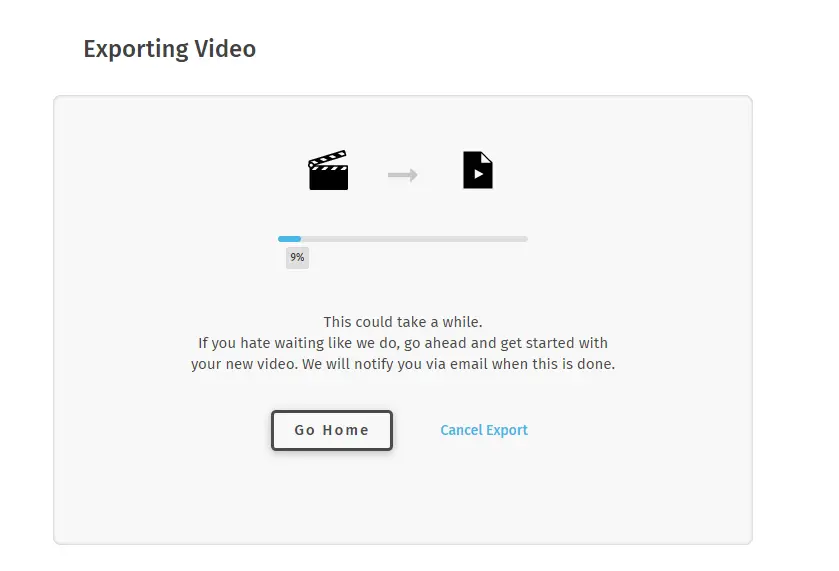
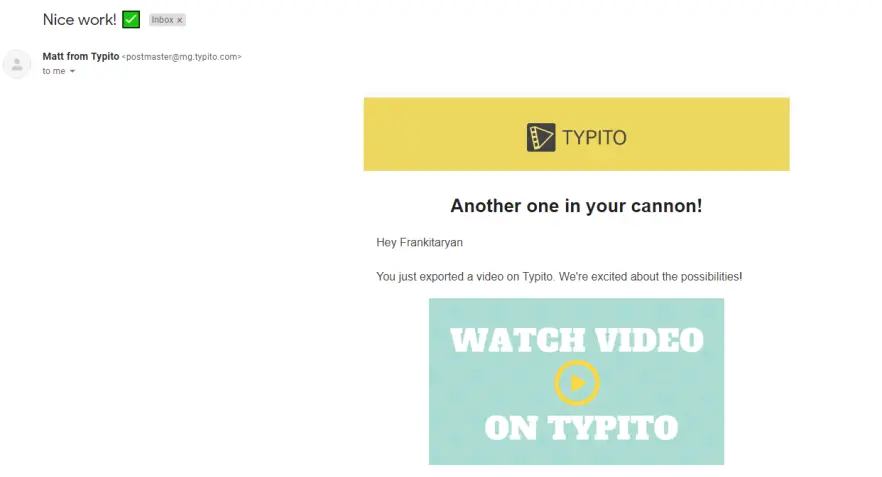
The video will then start exporting. This will take a while. For my video it took ten minutes. A good feature that Typito has is it allows the user to be notified by email when the video has finished exporting.
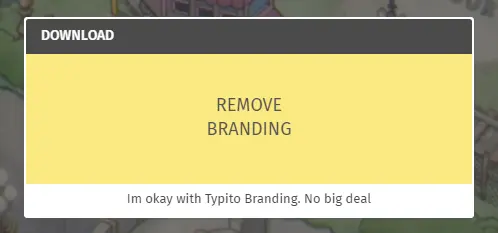
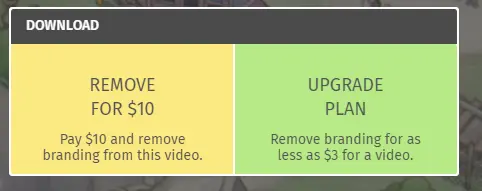
Typito will have their watermark on the top left of your video if you decide to use the free version. You can pay to have this removed but I chose not to.
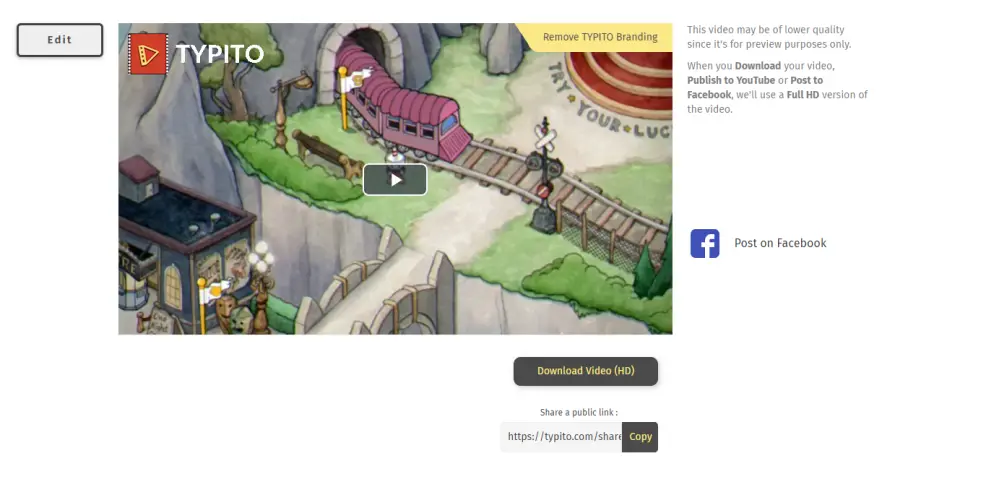
Here is my completed video if you are interested in checking it out
I hope this helped you out. Please follow me on Twitch https://www.twitch.tv/frankitaryan
Thanks for reading!!!!
Download the brave web browser for no ads and speeds up to 3x faster than google chrome here:
Follow us on publish0x for more articles
https://www.publish0x.com/@Frank12
Follow our affiliate for software reviews and more information on Brave






