
Hi friends!
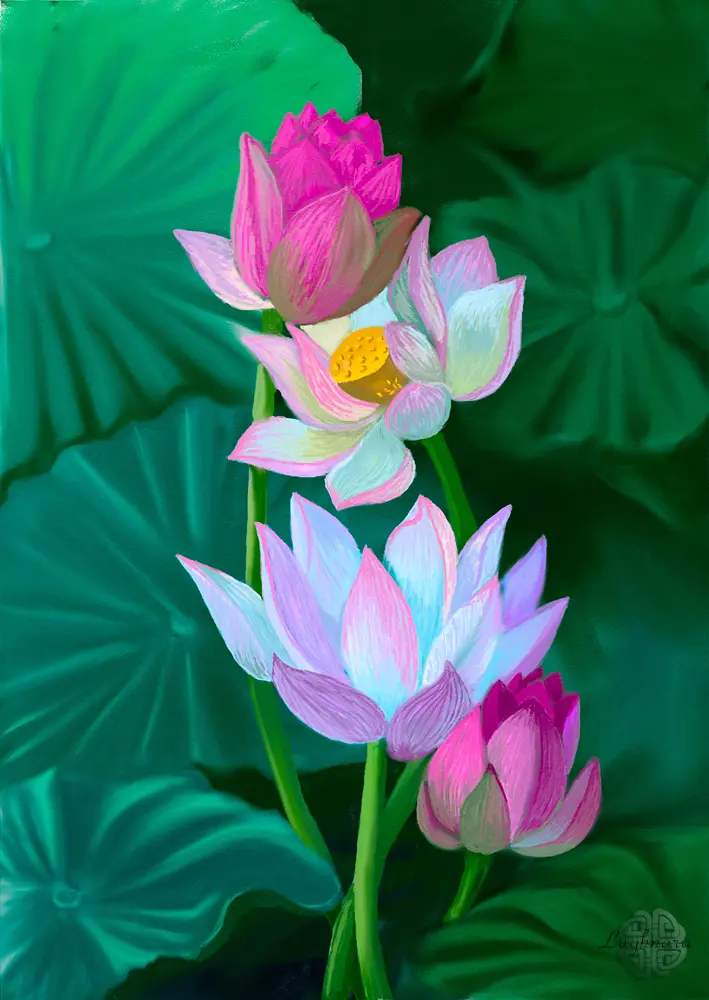
Last November I maded a gift for myself on birthday - new digital painting programm named Realistic Paint Studio.

It's wonderful soft!
The interface is made like a normal artist's desktop, on which there is a tablet with a canvas and tools.
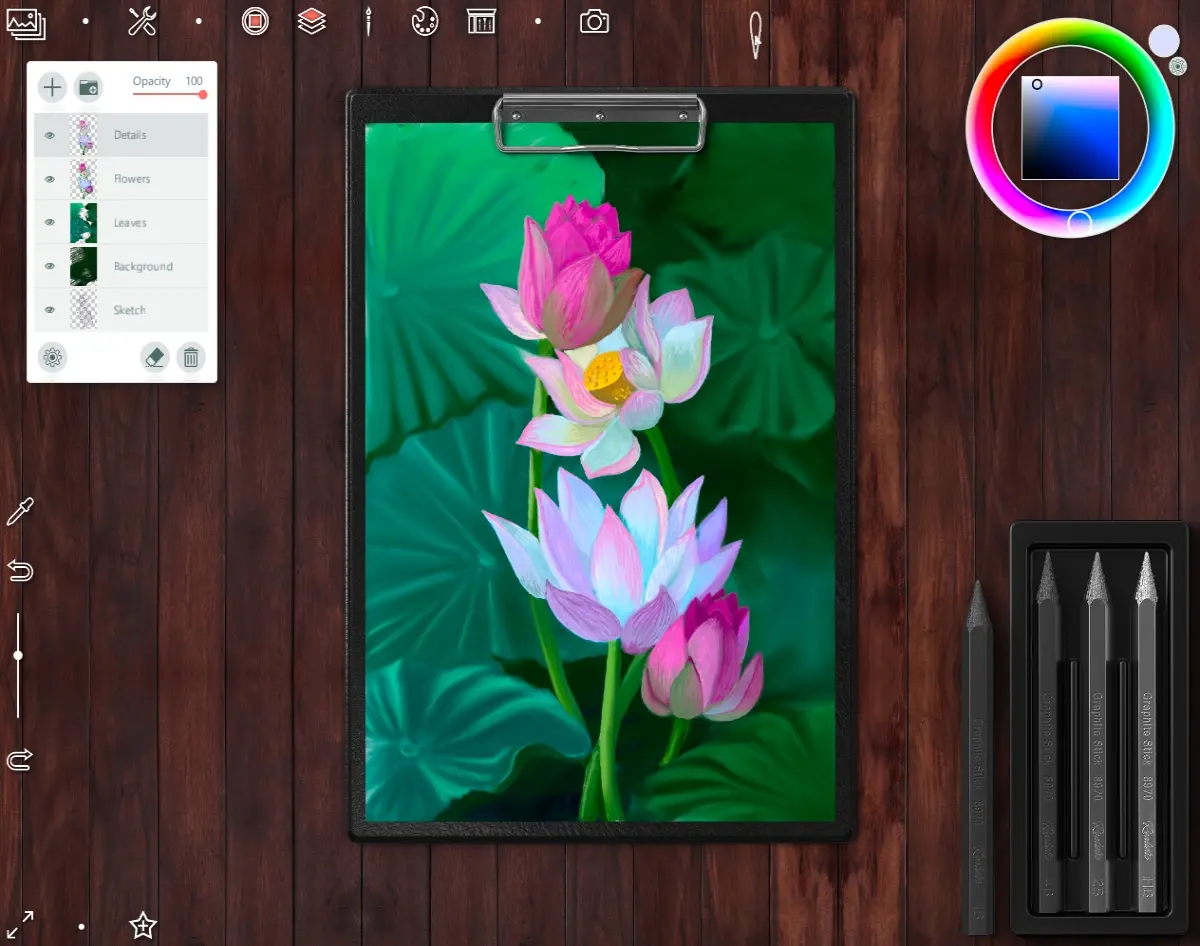
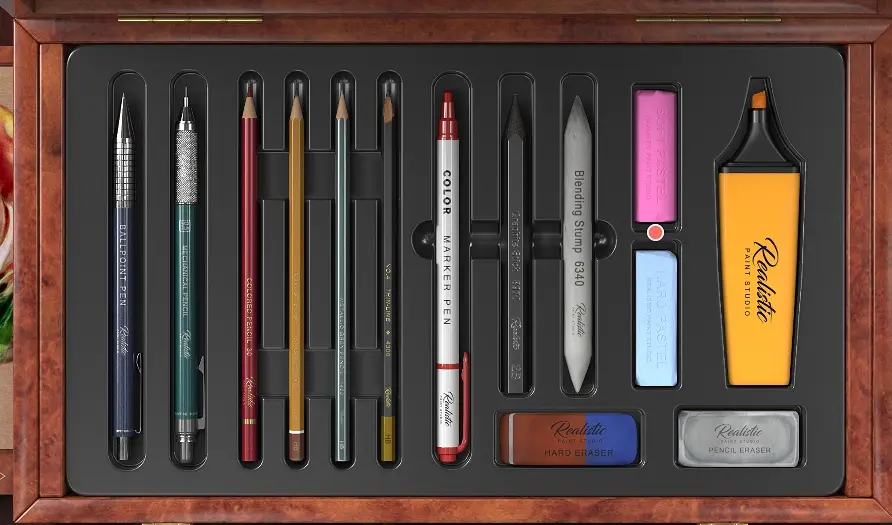
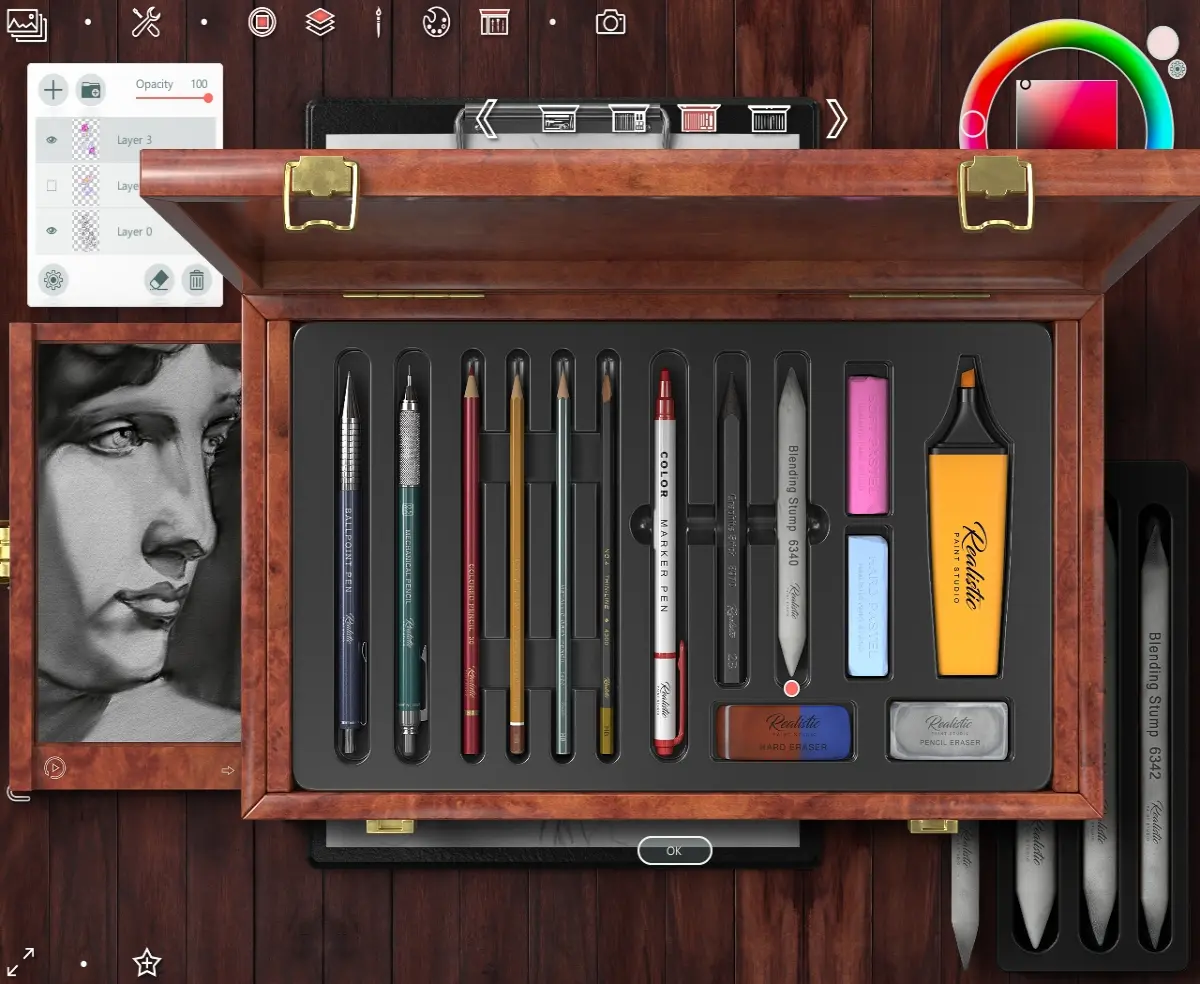
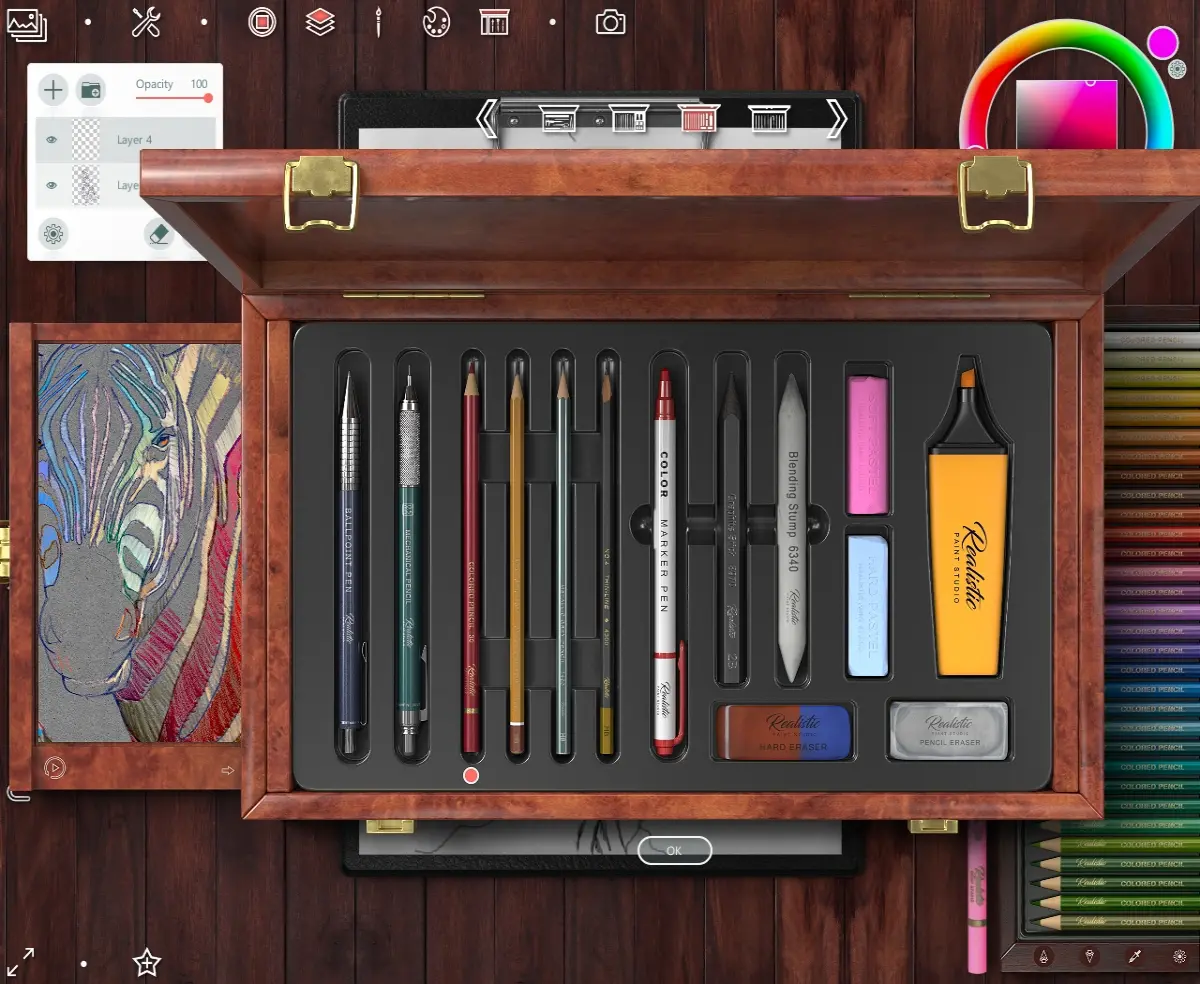
All art materials are grouped by type - for example, for sketching pencils, markers, ballpoint pens, erasers...
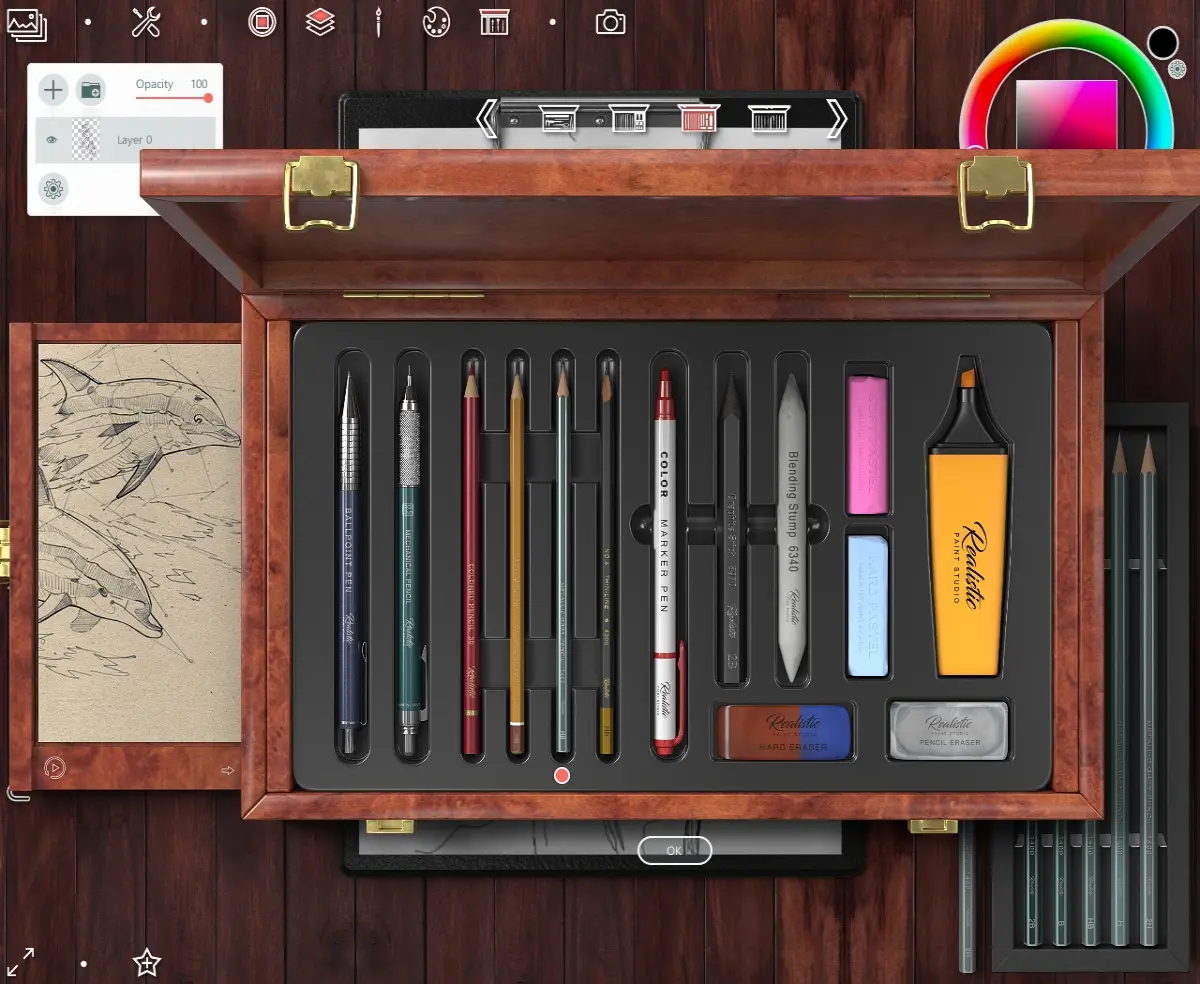
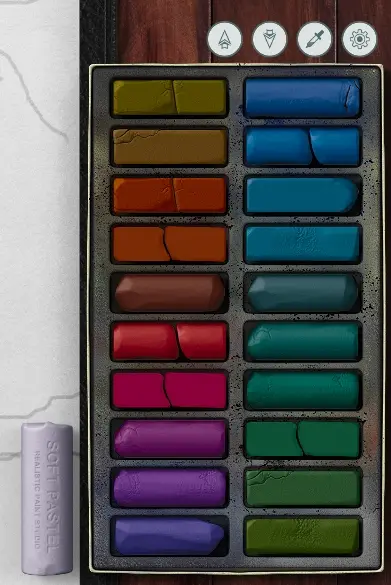
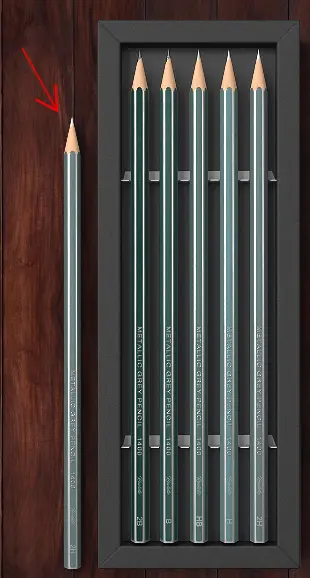
When you select a specific tool, a whole set with a rich palette of colors opens.
Today I want to meet you with this programm and show how I drew my new art (main screen).
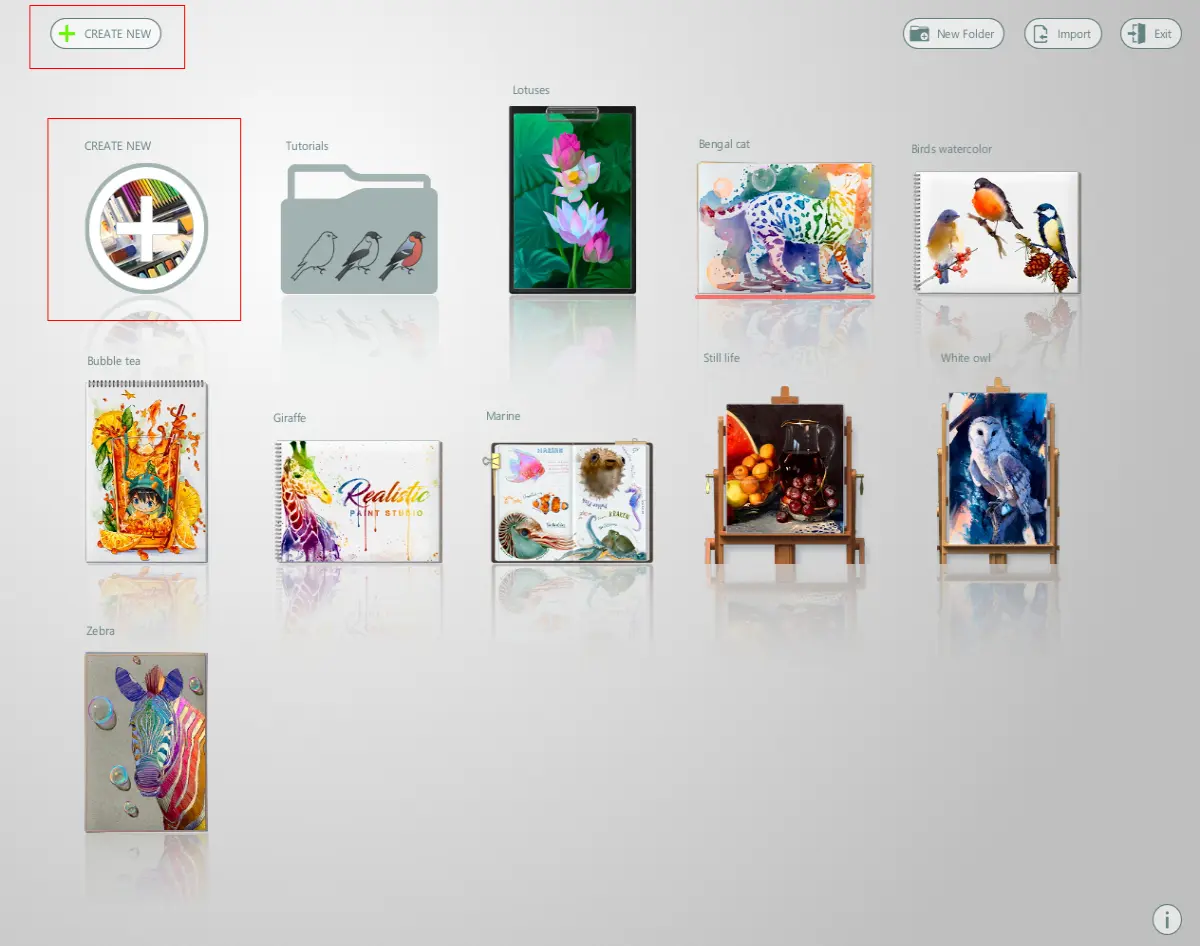
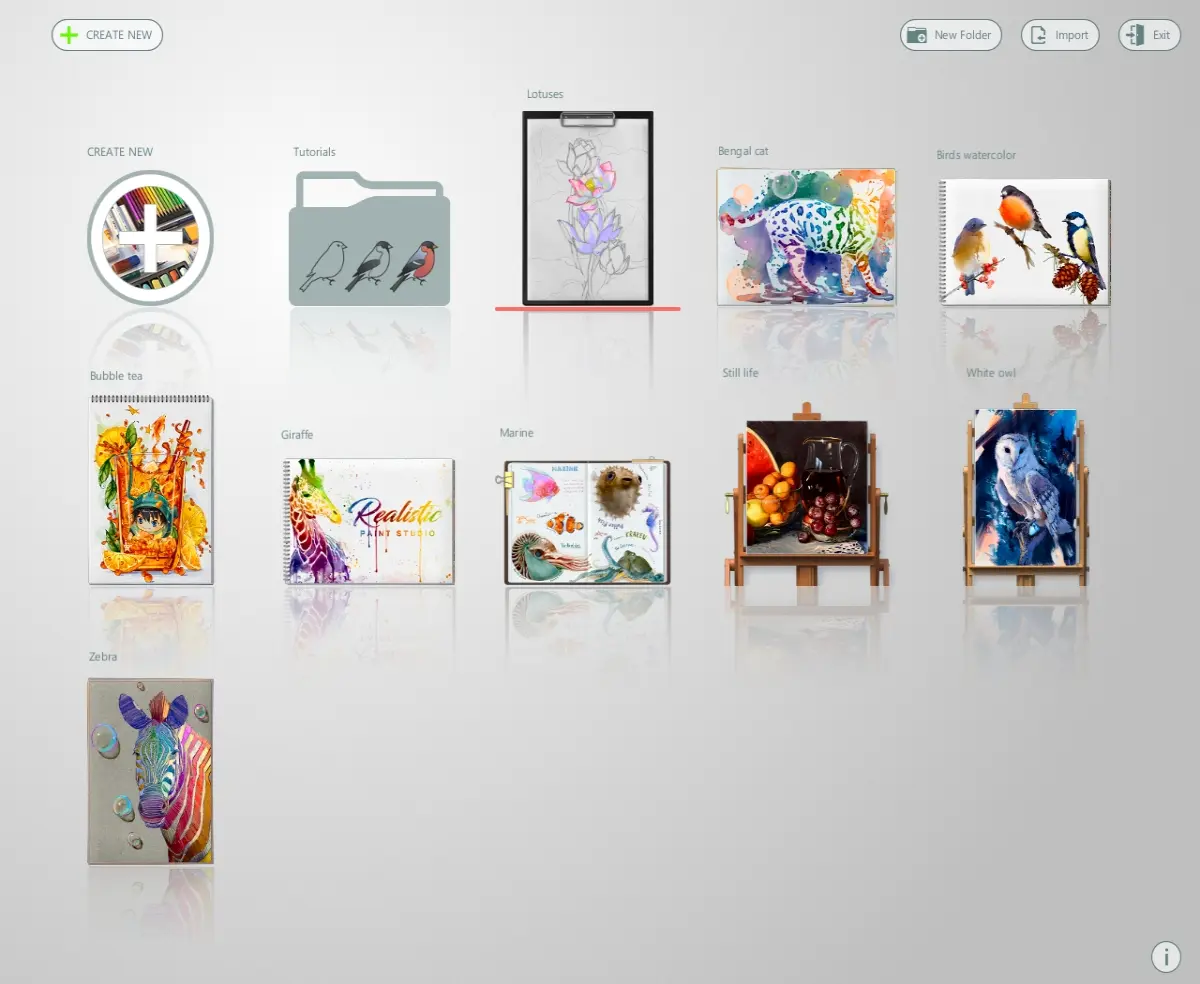
When I lunch a Realistic Paint Studio, I see open window with all projects.
You can create a new art (two variants, see icons with red square frames) or open previous.
There is also a folder with several lessons - for a better acquaintance with the capabilities of the program.
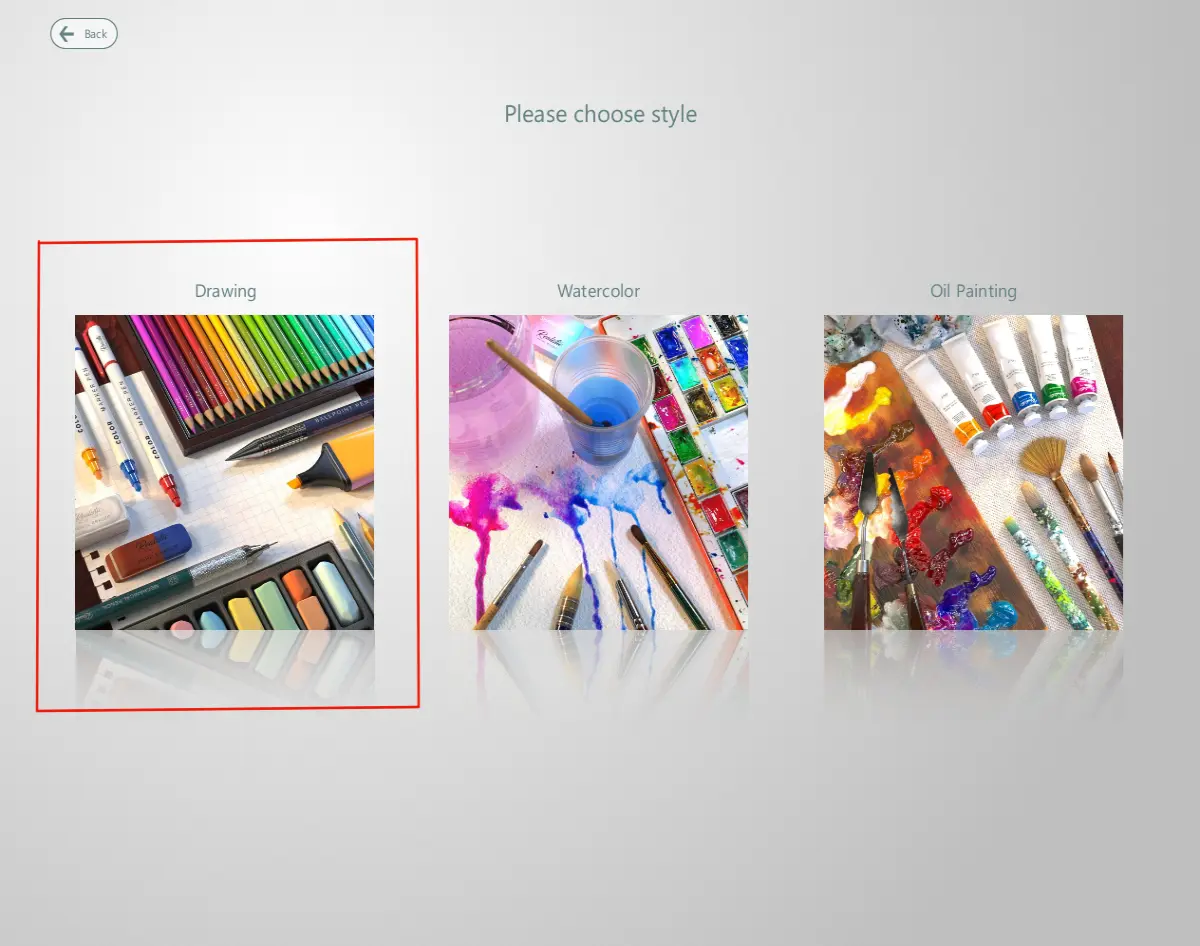
So, I create a new project and see next window, when can choose a painting style.
I choose "Drawing".
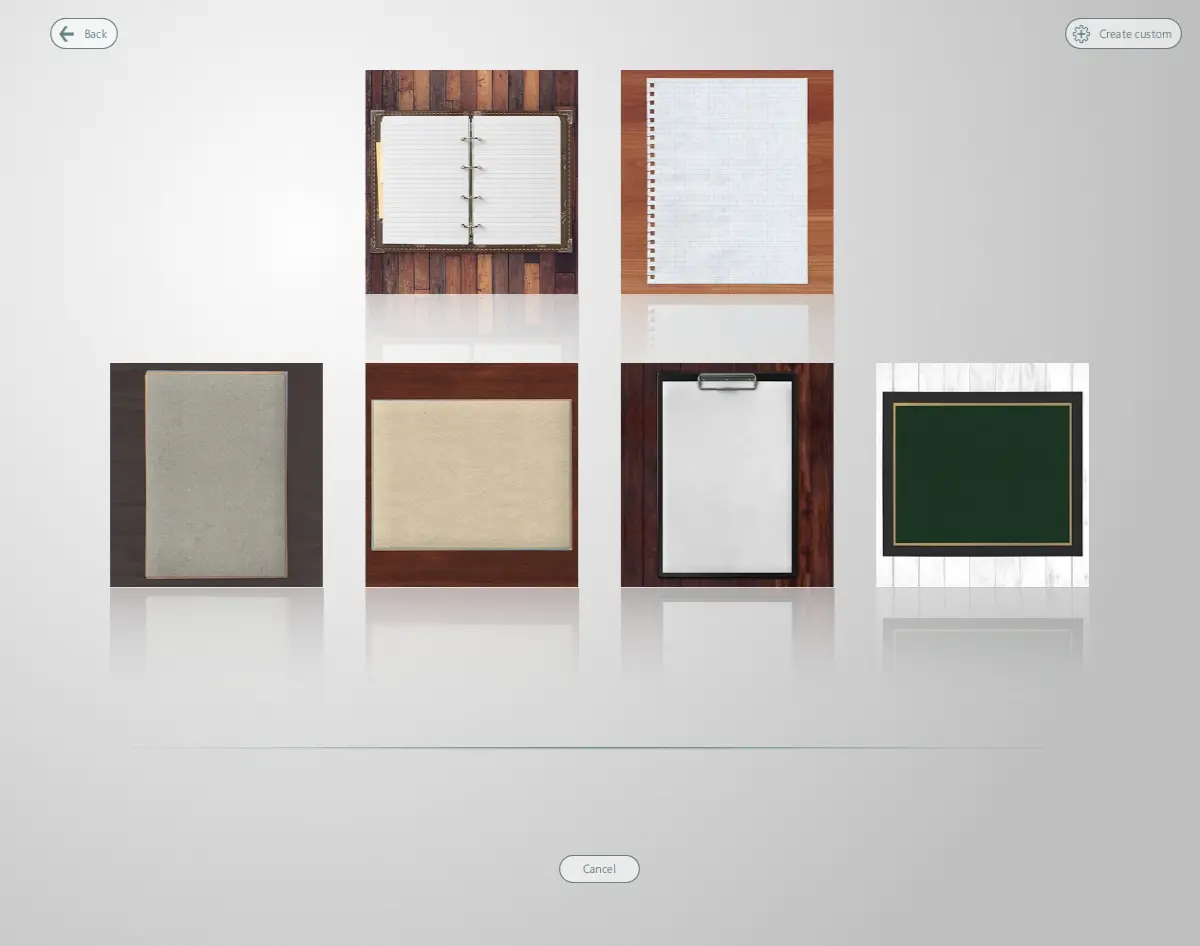
Then I need choose a kind of canvas
Here you can choose other color for canvas - with arrows at the bottom
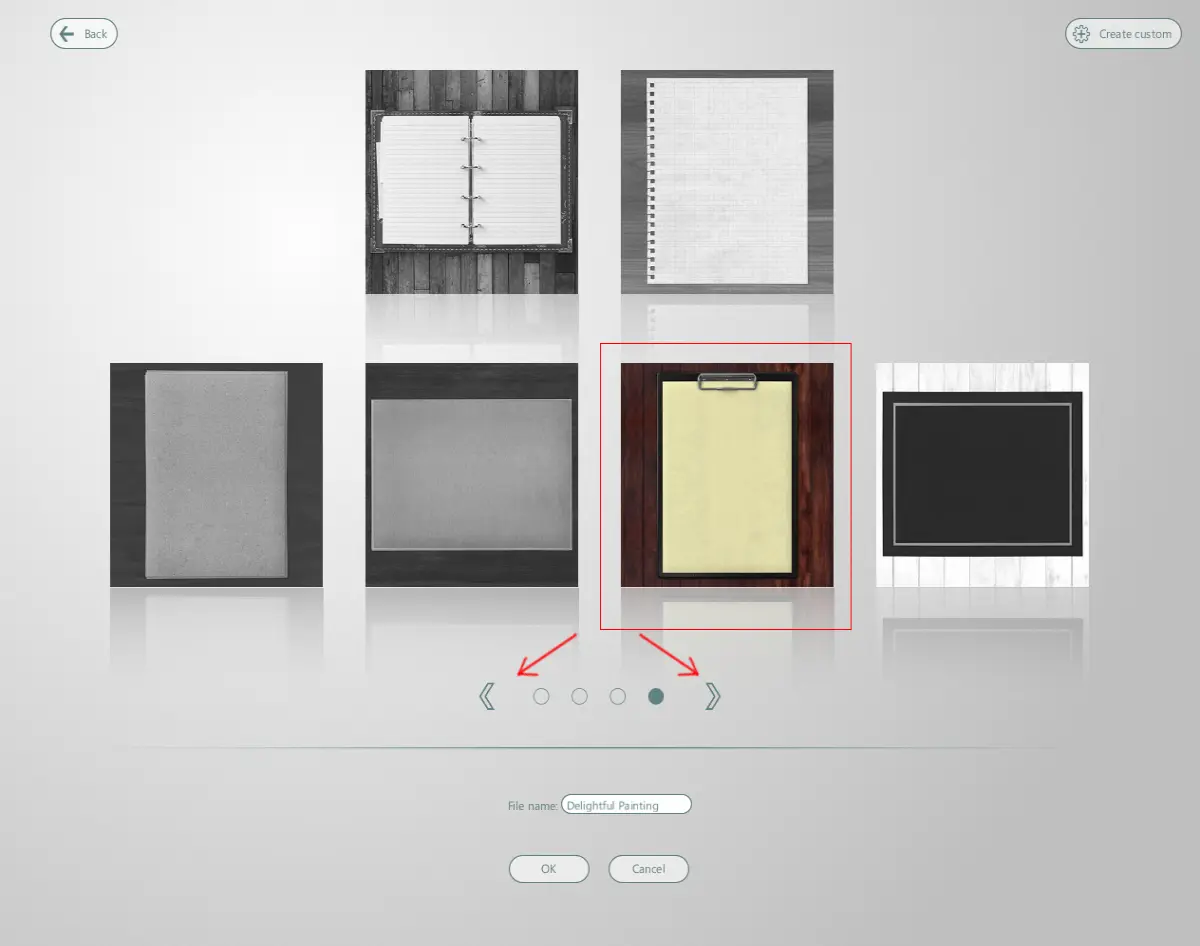
I choose usual white canvas
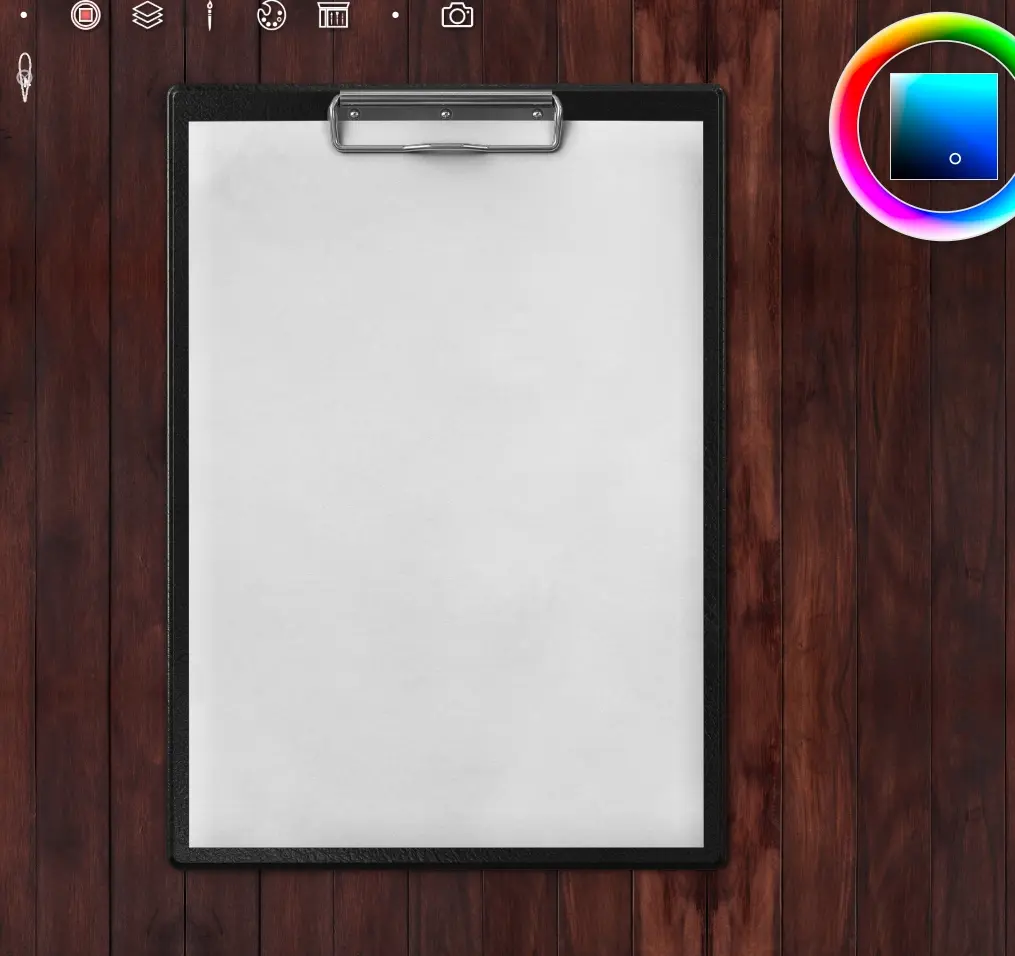
and slate pencil for sketches (marked with a red circle)
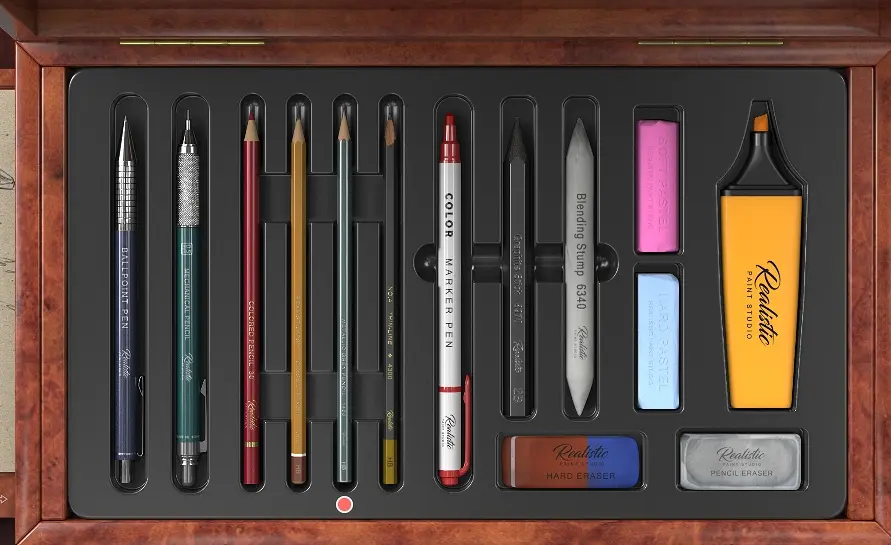
To open tool box you need select an icon on the top
or touch a tool out the box set
So... I find a beautiful photo of lotuses I'll draw and making a sketch
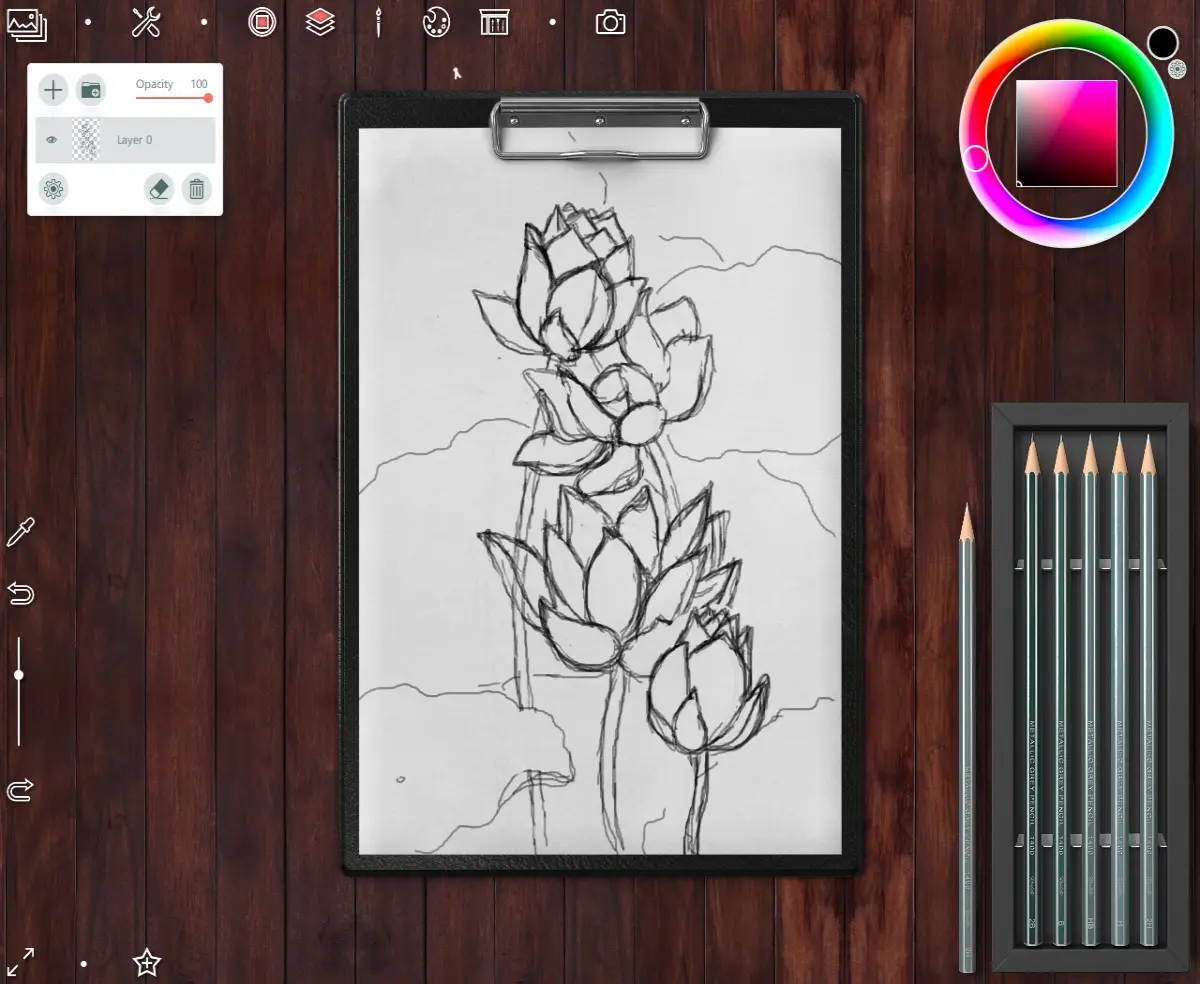
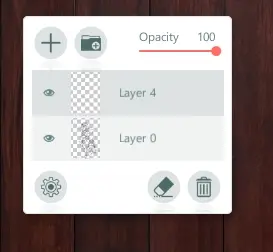
Then I create a new layer to add color on drawing
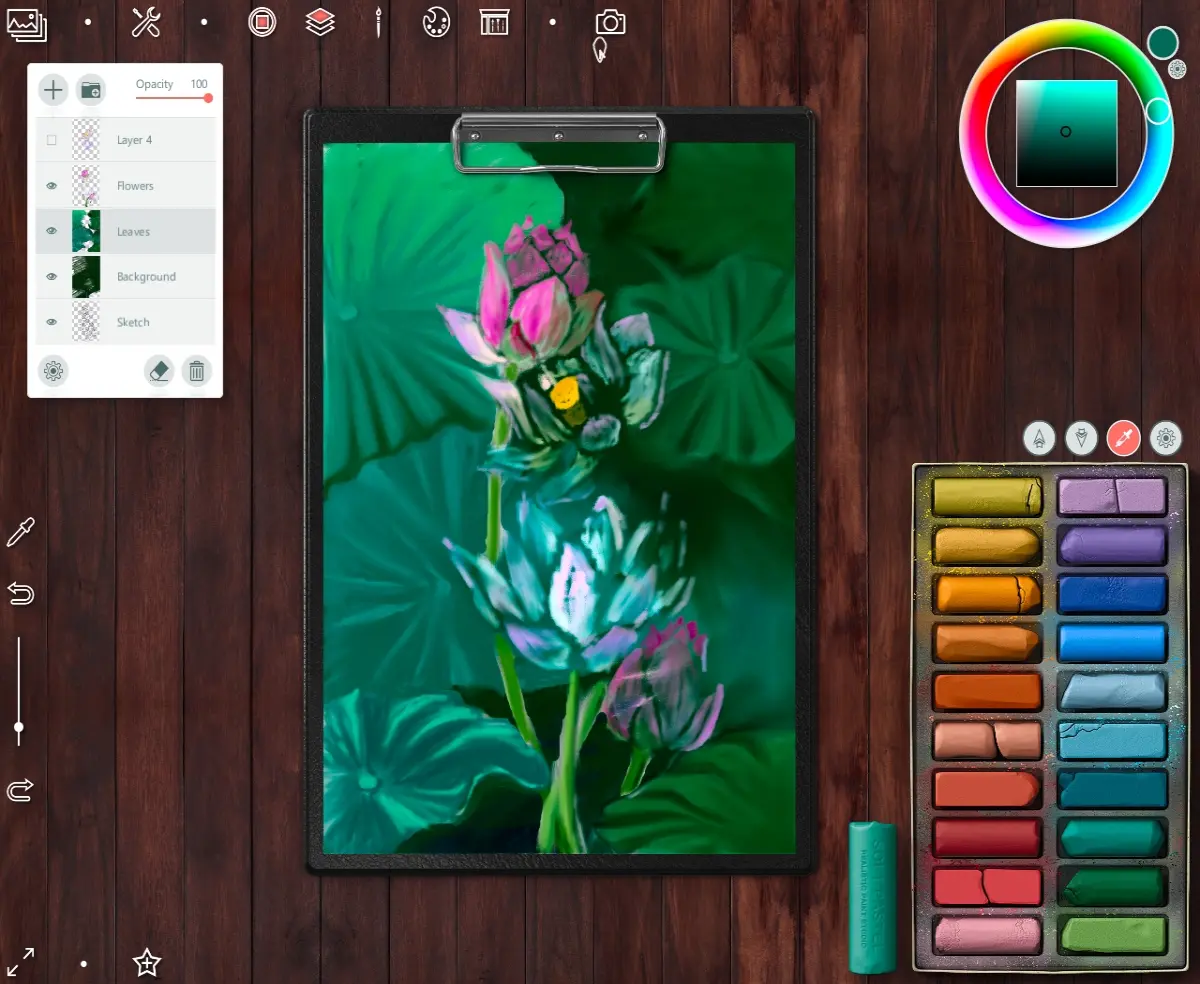
For painting I choose a set of soft pastel
With two buttons you can choose another color set
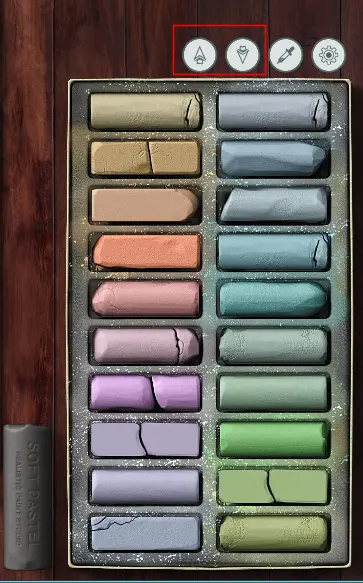
Painting looking on colors in reference
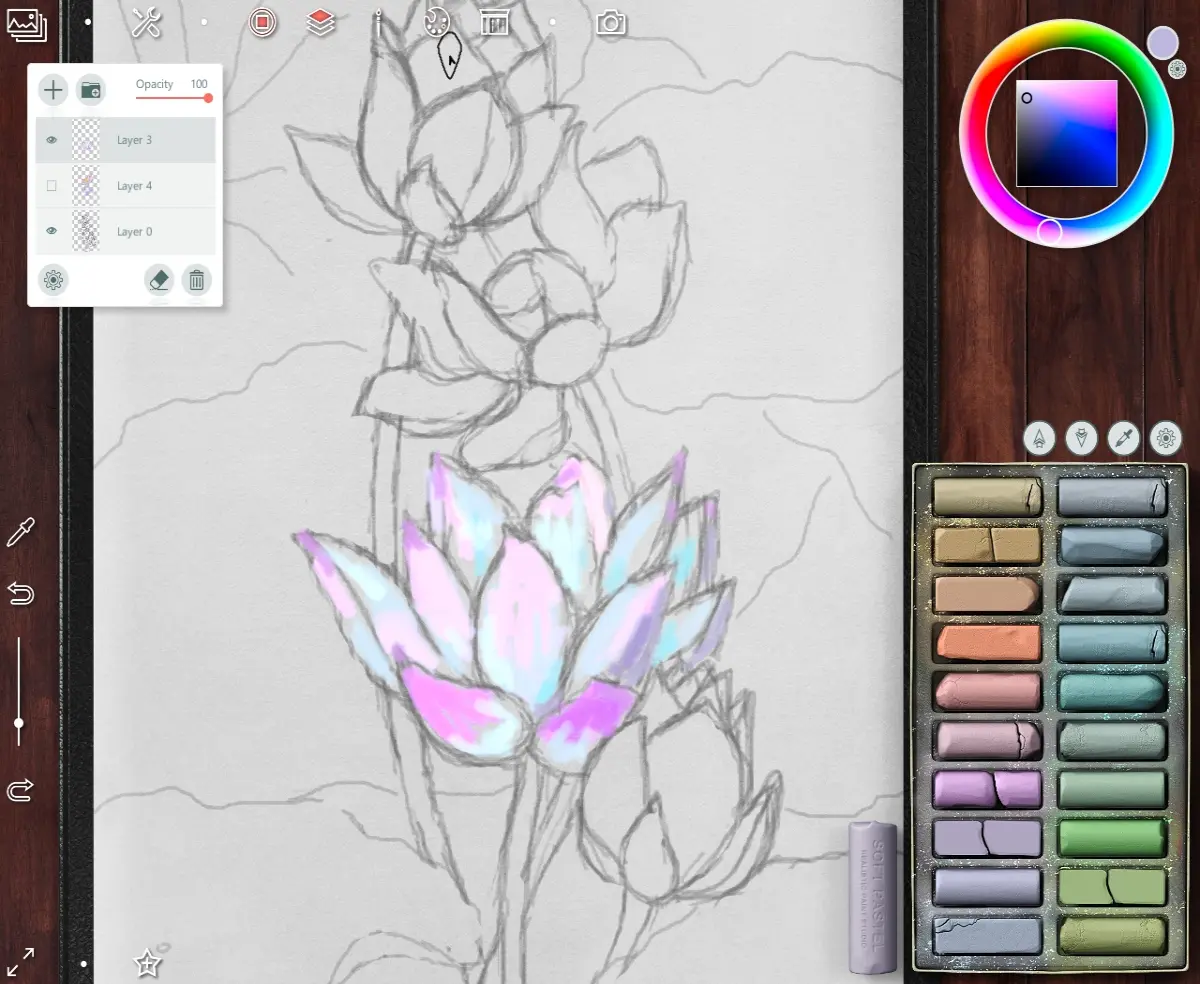
So you can choose a color of tool with color palette circle (as in Photoshop or Corel Painter) in top right angle.
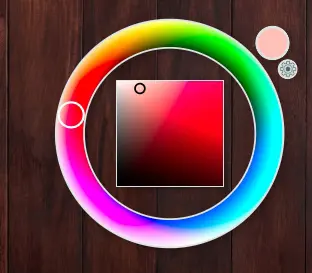
Or use Eyedropper (with ALT button on keyboard)
This is what the preliminary painting of flowers looks like.
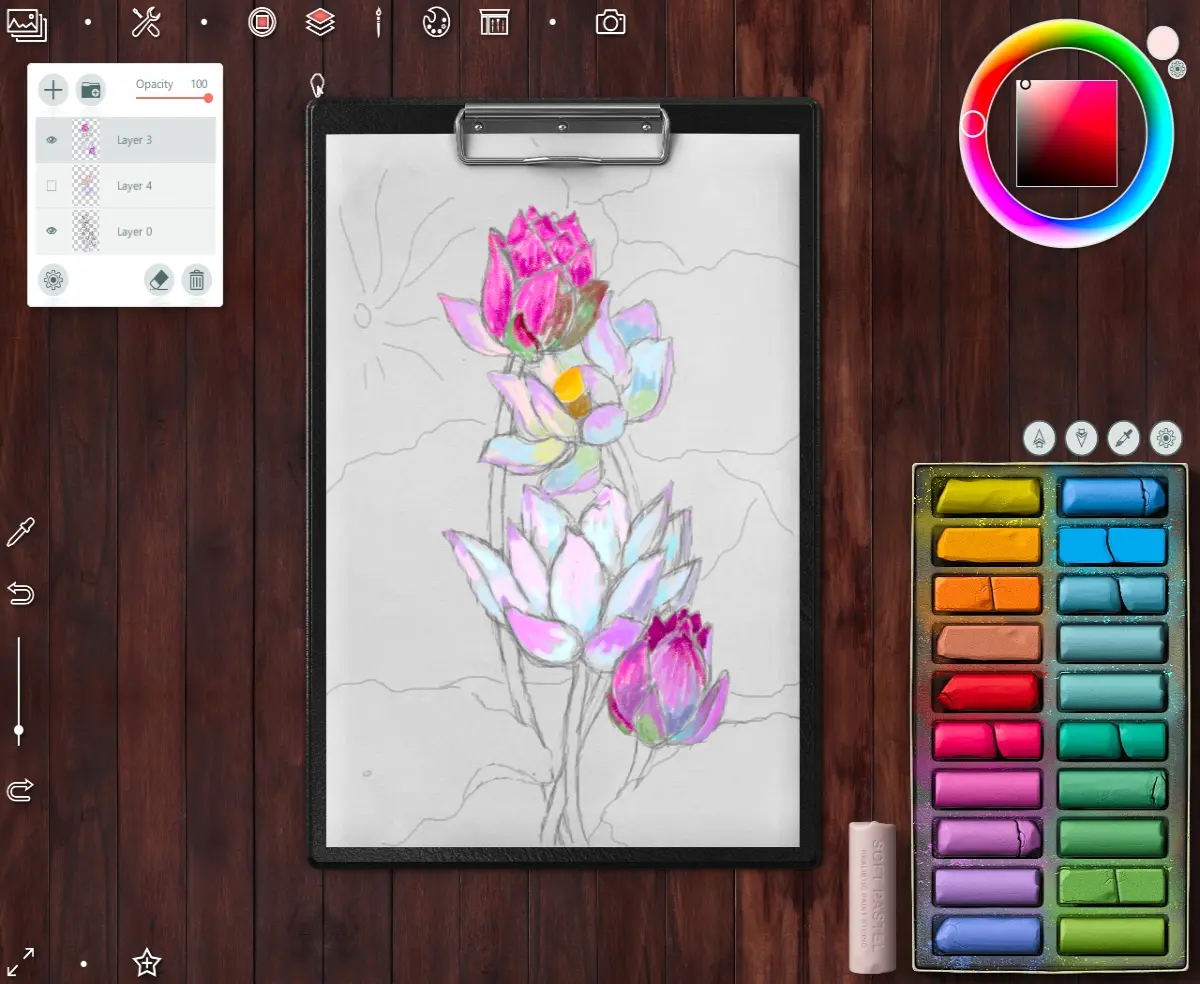
Then I add two new layer below the flowers - for the leaves and base background.
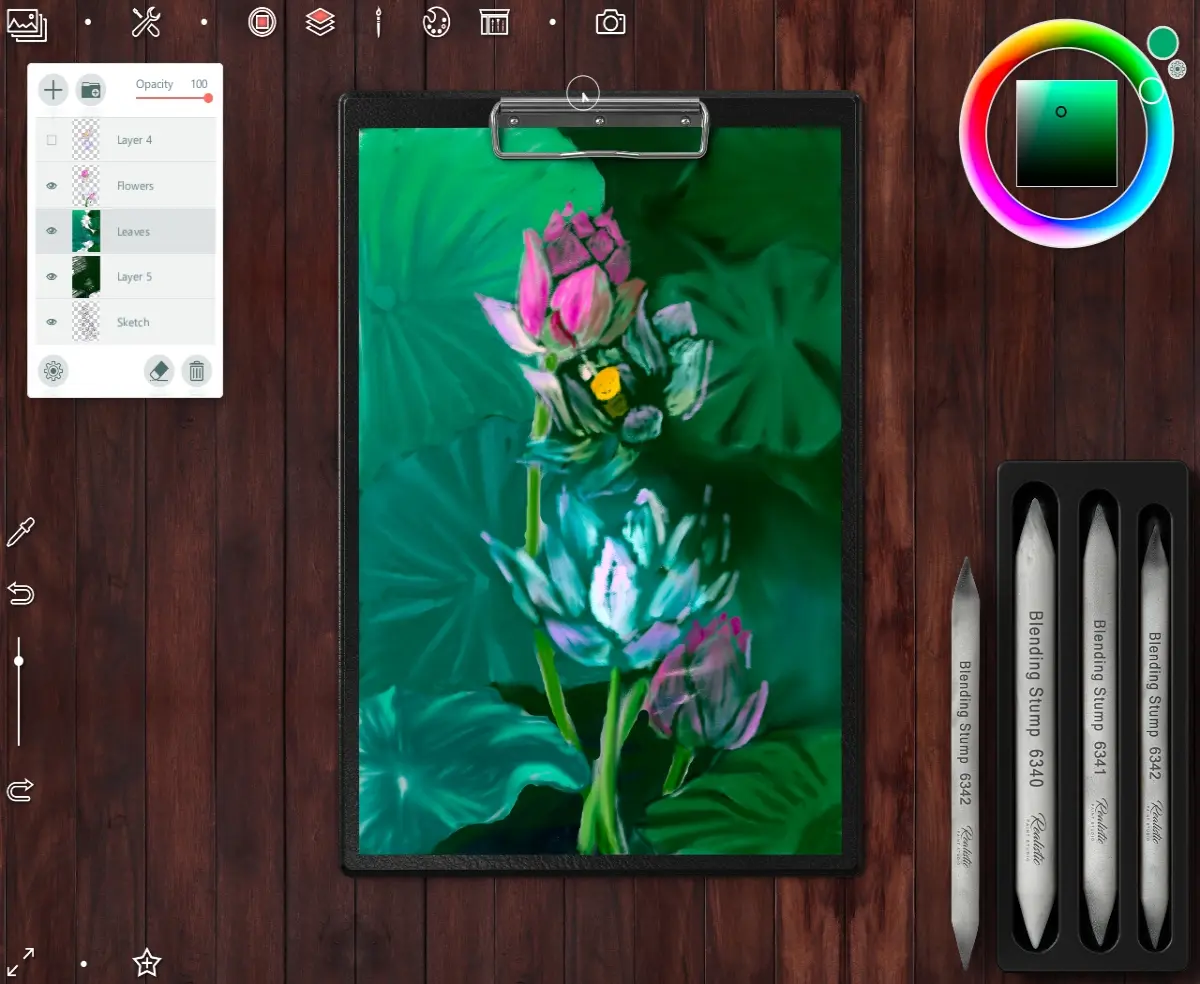
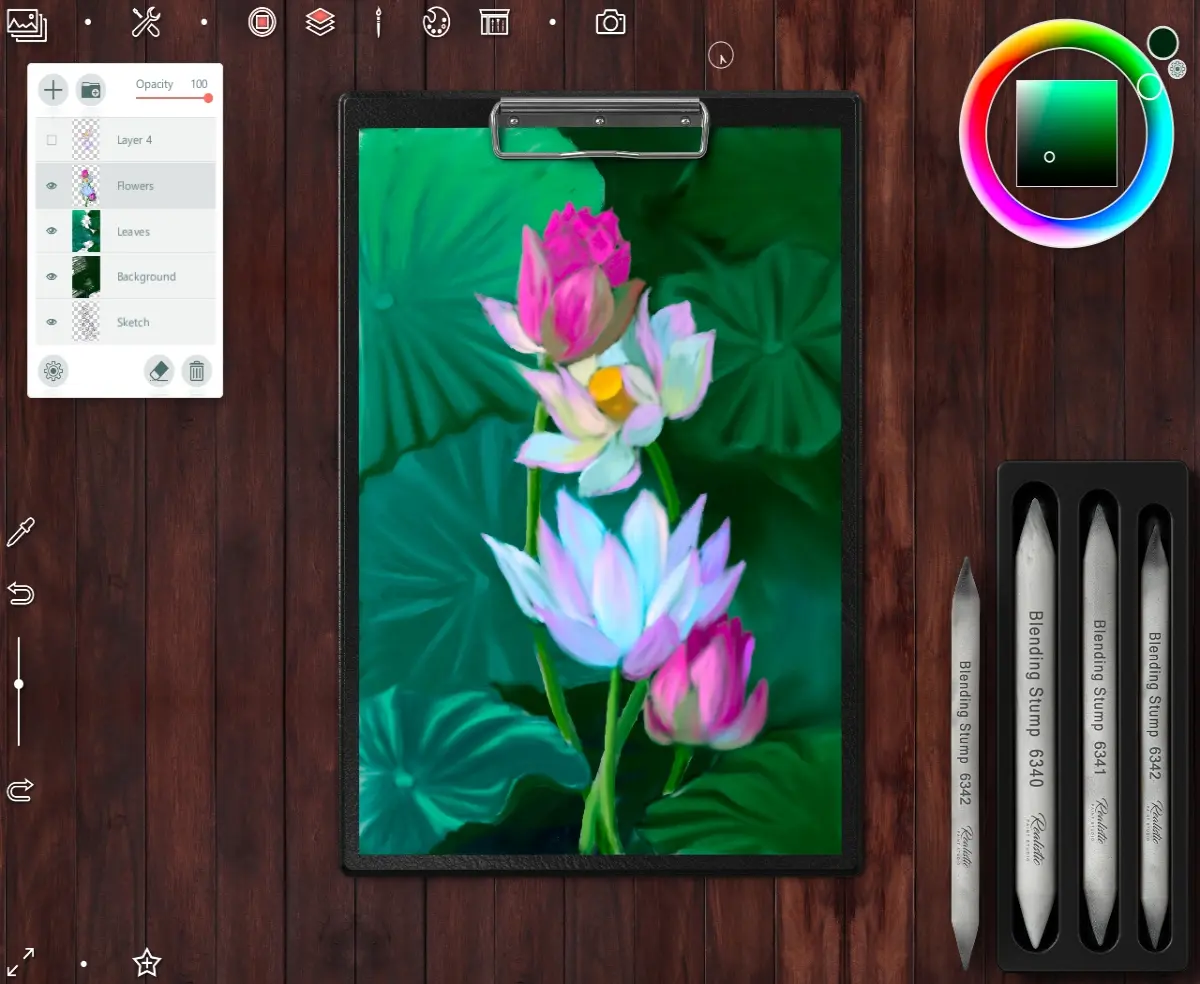
In this step I use a Shading set tools to make a leaves more blurring
Background is ready
So I choose a soft Pastel set again to continue drawing flowers
Then I blur the hard strokes with Shading set tools too.
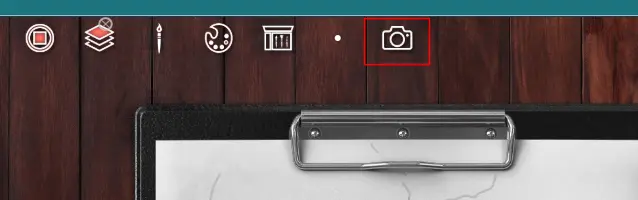
Note - at any time, if you need to leave drawing, you can save the project by clicking on this button in the upper left corner
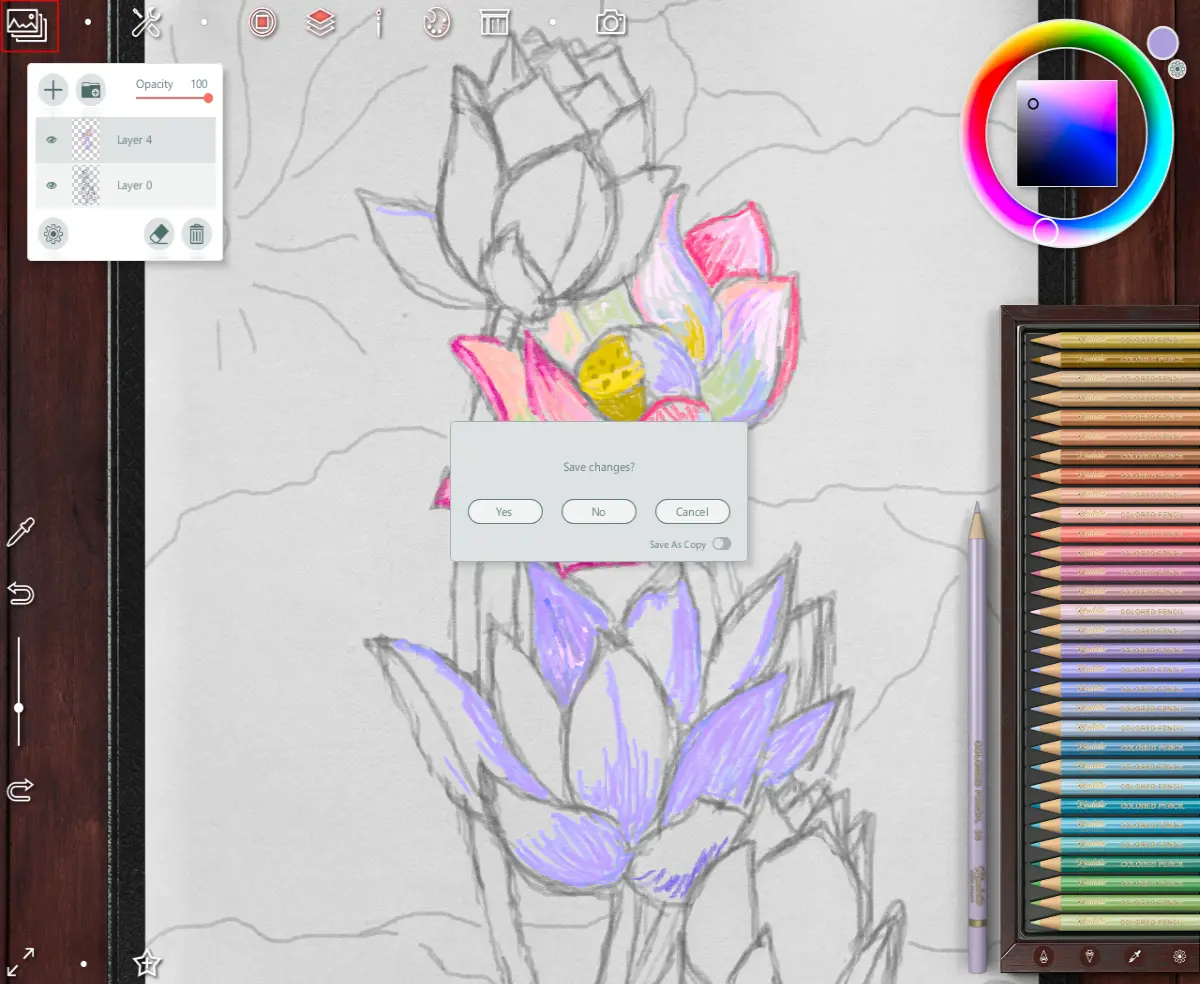
and so you can open the project in that step where you stopped last time
So, for make a details I choose a Color Pensil set
And drawing with them on new top layer
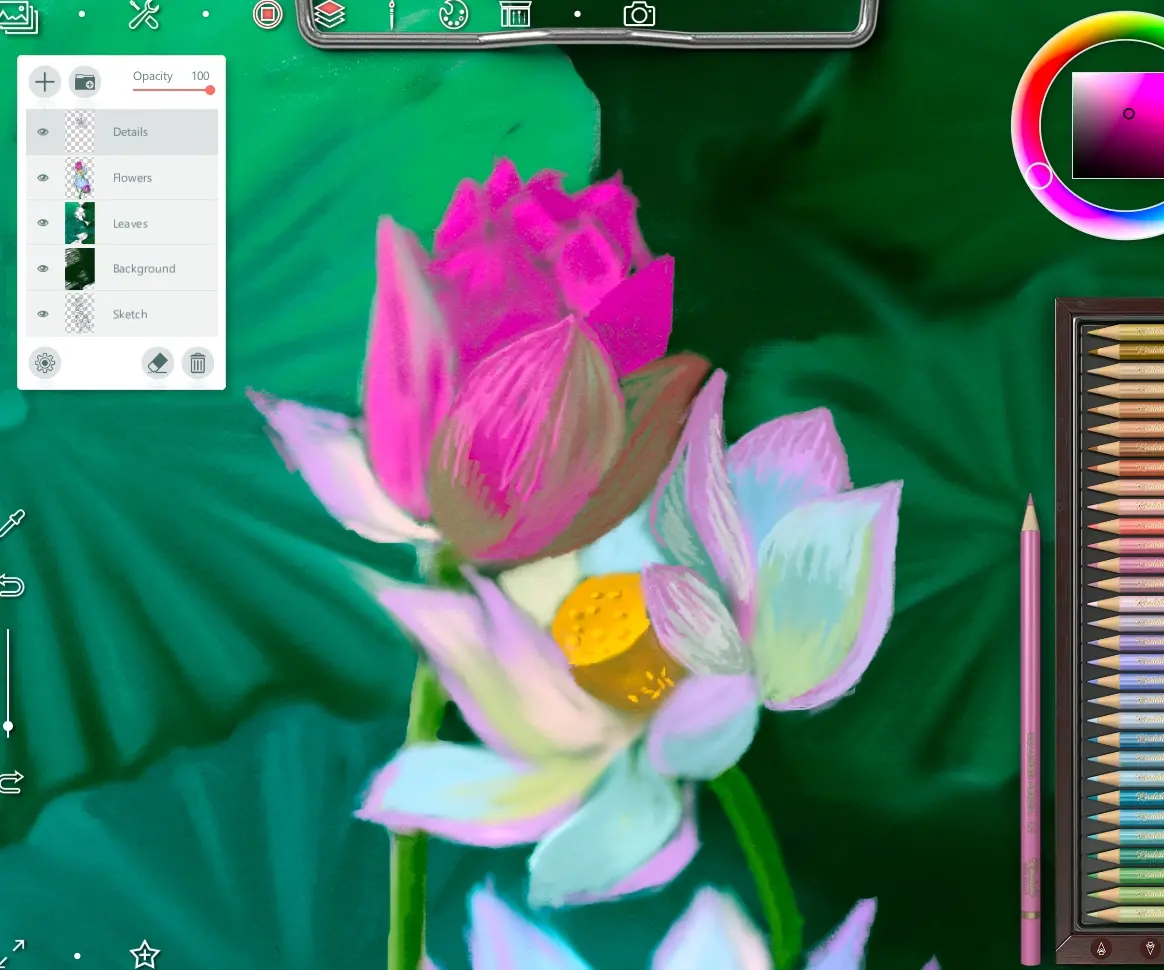
The ready art
And that's not all!
The program provides the ability to save a drawing, export it to .jpg or .png format...
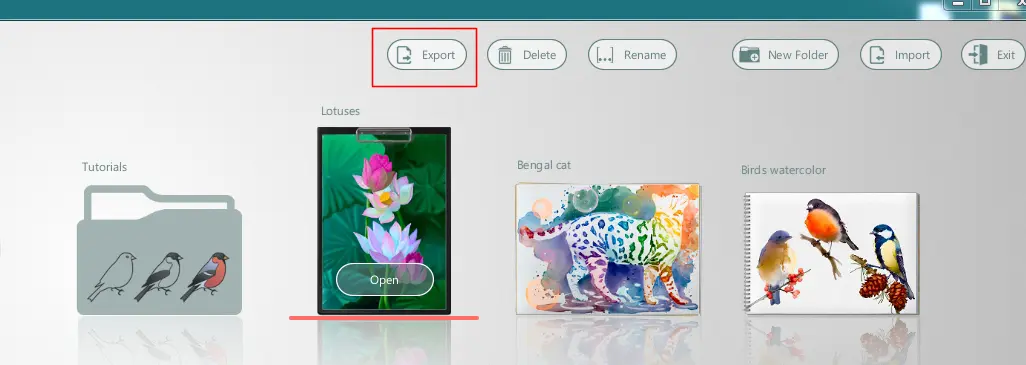
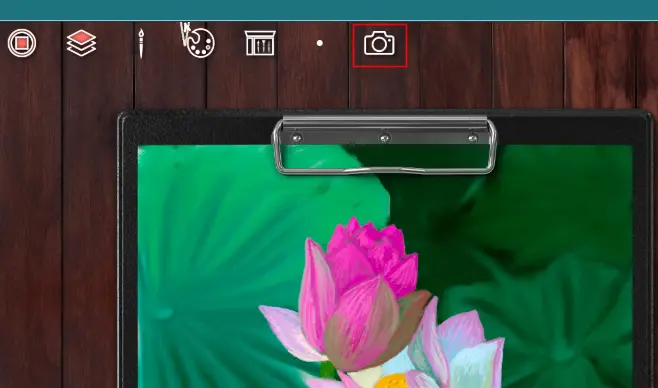
or create a spectacular presentation (by clicking on top middle button)
...and keep your work that way
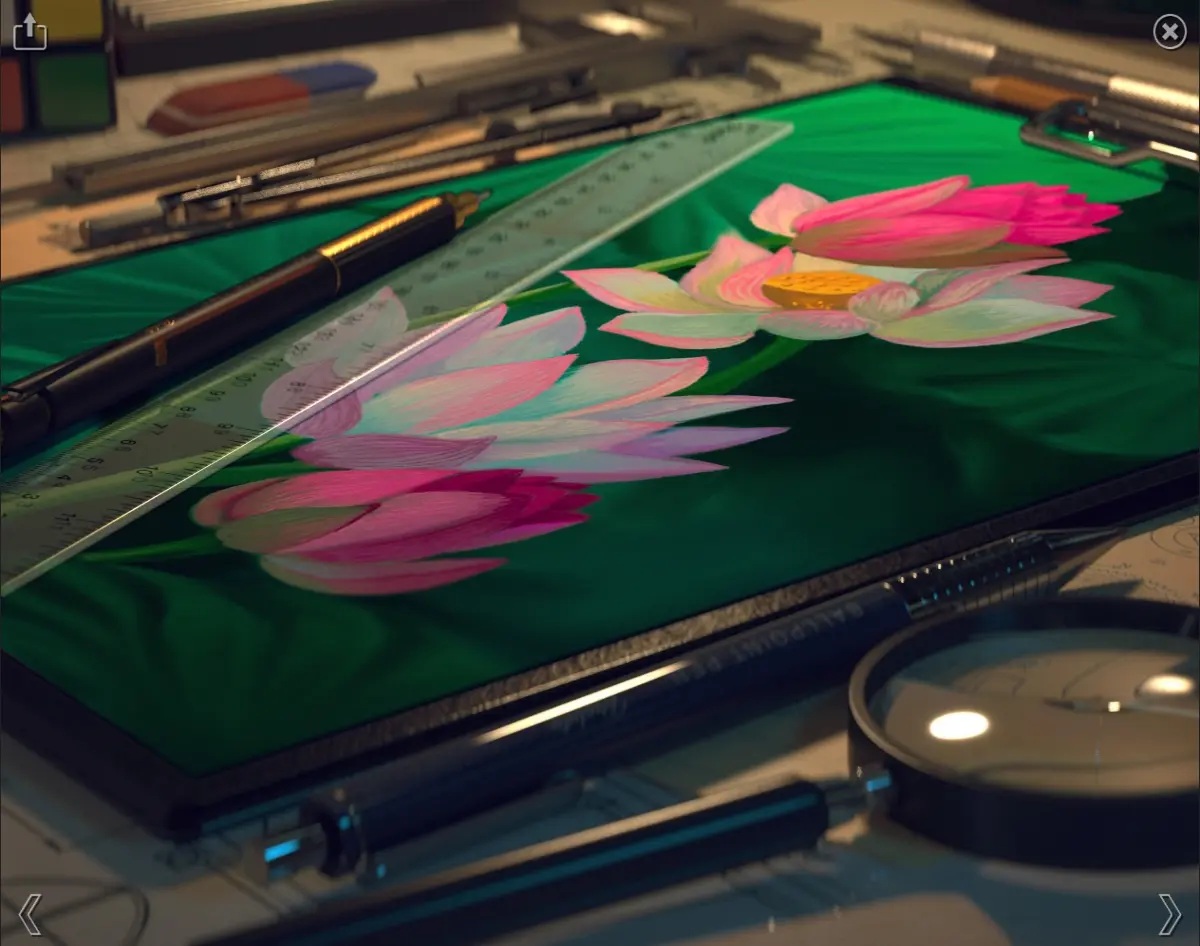
or that
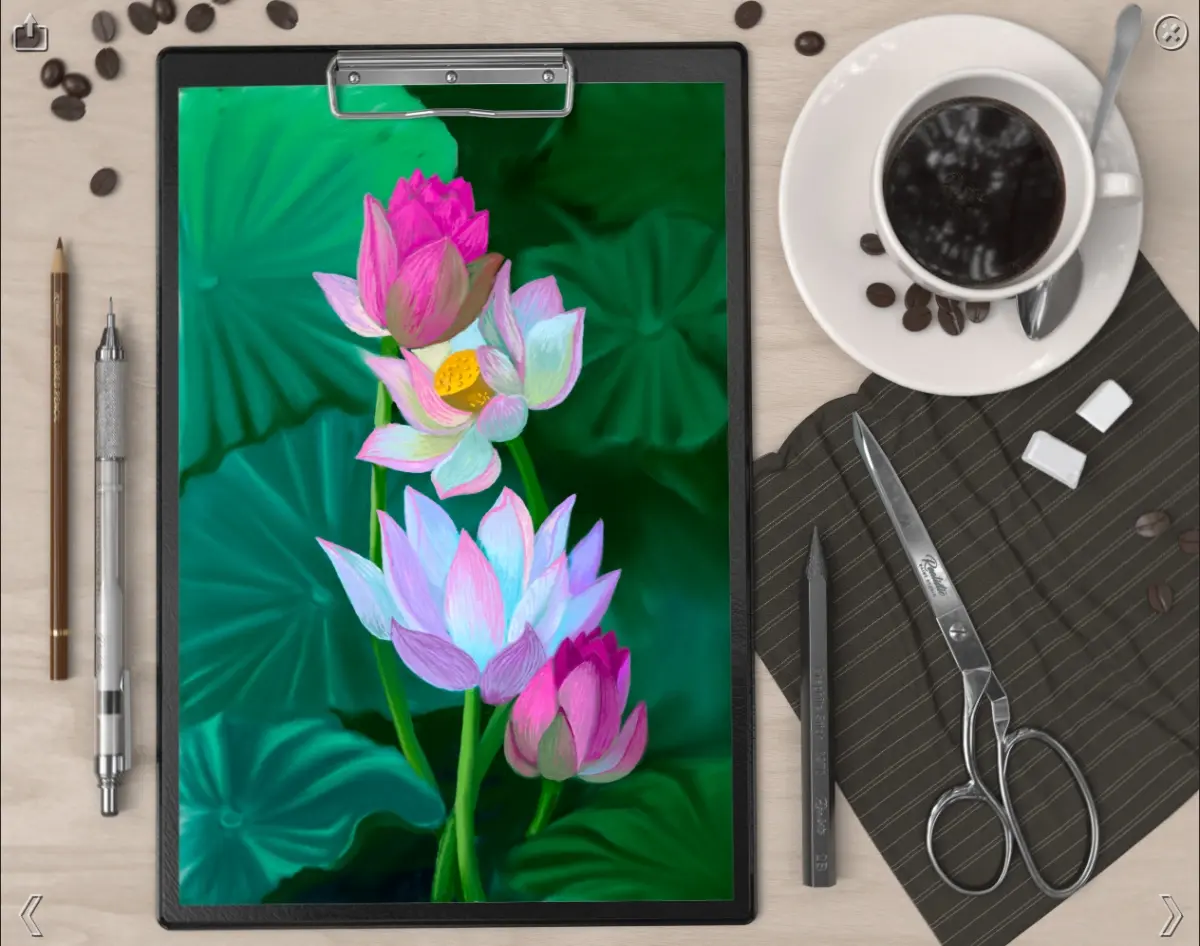
Do you like this viwes of art?
So, I hope you'll like my tutorial and this programm.
If someone wants to buy it (or installa trial version), it's here
Have a nice and creative day!
Regards
Gera
Cross-post from my blogs on Hive, Whaleshares and translate from Golos







