
The Brave Wallet is a cryptocurrency wallet built directly into the user first, ad blocking, privacy focused Brave browser.
While using the Brave Wallet, you may encounter a supported token that does not readily appear as a visible asset choice. In this situation, you have the option to add it manually as a custom asset. Once this is done you'll be able to easily track the asset within your wallet.
Adding custom assets isn't hard once you've seen it demonstrated. Below is an example of how to add Immutable (DARA) to your wallet:
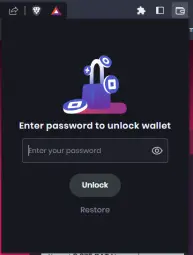
1. First open/unlock your wallet.
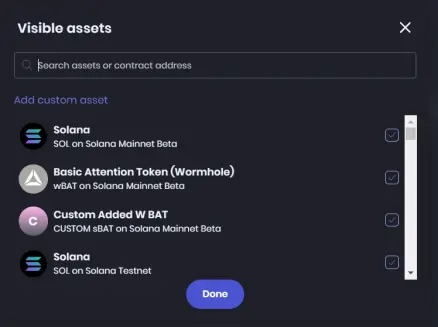
2. In your wallet Portfolio Dashboard, go down to the bottom left and click the "Visible assets" button. 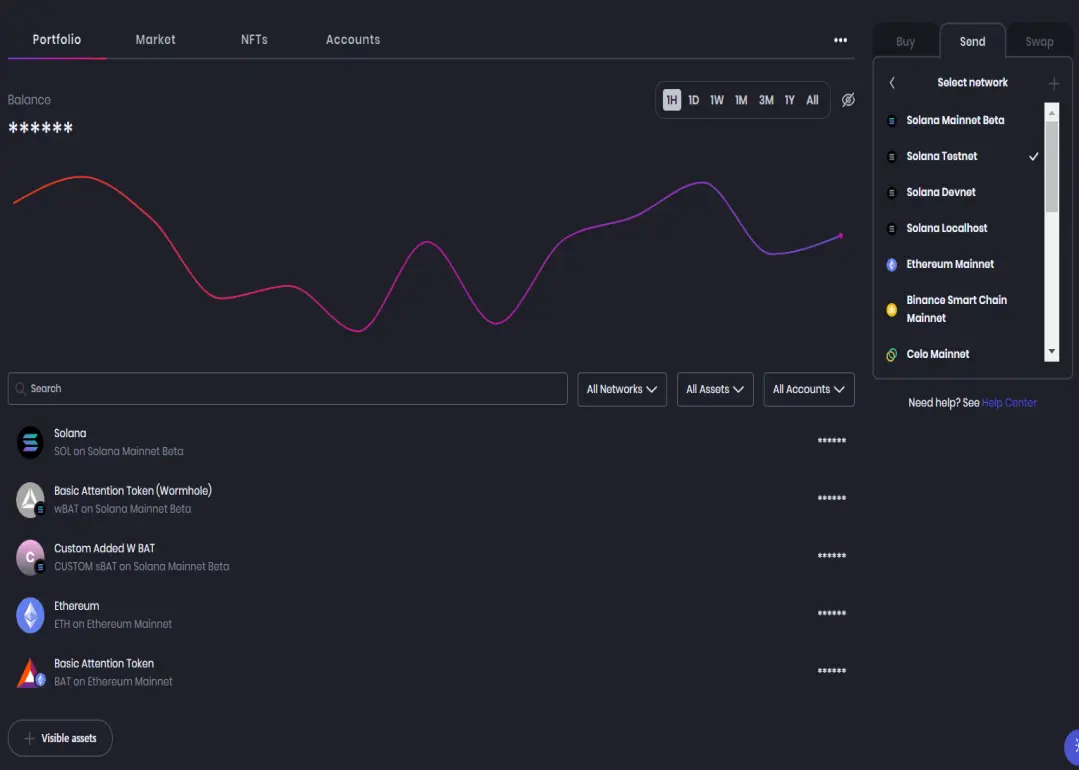
3. Now click "Add custom asset."
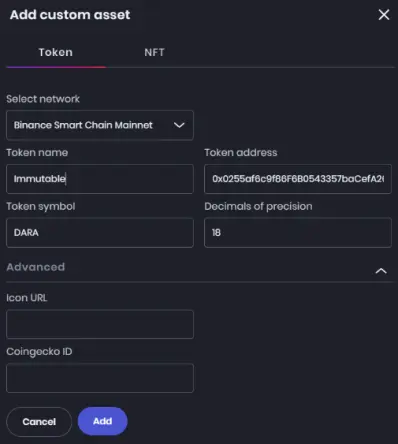
4. You'll be greeted with a form with 5 essential fields. First, you'll need to identify the network your token is on. In the case of DARA, that is the Binance Smart Chain. Select that as your network.
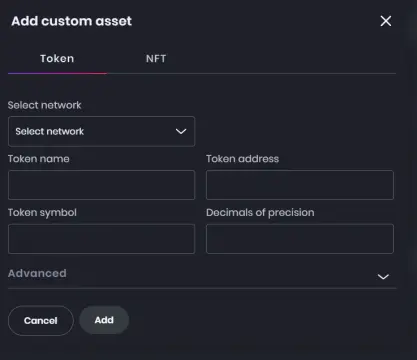
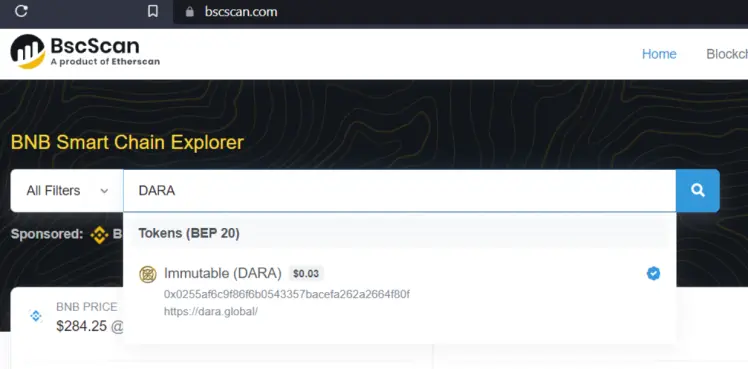
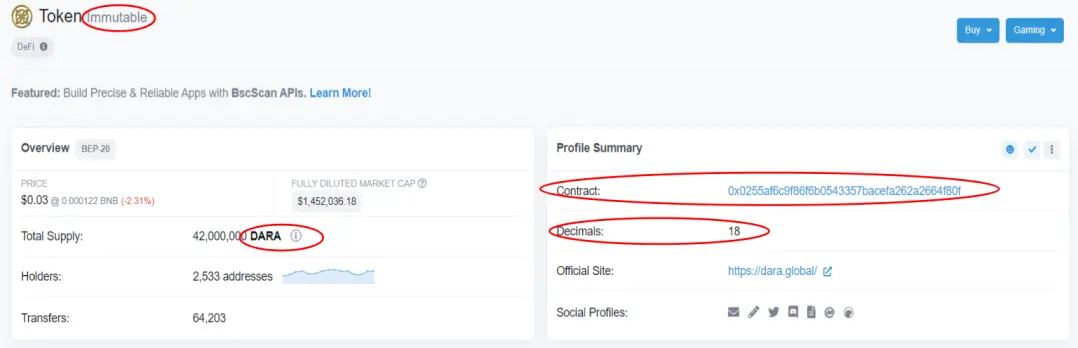
5. Now you will need to gather and fill in the other four fields. The Advanced area is generally optional and its fields will be discussed at the end. The Token Name is just the name of your Token and its symbol is its Ticker. The Token Address and Decimals of Precision can be learned by going to a scanner website. In this case, BscScan.com (a BNB Smart Chain Explorer website) can be used to gather the information. Simply type DARA into the websites search bar and click on the results. As shown below:
The webpage with relevant information circled is shown below. Put the Contract address in as the Token Address.
6. Once you have entered all of the information, click "Add."
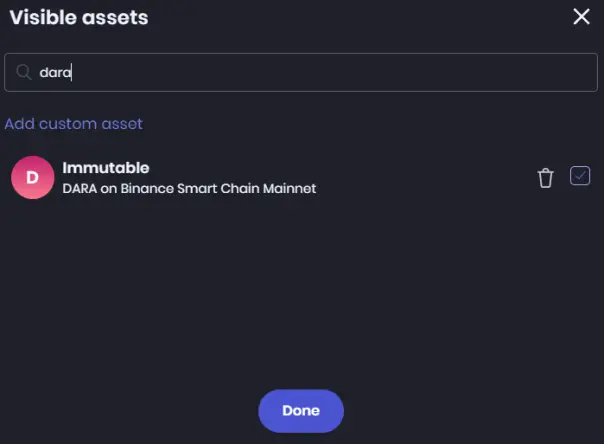
7. Now your custom asset should appear as an option in Visible Assets. Make sure the asset is CHECKED as a visible asset and click "Done."
8. Your custom asset should now be visible in your Portfolio.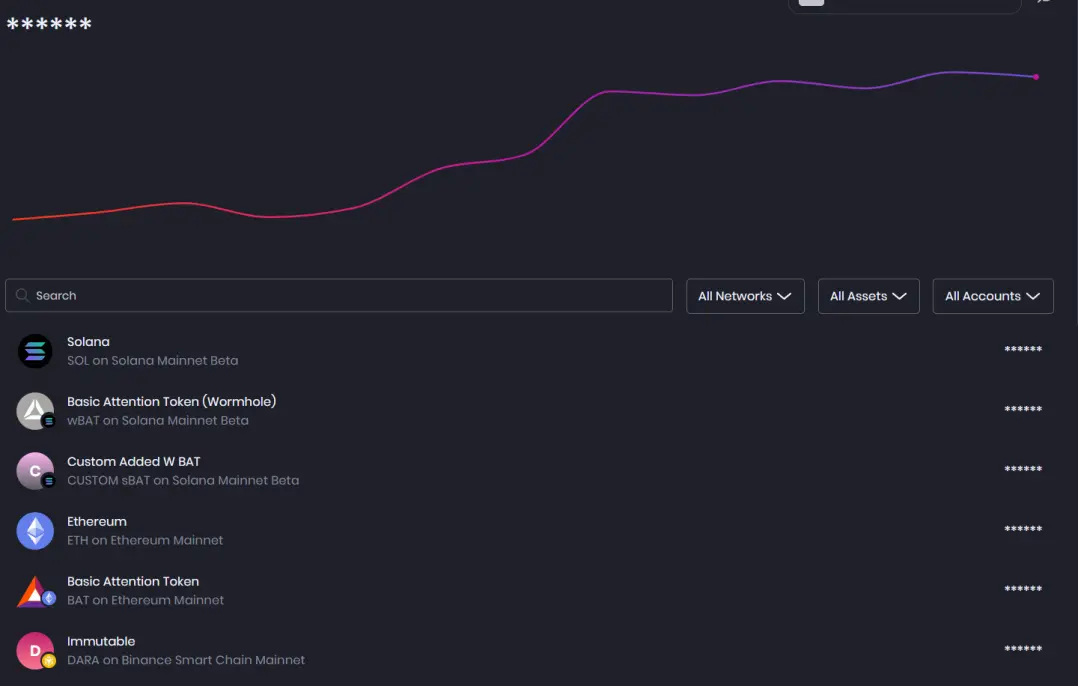
Optional Fields - Advanced:
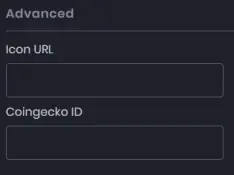
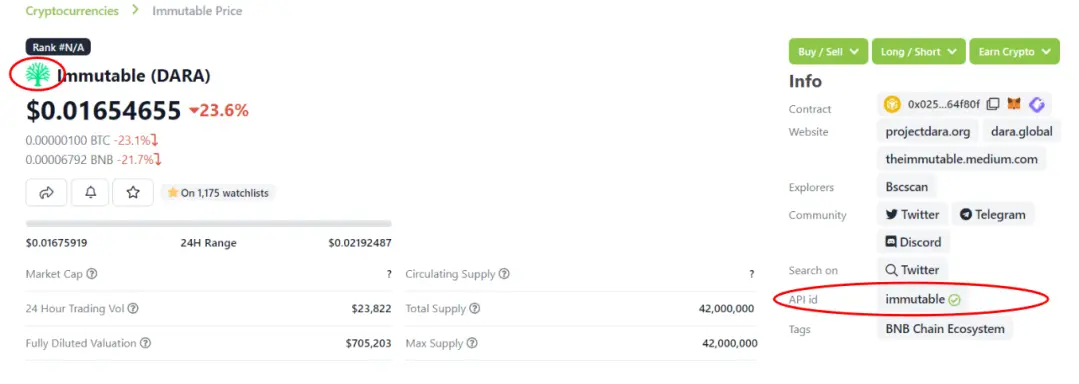
- Icon URL- This is used to give the added asset a distinct graphic by providing a url for the asset's graphic. For DARA it can be https://assets.coingecko.com/coins/images/17640/small/darav2.png?1662516483. This can be gathered from Coingecko's website by right clicking on the asset's graphic and clicking "Copy image address."
- Coingecko ID - Occasionally, an asset might not properly have its value tracked in the Brave Wallet. You can rectify this issue by inputting Coingecko's API ID into the field. Go to Coingecko's webpage for the asset (DARA Example: https://www.coingecko.com/en/coins/immutable). On the right hand side of the webpage, you will see an API ID. Copy this value and place it in the Coingecko ID field. In the case of DARA, the Coingecko ID will be immutable.
Useful explorer websites for gathering information:
Join the BAT Brigade Discord for more on everything Brave & BAT: discord.gg/MHbkVUqS2W
My Brave and BAT focused Twitter: https://twitter.com/Bauzz_
Side Note: On the BscScan website's DARA page, there is a three dot button on the top right of the Profile Summary. When clicked on, there is a "Add Token to Web3 Wallet" button. Disclaimer: I have never added a custom asset to a wallet using this method and generally prefer to add things in manually.







