
Or, even for decent but slightly older gaming laptops. Or even desktops. We all know how badly MapleStory performs even on considerably decent systems (those produced within the last 5 years). It does not make much sense when a 2D sidescrolling mushroom game seems to need a NASA computer to run well, but it indeed feels like that. We don't know (and probably will never want to know) what Nexon/Wizet did in their code to cause this catastrophic pile of mess, but there's at least something we all can do to make our experiences less miserable.
Hence the birth of this guide.
Before going any further there are a few things that I will have to make them extremely clear:
1. Your computer has physical limits, and nothing can raise those limits except for a hardware upgrade. This guide cannot turn your laptop into a NASA computer.
2. While it is possible to apply this guide to other games apart from MapleStory, positive effects are not expected (see "bottlenecks" section down there - it only helps if your game suffers from the same bottlenecks).
3. While this guide is designed for MapleStory and I did used the suggestions I listed out here to achieve smoother gameplay experience, it's quite an "it works on my machine" kind of thing. There's absolutely no guarantee and warranty attached to this guide.
4. Certain steps suggested here involves the possibility of breaking your system. It is my responsibility to list out the dangers, and it is your responsibility to proceed at your own risk.
5. I may suggest certain products (either software or hardware) to be used in this guide. I am absolutely in no way affiliated with the providers/vendors of these products. If you used those products, you agree that I am not responsible for any problems that may arise from the use of them.
6. I play in MapleSEA, on Windows 10. If you're playing on other OSes or other region-specific clients, certain suggestions may or may not work for you.
Tl;Dr: Use common sense, and I don't provide warranty and guarantee of any kind. Proceed at your own risk.
And a bonus one,
7. You may still experience insane lags in Hekaton after following this guide. This is absolutely MapleStory's fault.
If agreed to these disclaimers and decided to move on, let's see the next section.
Bottlenecks
Before tackling the problem, it is quite important to know where the problem lies. You need a screwdriver to unscrew an incorrect screw, a hammer won't help. The same logic applies - you aren't going to get a better MapleStory experience by getting a new graphics card, because even an Intel HD Graphics 620 is more than enough for this 16GB mushroom (game size taken when this is wrote). This game requires something else, which is sometimes... overlooked, because most other games don't really have such heavy expectations on them.
Just for references, here are my specs:
- i5-7200U
- 4GB DDR4 RAM
- Intel HD Graphics 620
- 1TB 5400rpm HDD

A bottleneck. Also, stay hydrated. (Pixabay)
CPU
It is indeed not easy to find a game that desires CPU power as much as MapleStory... maybe except for Minecraft (Java Edition)...
While most CPUs have the capacity to perfectly run the game, there are many other affecting factors lying around your computer that might cause the game to stutter and stuff. Your computer is designed to multitask and every single task running in the background takes a little bit of your CPU power. To make it worse, many applications that decided to secretly run in background are horribly optimized, and that translates to lag spikes, rages, and violence. Remember that video games do not cause violence, lag does.
RAM
Ah yes, MapleStory's breakfast, lunch, tea, dinner and supper.
One absurd part of the game is how much memory it takes. If something have to challenge Chrome for the highest memory usage known to the masses, MapleStory might be the one to succeed and stay there for a long time. It is no longer possible to put 4GB RAM as the recommended spec to run MapleStory...
But hey, I play MapleStory on a laptop with 4GB RAM...
HDD
Who ever thought of the possibility of SSDs being highly recommended for purposes such as running a mushroom game? This is indeed one of the biggest bottlenecks for smooth MapleStory gameplay and is the main causes of slow loading and possibly 2 to 5 minutes of black screen after switching maps (or even during Damien's phase switch, seriously).
However, it is perfectly fine to run MapleStory on a 5400rpm HDD, I personally do that. You just need to make sure that nothing is competing for the hard disk's attention (yes, Windows services...)
MapleStory
Uh, yeah, the game's design is a bottleneck by itself.
Due to the game's nature and the insanely huge amount of content and assets, it is impossible for the game to preload and have smooth gameplay for the rest of the time (e.g. League of Legends). The use of huge .wz files are also prone to fragmentation that happens on every patch, but that's the more sensible way to store game assets instead of invidual files or we might face the same problem as Vainglory for PC does (very slow loading due to hard disks having to spin for each and every tiny file, and a game like MapleStory may easily exceed 500k files). The worst anti-cheat in the world also deserves a honourary mention - thanks for making our lives harder!
Of course, we can't likely work around this bottleneck. It's just a rant but let's treat it as the MapleStory experience. It isn't MapleStory without lags.
The Suggestions

Alright, probably be grateful that light bulbs don't do this on their own... (Pixabay)
Despite this being a "guide", I actually do not expect anyone to follow it from A to Z. There's also no "do this, then do this, after that this, at last this". Instead, the suggestions on what you can do are listed here in the order of effectiveness (most effective suggestion on top) and you'll pick what you want to use (in fact, some of the top suggestions here are not even viable to most people). Some of these most effective suggestions might not even be friendly to the computer illiterate, so maybe get a computer literate friend along to make sure that you're not booming your computer like how you boomed your Meister Signets trying to 22* it. Remember how I'm not providing warranty? :)
0. Get more RAM, an SSD and a monster CPU
Heck, if you can do this, you won't even need this guide anymore. But it's indeed the most effective method ever for the ones that can do it.
1. Installing a clean version of Windows
The most impractical suggestion of all. Since background tasks eat up CPU and RAM and possibly a lot of disk IO causing MapleStory to lag, why not just destroy them all with a reinstall? Sounds like a perfect plan!
Until you realize that it isn't as easy as you would think.
Normally, a reinstall from your recovery partition will still bring in all sorts of bloatware your OEM or reseller decides to include with your device. This is especially worse on certain brands in which they decide to include the whole suite of their (possibly useless) troubleshooting and utility pack. No name calling here, but if you're a "victim" you'll understand. So, it's the best if you can get your copy of Windows from Microsoft themselves, and it's even better if you can get a "lightweight version" such as LTSC. However, as we all know, a fresh copy of Windows is not cheap, and it is close to impossible to get LTSC as an individual. But if you get a chance to try so, it is quite worth it, especially if you are playing on a potato.
Just remember to not pollute the new install with bad software, otherwise you'll be back to the laggy one in no time. On a side note, you can also turn a normal version of Windows into something LTSC-ish without switching product keys so that you can get something less bloaty if you're really craving for it. Look out for a related section down there at (3).
2. Have MapleStory on another HDD
This idea is from another friend of mine (shoutout to xNotMyJob @ MSEA Aquila).
Since MapleStory lags so badly when other processes are fighting for disk IO, it's quite one straightforward bottleneck to solve, and you have two approaches - remove the fight for disk IO on your sole HDD, or let MapleStory take 100% of disk IO on another HDD. With this approach it is even quite possible to have Windows install updates while doing hard bosses, because all the disk IO MapleStory needs is totally separated from the hell Windows is causing!
But it is also not as easy as you might have thought - you will need a real HDD connected to a SATA port (or whatever other ports you have for a HDD). A pendrive or USB-HDD just won't cut it due to how slow they are (unless it's USB Type-C, then it should be fast enough). Hence, sure, it's not cheap. And not very viable for a laptop, because you are likely not going to have enough slots in the device, plus the potentially expensive cost just because it's a laptop.
Still worth going for if you have the money. I sometimes wonder if I can toss an adapter out for an SSD slot...
3. Tame Windows. The rough way.
Alright. Even if you have a fresh install of Windows with nothing apart from MapleStory on it, you still get very bad lags and slowdowns at times. Why? Because Windows is an idiot at times. if (game_is_running) install_updates(); Even Windows 10 LTSC suffers from the same problems. Without the mess of Microsoft Store, but it's still bad. What to do?
My solution is to always debloat it. Hard. One less service or telemetry is more performance for my dear mushroom game, and it kinda solves *all* of the bottlenecks above. Personally, I use a collection of Powershell scripts found on GitHub for this purpose. Life's too short to make sure that my own scripts will work properly...
Ozymandias42/Windows-Cleanup-Script - This throws away most apps (except for the store itself), optional features, and some other stuff such as web search in Start and OneDrive.
W4RH4WK/Debloat-Windows-10 - This is the real deal - you can disable automatic Windows Updates, a lot of unneeded services and telemetry, and do a lot of other possibly dangerous but useful stuff.
For me, I disabled telemetry, unneeded services, optional features, Windows Defender (honestly speaking, it does not hurt to leave it on), and automatic Windows Updates on my LTSC install with the scripts above. What you want to do with them should be your own consideration - there's no one-fit-for-all solution to this. With some knowledge you can even customize those scripts specifically for your needs, but probably you need to be nerdy enough for that.

Anyways, if you're not sure what to do, just disable telemetry, unneeded services, and automatic Windows Updates after consulting a nerdy friend. As always, you bear the risk when doing anything to your Windows install... read what their original authors wrote! It is totally possible to destroy certain features of Windows till you need a reinstall to get it back to its previous state.
Oh, also, if you find yourself not understanding how to use those scripts... either consult a nerd, search for your own resources, or just leave it. It is a very effective step to smoother MapleStory and Windows in overall (especially after disabling automatic updates) but I didn't provide step-by-step tutorials for reasons. You have to know what you are doing, following blindly is as dangerous as always. You don't press Alt-F4 for volume up, hmm?
Side note: If you took the step and disabled automatic Windows Updates, you have to make sure that you are still installing your updates manually when you have the free time. WannaCry gave its lesson, don't be an idiot.
4. Review your installed apps, startup list and running tasks
This should be a straightforward one, but people rarely do it. For the sake of CPU, RAM, and possibly disk IO usage, go to your task manager, click on the Startup tab, and disable every single thing you don't need to launch at startup. This not only speeds up your boot time, it also helps to ensure that there are lesser sneaky background tasks running behind when you're Mapling. Just make sure that you don't disable your driver-related services and you're good.
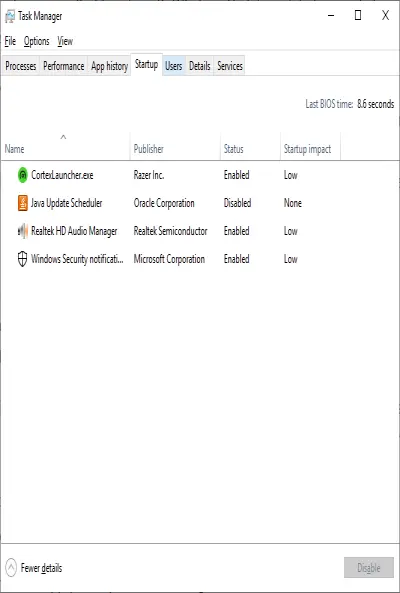
Most of the times, you don't need to care about running processes - if something is not visible in the notification tray, and is not currently launched by you, high chances are that they don't have an impactful background task running, if there are any. However, if you notice that something is off (your fan is blowing decently hard even if you're not doing anything, weirdly high memory usage even if not running anything), investigate the list in task manager and Google for their purposes. Possibly even consider a virus scan if you're unsure. Most of the times the culprit will be one of the Windows processes, but one can only imagine the amount of trash code around the world...
What about installed apps? Well, because if you uninstalled a trash, it won't run on your device anymore. Go ahead and start nuking. It's sometimes quite worth cleaning up if you haven't did it for months.
Another side note: In my memory, certain applications have an obsession to live in the background, do stuff that causes lag spikes, and you cannot stop/disable/uninstall it because it may be something important (an input method, for example) or something you need to run behind (download managers, instant messengers, mail clients, etc). For applications like these, either dig into their settings and make them be as not annoying as possible, or find a better alternative after throwing away the culprit. Remember that as long as there is demand, someone will make something better than the crap you're currently facing (if you're facing one).
5. Cooling
This is kinda pointed at the CPU bottleneck - any computing device with sane design will always throttle when it's too hot, so you have to make sure that you're giving your box sufficient airflow and stuff to prevent tragedies in your boss runs. I don't think I need to explain much on this - a quick Google search can give a lot of ways to cool your device down, it's just a matter of how far you want to take it to. It is especially hard to make sure a laptop stays cool while gaming, so you gotta tinker around for a little. But, it's worth it for both performance and hardware life concerns. Remember that for every piece of hardware you manage to keep alive, you save on replacement and repair costs, and you get to spend more on the game itself :) so why not?
Note that improving cooling for performance is likely only possible if you have an overheating setup. However, with improved cooling, you can go wilder with the next few suggestions, which I find slightly dangerous to use under horrible cooling conditions.
(Also, actually, I'm mostly F2P. And I don't encourage overspending in any way. Spend carefully, please.)
6. Use a game booster
It's so ironic for me to recommend something like this since I almost never liked any software designed for game-boosting purposes (mostly because they never work as expected)... but once you find something working, you can indeed try to use it.
Personally, Razer Cortex. Mainly dealing with the CPU and RAM problems.

The software itself should be pretty easy to understand, but here are a few notes of mine to get maximum performance for MapleStory with Cortex:
i. Do not enable "Disable CPU Sleep Mode" unless you have really really good cooling. Like, an external exhaust fan attached to your laptop's cooling vents, in a fully air-conditioned room, plus having an extra lot of airflow above the keyboard. If you cannot keep your CPU temperature under 70 after enabling it, do not enable it.
ii. Do not kill explorer.exe or use the Game Desktop. Also, you have to run MapleStory from the Start menu instead of Cortex's launcher. Just NGS (Nexon Game Security) things.
iii. Under System Booster, you can consider not fixing "Disable useless visual effects to speed up response and display of desktop" under Speed Up after scanning. Because it actually contributes nothing to gaming experience, and you'll probably still want the desktop effects anyway.
iv. Always defrag MapleStory with the utility in System Booster after every patch. Always. However, you can skip this if you're using an SSD (why are you reading this guide again?).
v. Besides boosting before launching MapleStory, you can also restore then boost again before going into a boss fight for more free space in RAM. Although seriously, just restart the game to be sure.
vi. I don't think you need Cortex to monitor your FPS anyway. Just disable it.
No matter what game booster you decided to use in the end, the idea is the same - let it do the tuning for your game, and don't let it go overboard and do things that overheat your PC. Remember the advice from above!
7. Tinker around advanced power settings.
Well this is a tricky one. Access the menu in Control Panel -> Power Options -> [the current power plan you're using's Change Plan Settings] -> Change advanced power settings. Given that your device is not overheated, this should push your device to its maximum performance possible.
i. Hard disk -> Set to never turn off the hard disk. Re-spinning the disk up after accidentally snoozing it is just bad for performance.
ii. PCI Express -> Link State Power Management -> Off. Having this enabled increases IO latency, which as we all know, is deadly for your boss run. Or even flag races. We all know how everyone has different cash weapons. Also considering that without sufficient RAM, some parts of the game might end up in virtual memory. So, having the least possible IO latency is super important.
iii. Processor power management -> Minimum processor state -> Set to 100%. This is especially useful on Intel processors, because stepping the frequency up and down frequently isn't very good for performance. Also make sure that system cooling policy is set to active, and the maximum processor state is 100% as well.
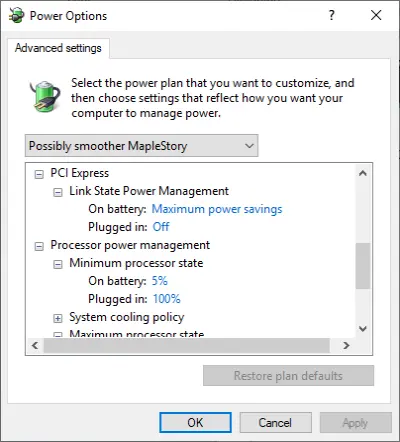
I don't really think that setting Intel Graphics to Maximum Performance is very important considering that the game isn't even graphically demanding, but you may try. Based on personal experience, with all power saving options turned on, MapleStory still runs fine on my Surface Pro 6 (Intel UHD Graphics 620). Your mileage may vary, though.
Or hey, you can be lazy and just tick "Enable game power solutions" in Cortex. It handles what's listed up there :)
8. Enable game mode
This setting under Windows Settings -> Gaming -> Game Mode should be enabled by default, but just in case it is disabled, go ahead and turn it on. It is true that Windows is an idiot, but enabling this will make it a less idiotic idiot by prioritising system resources (mostly CPU power) to your game, partially solving the CPU power fight in your PC.

Side note: In any case, do not go and change CPU priorities of MapleStory from the task manager. No insults but, Windows is still smarter than you in this regard. Just enable game mode and call it done.
9. Run MapleStory in fullscreen, with vsync on
Windows actually gives fullscreen programs a heck lot of attention - you are likely to get the game running 2x smoother by just switching to fullscreen. Note that borderless is not fullscreen, you have to disable "Windowed mode" under MapleStory's graphics options to get fullscreen.
Vsync on the other hand is something very important, especially in MapleStory. It makes sure that MapleStory isn't refreshing frames faster than your screen does, preventing tearing as well as processing power wastage and heat, which is a direct cause of lag spikes. So, make sure to leave it on at all times. In fact, for most games, with the exception of some such as osu! stable, there is little to no reason to disable vsync as well.
10. Defragment
As I said, MapleStory badly fragments after every patch due to its file structures, so defragmenting is important for the sake of loading speed. Again, if you don't know how to do this, Google is your friend.
Alternatively, as previously mentioned, you can use Cortex's defragmenting utility.
11. Further clean up Windows
Although technically speaking cleaning up junk files and the registry won't increase performance, it should at least reduce the amount of junk load Windows needs to process. For this purpose, I personally use Little System Cleaner. Generally, it is a good idea to clean junk files and registry once after performing a Windows Update, but you can also do it whenever you feel like to. It's more of a general maintenance thing anyway.
12. Virtual memory
Well, this is another tricky one. Because I'm not very sure if this improves the game's playability, reduces crashes or prevent lags, I purposely place this so far down the list despite it should be an important step.
You access the menu by searching for "path" in the Start menu.

And then in the Settings button under Performance, Advanced tab, you can see the settings for Virtual memory. Click on Change to see it in details.

Personally, I set a large enough virtual memory (4GB, which is of the same size as my RAM), and place it in the same partition as where I installed MapleStory. My "theory" is that with the virtual memory sitting in the same partition as where I installed the game, the HDD will have to do less work spinning when virtual memory is really required... alright, that's just my untested theory after all. The important thing here is, you should set a large enough virtual memory if you don't have enough RAM. When you check the settings, Windows should have set a decently large virtual memory based on how you have used your computer. The values should be fine, but if it's too small, just modify it to be large enough. How much is enough, though? Personally I go with at least the size of my RAM to 2x the size of it, but depending on how much RAM you have and how your general workload is you should adjust it accordingly. A quick Google search should give you more insight, but generally speaking, a little bit more of virtual memory on a potato won't hurt. You might need to do some trial and error on your own to further learn about it, though.
Will this improve performance? I don't know. But I do know that if you ever disable all virtual memory present on the system and totally run out of memory (which is a possible scenario for every MapleStory player), you might crash the game, with Windows going down with it at the same time. Don't ask me how it happens, it just does. So, don't disable virtual memory, and prepare for a crash if you did something you don't know what its consequences will be. Always save files, too. Just in case.
13. Restart the computer after a long session
Apart from restarting the client, you can always take it one step further. This is probably the most effective and easiest method out of all - why not do it?
Wrapping it up
Honestly I appreciate you reading till this far. Hope that these suggestions can help you to get a better Mapling experience on your potato, guess your potato is pretty proud to serve you that much within its capabilities as well :)
Wishing you lesser equipment booms and better boss drops!






