
In this post, I explained with video how to browse through AlgoExplorer (one of the Algorand's community built tools/projects) for viewing and extracting data from the Algorand blockchain. Following that, in this article, you will learn:
- How Algodesk works.
- How AlgoSigner interacts with other tools like Algodesk.
- An example use case.
AlgoSigner
An open source Algorand wallet extension in chrome browser developed by Purestake. With AlgoSigner, users can securely sign and approve transactions while interacting with Algorand-based applications. As an Algorand developer, you integrate with AlgoSigner to enable your Dapp easily read from its users’ wallet to complete a transaction instead of manually dealing with user's keys which may pose some security threats and may invoke loss of confidence.
Some of the advantages of using AlgoSigner you need to know.
- Transactions are swift.
- It encourages secure users' information and privacy.
- Users gain more confidence while interacting with you application.
- Increases participation and investment or payment especially if you're building a decentralized application.
How to use AlgoSigner
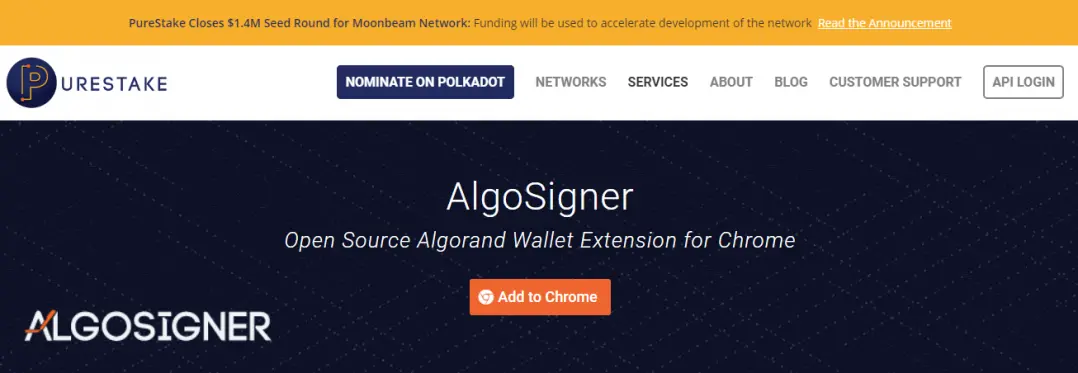
- Visit Purestake to add it to your chrome browser.
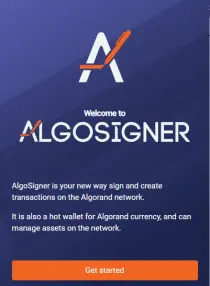
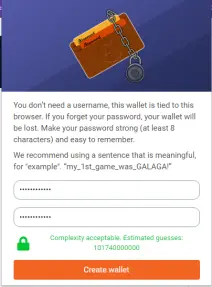
- Launch the Algosigner extension from the chrome. Follow and read the instructions carefully. You should pass through pages like these.
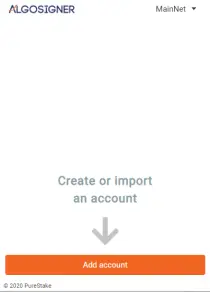
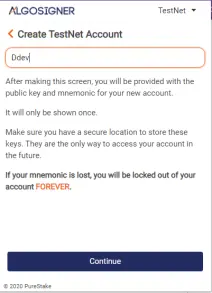
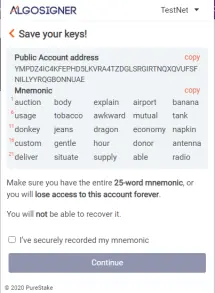
- The last page displays your account with a default 0 Algo and 0 ASAs (Algorand Standard Assets).
- Copy your account address and get some testnet Algo from the dispenser (Algorand Testnet). A 100 test Algo should reflect in your account.
AlgoSigner is very useful especially for interacting with web3-based application.
What is Algodesk?

Algodesk is an online web-based developer-friendly tool that lets you build, test and execute Algorand-target code without SDK installation or dependency on your machine. It comprises open source and developers tools you need to build decentralized applications and smart contracts on Algorand blockchain. With this tool, creating Algorand standard asset (s) or Algorand smart contract (layer 1) is made easy.
How to use Algodesk
We will create a customized Algorand standard asset for a hotel based in Dubai - DMatel. The board has resolved to undertake a business strategy that will create better customer relationships to increase demand and profit by leveraging the Algorand blockchain solution. To get it done, there are a few steps we must to perform. There is a dire need to test if the asset meets the requirement hence we will use testnet for the development before pushing to production (i.e deploy on mainnet).
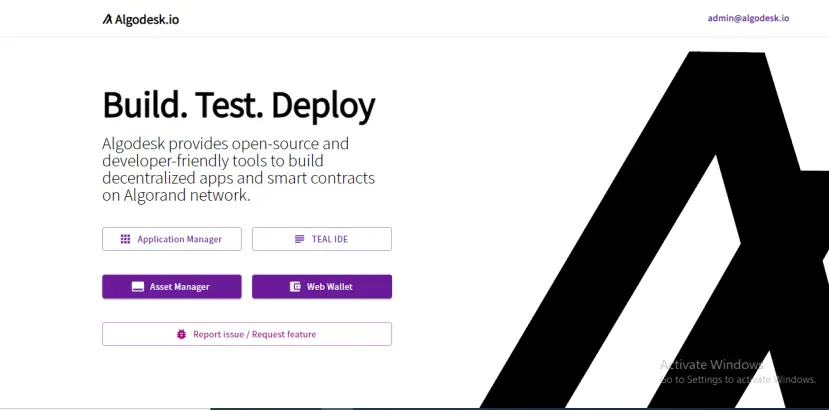
- Head to https://algodesk.io . Click on the "Asset Manager" button.
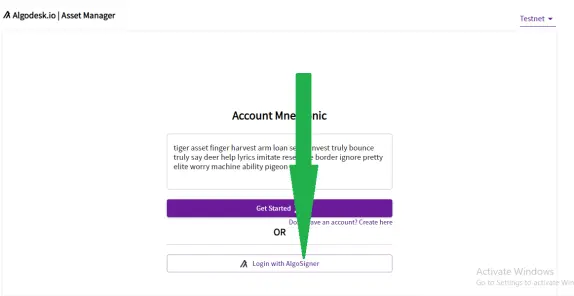
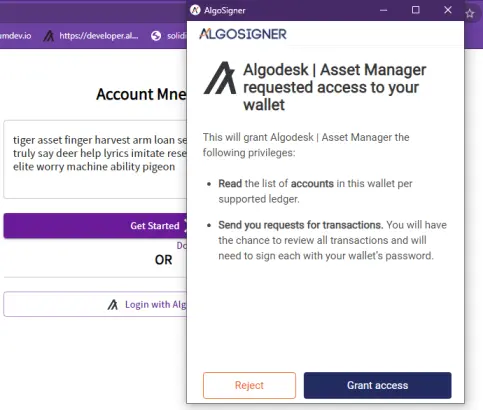
- Log in using AlgoSigner. This should immediately pop up window requesting a permission to grant access to Algodesk.
-
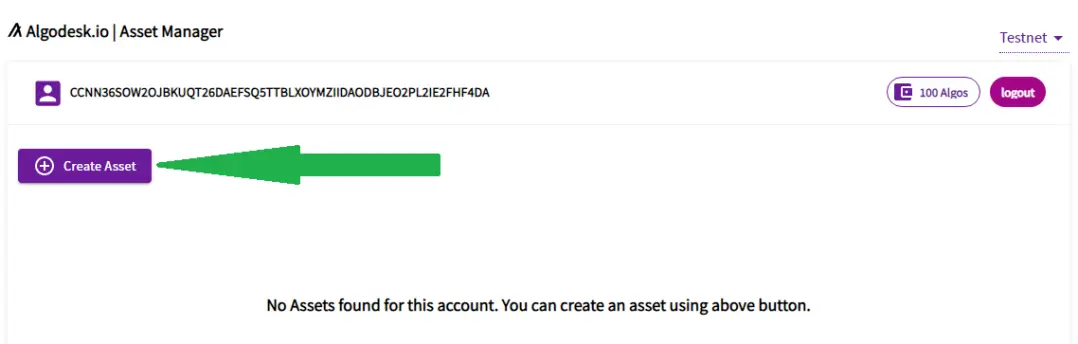
Create an asset
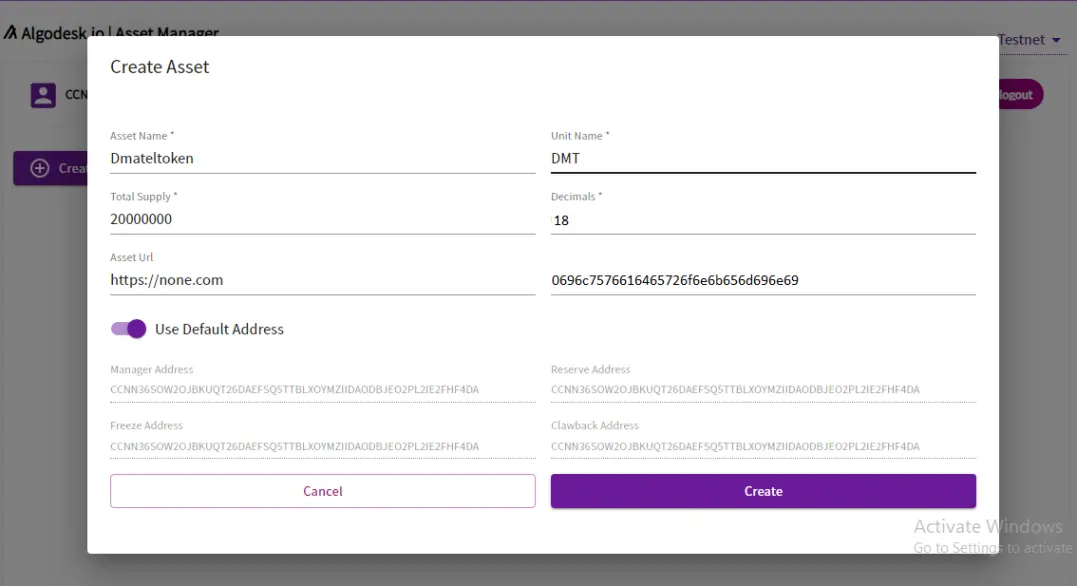
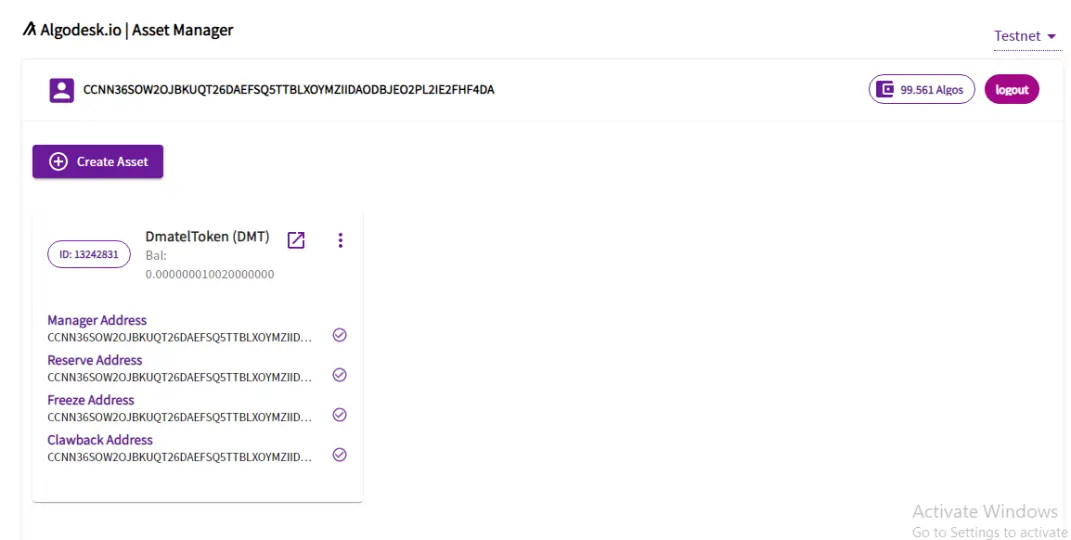
- Enter asset information. Here, we set the default account we generated earlier as the Manager, Reserve, Freeze and Clawback addresses.
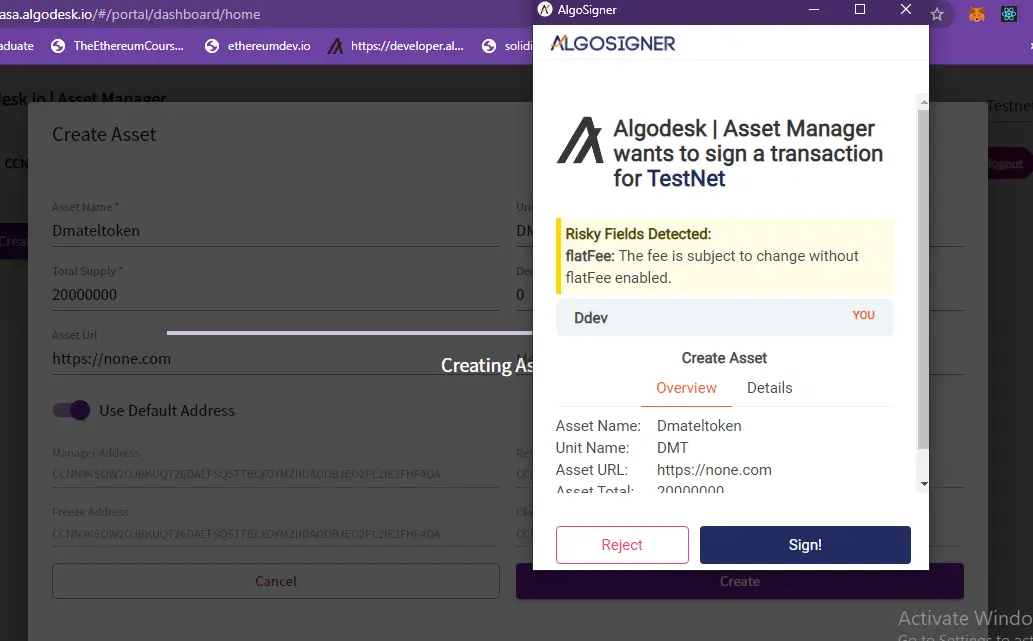
- Clicking on the 'Create' button brings up a confirmation window requesting permission to submit a transaction to the Algorand network. At this point, AlgoSigner requires that you sign the computed transaction with your private key/mnemonics which resides in your browser. AlgoSigner does not take custody of your private key or mnemonics. You are in control of them.
- Signing the above raw transaction requests approval from the network. It is added to a block within a 4 - 5 seconds window and the below window is returned to you. From the top right hand corner, it shows we have just spent less than 0.5 Algo for this transaction. That is extremely cheap. We can now check to interact with our asset from either the same page(send, edit, revoke etc) or AlgoSigner extension or AlgoExplorer(view only). To do this, copy the asset ID - 13242831 or asset name.
I hope this article helps. If you have trouble understanding it, please watch the video below. For more information, visit the Algorand developer website. It'll be cool to give a shoutout to Purestake, Algodesk and Randlabs for this great work.






