
Note: If you don't have a Brave browser setup or a fully activated Gemini account yet please refer to my other helpful guides under my 'cyptoguidesbypunk' blog before reading further.
Hello fellow crypto peers, so you've been using the Brave browser for over a month now and have acquired some BAT tokens, good. At first your balance might show a nice amount nearing the end of the month and then all of a sudden your "Estimated Earnings' shows an empty balance of zero, don't fret. It takes about 8 days to process, a little after a week into the new calendar month you'll see everything you've earned in the 'Your Balance' as shown below.
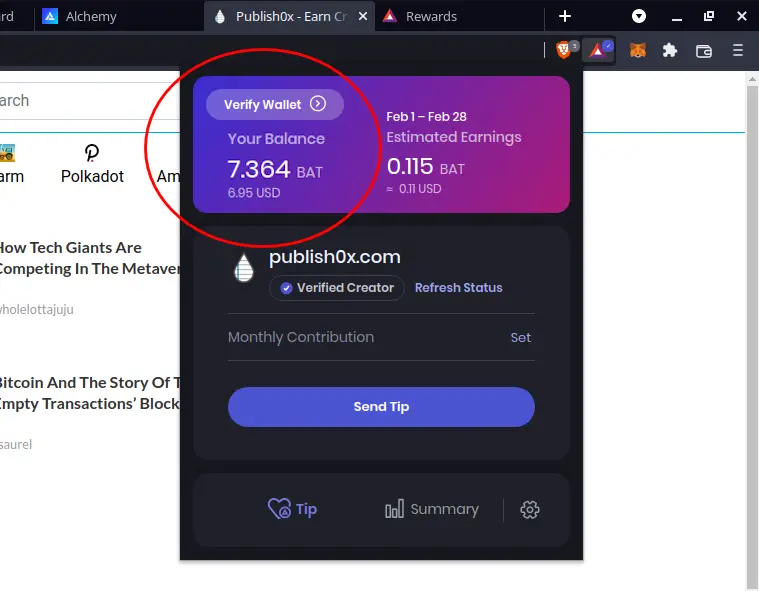
The amount I've earned for the month of January on two computers I own.
( 'Brave Rewards' is currently only available for the desktop application of the Brave Browser, sorry iphone/android users)
This 'Your Balance' amount is available for immediate withdrawal. 'Estimated Earnings' are accumulated in real time and won't be available for use until the end of the current monthly cycle.
You'll have to connect a verified wallet now. In other words create either an Uphold or Gemini account.
The Winklevoss twins are Zucks arch enemies so I went with the later.
After doing so go ahead and click on the following.

You'll be prompted through two pop up boxes directing you to log into your Gemini account.
After doing so you'll have to allow your Brave browser access to this account in order to use your BAT tokens.
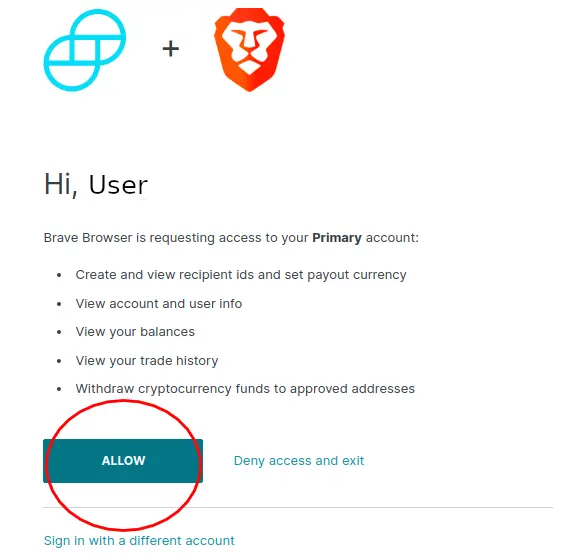
Click allow.
You have now merged your browser with your Gemini account and you should be looking at something like this.
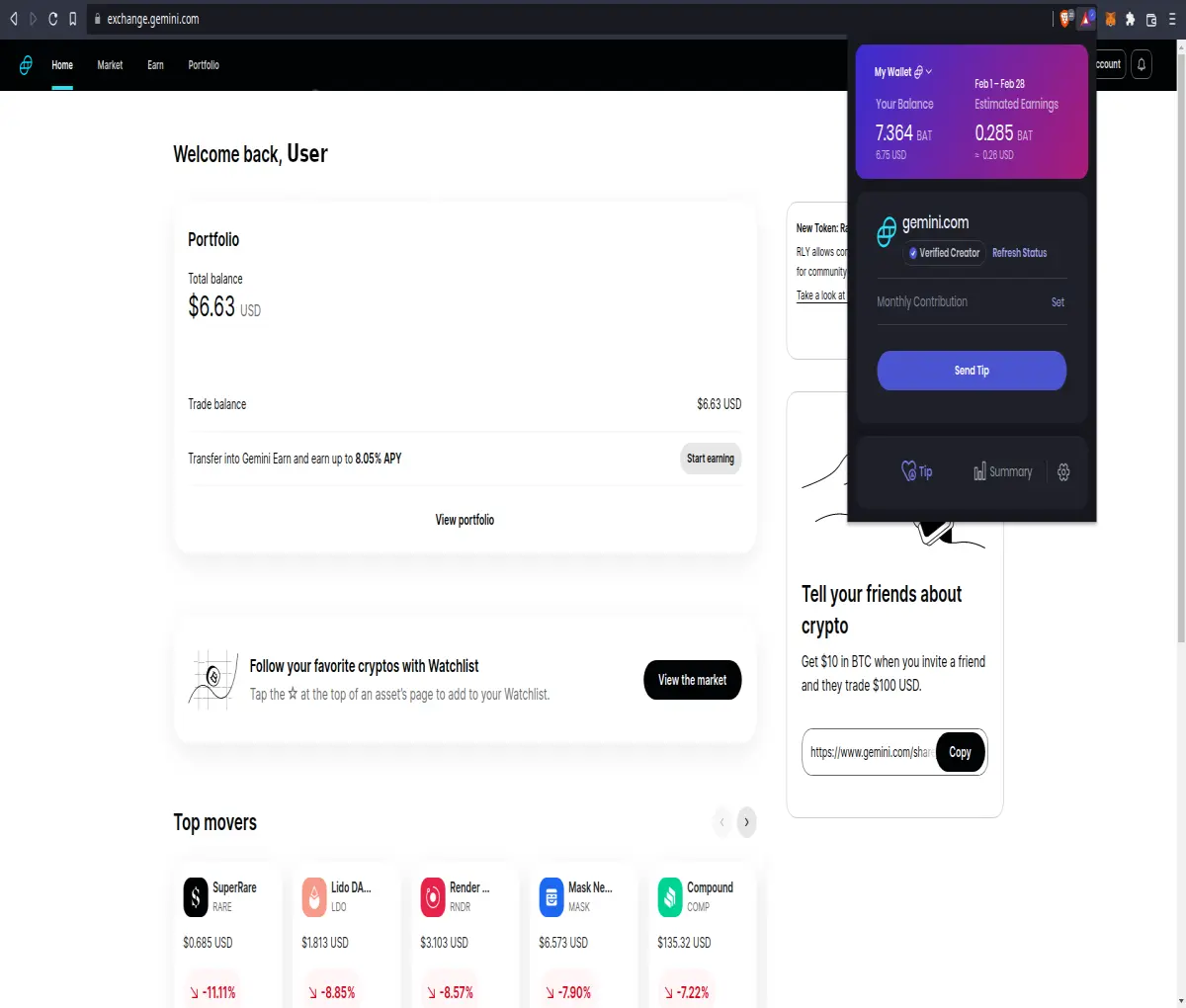
Gemini is a great crypto only platform that allows 10 free withdrawals per calendar month. Nice.
In my case I'm going to transfer it to my Kucoin account but the process is very much the same when doing a crypto currency transfer of any kind. There are many reasons why one might transfer it else wear besides holding or selling it for cash on Gemini such as...
- Trading it on a more sophisticated platform that offers cheaper trading fees with more professional trading tools
- Looking to spend it quickly through the means of a debit card enabled crypto app such as the Crypto.com App
- Moving it to a safe/decentralized form of storage such as an ethereum wallet like Metamask
- A website with services that allows you to sell your crypto in exchange for gift cards such as coinsbee.com
- Avoiding Gemini's trading or selling fee's in general
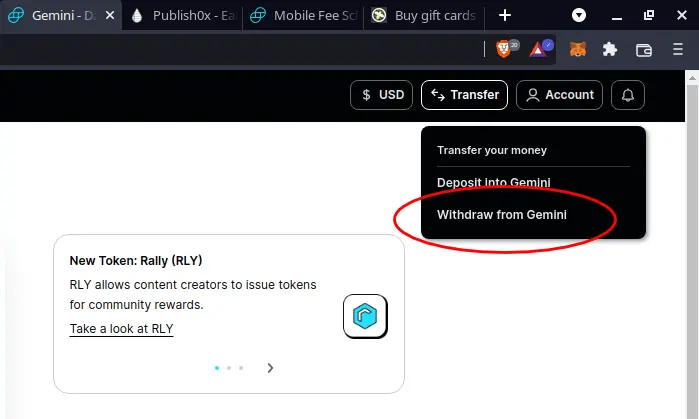
In your Gemini account proceed to click on the 'Transfer' option located on the top right.
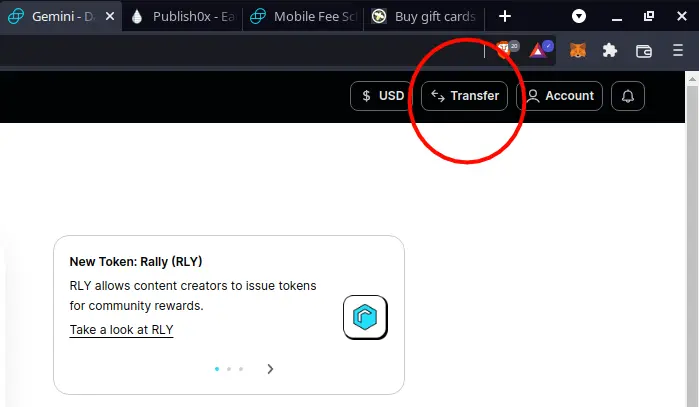
Select the 'Withdraw from Gemini' option in the small pop up window.
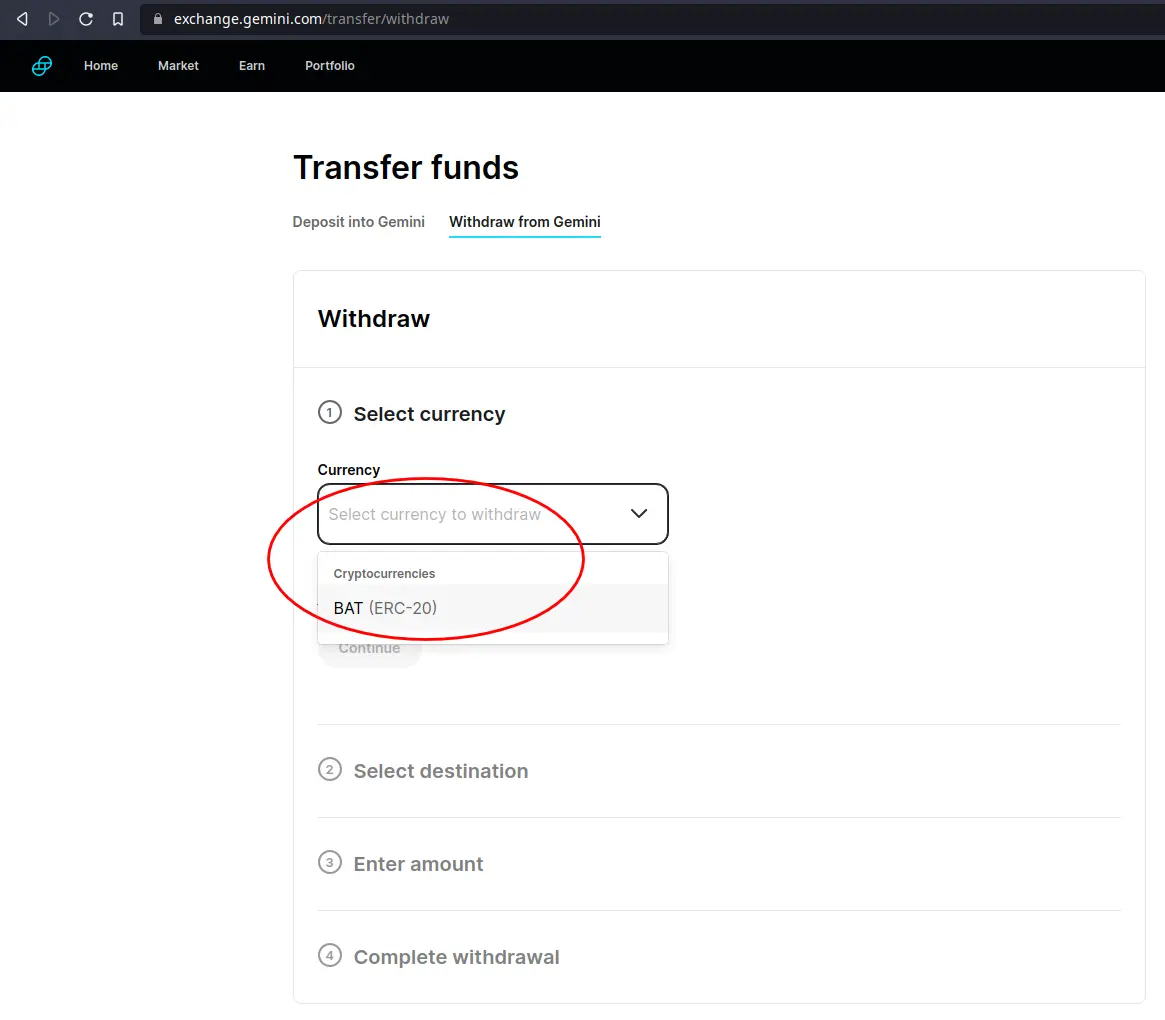
In the transfer withdraw page we'll now select the currency were trying to withdraw.
Click the drop down arrow and select/search the 'BAT (ERC-20)' option.
Almost there champ.
Now the following part under '2 Select destination' you are going to enter a BAT ERC-20 wallet address. Don't run away now it's not as daunting as it sounds. Simply you are going to copy and paste a string of letters and numbers from an app, website, or wallet like in the examples shown below.
Note: You will be entering a BAT wallet address that you own and not the ones in the photos.
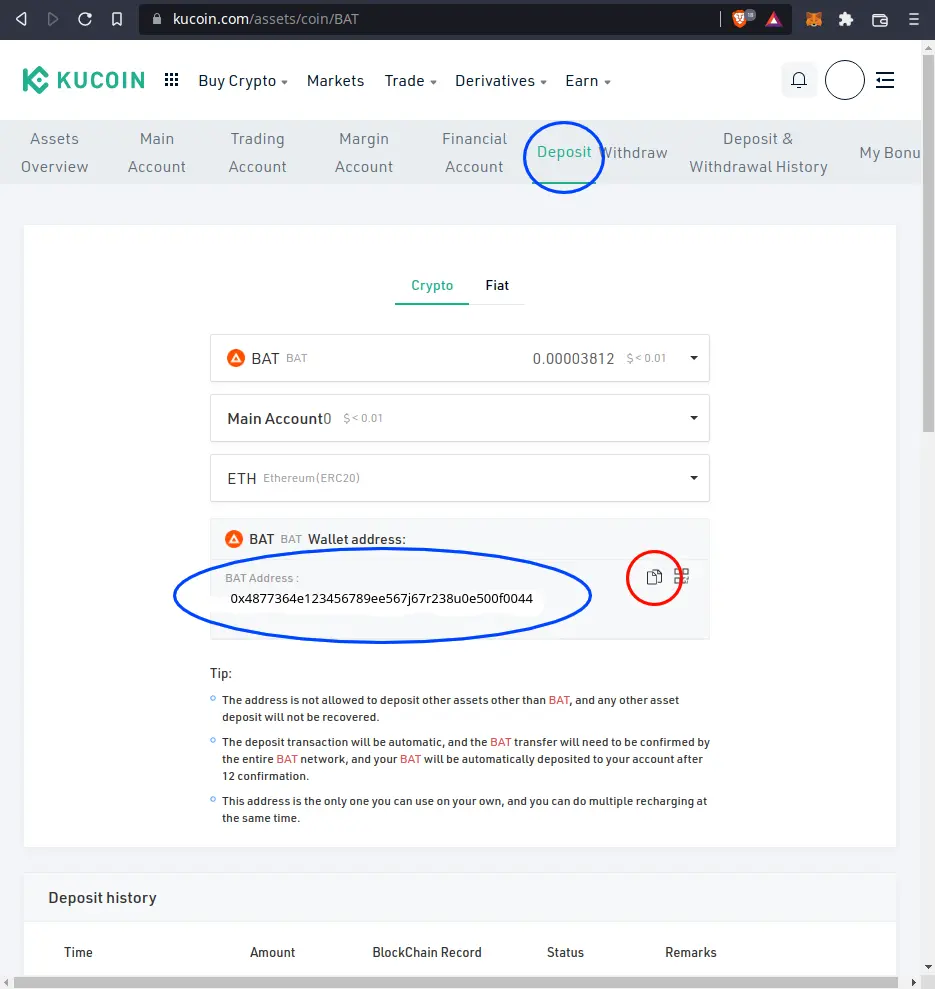
Here we see a deposit address page for the BAT token as seen from a Kucoin account. The highlighted blue oval is an example of what an ethereum token address looks like. A string of 42 characters that starts with '0' and an 'x' followed by a mix of letter and numbers. This one is specifically for BAT token only.
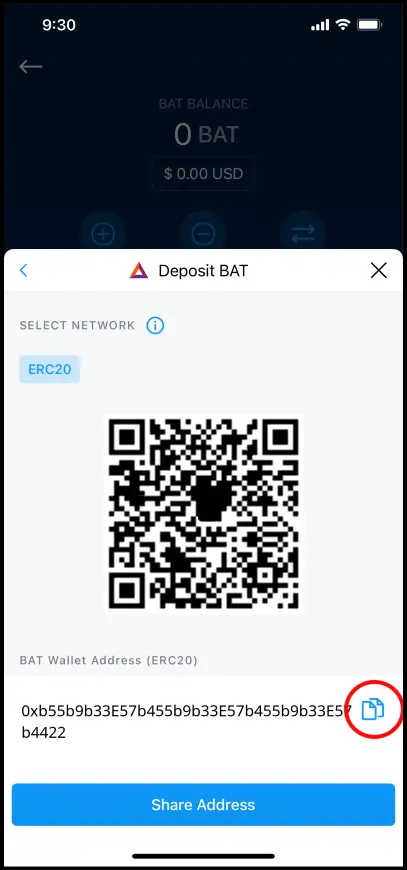
Another example shown here is a BAT deposit address screen as seen from the mobile version of Crypto.com (aka Crypto.com App).
The copy option (the two layered pages icon) is provided in all crypto platforms/apps as highlighted in the red circles in the two examples above. Clicking it will allow us to copy it directly into our clipboard (for mobile apps it's best to paste it into an e-mail and sending it to yourself vs typing it out). After doing so we can now navigate back to our Gemini account in which we will paste our BAT ERC-20 wallet address as shown below.
Note: Always make sure to check the first and last four digits of this long set of characters to ensure you are sending it to the intended wallet address. It's a good habit to grow especially when you're sending bigger amounts in the future.
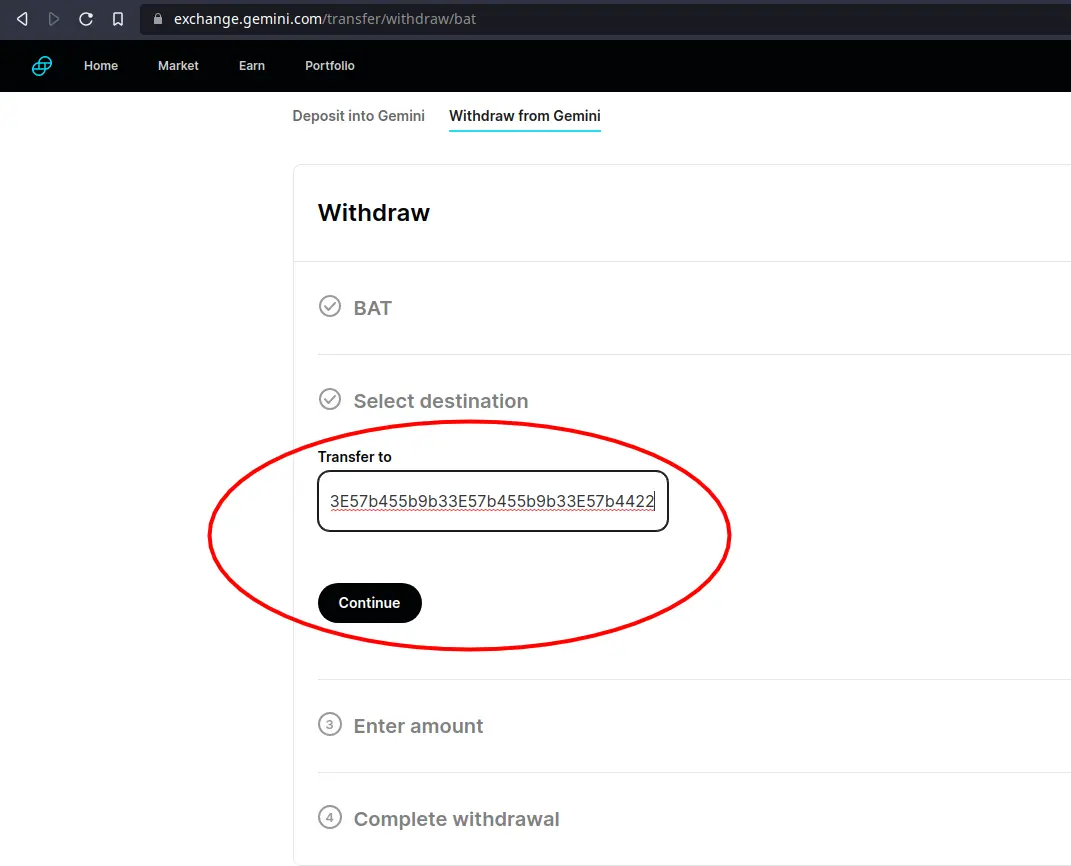
Click continue.
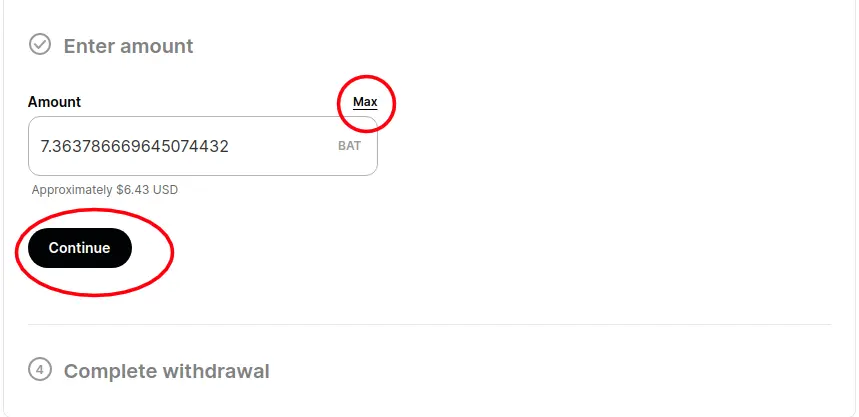
Type in a select amount or just do what I did and hit 'Max' to send all of it. Click continue. 'Step 4' will show you an overview of the amount being sent and to what address it will arrive at. Click continue once more and you see the pop up below.
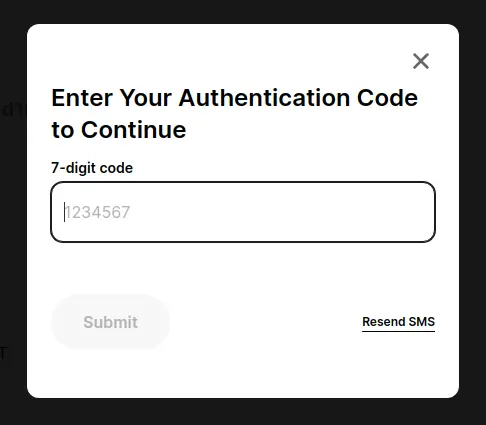
You'll then be prompted to input an authentication code that has been sent to your phone via SMS. All done, a green bar at the top of the Gemini web-page will pop up for a few seconds saying 'success' confirming that it has been sent.

Looking at my BAT balance on my Kucoin account I can verify I've received my BAT and that all posts of Brave Rewards not working as FUD.
Success!
Wait times for it to show up depends on what platform it's being sent to. In my experience Crypto.com App will take 20-30min to confirm an ethereum transaction but for my Kucoin account it was almost instant. I've averaged about $6 dollars per month ever since switching over to the Brave browser.
Look at that, getting paid for enabling to view ads. That's the power of what a decentralized application can create. What will future dApps (decentralized applications) bring us?
If my guide has been helpful to you please consider donating some Litecoin to my wallet address below. Thank you!
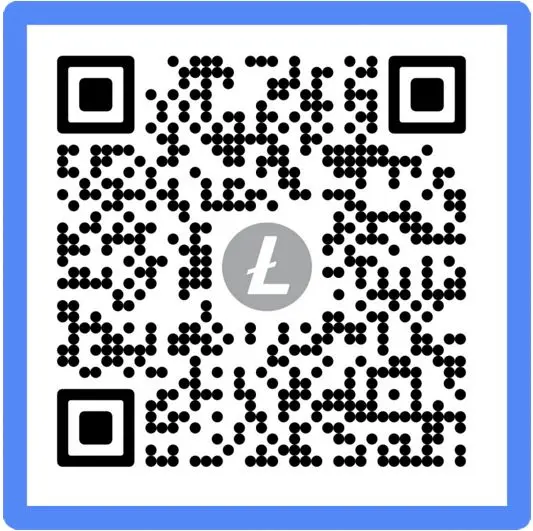
ltc1qnt8rf8wkp5dl9ltzpyq68e2fe3yzapku40zaja






