
In the past few years, the cryptocurrency space has seen the rise of numerous new exchanges and trading platforms. However, with the increase in competition, it has become increasingly difficult for these platforms to differentiate themselves from one another. Cetus is a new cryptocurrency exchange that is looking to redefine the space by providing a more capital efficient ecosystem for both liquidity providers and traders.
The first way that Cetus is looking to improve capital efficiency is through its concentrated liquidity algorithm. This algorithm actively monitors the order book and only provides liquidity in the most active price ranges. This means that liquidity providers can earn transaction fees more efficiently, as they are not spread thin across the entire order book.
In addition, Cetus is also looking to improve capital efficiency for traders. The exchange offers a rebate program that rebates a portion of the transaction fees back to the traders. This rebate is paid in the form of possibly a Cetus Token, which can be used to trade on the platform or withdrawn for other uses.
Overall, Cetus is looking to improve capital efficiency for both liquidity providers and traders. By concentrating liquidity in the most active price ranges, LPs can earn transaction fees more efficiently. In addition, the exchange's rebate program provides an incentive for traders to use the platform, which further increases the amount of liquidity on the platform.
If you're interested in learning more about Cetus, be sure to check out their website
Learn more about Cetus:
Now let's dive into how to use its bridge feature!
Bridge powered by WORMHOLE
1. Go to https://bridge.cetus.zone/#/
Connect your Metamask wallet to an Aptos-supported wallet like Martian. For this tutorial, we will be using the Polygon asset to bridge from the Polygon network to the Aptos network. Take note: Cetus does not currently support WMATIC token for swapping or adding liquidity this is only intended for this article.
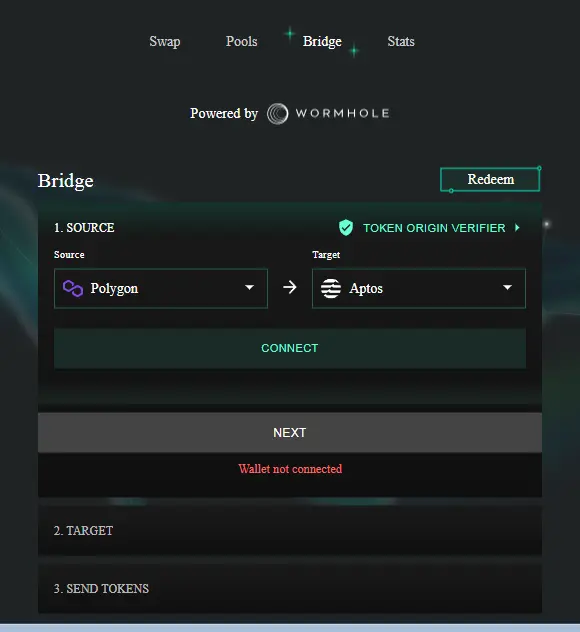
Make sure that you have enough MATIC tokens to pay for the gas fees.
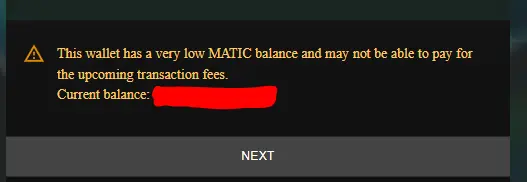
2. As you can see, I have 10.34 MATIC tokens in my wallet account. For the test transfer, I'll be using 5 MATIC, so the rest will be used to pay my gas fees for the source transaction.
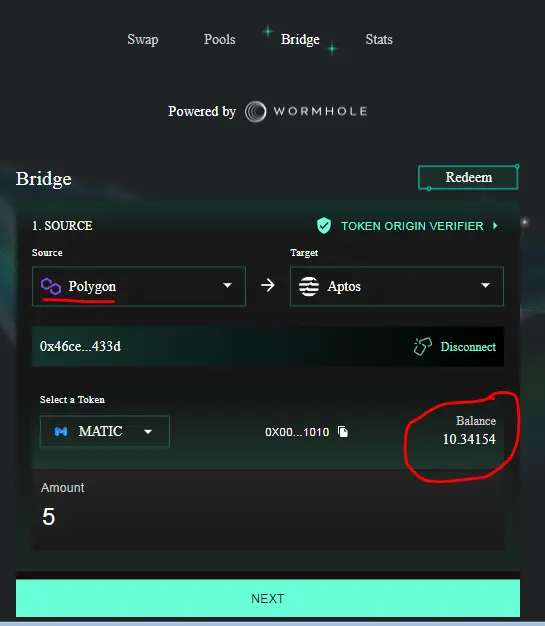
Click Next!!!
3. Connect your Aptos wallet (I'm using the Martial wallet for this tutorial). Make sure you have enough APTOS tokens to cover gas costs.
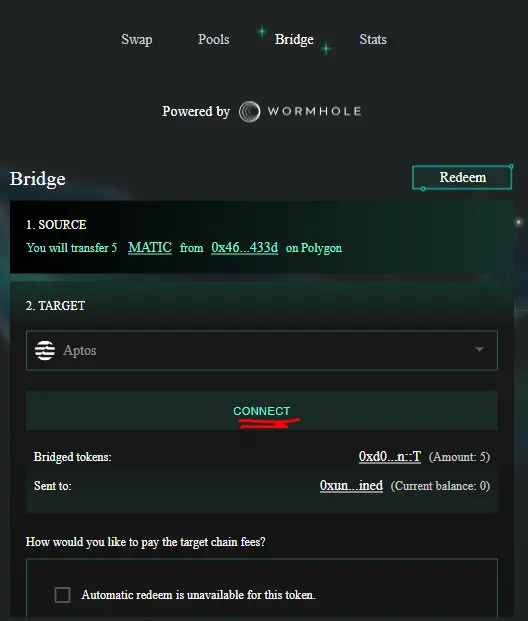
4. Once connected, you will be advised of a disclaimer below (see yellow text). This will initiate the transfer and wait until the transaction's confirmation is complete.
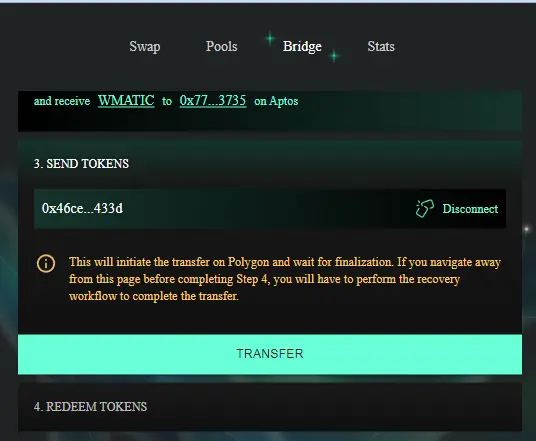
This will appear as a prompt on your screen!
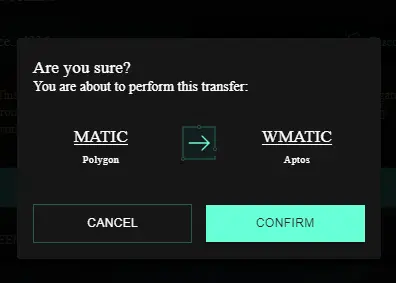
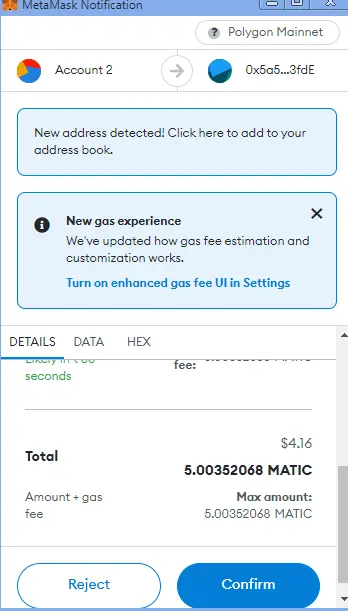
With this prompt as well in Metamask.
Make sure you have plenty of MATIC tokens in Metamask and APT in your Aptos wallet.
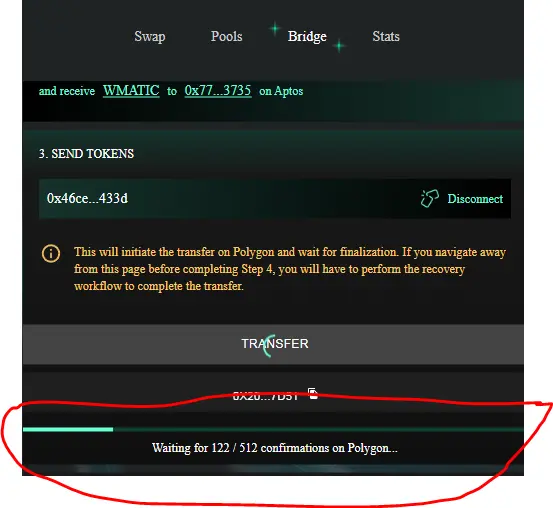
5. After completing the above process, you will receive this new window. Wait until the confirmation completes, and then you're good to go!
6. You can redeem the amount using the "target" wallet, which is your Aptos, and make sure you have enough funds to cover the fees.
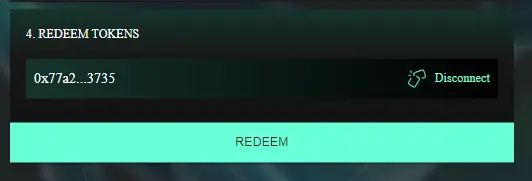
7. Done
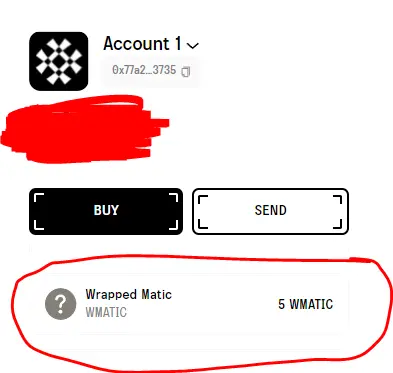
That's it!!!
Follow them on their socials and community:
The social links below can connect you with the author.

Twitter Handle: @longs_on_downs
Discord: Crypuser#0804






