Sandbox downloaded software - NOW!
Note: this article will focus on the Sandboxing feature introduced in Windows 10. If you're using MacOS or Linux, scroll to the bottom, to see an alternative.
The risk
As a Publish0X reader, you're bombarded with links: new coin developers would like you to download their new, nifty wallet; new security browsers pop up every once in a while; maybe there's this iffy link that promises you true crypto, but you don't know where it'll end up.
It could be that you trust the source of the new software completely. But what if not? What if that software contains malware or ransomware, just waiting to take over your operating system and your life? What if that new wallet is going to take your coin and send it to another wallet unexpectedly? What if someone found a way to compromise a trusted software (especially an open source one), and the browser you've downloaded is sending your history and login information to some shady criminal organization? (I include governments in that description).
What is Sandboxing?
Sandboxing is a way to isolate software from your real OS. The software will run in a virtual environment, simulating all services, inputs and outputs it can expect from a regular OS. From the software's point of view, it is running on a real computer, and is free to behave as designed.
Sandboxing has been known and used for decades. Several programming languages and OS embrace sandboxing as a way to separate processes from each other, or applications from actual system resources.
Let's look at your browser: every time you load a web page, the JavaScript on it gets executed by your browser within the scope of the open tab. That tab is the script's sandbox. It is not allowed to talk to other tabs, or manipulate their context. The only way to share information between sites in the browser is through cookies (and that's why 3rd party cookies are a favorite attack vector).
Why should you use a sandbox?
If someone designed the software to lock your C drive and demand ransom to release it, the software would lock the virtualized "C drive", causing you no damage. You will then just chuck the whole sandbox - with the software in it.
If a software is designed to spy on you, or siphon information out, you can listen to the network communications it sends out, and learn about its behavior. If a small, self contained app is very chatty with the outside world, sending encrypted packets to a foreign IP address - we might have a problem. Again - chuck it out, and never run it on your real OS.
What if I never download random apps from the internet?
Even if you're not about to download a new application, sandboxing can save your life. Harmful web sites attempt to phish your information, corrupt your browser, attempt to make you elevate script permissions, and even use your computer's resources to mine coins.
Many of the links on this site refer you to new services in exotic countries. Some are affiliate links, some have long, convoluted URLs.
Save yourself the guessing (and grief): open unknown links in a browser running inside a sandbox. None of your real info is there to be taken, or corrupted. And if the resources consumption inside the sandbox starts shooting up, close the sandbox.
Oh, and be a pal - if you encounter such dangerous link, please warn the Publish0x community.
How to use Sandboxing in Windows 10
Beginning with build 18305, Windows 10 includes a built in Sandbox feature.
Note: only Professional, Enterprise and Education versions have it. If you're using Home version, scroll down to the "alternatives" chapter. To find out your build version, click <Windows Key> + r, type `winver` and hit enter. If you have an older build - time to upgrade.
Enabling Sandbox
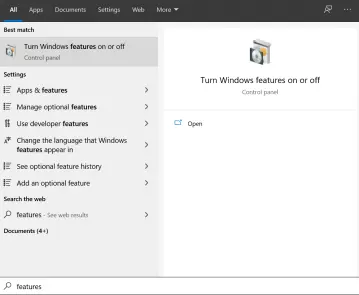
To enable Sandbox, go to the Windows Features control panel:
1. Hit the Start button, and start typing the word "features" until you see the control panel:
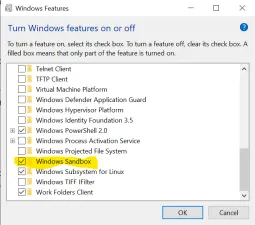
2. In the panel, scroll down and enable "Windows Sandbox". (don't see it? See the note above)
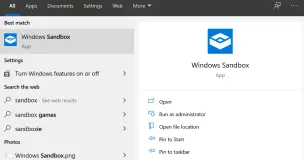
3. You may be asked to restart the computer. After coming back, hit the Start button, and select Windows Sandbox. Sandbox must be run as an administrator, so approve the dialog:
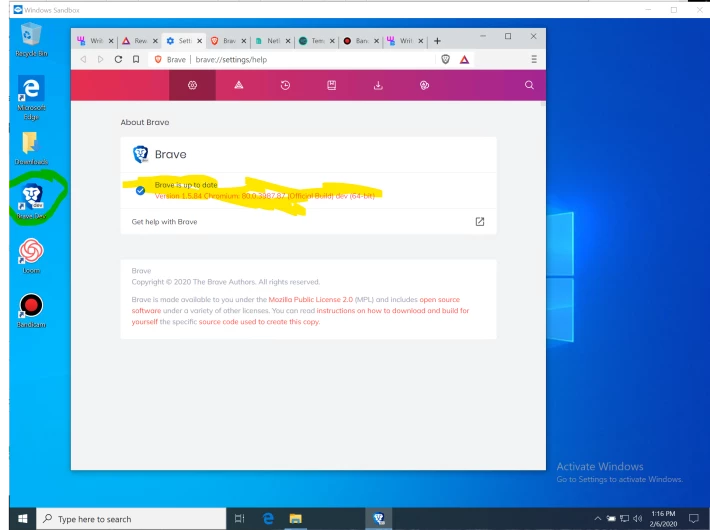
4. You now have a brand new Windows 10 machine in a Window. Here, for example, I downloaded the new Dev version of Brave. (I wanted to play with it, without disturbing my main browser)
Notes:
- In the sandbox, you may get all kinds of notifications about Windows activation, and Windows Security - you can safely ignore them.
- Closing the Sandbox permanently destroys anything in it, so if you want to keep something, either upload to the cloud, or save to a local share drive.
- You can only run one instance of Sandbox at a time, but you can keep it running for as long as you need it.
And there you have it - a safe environment you can download anything you want into, use it, and discard it.
Advanced: monitoring network traffic
To monitor the communication of an app you installed, I recommend using WireShark - a free network protocol analyzer. Just download it into the sandbox, run it, and look at who your software communicates with, what it sends, and how often.
If WireShark is too complex for you, try Fiddler. Same idea - simpler interface (also free).
Advanced: repeated installs
What if there's a software you use repeatedly, but still don't trust on your main machine? There's a way to script Sandbox to start, and run an installer.
1. Download the software's installer to your Downloads folder (or any other location) - DO NOT RUN IT!
2. Open your favorite text editor (or just Notepad).
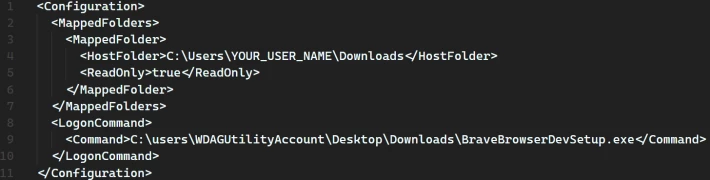
3. Paste the following:
<Configuration>
  <MappedFolders>
    <MappedFolder>
      <HostFolder>C:\Users\YOUR_USER_NAME\Downloads</HostFolder>
      <ReadOnly>true</ReadOnly>
    </MappedFolder>
  </MappedFolders>
  <LogonCommand>
    <Command>C:\users\WDAGUtilityAccount\Desktop\Downloads\BraveBrowserDevSetup.exe</Command>
  </LogonCommand>
</Configuration>
4. In line 4, enter your Windows user name, or the path to the folder you selected
5. In line 9, specify the name of the installer file.
If you need to run more than one installer, the trick is to create a batch (or .cmd) file and run that.
6. Save the file as "Sandbox Brave Dev.wsb" - the extension matters.
7. Double-clicking the file will start Sandbox, map a read-only drive to your Downloads folder, and execute the file you specified.
Some installers will still require your input (but there are ways around that as well 😊).
Alternatives
So you're using a Mac or a Linux machine, or maybe an unsupported version of Windows? No problems.
1. VirtualBox is a free virtual Machine product. It was acquired by Oracle, but is still very much updated and free to use. There are versions for every OS out there. It has way more capabilities than Windows Sandbox. It allows running multiple VMs, using multiple operating systems.
Just create a VM (or better yet, if you're comfortable with command line interface, download a ready-made one using Vagrant).
The sky is the literally the limit with VirtualBox.
2. Parallels - this is a paid software for Mac, that works quite well in running and managing virtual machines. They also have a Windows product.
3. VMWare Workstation Player - is the most complex to use of the bunch. It supports all OS (works great on Linux), and is meant for personal use only.
Note: if you're using Windows Sandbox, it may interrupt some of the virtualization services VirtualBox uses - there are ways around it, just be aware of a possible collision.
Summary
Use a Sandbox to test new, or untried software. A software inside a sandbox cannot touch your real data, cannot spy on you, cannot corrupt your real machine. And frankly, for privacy reasons, why not use certain apps in a sandbox only?
Final note: if privacy is a passion for you as it is for me, take a look my 3-part series on privacy and crypto (1, 2, 3).
Stay safe!