
In last post we learned some basic concepts of a win32 application and created our first window. In this post I will show you how you can customize that window with custom background and icon.
Loading image from file
In this post we will need several images. To load them, we will use the LoadImageA function. The function takes 6 parameters:
- HINSTANCE parameter, which will identify the module. Since we will be loading from a file (for now), we will use NULL for the parameter.
- name parameter, which will be used to pass the path to the image.
- type parameter. The function can load icons (IMAGE_ICON), cursors (IMAGE_CURSOR) and bitmaps (IMAGE_BITMAP).
- the next two parameters specify the dimensions of the image. We will use zero to keep the original size.
- lastly, there is the flags parameter. We will specify LR_LOADFROMFILE to specify that we want to load the image from file.
Background
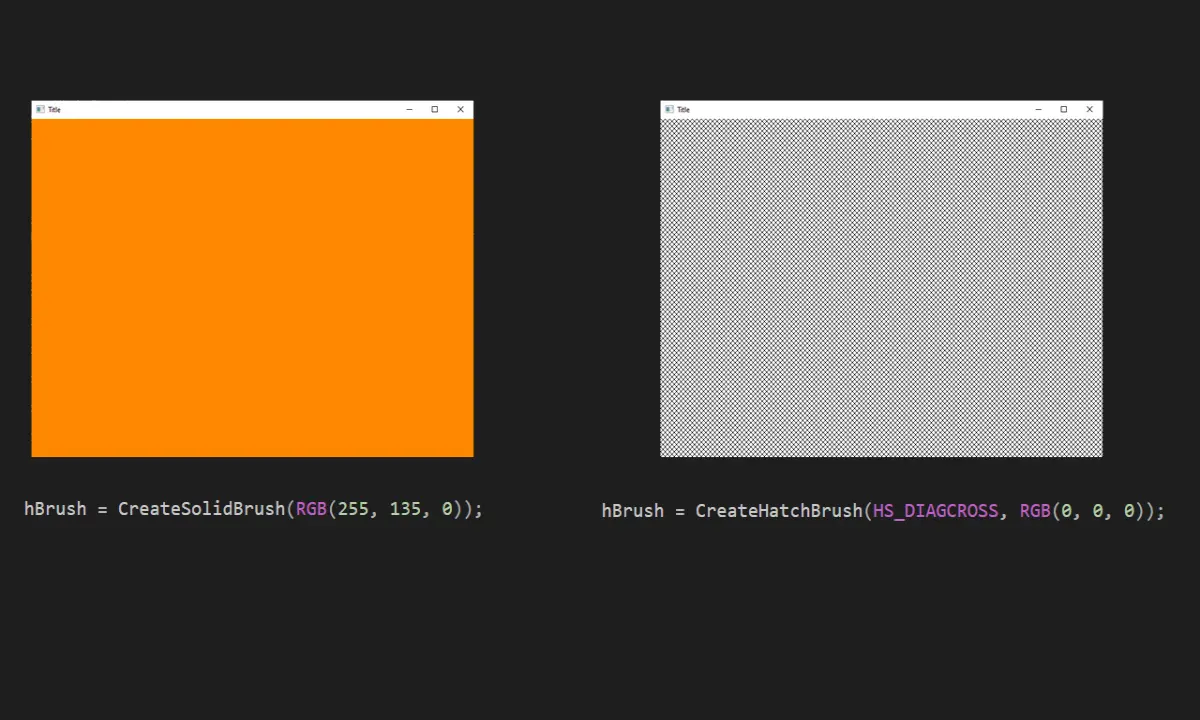
Previously we created a window with default background by setting the hbrBackground parameter of WNDCLASSEXA structure. We can customize this background by creating a custom brush. We can do that with one of the following functions:
- CreateSolidBrush
- CreatePatternBrush
- CreateHatchBrush
Firstly, we declare our brush
HBRUSH hBrush;
and set the hbrBackground parameter to our declared brush
windowClass.hbrBackground = hBrush;
CreateSolidBrush and CreateHatchBrush both accept COLORREF type parameter (CreateHatchBrush also accepts hatch type first), which is the color that we are going to use. COLORREF can be set with RGB macro. To see which hatch types are available, see this link.
Compiling
When attempting to compile the application when using functions such as CreateSolidBrush, you might get a linker error. When a linker error occurs, the compiler will output "error: ld returned 1 exit status" at the end of gcc output. In our case, the error occurred, because the compiler couldn't find the symbol "__imp_CreateSolidBrush". What does this mean? This happens because the compiler cannot find the implementation of the CreateSolidBrush function. The functions that we used until now were located in libraries that were loaded by default, but that is not the case for CreateSolidBrush. By looking at the function documentation we can determine, that the function is located in the Gdi32.lib library. So to solve our problem, we simply need to add -lGdi32 to the gcc command. Also, considering that we are developing on windows, the case shouldn't matter and we could just as well use -lgdi32 instead. After adding this flag to the command, the compilation should succeed.
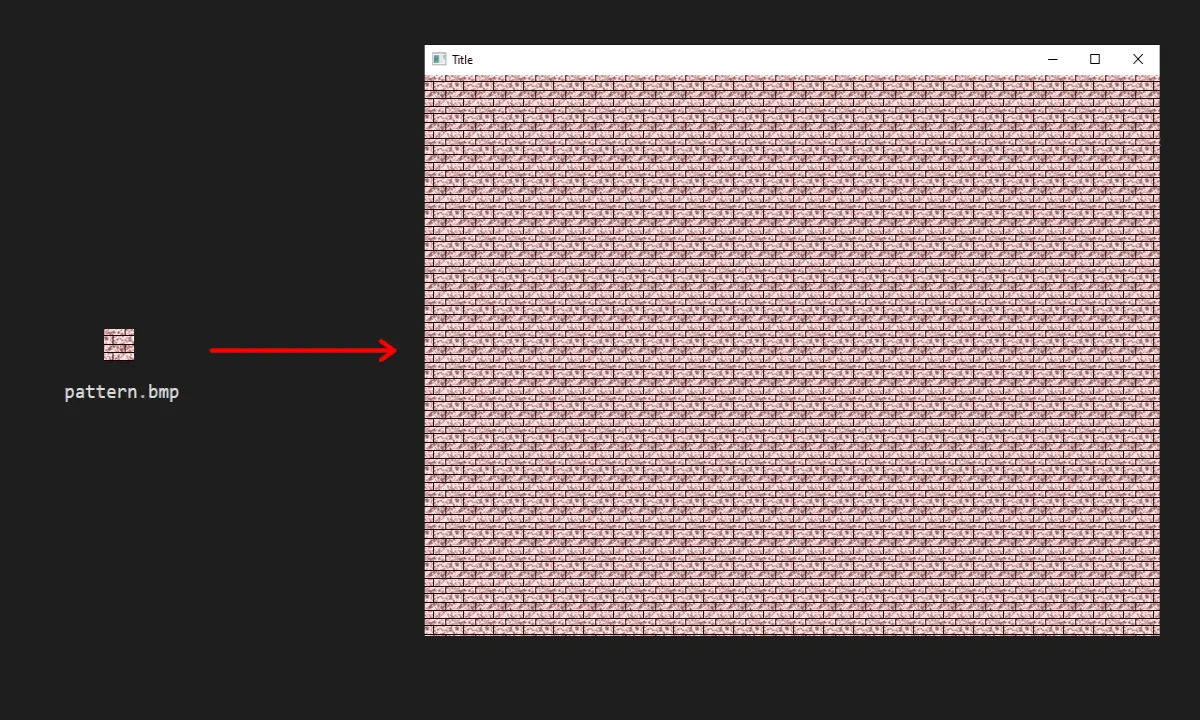
The CreatePatternBrush function accepts a bitmap (HBITMAP) as a parameter, so in order to create a pattern brush we will need to load a bitmap first:
HBITMAP hBitmap = (HBITMAP)LoadImageA(NULL, "pattern.bmp", IMAGE_BITMAP, 0, 0, LR_LOADFROMFILE);
Then create the brush with:
hBrush = CreatePatternBrush(hBitmap);The result is visible in the picture below
Icon
Before we set the window icon, we have to load it first. Loading an icon is similar to loading a bitmap, but we use IMAGE_ICON instead of IMAGE_BITMAP. Another difference is that we will cast the result to HICON, rather than HBITMAP. Here is the code showing the icon being loaded:
HICON hIcon = (HICON)LoadImageA(NULL, "icon.ico", IMAGE_ICON, 0, 0, LR_LOADFROMFILE);
This will load an icon from a file called "icon.ico" in the current working directory (in our case that is the directory of the executable) and store it into a variable hIcon. Now that we have loaded the icon, we can use it as a window icon. To do this we must set the appropriate parameter of our window class. Here is the code that will do just that:
windowClass.hIcon = hIcon;Compile and run the application, and you should be able to see the icon on your window:
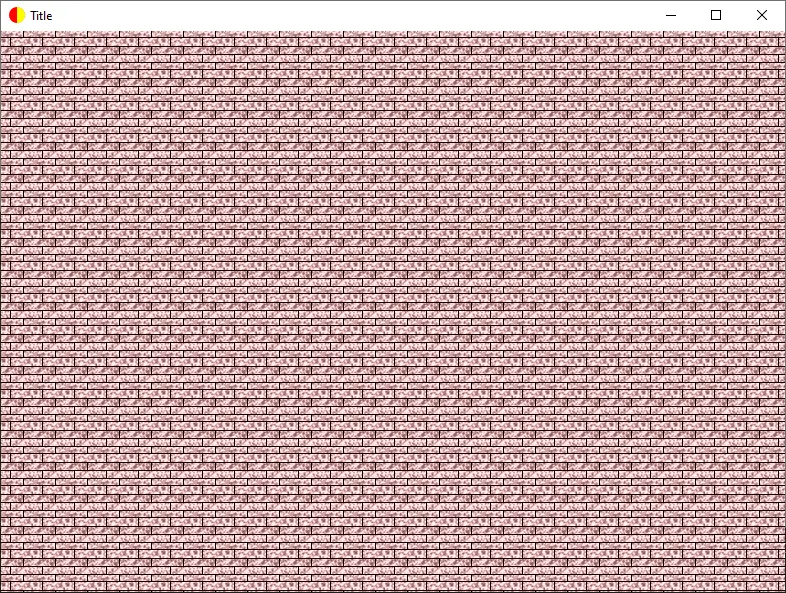
(of course, your icon might be different from the one I used)
Error handling
The way our application works currently is that we attempt to load the background image and the icon and use it to set the window's icon and background pattern. If the loading fails for some reason, then the CreatePatternBrush will create an empty pattern (white color) and as for the icon, the default icon will be used if our icon fails to load. This might be completely fine, however it would be nice to let the user know what is going on. LoadImageA will return NULL on failure, so we can use that to check for any errors:
HBITMAP hBitmap = (HBITMAP)LoadImageA(NULL, "pattern.bmp", IMAGE_BITMAP, 0, 0, LR_LOADFROMFILE);
if (hBitmap == NULL) {
	printf("Failed to load pattern image from \"pattern.bmp\"! (Error code %lu)\n", GetLastError());
	/*uncomment the line below to exit the application when this error occurs
	return 1;*/
}
HICON hIcon = (HICON)LoadImageA(NULL, "icon.ico", IMAGE_ICON, 0, 0, LR_LOADFROMFILE);
if (hIcon == NULL) {
	printf("Failed to load icon from \"icon.ico\"! (Error code %lu)\n", GetLastError());
	/*uncomment the line below to exit the application when this error occurs
	return 1;*/
}
To test if everything works, compile the application, rename either the icon or the background and try to run the application. If you didn't use -mwindows flag you should be able to see the error appear in the console.
Conclusion
Here is the full source code for the application:
#include <stdio.h>
#include <windows.h>

#define WINDOW_CLASS_NAME "ExampleClassName01"

LRESULT CALLBACK MainWindowProc(HWND hwnd, UINT message, WPARAM wparam, LPARAM lparam) {

	switch (message)
	{

		case WM_DESTROY: {
			PostQuitMessage(0);
			break;
		}

		default:
			return DefWindowProcA(hwnd, message, wparam, lparam);

	}
	return 0;

}

int main () {

	WNDCLASSEXA windowClass;
	HBRUSH hBrush;
	HINSTANCE hInstance = GetModuleHandleA(NULL);

	HBITMAP hBitmap = (HBITMAP)LoadImageA(NULL, "pattern.bmp", IMAGE_BITMAP, 0, 0, LR_LOADFROMFILE);
	if (hBitmap == NULL) {
		printf("Failed to load pattern image from \"pattern.bmp\"! (Error code %lu)\n", GetLastError());
		/*uncomment the line below to exit the application when this error occurs
		return 1;*/
	}
	HICON hIcon = (HICON)LoadImageA(NULL, "icon.ico", IMAGE_ICON, 0, 0, LR_LOADFROMFILE);
	if (hIcon == NULL) {
		printf("Failed to load icon from \"icon.ico\"! (Error code %lu)\n", GetLastError());
		/*uncomment the line below to exit the application when this error occurs
		return 1;*/
	}

	/*this will set the window background to solid color (orange)
	hBrush = CreateSolidBrush(RGB(255, 135, 0));*/

	/*this will set the window background to hatch pattern (diagonal cross)
	/*hBrush = CreateHatchBrush(HS_DIAGCROSS, RGB(0, 0, 0));*/

	hBrush = CreatePatternBrush(hBitmap);
	ZeroMemory(&windowClass, sizeof(WNDCLASSEXA));
	windowClass.cbSize = sizeof(WNDCLASSEXA);
	windowClass.hbrBackground = hBrush;
	windowClass.hInstance = hInstance;
	windowClass.lpszClassName = WINDOW_CLASS_NAME;
	windowClass.lpfnWndProc = MainWindowProc;
	windowClass.hIcon = hIcon;

	if (!RegisterClassExA(&windowClass)) {
		printf("Failed to register window class! (error code %lu)\n", GetLastError());
		return 1;
	}

	HWND hwnd = CreateWindowExA(0, WINDOW_CLASS_NAME, "Title", WS_VISIBLE | WS_OVERLAPPEDWINDOW, CW_USEDEFAULT, CW_USEDEFAULT, 800, 600, NULL, NULL, hInstance, NULL);
	if (hwnd == NULL) {
		printf("Failed to create main window! (error code %lu)\n", GetLastError());
		return 1;
	}

	MSG msg;
	while (GetMessageA(&msg, NULL, 0, 0) > 0) {
		TranslateMessage(&msg);
		DispatchMessageA(&msg);
	}

	return 0;

}
So to summarize, this blog post aims to explain how we can load images and icons from files using win32 API and how we can set the window's background and icon. If you feel that this post contains mistakes, or forgets to explain an important part of the application, let me know.






