![HTML5 For Beginners [Part 1]](https://www.publish0x.com/img/7585.webp?action=resize&ar=1&enc=webp&inv=0&ori=1&st=1&up=1&w=1140&signature=dcf198764d321387b9a70b4809d57c8d36588d6bf4f676db5cb4c2f100b1acc8)
Welcome to my first post about HTML5. This is a tutorial for all the new website lovers and early front-enders. This section will be divided for some amount because i have a lot in my mind to share with you. If you are new in the web development world here is the best place to learn about it.
About tutorial
This tutorial is intended for beginners. The content will be slowly developed in this blog. I will add here various technological nuances regarding website design and the latest frameworks. As the HTML5 language is a fundamental element of the entire layout of websites, I am starting with this technology. After finishing HTML5, the next part of the guide will be CSS3, but it will be in the near future. As you can guess after all this will be next frameworks and technologies. All this will be aimed at giving you the most important things to learn. As a lover of website design technology and all new products in the IT-related market, I will try to provide you with as much information as possible that will definitely be useful when you start a new job or create your own business.
The tutorial will contain sample source codes referring to the examples described in detail. Each post of the guide will not be too long to not bore the reader. Each post will be divided into several sections. The guide will also find useful screenshots that I did myself.
What is HTML5?
HTML stands for HyperText Markup Language. A lot of people just starting out don't realize that HTML is not a programming language at any level. It's a markup language for creating web pages and HTML documents. One of the key elements of a programming language is logic however HTML doesn't have any of that. HTML is used to just display in format elements of a web page that may be a text paragraph or a heading a bullet list or an image. It's strictly presentational just try to remember that there's no logic there's no actual programming.
HTML is the building block of the web. Every single site that you see outputs HTML to the browser no matter what kind of advanced programming it uses on the back end. You can build a website using just HTML and CSS. CSS is of course a styling language and we'll get into that in another tutorial. You can have just an HTML site without any JavaScript or any PHP or anything like that. It will be purely presentational you can't have like online store with just HTML but you can have a basic business website with information about the company and so on.
What We Need To Start?
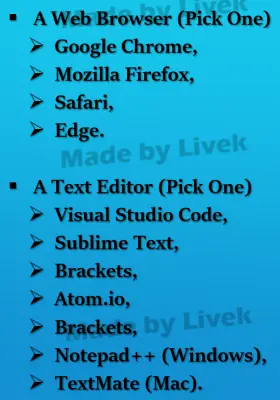
Let's move on to what we actually need to get started building websites. You only really need two things you need a Internet browser to view the HTML and text editor to write the code. Don't worry about what kind of computer you have if your on Windows, Mac or Linux it doesn't matter as long as you have these two things. Everything that I'm doing in this series and in this tutorial is completely cross-platform so for a browser can be whatever you want I highly suggest Google Chrome it's the fastest and in my opinion it's the best browser for any web developer but of course you can use Firefox or Safari even Edge just please for God's sakes don't use Internet Explorer. You can also use any text editor you want. You could even use Windows notepad but I wouldn't suggest it because you want to do something with line numbers and syntax highlighting stuff like that. I'm going to be using an editor called Visual Studio Code which is available for Windows, Mac and Linux so feel free to download it.
Creating An HTML File
When editor is installed you can go ahead and begin to create an HTML file. One great thing about HTML is that you don't need any kind of special server or hosting company to write and test HTML you can simply create a file right on your computer you can give it a .HTML extension and you can open it up with your browser. When your site is ready to deploy to the internet you will need to buy a domain name and hosting package and then you'll need to upload everything to your web host and I'll get into that in a later posts but for now we can build our site or build our cheat sheet locally without that stuff so to create an HTML file it has to have an HTML extension you can call it whatever you want you just have to end it with .HTML this will allow it to be displayed correctly in a web browser. One thing to remember is that your homepage should always be called index.HTML if you go to a domain like let's say www.hello.com and you upload a file called index.HTML that's the file that's going to show on that root domain. If you upload a file that's about.HTML that's going to show when you go to hello.com/about.HTML so the index file will always be the root file of the homepage unless of course you're messing with server settings and you change it. By default that's the behavior it's going to look at index.HTML.
We're going to go ahead and create our first .HTML file. I'm going to put this in a folder so I'm going to create a folder and call it tutorial1html then inside that folder let's create a new file by firstly creating new text document and we're going to call this index.HTML file extension and as you can notice that file has a Chrome icon by default because Chrome is my default browser and that's what opens up the HTML files but yours may be different. So what we want to do now if you want to open this with Visual Studio Code you can actually just right click on the file and choose open with Visual Studio Code. That's going to open up you can see if in the tabs is index.HTML. Another thing you could have done as you could just go to file then open and you can find that on your computer that HTML file and open it.

Now that we have that open what we going to do is just type in hello world here just text without tags or anything yet and you want to make sure you save it so you can either go to file save or you can just hit Ctrl+S which is what I would suggest for much quicker.
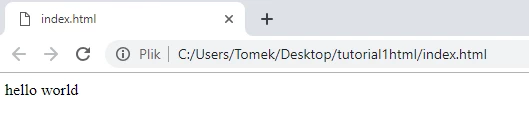
Then it's saved now we want open it up in Chrome browser so all we have to do is double quick and then that's going to open it up in the Chrome browser and you can see it says hello world even if we put just plain text in here without HTML tags at all it's still going to show the text in the browser. I recommend using double monitors because you will have Visual Studio Code and Chrome browser open at the same time. If you have only one monitor open the applications in windowed mode and manipulate with the size.
I want make each part of the tutorial to make short ones because if it's too long reader may be bored easily. So I think I will stop in this moment and part 2 of this tutorial will be continued. HTML is not complicated at all. In next part I will show basic syntax and more methods of HTML5.
I hope you liked it.






