
A Comprehensive Guide to JungleTV
(last update 2022/1/25)
JungleTV.live is a way of earning Banano cryptocoins by watching videos. Enqueuers queue-up YouTube videos (for which they pay bananos) for JungleTV viewers to watch and receive those bananos. Normally, the bananos paid to each registered viewer are in the range of 0.05-to-0.24 bananos. However, I have seen videos where, at the end, the payout is five, ten, fifteen, twenty, or more bananos.
Because the programming for the JungleTV is not curated, that means you, as a JungleTV viewer, will see all kinds of videos. They range from the expected music videos to cooking programs (Kitchen of Death by a Metalhead -- "put it into the Blender of Chaos..."), skateboarding, skiing, cartoons, home and professional animations, debates, funny out-takes, commercials, fart videos (which are limited to one minute of farting, only), and just about everything else you can imagine. Last night I watched a video of a guy who built a catapult to throw squirrels to protect his garden. They just kept coming back for more "free" flight.
It is also possible to collect special JungleTV event NFTs, if you are interested in them. Naturally, you will need a WAX account and connect it to JungleTV, first, before you can collect an NFT.
These are the sections in this guide:
1. Introduction
2. Getting Started,
3. Registering for Rewards and Chat,
4. Subtitles,
5. Enqueueing Videos,
6. JungleTV Guidelines,
7. Profile Box, Blocking a User, Leaderboards, and Tricks and Tips for Monkeys,
8. Contest Being Banned.
1. Introduction.
There are only a few rules enforced by the moderators. First, no repeating a video several times in succession. Second, no pornography or obscene videos. Third, no videos promoting hate against others. There is more on this later.
Except for the language in some of the rap and gamer videos, the channel is surprisingly teenager-friendly.
Viewers receive bananos at the end of each video, equally divided among the current viewers. However, you have to have watched at least forty-percent (40%) of the video to collect. So if you start watching a video towards the end, you won't get rewarded for that video. Similarly, if you watch most of a video and then leave before the bananos are distributed at the end, you won't be rewarded.
To reduce the stress on the JungleTV server, and reduce the sizeable Pending queue that would result for your wallet, your banano reward for each video you watch is kept in an "on-site" bank. You can see your current balance displayed at the top-left of the screen directly below your ban_address and beside the monkey. This balance will be distributed to your wallet when it either reaches ten (10) ban, when it has been twenty-four (24) hours since the last time the balance was sent to your wallet, or if you decide you want those bananos delivered right now. Clicking or selecting the Balance displayed gives you the screen in Figure 1A, below.
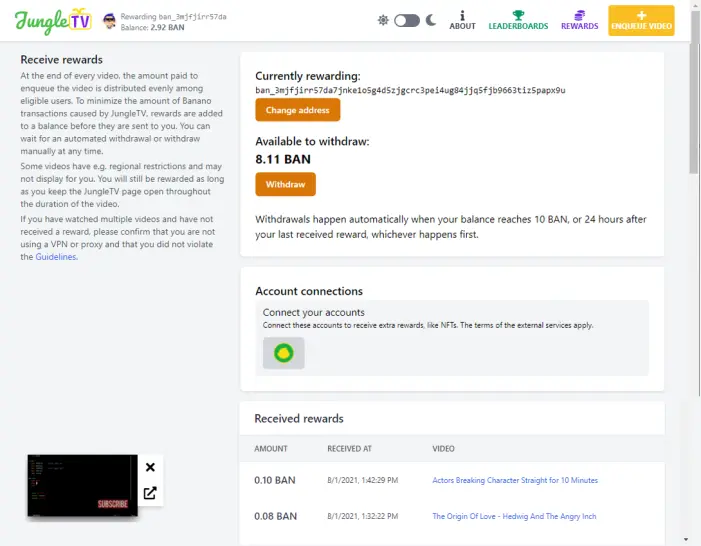
Figure 1A. Rewards Balance screen.
The amount of bananos you collect from a video are dependent on several factors, such the video's length and if the enqueuer posting it paid extra to make the video unskippable. Sometimes an enqueuer will spend far more bananos on a video than the basic charge as a way to boost what the viewers get — the higher amounts I mentioned before. As shown in Figure 1A, You can see the banano address being rewarded, the amount of bananos you've received so far, and the beginnings of a the list of the last ten videos for which you've received bananos, in order from the latest one, backwards.
There are two other things to note on this screen. First, there is the small display of the current video playing in the lower right corner. You can cancel the playing by selecting the "X", or you can return to the main screen by selecting small box with the arrow in it. If you cancel the playing video on this screen, you can still return to the main screen by selecting the JungleTV logo in the upper left corner.
Second, you can also connect to other accounts you might have for additional reward items, such as NFTs awarded for participating in various events and contests on JungleTV. The CryptomonKey interface is used to access your WAX NFT address, if you have one. To connect your JungleTV account to your NFT WAX account, select the CryptomonKey account image in the Account Connections box, and follow the instructions there.
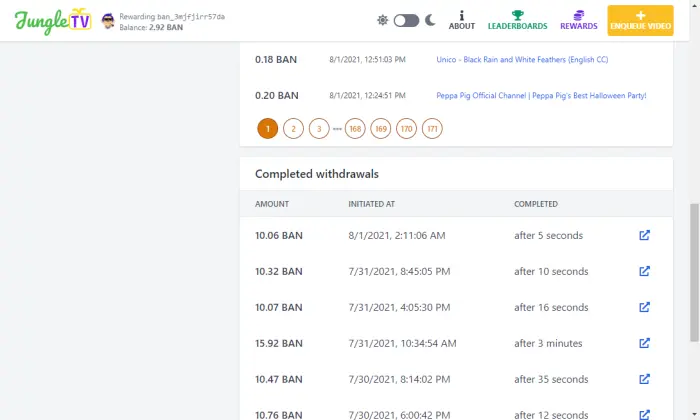
Figure 1B. Banano Balance screen bottom.
In Figure 1B, you see that you can page back through the videos you've seen for quite a distance. Below the list of video you've seen is a record of the Balance withdrawals made to this account's Balance, including both the automatic and the manual withdrawals. At the end of each entry is a blue box with an arrow pointing out. Clicking or selecting this box will give you Figure 1C, the Block network explorer display from Yellow Spyglass.
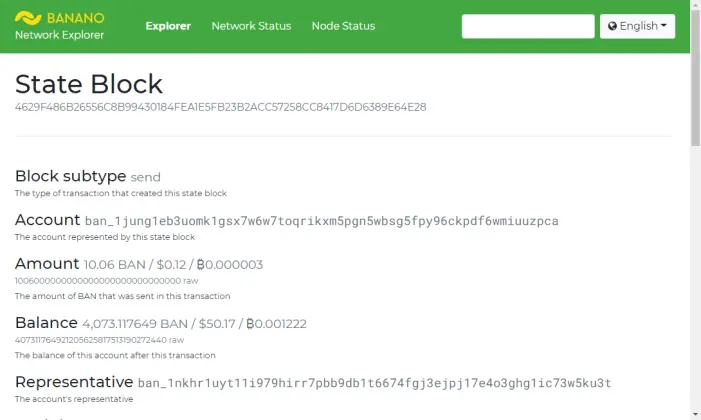
Figure 1C. The Yellow Spyglass webpage showing the Block Tranfer information for you to track your payment to your wallet.
This list also has the opportunity for you to track withdrawals back beyond just the last ten that were completed.
Occasionally, There will be a large number of spectators who simultaneously exceed the ten Banano bank limit, and there will be a delay in your wallet receiving the balance. When that happens, if you select your balance, you will see the display in Figure 1D, below.
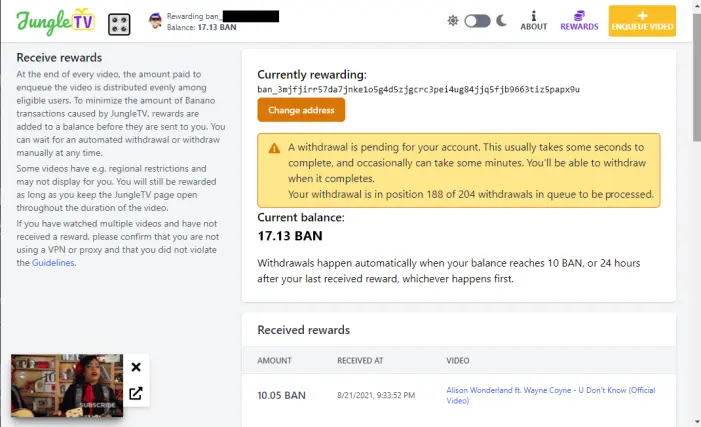
Figure1D. JungleTV delayed in payout.
To return to the main screen, click or select the JungleTV logo in the upper left corner.
By the way, if a video is "unavailable in your country", you still get counted in the banano payout as an "Active" viewer. Also, apparently, there are occasional "skip" wars where several users keep skipping the currently playing video to play the one they want. Things can get a little ridiculous, but the payout in bananos is very nice.
As with all sites on the Internet, these requirements may change as the site evolves.
Unfortunately, as in all things, there are people who try to game the system to get more than their fair share. These people tried to use scripts and bots to pretend they were watching while they were off doing something else or sleeping. As a result, using a VPN connection is against the rules, and using one means you can only watch the videos, you won't get bananos. Because of people trying to circumvent the rule of only using one computer at a time to watch JungleTV, the moderators have set up an hCaptcha system. A button comes up periodically to see if you are "Still Watching?" Clicking/hitting the button usually pulls-up an hCaptcha that you have to solve, but not always. The hCaptcha can be a bit annoying, but participating in Chat is a solution. More on that in a moment.
On the subject of VPN connections, one spectator getting bananos for watching JungleTV found his payouts seemed to have stopped for no reason. On investigation, he discovered that when he had started his email-client in another window while watching JungleTV, the email-client had started a VPN connection. His browser had followed suit, and JungleTV server had shut-off the payouts. To fix that, once he was finished with his email, he had to disconnect his browser from JungleTV. He had to wait at least thirty (30) minutes before attempting to reconnect. Any time less than that and the JungleTV server assumed the new IP address was associated with the previously block VPN, and an attempt to circumvent the "no duplication" rule.
As you watch JungleTV Chat, you will notice that the number of bananos awarded for the video that just ended, as well as the number of Active viewers, will appear as a message. The number of Active users are those who are participating in Chat or have completed the hCaptcha successfully. The number of Watchers (the eye and number at the top right of the screen, in Figure 2, see below) includes both active users and those who are watching, but for one reason or another haven't registered, completed the hCaptcha, or participated in Chat.
2. Getting Started
When you first visit JungleTV.live, you'll see a screen something like Figure 2, below, except the Monkey, Rewarding ban_, and Balance will be blank.
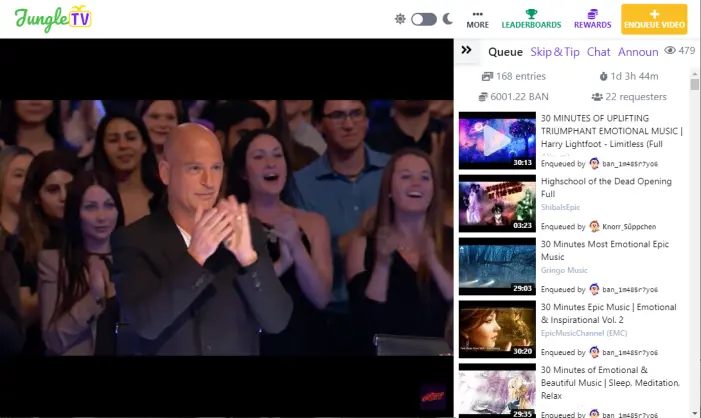
Figure 2. Jungle TV screen for non-registered viewers.
At this point, you can start watching the videos. If you aren't interested in collecting the bananos or participating in Chat, you're done at this point. Enjoy!
At the top of the screen, from the right, Enqueue a video (if you are registered), see the Rewards you've collected (if you are registered), see the Leaderboards for who has enqueued the most videos (more on that later), select Day or Night mode, or see the additional options available, as shown in Figure 2a, below.

Figure 2a. Additional menus available from the More Command.
Play History is a table of all the videos played since JungleTV started. Rules are the rules on expected behaviour on JungleTV, the FAQ answers the Frequently asked questions, and About gives general information about JungleTV.
On the main screen, Figure 2, above, you'll notice that at the right there's a list of the currently playing and the upcoming videos. Above that list are a right-double-caret, Queue, Chat, Announcements, and an eye with a number. The right-double-caret hides the list of upcoming videos, giving you the full window for the video. The Queue is what we are looking at in Figure 2.
If you click on a video in the Queue list, you get a quick summary of the person who enqueued the video, when they enqueued the video, a way to copy their address, and their Profile, where you can tip them if you want (see Figure 3 below). If you want to tip them, you can do so easily if you have a Kalium Wallet. If you don't, you can use the copy address button to paste their address into the wallet you do use. Notice that amount of bananos spent to enqueue the video is blurred out.
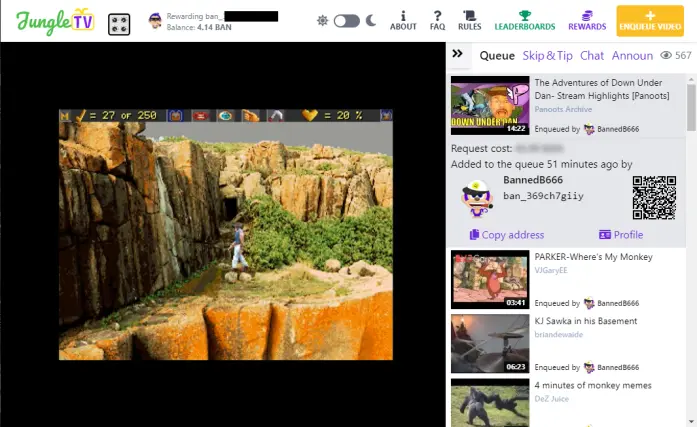
Figure 3. Video Enqueuer information.
If you want to know the amount of bananos that it cost to enqueue the video, and thus the amount of bananos to be distributed to spectators, just hover your mouse or touch the blurred number (See Figure 4, below).
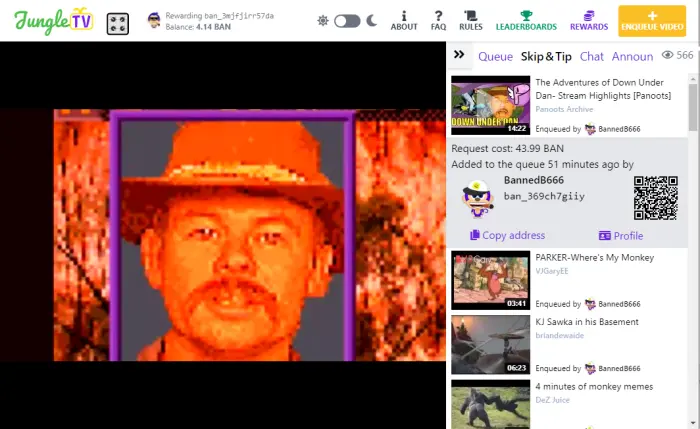
Figure 4. Cost to Enqueue this video.
Next in the series is Skip &Tip, which pools Banano together with other users to skip a video or simply to increase the rewards for it! Selecting it gives you Figure 5, below.
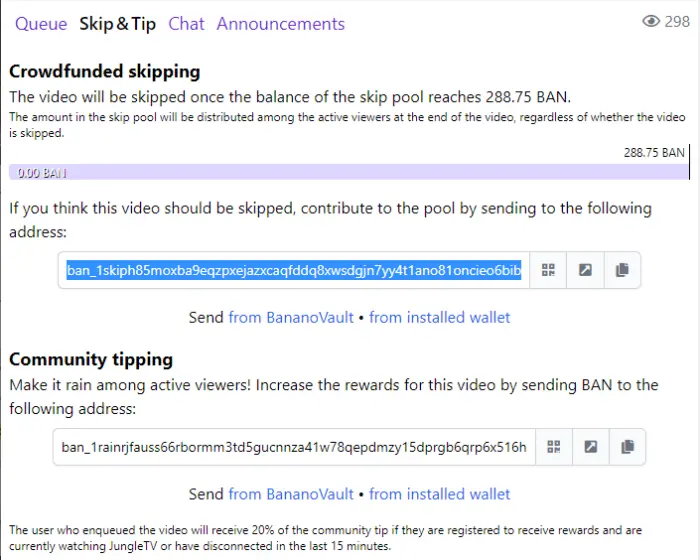
Figure 5. Skip+Tip crowdfunding panel.
There are several things to note in this panel. First is skipping the current video playing. This is above and beyond the ability of a single spectator to skip a video by replacing it with their choice of a new video video, at ten times the original cost to enqueue the video. This means that if enough spectators dislike the current video, they can pool their Bananos to get rid of it. The total Bananos needed to skip this video are displayed, at the same rate of ten times the Bananos spent by the original enqueuer. If enough people contribute to skipping the video, it will be skipped. Some videos are unskippable, and that will be noted, as appropriate. The Bananos destination address is rotated among several addresses.
If the video is about to end, the skipping feature is suppressed and you are told: Crowdfunded skipping is presently unavailable as the current video is about to end.
Second is the ability to tip the video enqueuer and all the spectators! Any Bananos sent to the displayed address — which, again, is from a rotating group of JungleTV addresses — will be distributed to the entire list of registered spectators currently watching. This is not the number displayed beside the eye in the top right corner (which is 298 in Figure 5, above). Typically, the actual number of spectators is roughly half the number of viewers. As stated, the actual enqueuer of the video will receive twenty (20) percent of the total Bananos donated to the community tipping pool. If you click the prompt "Send from BananoVault" or "from installed wallet", your selected wallet will automatically open with the destination fields filled in. All you need to do is fill-in the amount and click the Send button in your wallet.
Currently, there is no way to directly tip the video creator, only the enqueuer.
The next menu item is Chat. Selecting Chat switches out the Queue list of videos with the Chat column (See Figure 6, below). You do not need to be registered to interact with the other viewers.
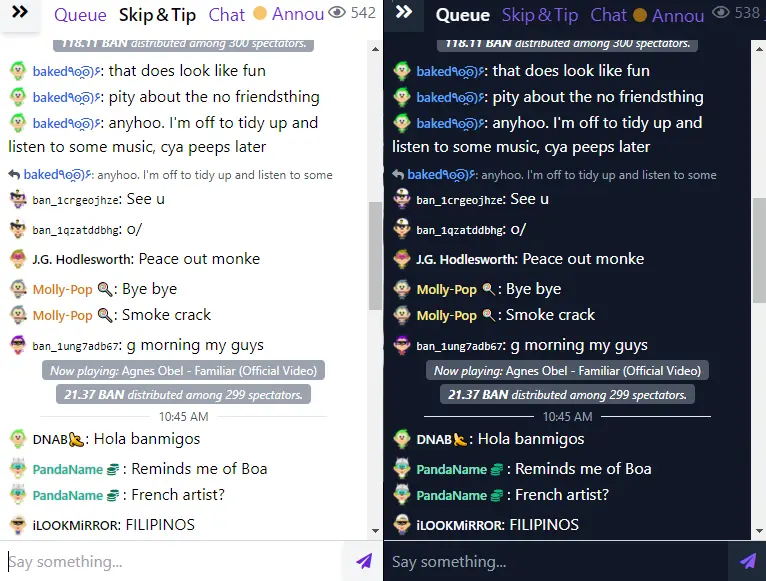
Figure 6. JungleTV Chat panels in Day Mode (left) and Night Mode (right)
Users who request videos are highlighted in Chat with different colors depending on how many videos they requested are currently in queue, or have played in the last four hours. Chat Video Requesters with one to four videos are considered to be Tier 1, and their names are in blue. Video Requesters with five to nine videos are considered to be Tier 2, and their names are either Orange (in Day Mode) or Yellow (in Night Mode). Tier 3 Video Requesters have at least ten videos in the queue or videos that played in the last four hours. Their names are in Green. The user who requested the currently playing video has a coins icon next to their name.
The Chat has an emoji picker for you to use if words are not sufficient to express your opinions.
Continuing, Announcements is, of course, where the latest announcements from the developer (Gabriel) and the moderators are placed. (see Figure 7, below). If a new announcement has been made since the last time you were on JungleTV, a large dot appears beside the word Announcements to indicate so. After viewing the announcement, the dot is removed (See Figure 4 versus Figure 6, above).
The eye/number is list of total viewers watching at this moment.
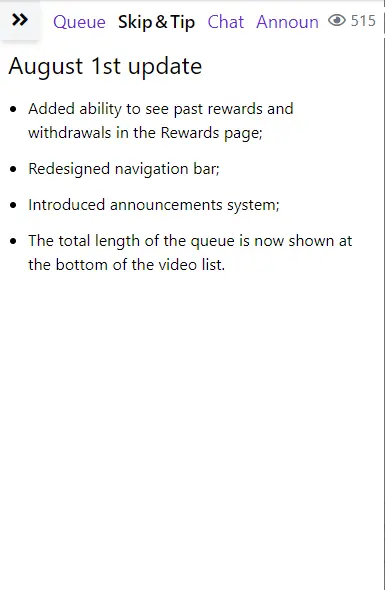
Figure 7. The Announcements panel.
Above the video currently playing is the Channel name, JungleTV, the banano wallet address being rewarded with the current JungleTV Balance below it, a day-night selector button, the symbol "i" with About below it, What's this, Earn Rewards, and Enqueue Video. About, of course, tells you about JungleTV. Selecting Earn Rewards is how you register with JungleTV. Selecting Enqueue Video lets you put your choice for a video into the Queue, but only if you are registered, first.
As time goes on, other buttons might appear.
3. Registering for Rewards and Chat
Registering is very simple. When you select the Earn Rewards button, you get the screen in Figure 8.
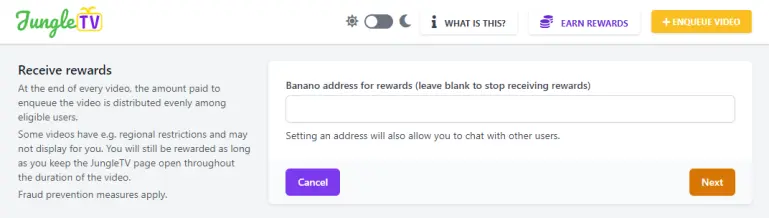
Figure 8. The Receive Awards screen, to input the Wallet address to receive the Bananos.
Fill in the Banano Address box with the address for your Banano Wallet. This is where the bananos will be sent. There is no fee for that action. You get the full amount of banano each time.
You can also use this screen to unregister from JungleTV by deleting your address from the box. JungleTV will acknowledge that your Banano wallet is no longer going to receive any banano.
The next screen is very important. Before doing anything on this screen, Figure 9, copy your current representative to a safe location. You will want it in a few moments.
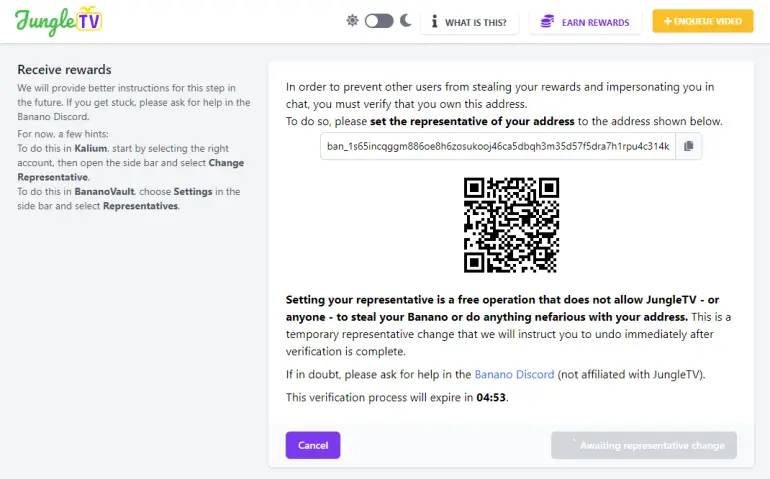
Figure 9. The screen to verify your Wallet's Banano address.
Set your wallet's representative to the representative in the address box in Figure9, above. This is a fake address, and changes for each person registering.
If you are on a phone, you can get a copy of the fake representative's address by pressing the small set of pages to the right of the address box. You can then paste that address into your Wallet's Representative box. You can also press on the QR Code, the address will be displayed, and you can copy it manually.
Some cellphone users have reported that changing the representative on a cellphone gives you an error.
This happens because the connection between the webpage and the server is broken in the middle of the process, usually because the user sends their Browser app to the background and switches to their Banano Wallet app. When this is done, the phone's browser/OS kills the connection in the process and JungleTV gives this error when the connection is lost.
Solutions:
1. Use split-screen mode, if your phone supports it. That keeps the browser while you do the representative change on your wallet.
2. Install the Kalium Wallet on a second device, import your wallet there, and use QR code to change representative instead of copy-and-pasting it. The trick is to never switch applications (i.e. the browser) on your phone/tablet, since the internal error happens every time you switch application.
3. Use a different machine than your phone (e.g. another phone, a computer, etc.) to do the representative change.
You have five minutes to do this before it resets and needs a different address for the "fake" representative.
Once you have JungleTV's fake representative's address in your wallet, the Wallet will indicate the address is fake and ask you to set it to a real representative.
You only need the fake address in place long enough for JungleTV to "see" that you changed it as required. This is to prevent someone from trying to steal your wallet by spoofing JungleTV with your Banano Wallet address — which is public information. A Spoofer won't be able to change your Wallet's representative, which proves you are the owner of the wallet.
Once you have completed the process in your Wallet of changing the representative to their "fake" one, you will see Figure 10, below.
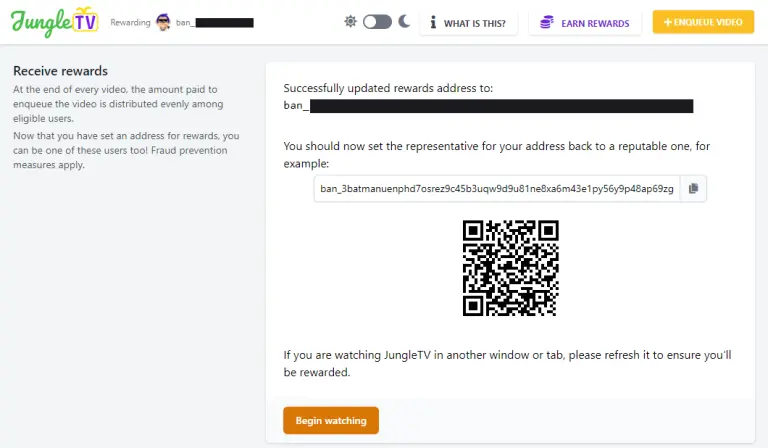
Figure 10. The screen acknowledging your Banano Wallet address, and requesting that you change your representatives back to a real one.
The button at the bottom saying "Begin Watching" will take you back to the screen in Figure 2, except there will be a small tag beside the JungleTV logo saying "Rewarding" followed by your Wallet's address, as you can see in Figure 8, below.
You are now considered an Active spectator!
Just a word of warning. Every six months or so you will be automatically logged out of Jungle TV. You will have to go through the registration process again. As long as you use the same wallet address, your account will pick up exactly where it left off, with your balance intact. If you use a different wallet address, your balance on the screen will read zero. Your old balance will get sent to the old address when 24 hours have passed since you were logged off.
At this point you can go back to your wallet and set the representative back to the original you were using. I suggest, if you were using the default representative, that you should change to another. The default Wallet representatives now represent over 50% of the total banano-owners now in existence, counting both the Kalium and BananoVault Wallets. The BananoVault node occasionally has gone down for what is assumed to be updating or maintenance reasons.
This is not good for a supposedly "decentralized coin." I suggest either JungleTV as your representative (ban_19potasho7ozny8r1drz3u3hb3r97fw4ndm4hegdsdzzns1c3nobdastcgaa), ban_3batmanuenphd7osrez9c45b3uqw9d9u81ne8xa6m43e1py56y9p48ap69zg, or ban_1gt4ti4gnzjre341pqakzme8z94atcyuuawoso8gqwdx5m4a77wu1mxxighh. They each have an online rate of 100% for the last thirty days. For a complete list of Representatives, visit https://yellowspyglass.com/representatives.
You will earn bananos for watching the videos (except videos put in the queue by the JungleTV program when the queue is empty). You can watch JungleTV on either your phone or your desktop. You can have both open at the same time. If you do have multiple device open on JungleTV, the rewards will only be totaled as if one device were open, not more, so you don't have to worry about being accused of trying to earn multiple shares of the payouts at the end of a video.
If you select the Chat screen, you can interact with other spectators.
You can spice up what you say in Chat with bold, italics, bold-italics, strikethrough, and even typewriter font! Create italic text with one set of asterisks (*), like this: *word*. Make text bold with double asterisks (**): **word**. Combined bold-italics is with triple asterisks (***): ***word***. You can also use the underline character (_) in place of the asterisk. Strikethrough uses two tildes (~~): ~~Scratch this~~. (Unfortunately, this article's webpage doesn't support demonstrating strikethrough). The back-tick ( ` ) switches to ` typewriter ` font: `typewriter`. Backtick is usually to the left of the number one key at the top of your keyboard, you might have to hunt for it. I know I did. If you wish to use any of these characters as a normal character in a comment, you can use the blackslash (\) character to precede them. That is "\*" will simply print the asterisk, "\_" will print the underline, and "\~\~" will print "~~".
Emoticons are also supported. On a windows machine, right click the *Say something . . .* box for the emoji list. Or press the windows-key, then period. You can also use emoji short codes: \:banana\: for :banana:
A few minutes after going to the main page, the first hCaptcha will appear (see Figures 11 and 12 below). You have sixty (60) seconds to complete the hCaptcha to start getting rewards. If you exceed this time limit without completing the hCaptcha, just exit your browser, and restart it to try again when the hCaptcha appears.
After that, you will start getting bananos added to your wallet. You will need to participate in the Chat or periodically finish the hCaptcha that comes up in response to the "I am human" or "Still Watching" alert that you have to click (See Figure 12). Sometimes, the "I am human" or "Still Watching" alert accepts your click without calling up an hCaptcha for you to complete. You will still continue getting banano after clicking the "I am human" or "Still Watching" button if the hCapthcha fails to appear.
Sometimes the hCaptcha comes up just as the video you are watching ends. If you complete the hCaptcha in the time limit, you will still get the rewards for the previous video (assuming you watched more than forty-percent of the video to qualify).
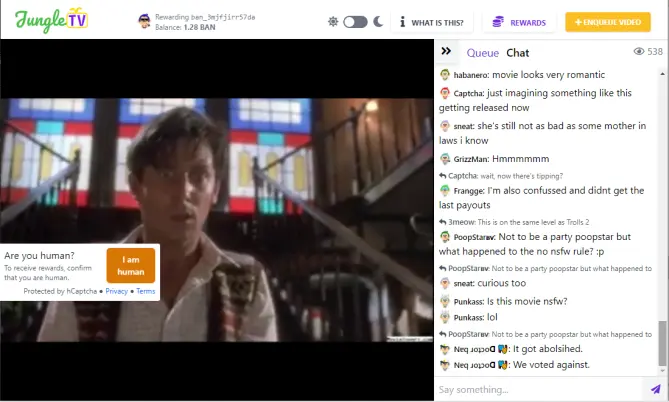
Figure 11. The "I am a human" query box. The "Still Watching" query is almost identical.
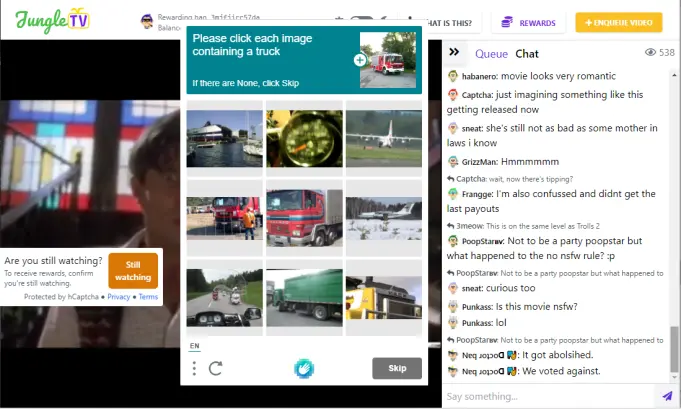
Figure 12. The hCaptcha triggered by the "Still Watching" query box.
4. Subtitles
Once you have videos playing, you'll notice that sometimes one comes on where they aren't speaking a language that you do. The cure, such as it is, is to enable subtitles. If you hover the mouse over the video, you will see the YouTube logo in the lower-right corner with a small cogwheel beside. The cogwheel is for the settings (see Figure 13, below).
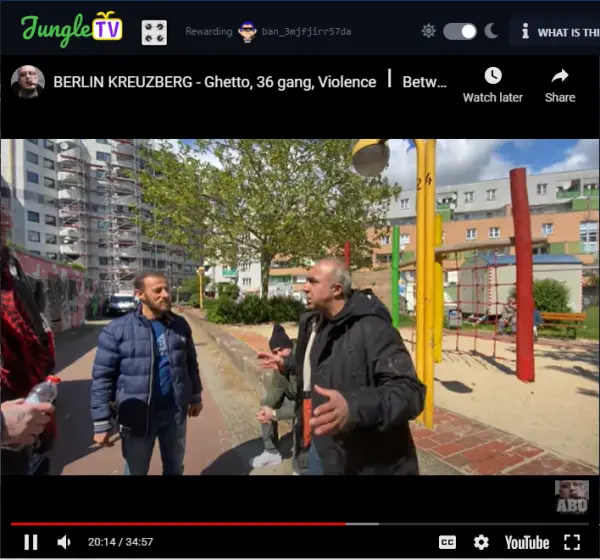
Figure 13. The video playing screen with controls displayed.
Clicking or selecting the cogwheel, brings up the settings available for the video (see Figure 14, below).
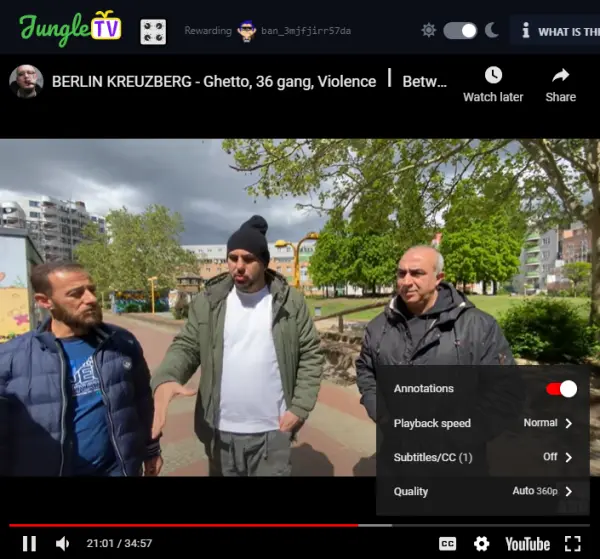
Figure 14. Setting for the video currently playing.
If subtitles are available, you'll see the choice of Subtitle/cc in the settings list. If not, then I'm sorry, but no translation is available. If it's available, select the line that says Subtitles/CC, which gives you Figure 15, below.
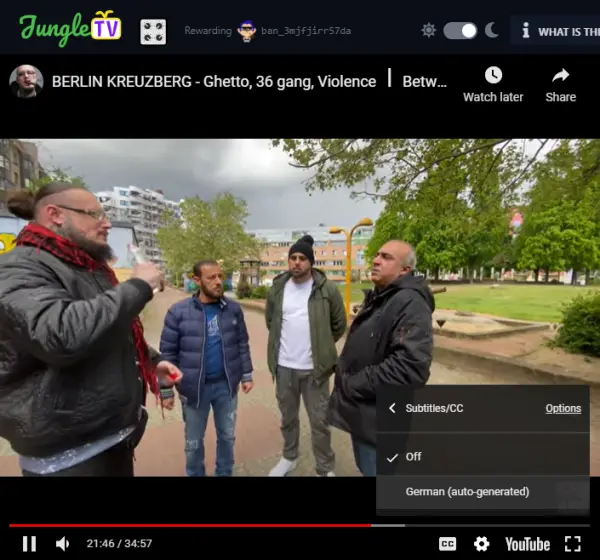
Figure 15. Subtitle/cc controls and options.
If there is a line that says a Language or Language (auto-generated), select it. You might be returned to the main screen with that language being subtitled, as I did, shown in Figure 16, below. If so you will need to reselect the cogwheel, and Subtitles again.
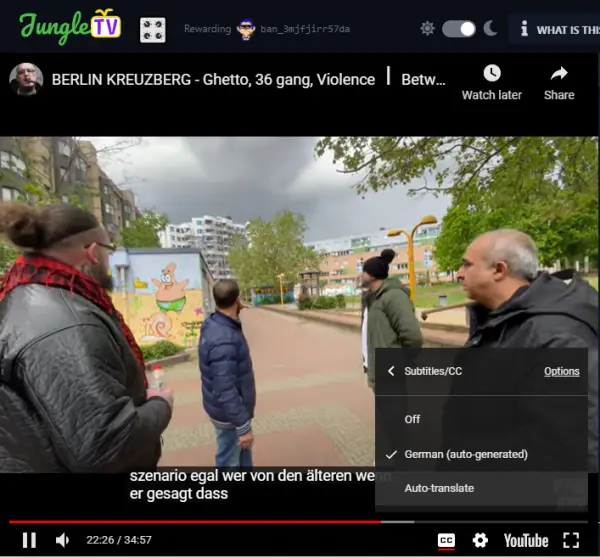
Figure 16. Screen with subtitles displayed, and returning to the Subtitles/cc control.
Clicking on the Language, again, should bring up the list of languages available for auto-generation (see Figure 17, below).
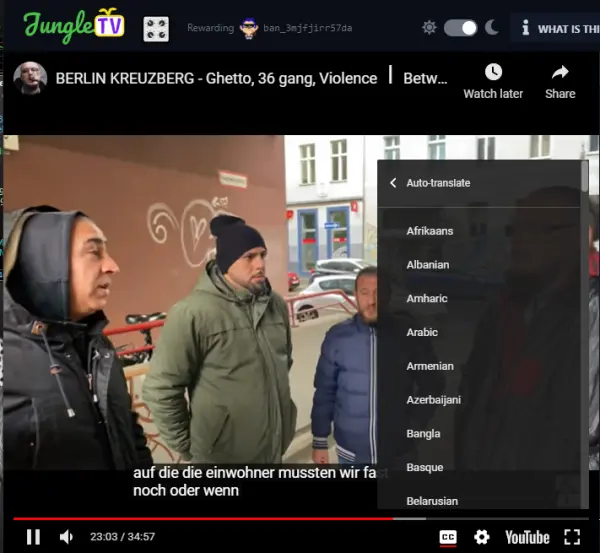
Figure 17. Languages supported by the Subtitles/CC module in YouTube.
Select your language. I scrolled down to English and chose it, giving me Figure 18, below.
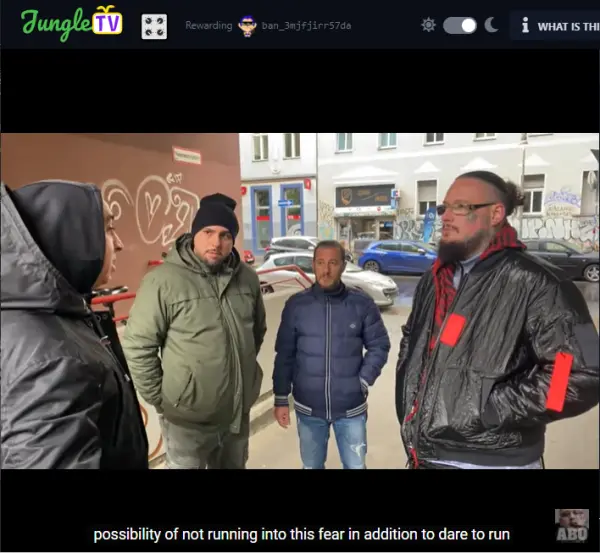
Figure 18. Screen with English Subtitles successfully selected.
There are other settings in the Settings panel for you to experiment with.
5. Enqueuing Videos
If you have a video you want to show other people, select the Enqueue button shown at the top-right in Figure 2 and 11, above. That will bring up the screen below, Figure 19.
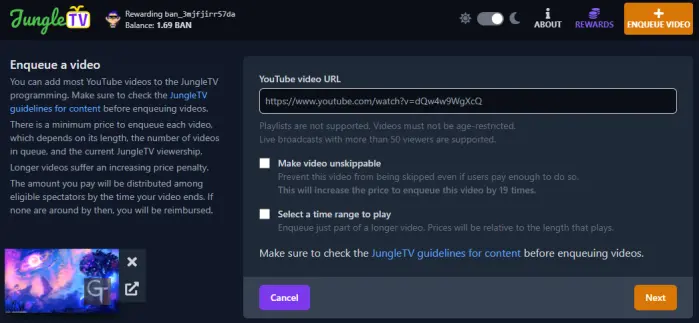
Figure 19. Enqueueing a video.
Almost any YouTube video can be added to the JungleTV programming queue. There is a minimum price for video you add to the queue. That price is calculated by the queue length (number of videos waiting to play), the number of active spectators, a moderator-multiplier, and the enqueue-type (skip / next / normal). The moderator-multiplier is used to balance video-cost-vs-payout as the price of Banano fluctuates. Naturally, the longer a video is, the more it costs. But it doesn't scale up very fast. A half-hour video is about double the cost of a three-minute video.
YouTube live broadcasts are now supported up to 35 minutes in length. Only streams with fifty (50) or more viewers are supported, for content moderation reasons.
If there are no viewers when your video comes up to play, you will be reimbursed.
There are four conditions set at this point.
First, Videos must not be age-limited.
Second, Videos, currently, cannot be longer than thirty-five minutes. Longer videos have to be broken into Part one, Part Two, etc. Even more unfortunately, you can't post the parts immediately one after the other. That's to prevent people from enqueueing five- and six-hour videos with the parts all in a row and preventing other vids from being played without paying exorbitant prices in bananos.
Third, videos must not contain disturbing/shocking content. This includes content which is NSFW (i.e. gore/nudity etc), racist, overly toxic, or harmful. Obnoxiously loud videos meant solely to cause discomfort are strictly prohibited.
Fourth, repetitive videos will be skipped by moderators (2 to 3 times per hour if under 5 minutes, each, are sometimes allowed, 2 times every 2 to 3 hours might be allowed, if longer. An empty or short queue may lead to an exception of this rule, with Mod approval). I have seen a 20 minute video that was posted and allowed to play when the que was especially dead one night. If there are videos waiting, such a video would probably have been skipped. Such skipped video pay out to the spectators. The bananos paid by the enqueuer are not refunded.
If you have a video that is longer than the 35-minute time-limit, you can select where it starts to play and when it ends to keep it inside that 35 minute limit. This is handy if you have a video that has multiple songs in it, but you are only interested in playing one or two of them. You enqueue the video, select the starting point of the song you want to play, and then select when the vid is supposed to stop, cutting out extraneous material.
I have used this feature to eliminate the artist spending more time talking about his sponsors before the video starts, and begging you to subscribe to his video channel after, than actually playing the song.
It also means you can cut a long videos into multiple parts. Each video you play starts at the point you select, and ends where you decide. This also means you can enqueue an entire movie in three parts, with the second and third part starting at points you select. You have to Enqueue the parts separately, though, which means you may not get the movie to play uninterrupted if someone else enqueues a video while you are working on the additional sections of your long video.
You can select to have your video unskippable. That is, someone else can't kick your video off playing by substituting their video. The increase in price for interrupting someone else's video with yours is about ten times the normal cost. This is usually seen when a particularly boring or objectionable video is playing (the farts video, for example), or someone has queued several episodes of a show, one right after the other, and viewers want something different.
Making your video unskippable currently increases the cost by a factor of nineteen. Thus, a thirty-bananos (30) video would cost five-hundred-seventy (570) bananos!
If you select the time range to play box, you will see Figure 19b, below.
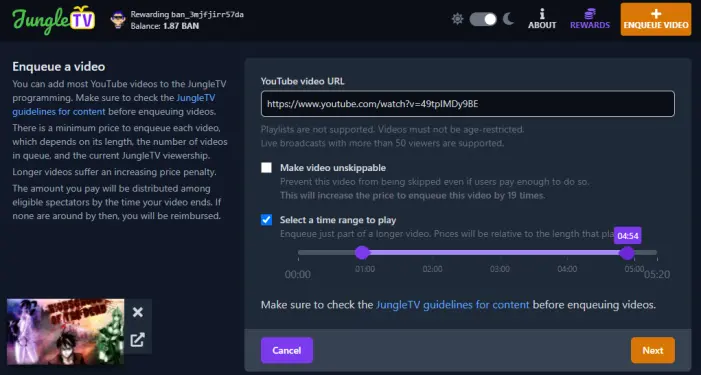
Figure19b. Selecting a time range for the video to play.
Move the start and end points to wherever you need them for your video. A small tag will popup that displays the time-mark you are setting for starting/stopping the video. I suggest you preview the video carefully to select those points properly.
After selecting and pasting in your video's address, you will see the display in Figure 20, below. I chose a Baby Metal video for this example. I did not select a start or stop time.
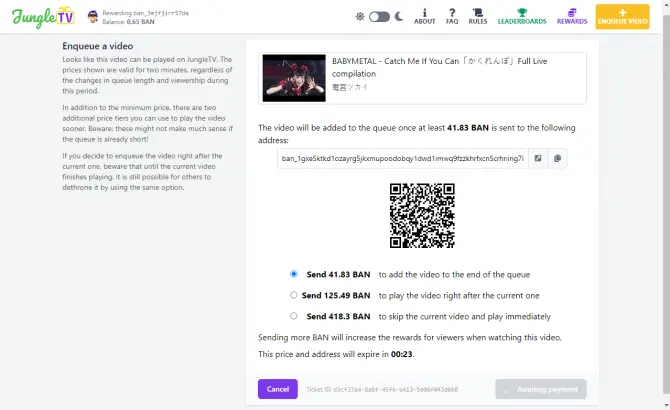
Figure 20. The cost for a video depends on the options chosen.
As you can see, the video is first checked that it can be played. Then you are given three options. You can add it to the end of the queue for the cheapest rate (in this case, 41.83 bananos), add it to be the next in line in the queue after the currently-playing video (which would cost 125.49 bananos), or skip the current video and play your video immediately (which would cost the most at 418.3 bananos). The cost to enqueue the video is based on it's time playing, not the length-total of the entire video. Thus if you select a 5-minute section of a 30-minute vide, you are charged the 5-minute price.
The prices are good for two minutes, regardless of viewership changes or the length of the queue. There is a countdown timer just below the prices.
As before, you can use copy&paste to send the bananos from your wallet, or use the QR Code to send them from you cellphone wallet. In addition, there is a small box to the right of the JungleTV ban address to use, beside the copy address box, which you can select to open Kalium on Android with the payment data already pre-filled.
Once payment is received, the video is queued or starts playing. Occasionally, someone will make a mistake and not send enough bananos to enqueue the video. Sending the remainder usually is accepted, but only if it is done before the timer runs out. If the timer runs out, or the user dismisses the screen before completion, they take a screenshot of their Wallet Activity screen, the current queue, and note the time. Then contact the moderators, either in Chat or on Discord, in the Banano section, and in the JungleTV subdivision. It might take a few hours (Gabriel might be asleep or at his day job), but the user will get a refund once it is verified.
Note that even if you pay the extra to have your video played when the current one finishes, someone else can pay to have their video play instead, bumping you to number two. This can happen repeatedly. I saw one user complain that his video was lower in the queue after an hour than when he had first queued it.
Plus, if you pay to "skip the current video and play immediately", you, too can be skipped . . . unless you paid to have the video "unskippable." Be advised, that if the video is deemed "unacceptable" by the moderators, they can skip the video, regardless of its "unskippable" status. There is also the option for the spectator community to pool their Bananos to skip a currently playing video . . . unless it is "unskippable."
Using this video as an example, you could pay more for the video than the price listed, such as paying 100 bananos instead of the 41.83, as a bonus to the viewers. However, be forewarned, that the categories go by how much is paid, not simply by the buttons selected. That is, if you select the first button to add your video to the end of the que, but then send 200 bananos from your wallet, the video will be enqueued immediately after the currently playing video. If you sent 500 bananos, it would immediately skip the currently playing video and start with this one! Sending 800 bananos would make the video unskippable.
More than one person has accidentally skipped their own currently-playing video by typing in a large number of bananos for the next video they wanted to enqueue. Sometimes it happened only seconds after the first video started playing!
So, if you have a lot of bananos and want to share the wealth, pay attention to what you are doing or you'll skip your own videos!
Users can remove the videos enqueued by themselves, allowing for self-censorship if you regret your choices or decide a different video would be better to play at this point. If a video is removed before it begins playing, you'll receive a refund.
6. JungleTV Guidelines
The actual Posted Rules are in Figure 21, below.
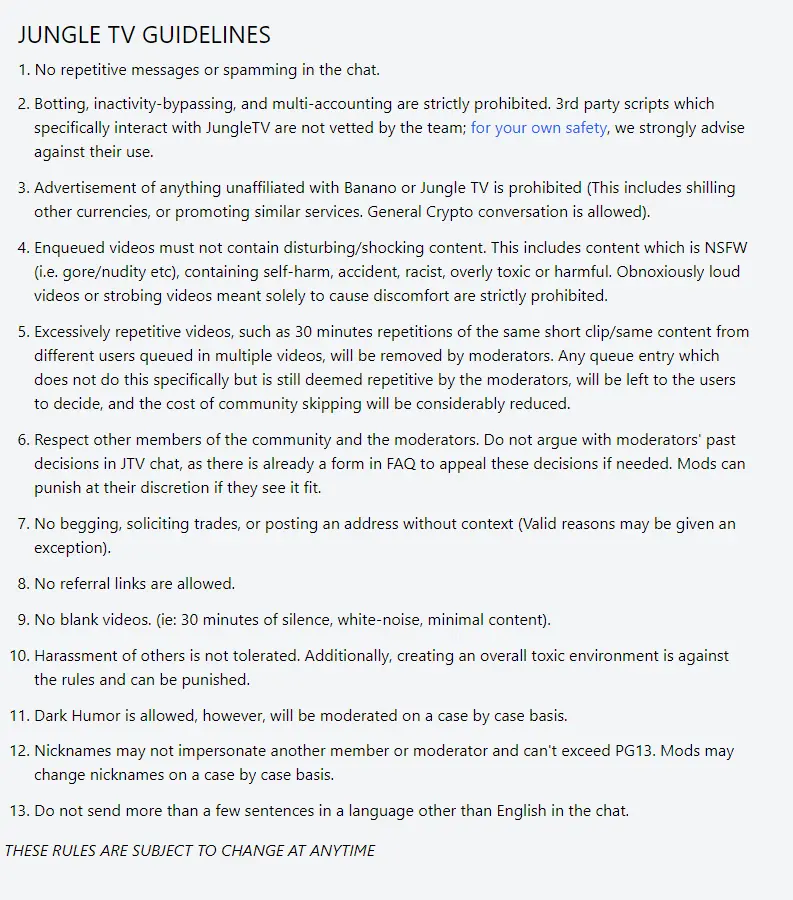
Figure 21. The JungleTV community guidelines.
The most important rule, really, is, if you wouldn't want your parents, grandparents, or significant other to be reading over your shoulder as you type in chat, or watch a video with you after posting it, then don't say anything, and don't post the video.
7. Profile Box, Blocking a User, Leaderboards, and Tricks and Tips for Monkeys
In Chat you can talk to other viewers, or even the moderators. Gabriel, the creator of the site also comes on sometimes, especially when there are updates to the site. Also, as mentioned above, participating in Chat will prevent the hCaptcha from appearing. Regular comments can prevent you from ever seeing the hCaptcha outside of the first time. The conversations are varied enough that this isn't difficult to do. If you're desperate, just comment on the current video.
You can also go to the Skip&Tip screen and add bananos to the Community Tipping address, which also resets the Captcha counter for you.
The first time you enter the Chat screen, you will be asked if you have read the current rules and agree to them. These should be the rules displayed in Figure Twenty-one, above, but they may have changed since this was last updated. They're short enough to take a quick look before you mindlessly click the "I have read and agreed to the rules" line, like I usually do on the internet.
Currently, the name displayed in Chat when you first sign-on is your wallet addresses. Many users change this for a nickname if they use Chat a lot. You can change your wallet address to a nickname by going to the Comment line where it says, "Say Something" (see Figure Three above), and typing /nick your_nickname. There is a limit of sixteen characters to the nickname's length. However, you can even include emoticons, or emoji's as some people call them! In Windows, hold down the Windows-key and press the Period-key to pull up the emoji display, You can also right-click in the comment box, and Emoji is one of the choices. On some mobile phones, holding the lock-key and pressing the Volume-up will pull up the emoji display. You can also use emoji short codes, such as: \:banana\: for :banana:.
To reset a nickname to your ban_address, just type /nick in the Comment box without specifying a nickname.
Popular nicknames have already been snapped up, so you'll need to be creative. Keep the names SFW (Safe for Work). Inappropriate names will be nixed by the moderators as soon as they see them.
If you hover your mouse over a message in chat, a box appears, as in Figure 22. This screen lets you reply to the message, copy the chatterer's address, or see his/her profile. The QR Code can also be used to copy the chatterer's address.
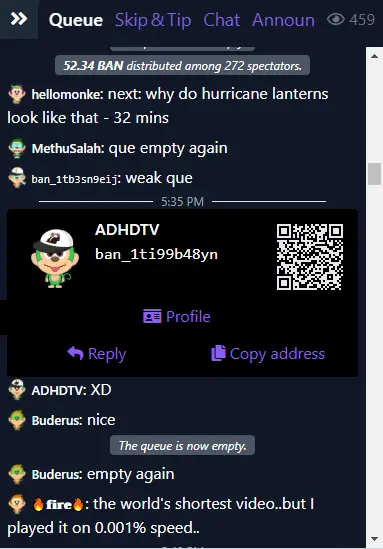
Figure 22. Profile pop-up box.
If you click on the Reply button, that person's name is copied to your message area at the bottom of the chat screen (see Figure 23, below) where it displays "Say something...".
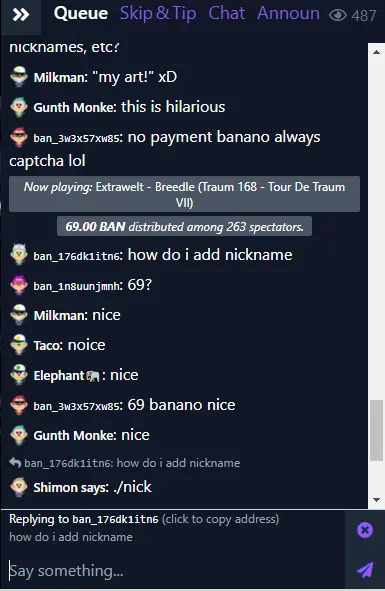
Figure 23. Replying to another person in Chat.
If you wish know more about a chatterer, or to tip them, select the Profile button in the pop-up box (see Figure Twenty-two). That will give the screen below, Figure 24, which will tell you more about them — if they filled in the field, that is. Note the little arrow in the green dot by the Monkey's feet. The green dot means that the chatterer is actively watching. If the chatterer has not filled in the profile, the screen will default to the Tipping Screen (Figure 25 below).
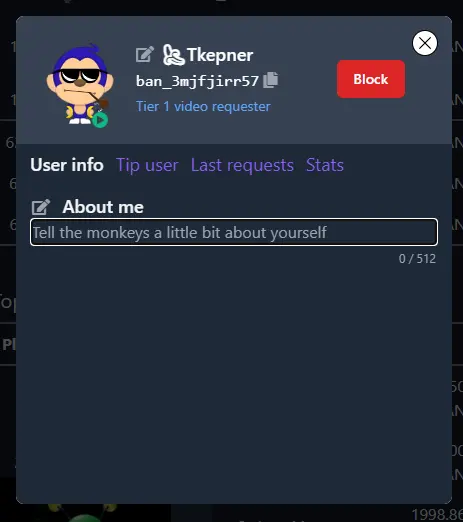
Figure 24. User Profile Screen.
If the Profile screen is displayed, select Tip User (See Figure 25 below) to tip a chatterer Banano.
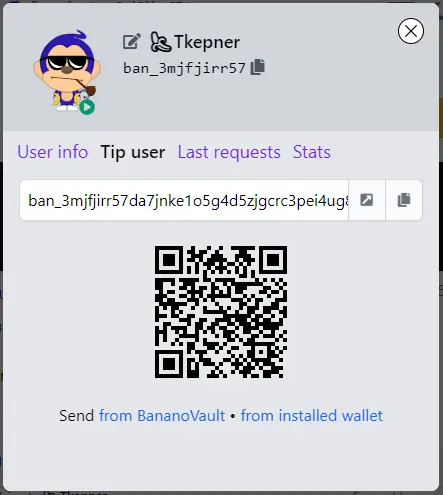
Figure 25. Tipping Screen.
You may either copy the ban address manually, copy it using the copy function (the two pages overlapping beside the address), use the QR Code, or select to send from your wallet (either Bananovault, or Kalium). The last selection automatically loads the chatterer's address, gives you the opportunity to type in the amount to tip, and then you can press Send to complete the transaction. Don't forget to unlock your wallet, if it isn't already unlocked.
You can also see the last few vids the chatterer has enqueued, if any, by selecting Last Requests (not shown here), and their Stats (see Figure 26 below). The Stats include the amount of Ban they have spent enqueuing videos, if any, the total Ban withdrawn from JTV, number of videos enqueued, if any, and play time paid for for the last seven days, last thirty days, and all time.
Finally, there is the option to Block a user. If you find a user irritating, you can block seeing their comments in chat.
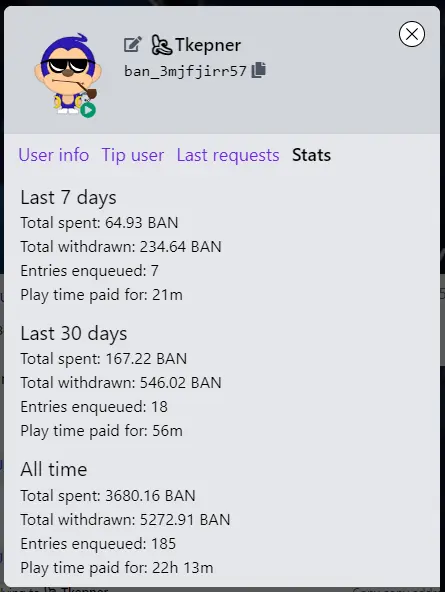
Figure 26. Statistics on User Videos Posted.
If you want to see a list of the people who have spent the most Bananos enqueueing videos, skipping videos, and tipping, there is a Leaderboard at https://jungletv.live/leaderboards that lists the top fifteen persons in each category. There are three sections, Daily, Weekly, and Monthly. Each shows the Top spenders enqueueing videos, skipping videos, and tipping, both as a total sum and individually in each category. (see Figures 27 to 30, below, which show the Daily Leaderboards at the time this was updated). Note that if you participate in any of these and don't make the top fifteen, your position in the list is shown, as well as the persons above and below you.
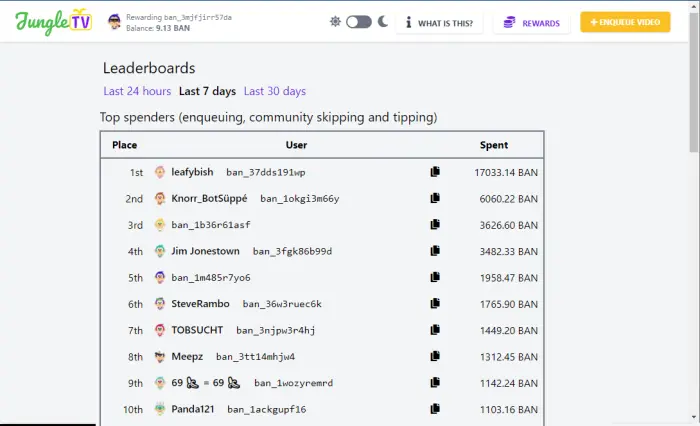
Figure 27. Leaderboard Top All Categories.
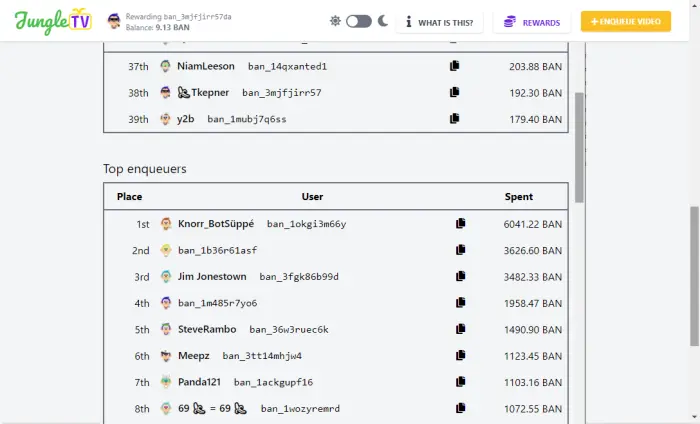
Figure 28. Leaderboard Top Enqueuers.
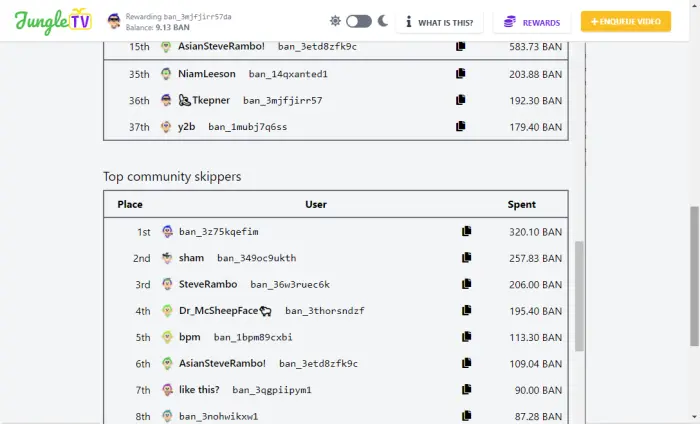
Figure 29. Leaderboard Top Community Skippers.
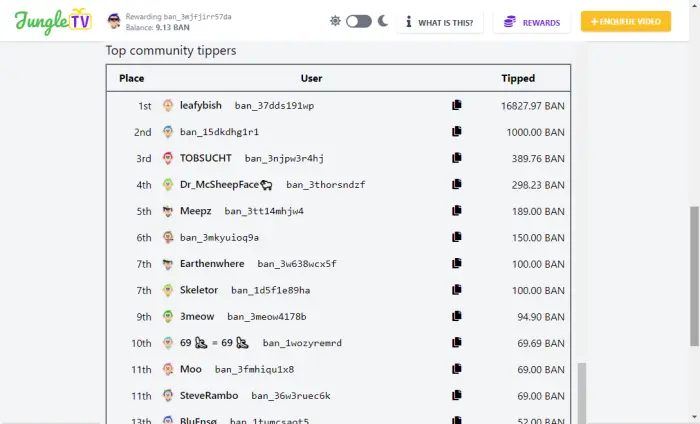
Figure 30. Leaderboard Top Community Tippers.
Next, if you go to the Queue view and click on the bananos for the person who requested a video (see Figure 2, above), you can use https://yellowspyglass.com/search to see how much he paid JungleTV to play the video. Or to tip them for their excellent choice of a video.
8. Contest Being Banned
In the unlikely event you trespass upon the Guidelines and find yourself banned from Enqueueing Videos, participating in Chat, and getting to collect those delicious ban that you will end up spending on queueing more videos, Gabriel, the owner/operator of JungleTV has provided a way for you appeal ( get it, a-peal, peal a banana . . . never mind) that decision. Click on the WHAT'S THIS? button at the top of the JungleTV webpage (see Figure 2, above). Then click on the FAQ choice at the top of that page. Scroll to the bootm of the FAQ page and you will see the JungleTV ban appeal form (see Figure 31, below. It is located at https://docs.google.com/forms/d/e/1FAIpQLSd93BU8DI4IPtfLGm4YDo1U_DuFrNdoi5PXPVp-Uu5Ggjg6hA/viewform).
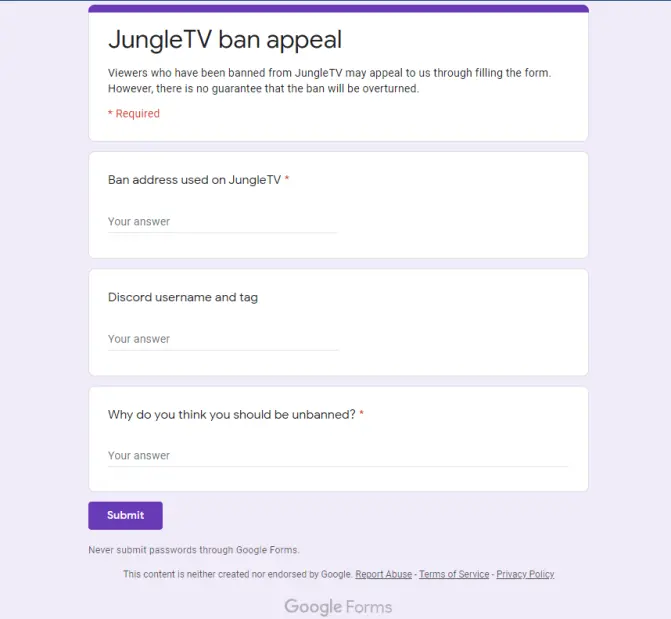
Figure 31. JungleTV ban Appeal Form
There is no guarantee that the ban will be reversed, but in the cases of a misunderstanding, it is worth exploring that option.
All in all, I have found JungleTV an excellent music channel. People from all over the world participate, and all genres pf music, too. As well as other stuff. I've had it playing on my other monitor (I plugged in a second monitor) while writing this. Some of the videos I haven't liked, so I just lowered the volume while they were on and kept working.
I hope you enjoy JungleTV as much as I do.
P.S.
If you wish to tip banano in appreciation of this article, my address is: ban_3mjfjirr57da7jnke1o5g4d5zjgcrc3pei4ug84jjq5fjb9663tiz5papx9u






