Hi everyone, it is spring and that means a round of cleaning, scrubbing and dusting is in order. We should however not limit ourselves to cleaning just our homes and make them more liveable, but as developers we should perhaps bat an eye at our projects, be them professional projects or just something we started as a hobby.
I know that sometimes the ideas just keep flowing in our heads and we write code and add new stuff in a chaotic manner. This is fine for a fast development cycle but if we are going to really make a product that can withstand the test of time then we need to put some time aside and clean up the mess we made while in the fires of creation.
A couple of days ago while working on my upcoming android app which I make as a final project for a subject in university, I felt like I couldn't focus on anything. All of the stuff was all over the place, all of the used resources were scattered and were hard to find because I didn't name them properly at the time. I
think we are all guilty of naming variables "x" when they should be named something more meaningful that will allow the us to read and understand the code better in the future.
Given the state of the project I decided that I need to put aside a couple of hours and reorganise my whole work up until that moment.
Here is what I did to clean my project up and make it feel welcoming again.
1. Formatting layout files
In any android project all layout files are under the app / res / layout folder, which is not at all ideal but organising it into subdirectories is not officially supported so I decided to not fix it if it ain't broken, as they say. I was going however, to refactor and rearrange everything that I could so that it would feel cleaner.
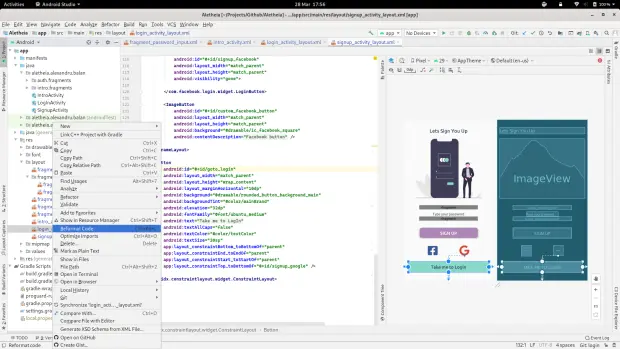
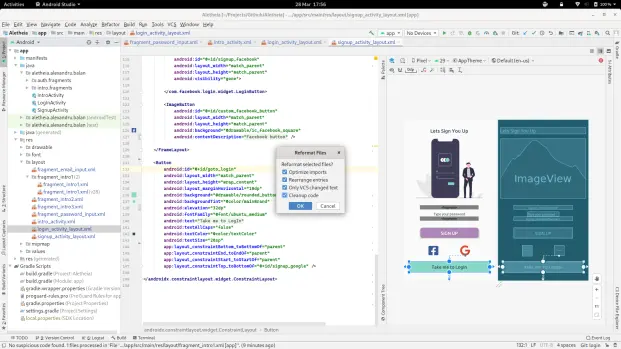
To format a whole file in Android Studio you just right-click the file that you want formatted and then click on "Reformat Code" and select everything you want done to your code from the dialog box. This technique also works if you select multiple files at once. What will this do? Rearrange your code so it is easier to read, remove any redundant resources and strip your files of the unused imports.
2. I used string resources to display text in my application
Doing this will not only give you a greater flexibility when you will want to reuse the same text or change the text of some U.I. element, but it will also help others to translate your app and make it available in multiple languages.
Android Studio makes it very easy for us to use the power of string resources. All we have to do is create an U.I. element like a button which holds a "text" attribute, then write the text as the value of this attribute.
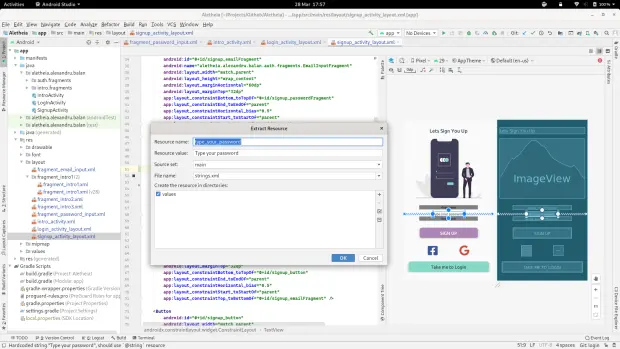
Android Studio will highlight the text and will give the suggestion of extracting the text to a string resource. We can then name the resource and press OK and the IDE will reformat our code to use the newly created string resource.
I usually like to use the text itself as the name of the resource since this way when I code I can find them more easily, without searching through the string resources file.
3. Renaming different resources
As I've said in the beginning naming is one of my biggest problems either because I don't use a suggestive name or because I am not consistent with my naming scheme. In Android Studio right-clicking any resource in a the resource files will open a menu which has the option of refactoring. Under this option there are a bunch of refactoring choices that you can make like moving it to another place or renaming it.
Those actions should be done through the IDE only because resources and files are referenced in a lot of different places all around your project which means that once you change the name of a resource the elements that used it will no longer be able to find it.
Refactoring takes care of this by finding all the occurrences of the old name in your whole project and renaming them to the new one.
I will show you how my colors resources looked like before and after the refactoring.
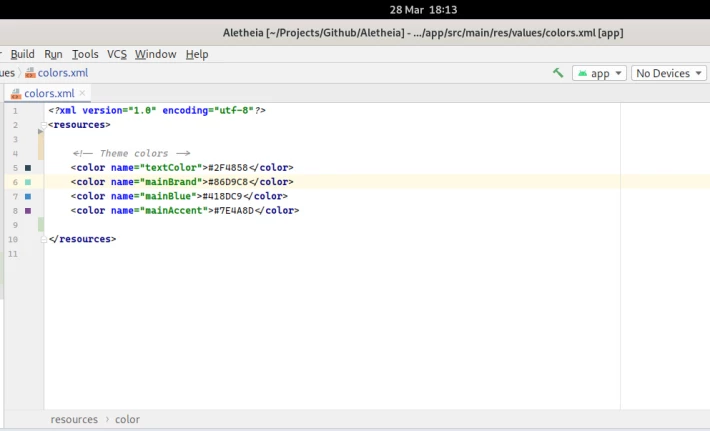
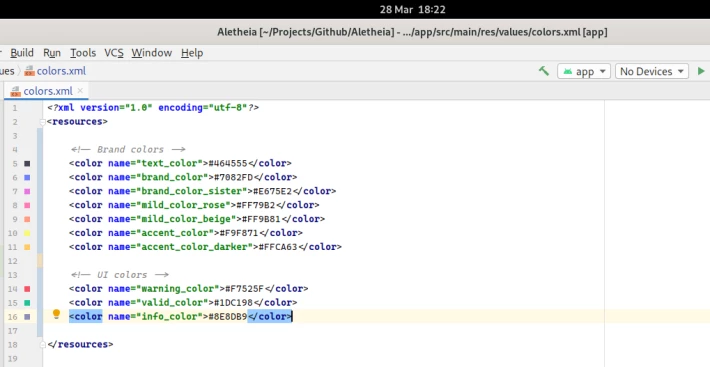
4. Source management
It would be easy to just drop all the sources into one single package, but then we would have to spend extra time everytime we want to change or add a new feature to one file. We might know that we should be accessing that one fragment from the authentication part that we did, but if all the source files are in one place we need to read through all the file names to find the one we want.
Android Studio lets us easily organise our sources into different packages using the same refactoring tools that we saw in action earlier, but this time we will be selecting the "Move" option.
I have organised my files based on their purpose. If they are related to a certain feature then they go in the same package. For example, I have two activities and two fragments related to authentication so they are all in the "auth" package. I went even further though and put the fragments in a "auth.fragments" package this way separating the activities from fragments.
5. Commenting my code
This tip is a no-brainer really, yet a lot of us are guilty of skipping it. This won't just help other people who might want to contribute to your project, but it will help you in the future. Even though you think you understand the code now and that it's self-explanatory I assure you that in a year you'll have some trouble reading and understanding your old code. Without comments you are forced to go over it line by line and decrypt what some function does, or why you made certain decisions that seem odd now.
With comments there are no question marks. You know why you wrote the code like that and why it's there in the first place. I can't think of a more useful tip to clean your projects up.
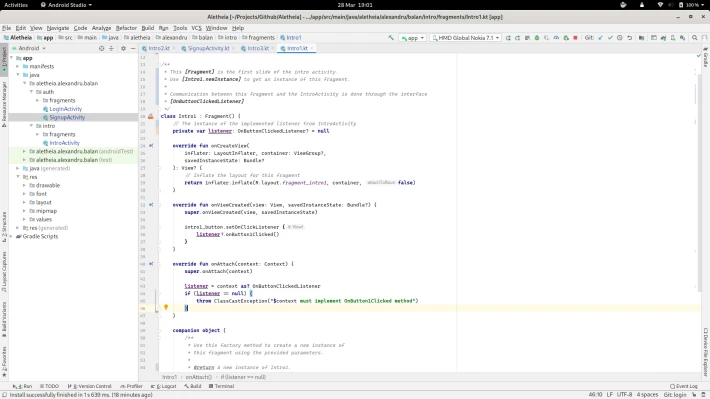
Android Studio supports documentation comments as the code is written Java or Kotlin. Those are special comments from which willthe compiler will generate HTML documentation for your code.
To start writing one just type "/**" and press Enter, the IDE will autocomplete the rest. Unlike normal comments, those special ones also have a syntax of their own. For Kotlin, for example, you can take a look at Documenting Kotlin Code