
I am super amped for this blog’s future as we will be diving into various real-world use cases of using the python programming language.
Things to expect:
- (Beginners) Tutorials on how to use the Python Programing language.
- If you are familiar with some python, I shall be posting various quick but super useful scripts for everyday tasks.
- There will also be big read tutorials for much bigger projects.
If the above does not tickle your taste buds be rest assured, this list will keep growing trust MonsterNur.
Now before you go anywhere, let MonsterNur get you into the world of Python by guiding you through setting up your environment.
Note!! All tutorials will be guided on a windows 64bit system
Step 1: Downloading Python
So, there are various versions of python as there are various versions of apps. Now just some things to remember about this:
- You will see on your journey of further research python 2 will be referenced, now there are differences in 2 vs 3, which I wont get into but just remember what is in one version doesn’t mean exists in the other version.
- So, the download links I will generally be using unless I say otherwise, would be version 3.7.4
Okay enough of that
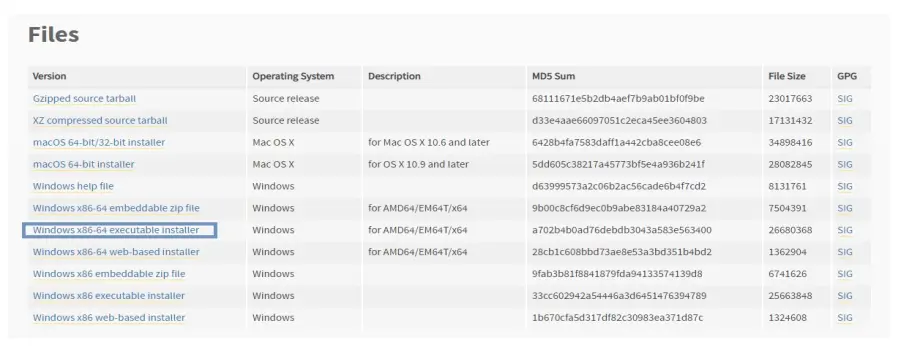
- let’s head to the python download link here
- Then select your systems required version
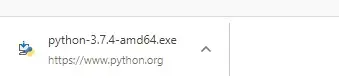
- Next your download should be completed, its time run the installer:
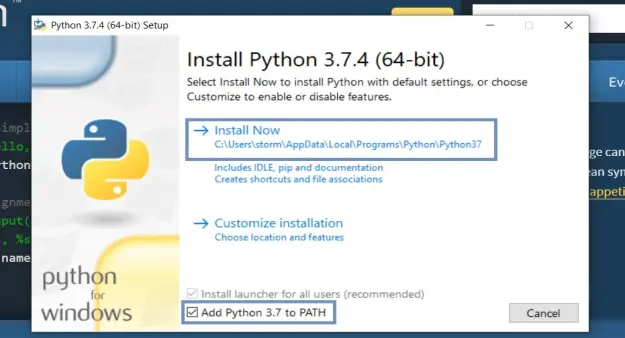
Step 2: Installing Python
- On the installer window lets firstly, firstly… click the ADD TO PATH checkbox
- Then we click install
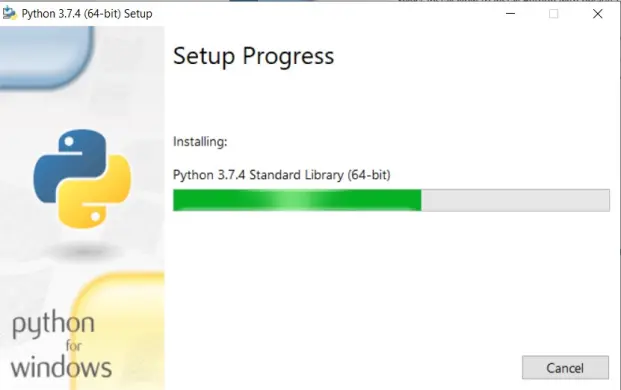
- You should see the following progress:
- Lastly The setup should say successful:
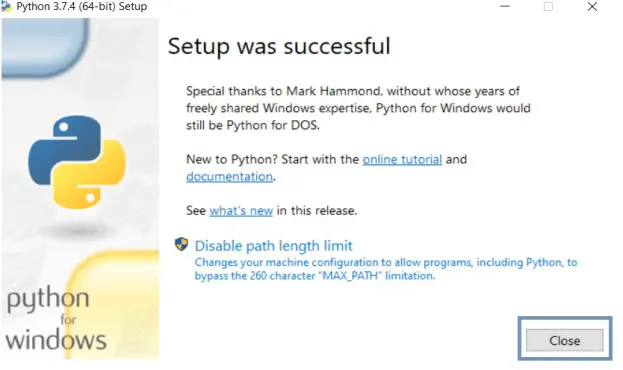
Step 3: Lets check if the environment is working
To make sure everything went well, so you can easily get started with future posts, lets jump into the IDLE and run our first script.
- Click the windows icon and begin typing:
- IDLE
- You should see the following similar return:
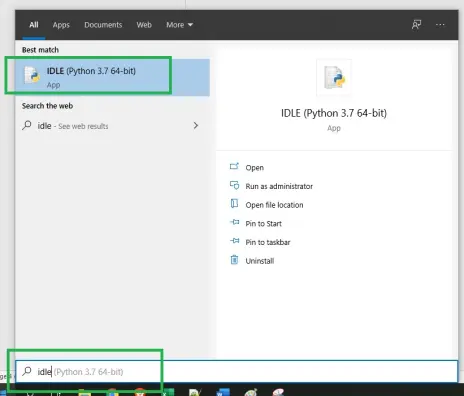
- Lets Simply click the IDLE (Python 3.7 64-bit) icon
- The following program should pop up:
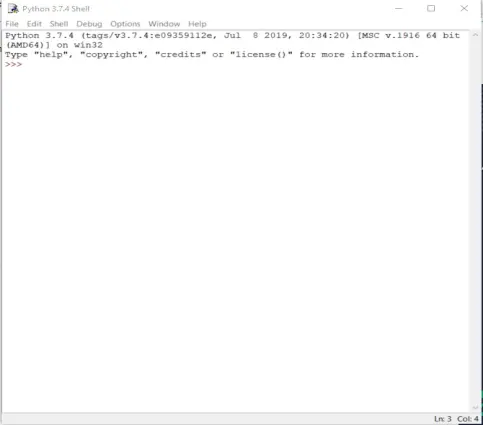
- Just so you know this is called a console view, lets type the following in the console window:
-
print(“Hello World of Python”) - Then hit enter
- You should see the following output:
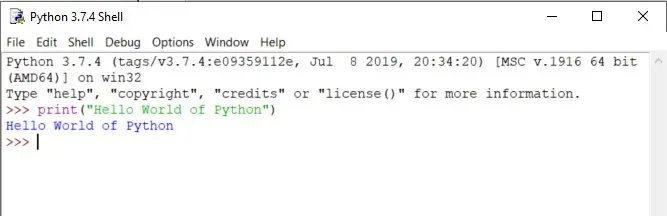
Well done, you have successfully installed your Python Programming environment and you should now be ready for any future posts regarding learning Python
Also check out the next post to continue learning
Lesson 1 variables and the print() function
Goodluck 😉






