
When Australia passed their controversial metadata retention laws in 2017 I decided it was time to take some action to protect at least some aspects of my privacy. So I went hunting for a VPN - I did my research on the different free and paid services already available, but in the end decided to host my own using OpenVPN. I shopped around for a cost-effective but reliable shared hosting platform, and eventually settled on Vultr (non-ref link).
Even though I no longer live in Australia my VPN does still have its uses. A few sites I frequent have Ukraine geoblocked, plus Ukraine is a regular target of cybercrime. So my VPN is still important, and thus most of my online time I have it turned on.
I've recently found two very real reasons to bypass my VPN though, and I thought it might be useful to share both why you might want to do it, and how to do it.
Real-world VPN problem 1: When I want to tip here on Publish0x I have to turn my VPN off, then on again when I am done. A minor annoyance really, but made more annoying because Skype hates it when my VPN status switches, and usually spends the next few hours not notifying me of new messages.
Real-world VPN problem 2: A few days ago I was debugging why I stopped seeing ads on Brave, and the common methods of fixing it just weren't working. It turns out the server on which I have my OpenVPN instance is in an IP range that Brave's ad servers are blocking. Given that I know some other sites are blocking a similar IP range too, I'm not going to try to argue with them about it and just trust that the IP range in question is a somewhat common source of abuse (the downside of cheap but reliable hosting?).
So the best thing I could do for myself, without dropping the VPN altogether, was to figure out how to force certain traffic to bypass my VPN. I thought this would be a pretty common thing to ask, but at first I could not find anyone explaining how to do it! But eventually my Google-fu skills won the day (well, DuckDuckGo-fu really, but that sounds more like a meal than a martial art 😅) and here we have the way you can do it too.
Just be aware you are tinkering with important networking stuff in your Mac here, so if you aren't confident doing it, please don't try!
Step 1 - Determining your network service
In a terminal type or paste networksetup -listallnetworkservices, which will print out all of your computer's network services, something like this:
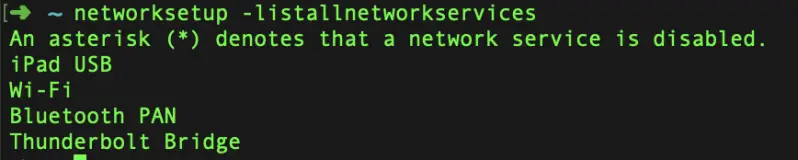
I can't tell you which service is the one you are using - that is for you to figure out using a little sense - the names are very reflective of what they are. I know that I am on wi-fi, so I am after the service named "Wi-Fi", and these days that is probably going to be a good call for most people too.
Step 2 - Determine your network service's subnet mask and router address
Now type or paste networksetup -getinfo "Wi-Fi" - substitute your network name where I have used "Wi-Fi". Note that the double quotes are not necessary for a single word name or a hyphenated name like Wi-Fi, but if I was targeting eg. Thunderbolt Bridge I would have to use the quotes. This will give you something similar to the following:
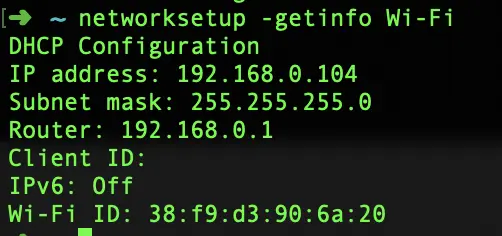
We need the subnet mask and the router address from here - for me these are 255.255.255.0 and 192.168.0.1
Step 3 - Determine the IP address of the site
Now we need to know the IP address of the site, and for that we just need to ping the site.
For my problem #1 above which is likely to affect anyone else here with a VPN too, you would type or paste ping publish0x.com.
Important note: don't copy/paste the URL from your browser - ping can't resolve a URL with the protocol (the http/https part) - so make sure you only copy/paste the domain name plus top level domain (.com, .org, etc.). Or just type it out is my preference.
This will give you something similar to the following:

After your first ping record you can just hit Ctrl+C to stop it, you only need the first line.
So here we can see that Publish0x's IP address is 134.122.14.68.
Step 4 - Magic! (also known as adding the static route)
Now we just need to put it all together, and you will have immediate results.
The command we need here is networksetup -setadditionalroutes <service name> <site IP> <subnet mask> <router address>, so for me the final command is networksetup -setadditionalroutes Wi-Fi 134.122.14.68 255.255.255.0 192.168.0.1.
If you get some kind of permissions error here, try sudo networksetup -setadditionalroutes <service name> <site IP> <subnet mask> <router address> but you will need the admin password for this. For me it worked without sudo.
If you need to view your existing routes you can use networksetup -getadditionalroutes <service name>.
If you are trying to setup more than one route on the same network service (like me wanting both Publish0x and the Brave ads server to bypass the VPN when I'm on wifi) you need to do it in a single command which will look like networksetup -setadditionalroutes <service name> <site IP 1> <subnet mask> <router address> <site IP 2> <subnet mask> <router address> <site IP 3> <subnet mask> <router address> etc. etc.
A few details to be aware of:
- All traffic to the entered site's IP address will forevermore bypass your VPN (that is kind of the point) until you manually undo it using
networksetup -setadditionalroutes <service name>without any further arguments after the service name. - Any traffic you set up to bypass your VPN no longer has the benefits of anonymity and/or security that it would have while on the VPN.
- A static route will stop working if the site's IP address changes for some reason.
- A static route may work intermittently if a site's domain name resolves to more than one IP address (google.com used to do this, but I haven't checked it in years. Brave's ad servers do this - the domain ads-serve.brave.com resolves to at least 4 IP addresses).
- The routes are for only a single network service, so if you set up a rule for wifi, then switch to LAN, your static routes won't work until you switch back to wifi. You can follow the steps above for adding rules to any other network services you may need.
And there we go!
Immediately after I did this I reconnected my VPN and I was able to tip a post here. That is because any traffic to/from Publish0x now ignores the VPN. I'm still waiting to make sure my static route has worked for the Brave ad server though - with only a single active ad campaign in my region they don't come very often.
Update March 2021 - the above works perfectly. Until the sites you looked up the IP address for change IP address (yes it does happen, and has happened to both Publish0x and Brave's ad servers since I originally wrote this piece).
If you would like a way to automate this so your IP addresses are always up to date please check out my recent post which offers a Python script to automate all of this: Automating static route configuration to bypass your VPN on Mac.






