The Linux shell is an interface that connects the user to the operating system. It is a powerful tool for executing commands, automating tasks, and configuring the working environment. Understanding the different types of shells—interactive, non-interactive, login, and non-login—can help you work more efficiently, resolve errors, and optimize your processes.
In this article, you'll learn:
- How to determine the type of shell you’re using.
- The differences between interactive and non-interactive shells.
- How login and non-login shells manage configuration files.
Interactive vs. Non-Interactive Shells: Key Differences
Interactive and non-interactive shells differ in how they interact with the user. Here are their main features:
Interactive Shells: Real-Time Interaction
Interactive shells are launched when a user types commands directly into a terminal.
Key Features:
-
Autocomplete: Press
Tabto quickly complete commands and paths.Example:
cd /usr/loca<press Tab>-
This will expand to
/usr/local/. -
Command History: Use the
historycommand to repeat previous commands.Example:
history
!! # Runs the last command- Environment Customization: Use files like
~/.bashrcor~/.zshrcto add aliases, functions, and variables.
Example:
alias ll='ls -la'How to Check:
[[ $- == *i* ]] && echo "This is an interactive shell" || echo "This is a non-interactive shell"Non-Interactive Shells: Automation Focus
Non-interactive shells execute commands from scripts, automated processes, or other programs.
Key Use Cases:
- Script Execution:
#!/bin/bash
echo "Hello, world!"- Automation with
cron:
0 5 * * * /home/user/backup.shNote:
Non-interactive shells typically do not read ~/.bashrc unless explicitly specified.
How to Determine the Current Shell Type?
You can identify the type of shell you’re using with simple commands:
- Check for a Login Shell:
shopt -q login_shell && echo "Login shell" || echo "Non-login shell"2. Check for Interactivity:
[[ $- == *i* ]] && echo "Interactive shell" || echo "Non-interactive shell"Login Shells: Configuration Sequence
Login shells are initiated when you log into the system, such as via SSH or a tty console. They handle environment setup.
Configuration Files:
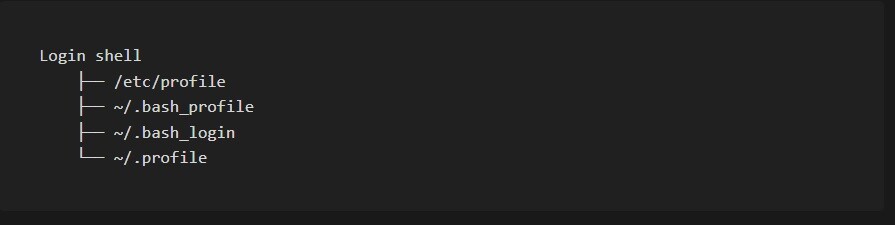
/etc/profile: System-wide settings.~/.bash_profile: User-specific settings.~/.bash_loginor~/.profile: Alternative files if~/.bash_profileis missing.
Example:
ssh user@host
echo $PATH
Non-Login Shells: Working Within Active Sessions
Non-login shells are started within an already active session, often when opening a terminal from a graphical interface.
Configuration Files:
- These shells read
~/.bashrc, which is used for setting aliases, functions, and environment variables.
Example:
alias ll='ls -la'
export PATH=$PATH:/custom/path
Comparison of Shell Types
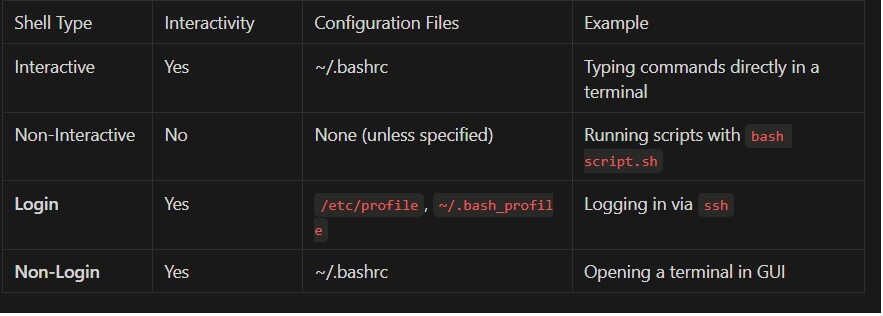
How Configuration Files Work
Bash loads configuration files based on the shell type.
Sequence for Login Shells:
Sequence for Non-Login Shells:

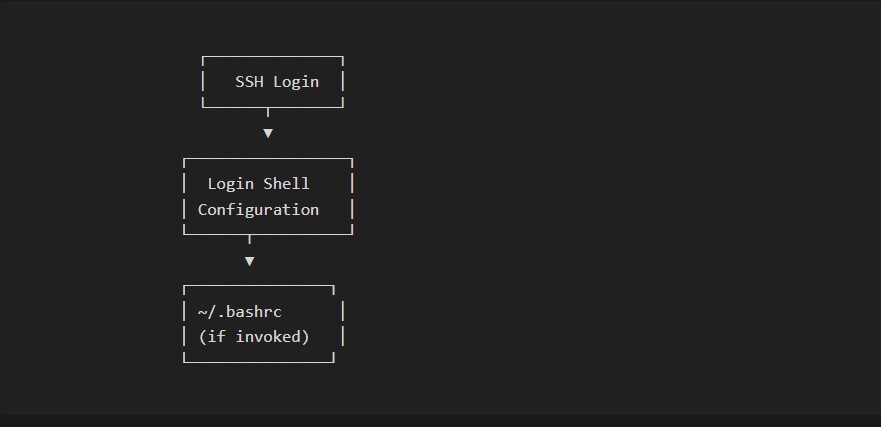
Shell Workflow Diagram
Here’s how configuration files are processed depending on the shell type:
Practice Tasks
Try the following to reinforce what you've learned:
-
For Beginners:
Set up an alias for the
lscommand:
alias ll='ls -la'2. For Advanced Users:
Add a function to ~/.bashrc that changes directories based on arguments:
1. **For Advanced Users**:

Add a function to ~/.bashrc that changes directories based on arguments:
Conclusion: Optimize Your Shell Today
Now you know the differences between shell types, how they handle configuration files, and how to determine the current shell. Use this knowledge to automate tasks, customize your environment, and work more efficiently.
Get Started:
- Set up useful aliases in
~/.bashrc. - Explore task automation with
cron. - Share your configurations and ideas in the comments!