Hey there! In this edition of my series, Linux Terminal Survival Guide, we will be taking a look at how to update and upgrade our installed packages. Of course, we will be learning how to do this via the terminal.
To begin, let's open our terminal. If you recall from our last guide, you can open the terminal by searching for it via pressing the super key (Windows key or symbol of another operating system.)
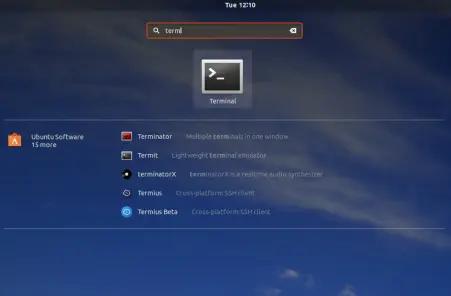
Once you see it, you can click on the icon, or simply press 'enter'.
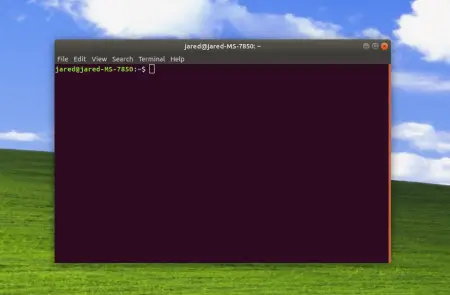
(You may notice the wallpaper. It's the only thing that made Windows tolerable, I like the Bliss wallpaper. Don't judge me, thanks.)
When I run updates on my system, I usually run a specific sequence of commands:
- Update the list of available packages
- Upgrade installed packages to the latest version
- Update the Linux kernel
- Auto-remove old, unnessary packages
- Safely clear the cache of package files used when updating
It might seem a bit daunting to run these commands, but don't worry. Let's walk through them one at a time.
Update the List of Available Packages
Since your terminal is now open, we can type in the following command:
sudo apt update
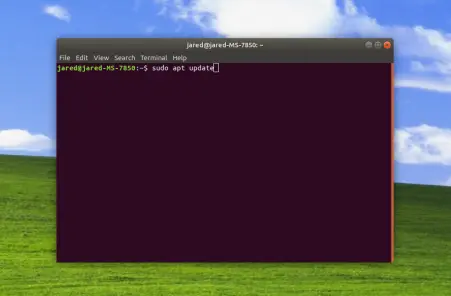
Now that the package list has been refresh, we can now update our existing packages to the latest version. To actually update our packages, we can utilize the following command:
sudo apt upgrade
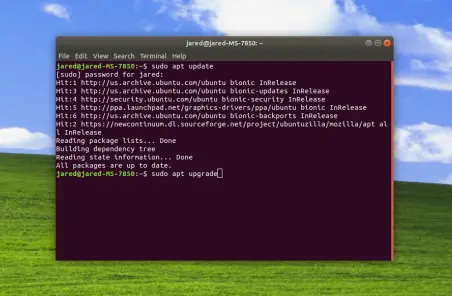
More often than not, we will also want to upgrade the Linux kernel. This is a very important step to do. Kernel updates fix various loopholes, exploits, and provide improved hardware compatibility. Usually, you will want to use the command we're about to type to upgrade the Linux kernel rather than attempting to install the latest version manually. This is because various drivers, including your graphics drivers will probably not work with the absolute latest kernel version. This is why it's generally a good idea to upgrade to the version your distribution recommends via the command:
sudo apt-get dist-upgrade
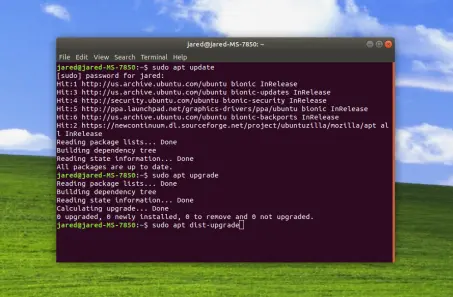
As you've been updating and upgrading packages, it's a good idea to remove old temporary package files that build up and clutter your computer over time.
We can clean out old package files using the command:
sudo apt clean
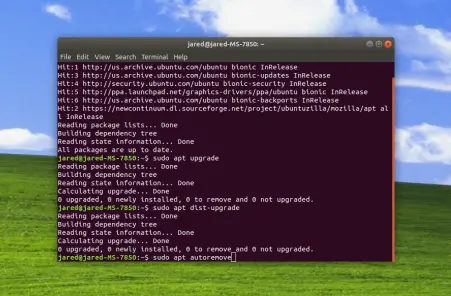
Boom! Now all we have to do is run the last command:
sudo apt clean
This will clear the local repository of package files retrieved. Technically we don't have to run this if dselect is enabled, but it doesn't hurt.
And that's a wrap to our series, Linux Terminal Survival Guide. Stay tuned for our next episode, and make sure to keep learning.