
Hello everyone! Welcome to the first post in the series, Linux Terminal Survival Guide! I'm going to assume you're using a Debian/Ubuntu based Linux distribution. This series is written from an Ubuntu user, so my apologies if you're using Arch or some other distro. In this first installment, we will be taking a look at how to install and remove applications with the Linux terminal!
To begin, let's open a terminal via the super key (the Windows key on that other operating system...) Next, start by typing in "terminal." You should see an icon for the Terminal popup under the search box.
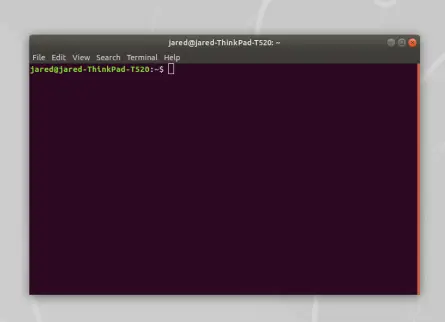
Let's say we wanted to install VLC player. No problem! All we have to do to install it is type:
sudo apt-get install vlc
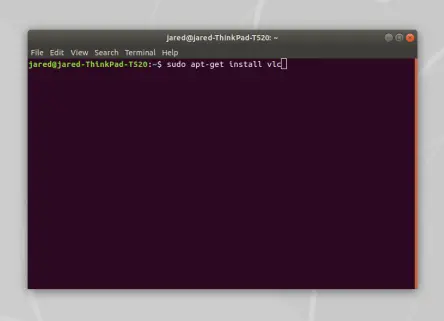
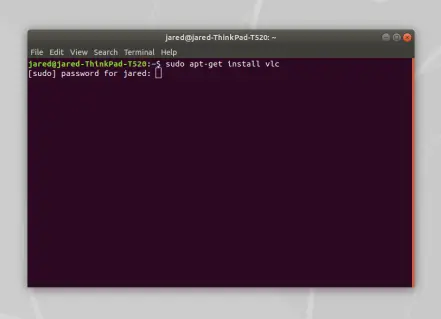
After that, all we have to do is press 'enter' ('return' on some keyboards.) Next, you should see a prompt in the terminal asking for your password. Don't worry if you don't see your password while you're typing, that's perfectly normal. Once you've entered your password, press 'enter' again.
Next, you should see some information appear showing the various packages to be installed, along with the filesize. Just type 'y', and hit 'enter'.
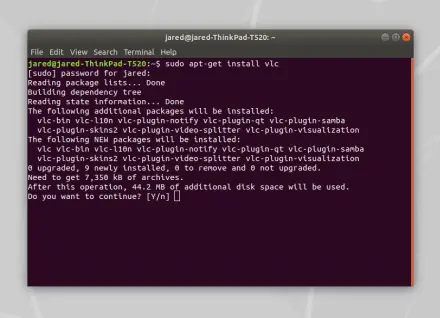
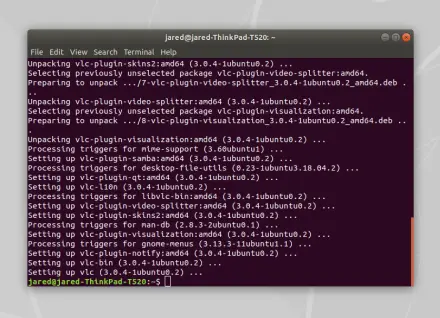
Then just let it install! You will know once the installation is finished, once you see your blinking cursor again.
If we wanted to remove a package such as VLC, we just have to type in a similar command:
sudo apt-get remove vlc
Next press 'enter', you may see another password prompt if you remove VLC in another terminal session. If you see a password prompt, just press 'enter' again.
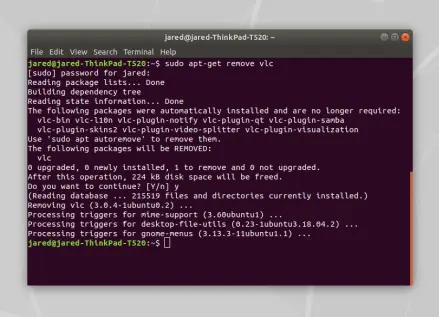
See the cursor? Fantastic! You now know how to install and remove packages with the Linux terminal! Congratulations. You are on your way to becoming a pro at using the terminal. Be sure to stay tuned for the next guide in this series.






