
Cryptotask is a new blockchain freelancing platform that aims to revolutionise the freelancing market. It's a great place for crypto freelancers to search for jobs / tasks to earn crypto and also for crypto startups to find crypto specialists. Their platform launched this week. You can check out the platform by clicking here. This step by step guide is for freelancers and it will show you how to create a profile, apply for a role and how to generally get around the platform.
Step 1 - Signing up to the platform
Firstly you will need to sign up to the platform, to start visit the landing page - https://www.beta.cryptotask.org. When you visit the page you will see in the top right hand corner the button "Start". Clicking on this will start the process. After clicking Start you will be greeted by the page below. Select "I'm a Freelancer" as this guide is for users who are a freelancer and looking for potential job roles.

After clicking "I'm a Freelancer" enter the email address and create a password for your account. After doing this you will receive an email conformation to verify your account.
Step 2 - Creating your profile
Once confirming your email, sign in and you will be directed to a page where you will begin to fill out your profile. Where there are 5 steps.

Start by filling in your basic information such as your name, occupation, location and about me. The about me will be the blurb of your profile, so I suggest you keep it short and eye catching. Also you can add an image, I would suggest that you add an image to make you stand out and a personal touch to your profile. I have used my LinkedIn profile picture personally.

Next, select specific roles I’m interested in and tag specific skills. These are both drop down boxes, so typing in your answers will show you the results you are looking for. If they are not there, you can add your own.
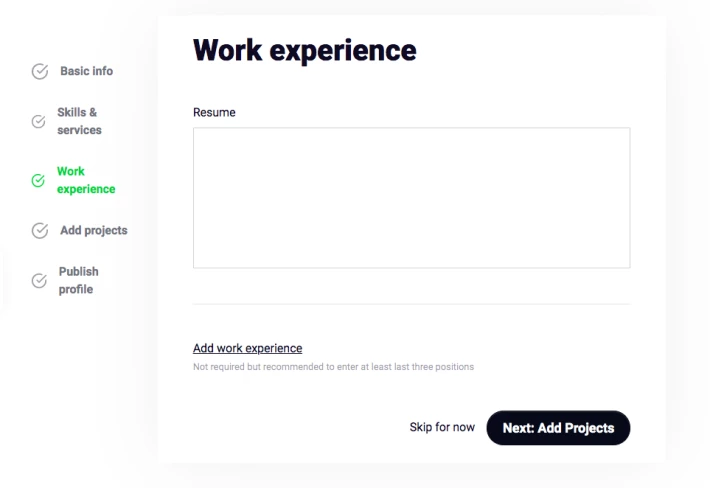
Work experience is the following step. You can copy and paste your resume in the field and add work experience.

On top of filling in your work experience, you can add projects you have worked with. In this section you are able to add more detail about the projects you have worked with.

Lastly, publish your profile and you have completed your profile! Your profile will be submitted to the freelancer board list. Clients will be able to search and find your profile that meet their requirements. You are able to change / add details to your profile in as well by clicking on your name in the top right corner when you log in.
Once in your account, you will be automatically moved to the jobs home page feed.
Step 3 - Job Homepage and Applying for Roles
When you now log in, you will be taken to the main homepage where you can see job openings, your current applications to jobs and also your completed jobs.

In the centre, you see the various positions that are open. You are able to search and sort through those positions depending on what sector / skill you are connected with, by the date the job opening was posted, or by the amount of remuneration that specific job offers. This can be done by the tabs "Sort" and "Category"
On the left hand side under the logo you will see three categories that you will be able to click through named "Browse Jobs", "My Jobs" and "Applications sent".
- Browse jobs - This is the homepage and clicking this will bring you back to the homepage, were you can look for potential roles.
- My jobs - These are jobs that you have completed through the platform.
- Applications sent - These are jobs that you have applied for.
Underneath the three categories are your messages, in this platform, you are able to communicate between potential hirees after applying for a role.

To apply for a role, simply click on the position you are interested in, read the specifications and click on the "Apply for job" button on the right. You will be able to add a message as well while applying. This will add this job to your Application sent as well as notify the creator of the job. If they accept you and they need more information, they are able to send you messages / send over documents on the platform.
To conclude this, I wish you the best of luck when applying for roles! You can visit the platform by clicking here. If you have any issues / ideas on what to add to the platform, please feel free to leave a comment under the article.
Also don't forget to tip and follow me if you enjoyed the content, that way you won't miss any of my articles and more people will see the useful content.






