
If you are running Jenkins on a Unix environment, you may want to hide it behind an Apache HTTP server to align the server URL and simplify maintenance and access. This way, users can access the Jenkins server using a proxy URL from apache. One way to do this is by using the Apache modules mod_proxy and mod_proxy_ajp. These modules allow you to use proxying on an Apache server.
In its use, we can use a reverse proxy to prevent direct access to the main application server. A reverse proxy can also be used to balance incoming requests across multiple application servers, improving performance at scale, and providing fault tolerance. A reverse proxy will fill this void with application server features that it does not provide, such as caching, compression, and SSL encryption.
System Specifications:
OS: FreeBSD 13.2
IP Server: 192.168.5.2
Domain: unixwinbsd.site
Apache version: Apache24
IP Jenkin: 192.168.5.2
Port Jenkin: 8180
IP Apache: 192.168.5.2
Ports Reverse Proxy Apache: 8080
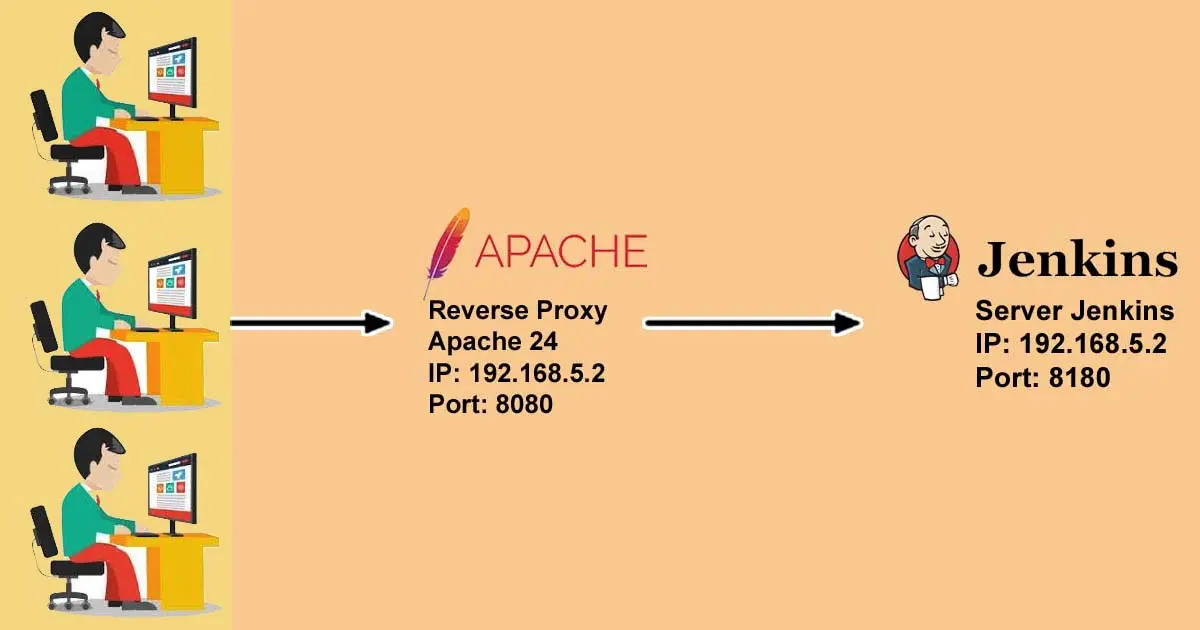
A. Enable Apache24 proxy mod
In order for Apache24 to be used as a reverse proxy server, the proxy module in Apache24 must be enabled first. To do this, edit the /usr/local/etc/apache24/httpd.conf file and remove the "#" sign in the loadmodule script, as in the example below:
root@ns1:~ # ee /usr/local/etc/apache24/httpd.conf
LoadModule proxy_module libexec/apache24/mod_proxy.so
LoadModule proxy_http_module libexec/apache24/mod_proxy_http.so
LoadModule proxy_connect_module libexec/apache24/mod_proxy_connect.so
LoadModule proxy_ftp_module libexec/apache24/mod_proxy_ftp.so
In keeping with Apache's architecture, mod_proxy itself is modular, and proxy servers typically need to enable several modules. The modules relevant to proxies in Apache include:
- mod_proxy: The core module handles proxy infrastructure and configuration and manages proxy requests.
- mod_proxy_http: Handle document retrieval with HTTP and HTTPS.
- mod_proxy_ftp: Handle document retrieval with FTP.
- mod_proxy_connect: Handles the CONNECT method for secure tunneling (SSL).
- mod_proxy_ajp: Handles AJP protocol for Tomcat and similar backend servers.
- mod_proxy_balancer: Implement clustering and load balancing across multiple backends.
- mod_cache, mod_disk_cache, mod_mem_cache: This mod handles document cache management. To enable caching, mod_cache and one or both disk_cache and mem_cache are required.
- mod_proxy_html: This mod will rewrite HTML links into the proxy address space.
- mod_headers: Will change the HTTP request and response headers.
- mod_deflate: Negotiating compression with the client and backend.
B. Change Apache Default Port
Since Apache runs on port 80, the reverse proxy should also be on port 8080, change the apache24 port in the /usr/local/etc/apache24/httpd.conf file.
root@ns1:~ # ee /usr/local/etc/apache24/httpd.conf
Listen 192.168.5.2:8080
ServerName www.unixwinbsd.site:8080
Now, let's configure a default HTTP vhost that will accept all proxy requests. Open the httpd-vhosts.conf file and edit it. In this article we will make Jenkins a "Backend" proxy for apache24.
After we configure Jenkins, we get Jenkins ID: iwanse1212. Enter the script below in the /usr/local/etc/apache24/extra/httpd-vhosts.conf file.
root@ns1:~ # ee /usr/local/etc/apache24/extra/httpd-vhosts.conf
<Virtualhost 192.168.5.2:8080>
    ServerName        iwanse1212
    ProxyRequests     Off
    ProxyPreserveHost On
    AllowEncodedSlashes NoDecode

    <Proxy http://192.168.5.2:8180/*>
      Order deny,allow
      Allow from all
    </Proxy>

    ProxyPass         /  http://192.168.5.2:8180/ nocanon
    ProxyPassReverse  /  http://192.168.5.2:8180/
    ProxyPassReverse  /  http://iwanse1212/
</Virtualhost>
In the script above, it is clear that we will run apache24 reverse proxy with private IP 192.168.5.2 with port 8080. While the server name "iwanse1212" is the Jenkins user ID. Then we continue by running the restart command.
root@ns1:~ # service apache24 restart
After that, we test by opening the Yandex or Google Chrome web browser, type "http://192.168.5.2:8080" in the browser address bar menu. See the results on your Google Chrome screen.






