
hey guys, i'm back again with new post utopia p2p ecosystem, i'm publishing article on daily basic to understand utopia ecosystem , don't forget to follow me if you want to see more article on utopia ecosystem. so in this blog post i'll explain you , all about utopia's channel feature.
What is Utopia channel?
Channel is a tool for broadcasting public messages to large audiences and engaging in group discussions. If you want to create a blog, a business chat, news feed, or simply conduct a private group discussion, Utopia channels are just what you need. Channels can have an unlimited number of members.
What is the difference between private and public channels?
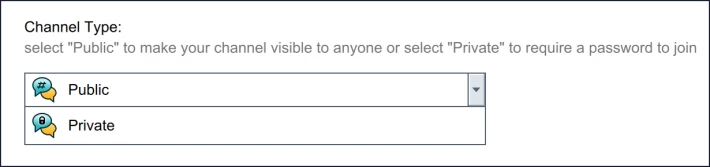
Public channels do not require password and can be joined by all users of Utopia ecosystem, while private channels require password to join.
How do I create a channel?
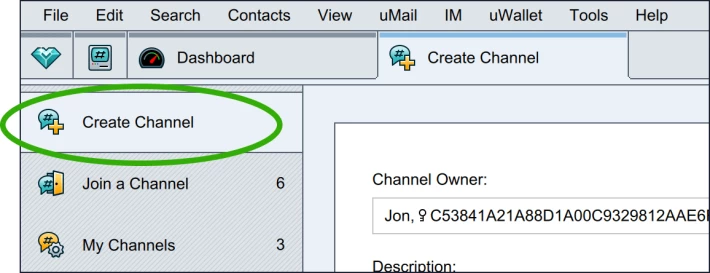
To create a channel, go to "Channel Manager" ("Tools" → "Channel Manager") and select "Create Channel" on the left.
Please note that only characters A-Z, 0-9 can be used in all fields.
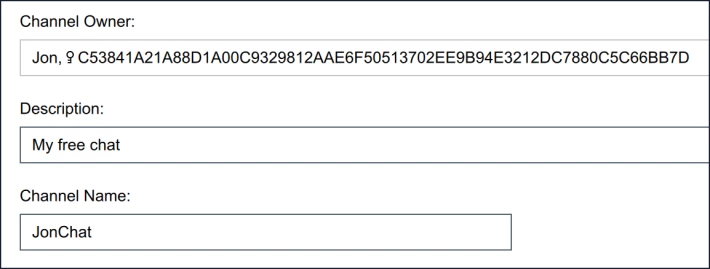
"Channel Owner" field contains the name and Public Key of channel creator. This information will be visible to all users of Utopia in the channel list and channel information.
In "Description" field enter the description (64 characters maximum). The description should clearly describe the essence of your channel. This will enable users to find your channel easily while searching.
In "Channel Name" field enter the name of the channel (maximum 32 characters). Make it unique and memorable!
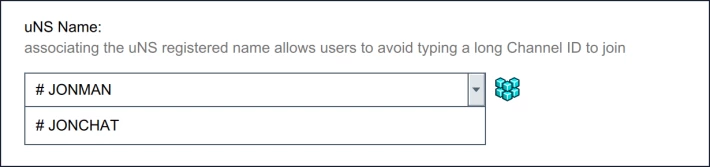
In the drop-down "uNS name" list, select one of your registered (but not assigned to another channel) uNS names. It is highly recommended to register uNS name and assign it to channel to let users join your channel using a short and memorable name. If you do not have a uNS registered name click on "Open uNS Manager" button.
In the "Channel Type" drop-down menu, select "Public" to create a public channel which all Utopia users can join. In order to protect your channel, select "Private" and enter a strong password. If you have chosen a private channel, you may check the "Do not show the channel in the Channel Manager" checkbox so that your channel cannot be found by other Utopia users.
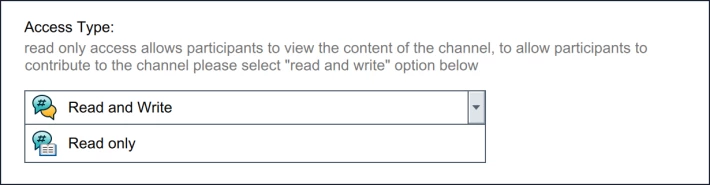
In "Access Type" drop-down menu select "Read and Write" if your channel is a group chat, where each user can add posts. Select "Read only" if you want to prevent non-privileged users to write in the group. In this case, only the channel creator and moderators will be able to add messages. This option is designed for news channels.
You may select a channel avatar by drag and dropping or uploading an image. The default avatar is the avatar generated using your Public Key.
Click "Advanced Settings" button for more options.
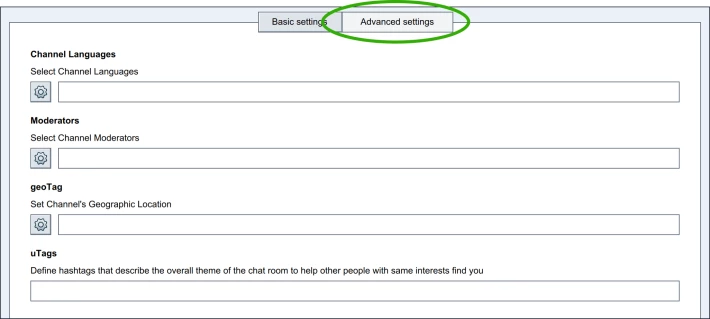
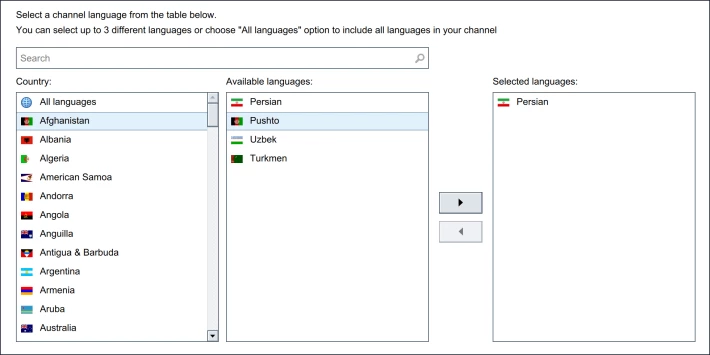
"Channel Languages" field - select the main language to be used at your channel. If no language is selected, the channel is considered international and instead of the flags, the Globe will be displayed in the channel details.
To add one or more languages (up to three), click the "Select channel languages" button. In new window select the country and one of the languages available for that country. Then move one or more languages along to the "Selected languages" section using control buttons. Save the settings by pressing "Select" button at the left-bottom side of the screen.
"Moderators" field is used to add moderators to your channel. You can assign any user from your contact list a moderator status. Please note that moderator's Public Key will be visible in the channel list and channel information.
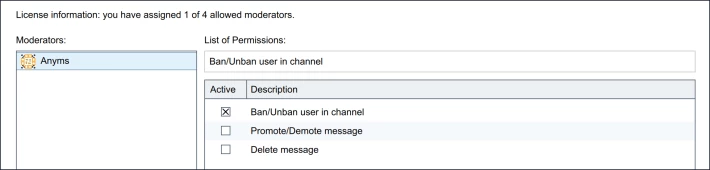
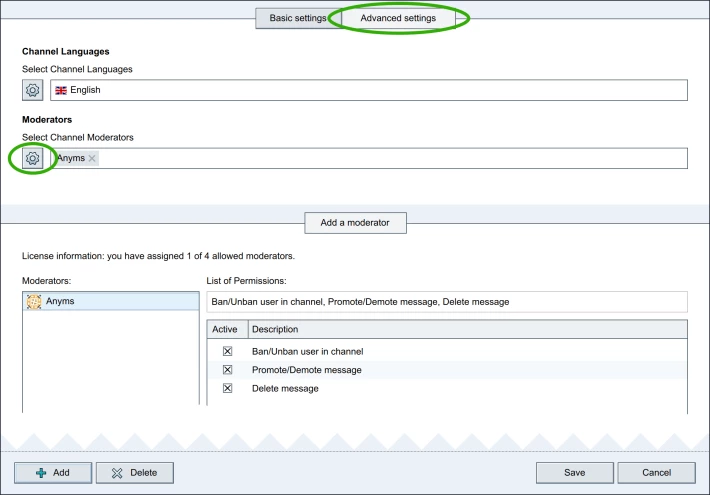
To add a moderator to your channel, click the "Select channel moderators" button. At "Add a moderator" page, click "Add" button at the bottom-left side of the screen. Select from your contact list users that you want to assign a moderator status. Press "OK" to added user to the list of moderators. You may add up to 4 moderators. In the "List of Permissions" check the boxes to grant appropriate authority to specific moderators. To save the settings, click "Save".
Permissions that can be be granted to moderators:
- Permission to delete messages
- Permission to Promote/Demote messages
- Permission to Ban/Unban messages
Use "geoTag" field if you wish your channel to be displayed on uMaps. It is recommended for channels with reference to particular coordinates, objects, or an event occurring at a specific location.
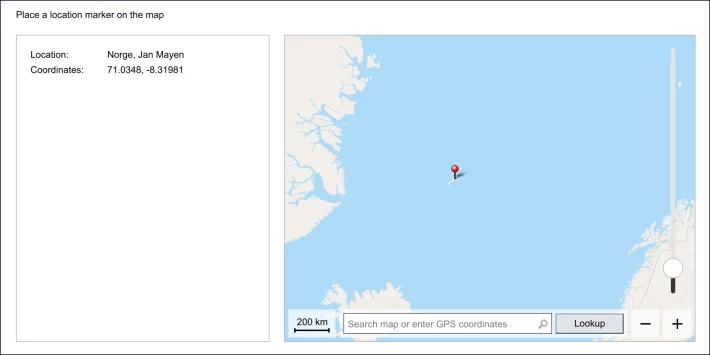
To add a geoTag, click the "Set Channel's Geographic Location" button. In new window, right-click on the map to place the marker or use search to find the desired location. If a label is set correctly, click on the "Add" button at the bottom-left side of the screen. Once the channel is created, information about the channel (including the geoTag) will be visible to all Utopia users.
In "uTags" field define hashtags separated by comas to let Utopia users find you channel easily.
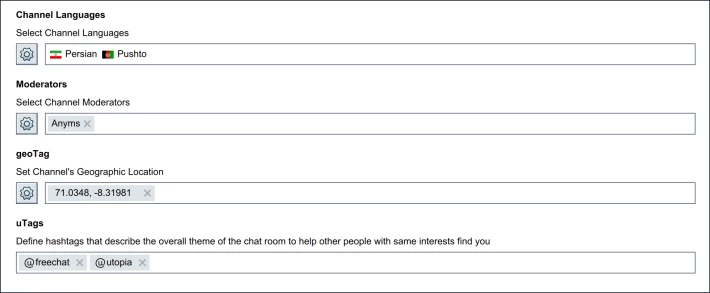
Once you are ready to create your channel, click on "Preview Channel" button.
Channel registration fee is a commission charged by Utopia to create a channel. This fee contributes towards growth of Utopia ecosystem and helps prevent network flooding.
Click "Create Channel" to complete the process.
Congratulations! Your new channel has just been created.
How do I join a channel?
To join a channel, please go to "Channel Manager" ("Tools" → "Channel Manager") and select "Join a Channel" on the left. Locate a channel you would like to join in "Recent Channels" list. If the channel is not in the list, use a search option at the top of the page. You may search by Channel ID, Public Key of channel owner, channel name or drag and drop uCode. Use the "Advanced Search" link if basic search is not sufficient.
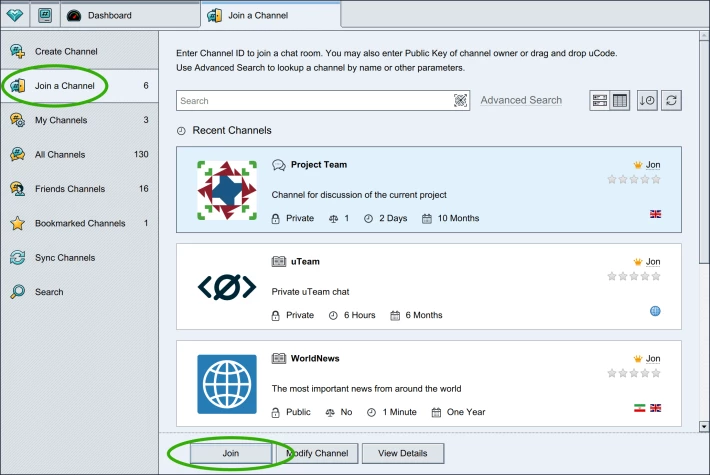
Once a desired channel has been found, select it and click on "Join" button. Please note that you may be required to enter a password to join a channel.
How do I search for a channel?
To search for a channel, please go to "Channel Manager" ("Tools" → "Channel Manager") and select "Search" on the left. Alternatively, you may select "Join a Channel" or "All Channels" tabs.
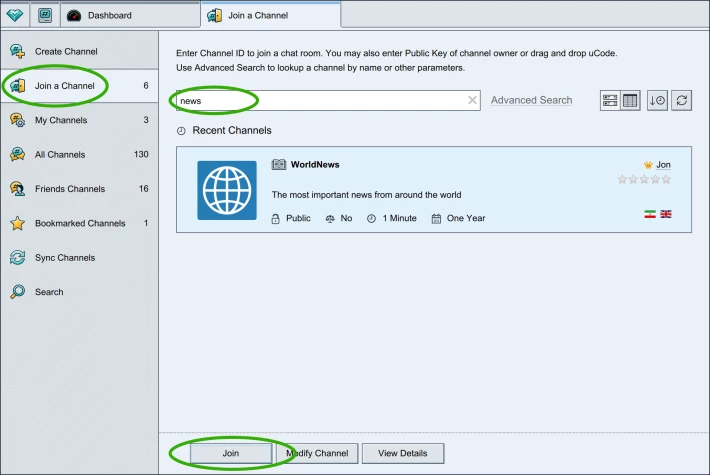
Enter a search term into "Search" field and click "Start Search" button.
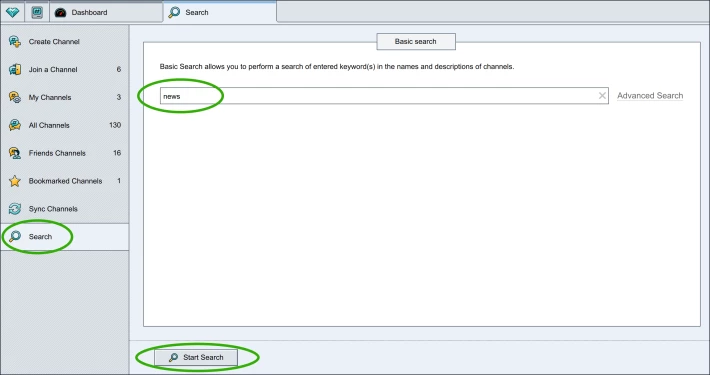
Use "Advanced Search" if basic search is not sufficient.
Advanced search is a highly customizable tool that allows you to specify precisely where you would like to search and apply filters.
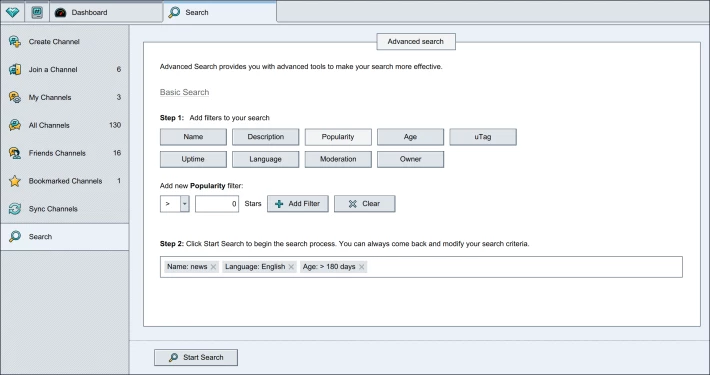
In Step 1, you are offered a section of filters to narrow down your search. You may apply several filters as the same time:
Name - enter the keyword to search in channel names.
Description - enter the keyword to search in channel descriptions.
Popularity - define the popularity level in stars.
Age - define the channel age in days.
uTag - enter the keyword to search in uTags.
Uptime - define uptime in days.
Language - select one or several languages using "Select Channel Languages" button.
Moderation - select if the channel is moderated or not.
Owner - specify channel owner's Public Key or uCode. Use "Address Book" button if necessary.
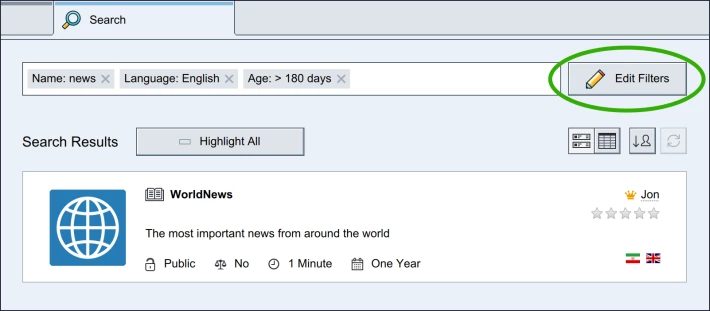
Click "Start Search". You can always come back to modify your search criteria by clicking "Edit Filters" button.
How do I manage a channel as moderator?
If you are not already at your channel, go to "Channel Manager" ("Tools" → "Channel Manager") and select "My Channels" on the left. Select your channel and click "Join".
The channel window is similar to chat, with an additional toolbar designed to manage channel at the top-right corner.
"Channel ban list managed by moderator" button allows you to ban users to prevent them from accessing the channel.
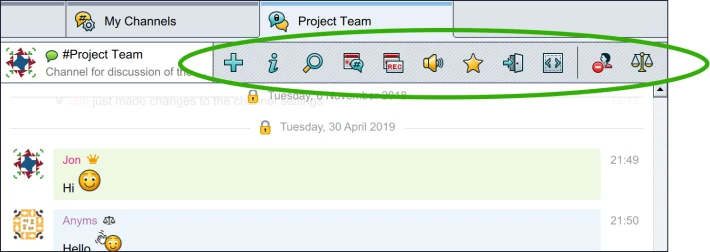
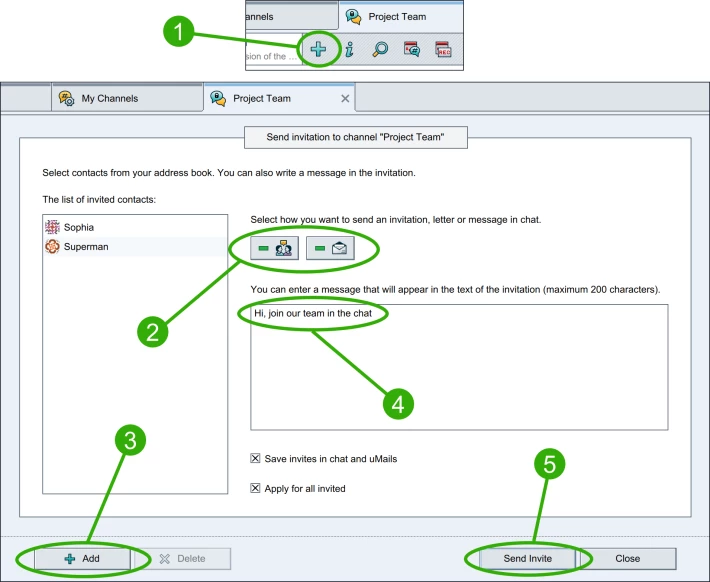
"Invite to Channel" button lets you select contacts from your contact list and invite them to your channel. You may send an invitation using uMail or Chat.
"View Details" button lets you view and modify channels details, such as description, channel name, access type, avatar, select languages, add or remove channel moderators, add geoTag and uTags. In addition you may delete the channel.
"Search" button enables you to search the channel history.
"Show Channel History" button displays communication history at the channels you participate in.
"Click to Disable Channel History" button - next messages will not be shown in Channel history.
"Disable Sound Notification" button - disables sound notification at the Channel.
"Bookmark Channel" button - saves the Channel to bookmarks.
"Leave from Channel" - allows you to exit the channel.
"Set Full Size" button - the channel window is resized to full size.
In the bottom left corner you can see two more buttons:
"Allow incoming requests" - This option allows authorization requests to you from fellow channel users. If you do not want to receive such requests, please disabled this option.

"Allow private chats" - this option allows private chats between you and channel participants. If you do not want to receive private messages from channel participants, please disable this option.

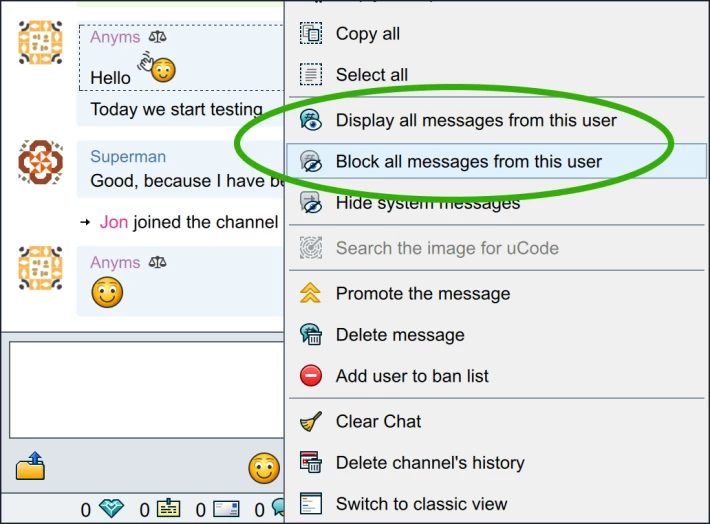
By right-clicking any user in the channel you may use "Display all Messages from this user" button or "Block and hide all Messages from this user".
How do I ban a user from a channel?
If you are not already at your channel, go to "Channel Manager" ("Tools" → "Channel Manager") and select "My Channels" on the left. Select your channel and click "Join".
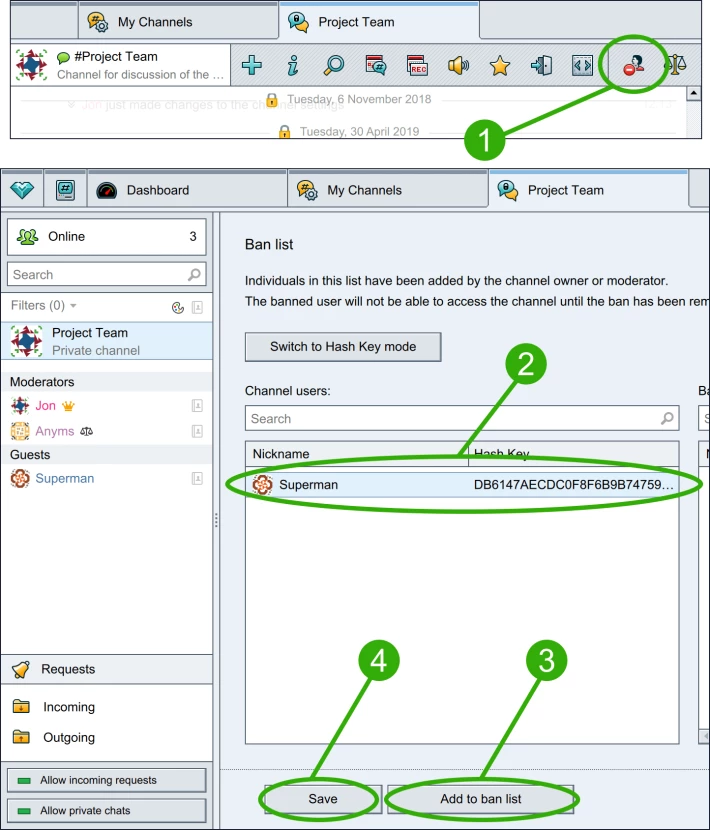
To ban a user who is abusive or otherwise disrupts the channel, click "Channel ban list managed by moderator" button at the top of the channel window. Select the user you would like to ban and click "Add to ban list" button. The user has been banned.
How to remove a user from ban list?
If you are not already at your channel, go to "Channel Manager" ("Tools" → "Channel Manager") and select "My Channels" on the left. Select your channel and click "Join".
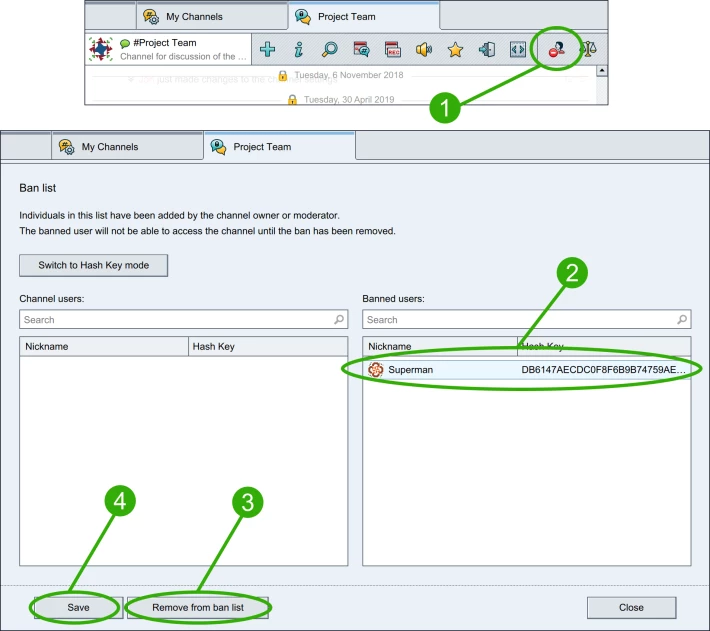
To remove a user from a ban list click "Channel ban list managed by moderator" button at the top of the channel window. Select the user you would like to remove from ban list and click "Add to ban list" button. The user has been banned.
How do I invite a user to my channel?
If you are not already at your channel, go to "Channel Manager" ("Tools" → "Channel Manager") and select "My Channels" on the left. Select your channel and click "Join".
To invite a user to your channel click "Invite to Channel" button at the top of the channel window. Click on "Add" button at the bottom right corner and select one or more users from your contact list. You may send an invitation using uMail or Chat. Enter the text of invitation and click "Sent invite" button. The invitation has been sent.
How do I add/remove moderators?
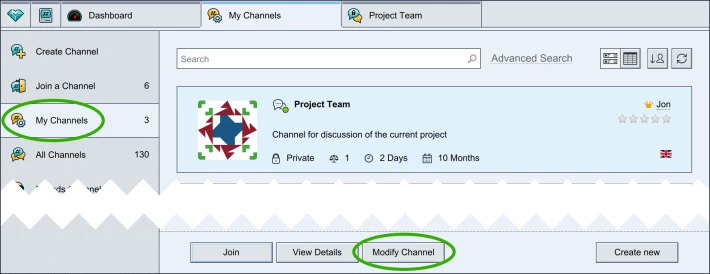
Go to "Channel Manager" ("Tools" → "Channel Manager") and select "My Channels" on the left. Select your channel. To add channel moderator click "Modify channel" button followed by "Advanced settings" → "Select channel moderators". At "Add a moderator page", click "Add" button at the bottom-left side of the screen.
Select from your contact list users that you want to assign a moderator status. Press "OK" to added user to the list of moderators.
To remove a moderator go to "Channel Manager" ("Tools" → "Channel Manager") and select "My Channels" on the left. Select your channel. Click "Modify channel" button followed by "Advanced settings" → "Select channel moderators". Select the moderator from the list to the left and click "Delete" followed by "Save".
Where can I modify all of my channel's settings?
If you are not already at your channel, go to "Channel Manager" ("Tools" → "Channel Manager") and select "My Channels" on the left. Select your channel and click "Join".
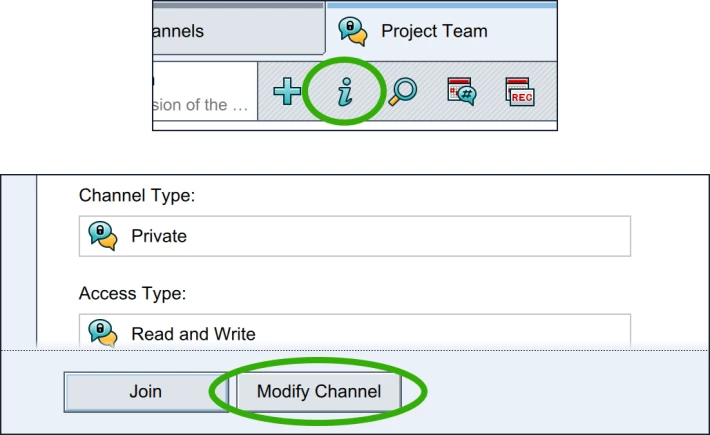
"View Details" button lets you view and modify channels details, such as description, channel name, access type, avatar, select languages, add or remove channel moderators, add geoTag and uTags. In addition you may delete the channel. The button is located at the top of the channel window.
Can I change the channel type from private to public and vise versa??
No, channel type cannot be changed once a channel has been created. All that you can do is to create a new channel of the appropriate type and delete the old one.
How do I pin a message?
If you are not already at your channel, go to "Channel Manager" ("Tools" → "Channel Manager") and select "My Channels" on the left. Select your channel and click "Join".
Moderators are allowed to promote messages by right-clicking on a message and choosing "Promote this message" button.

How do I delete my channel?
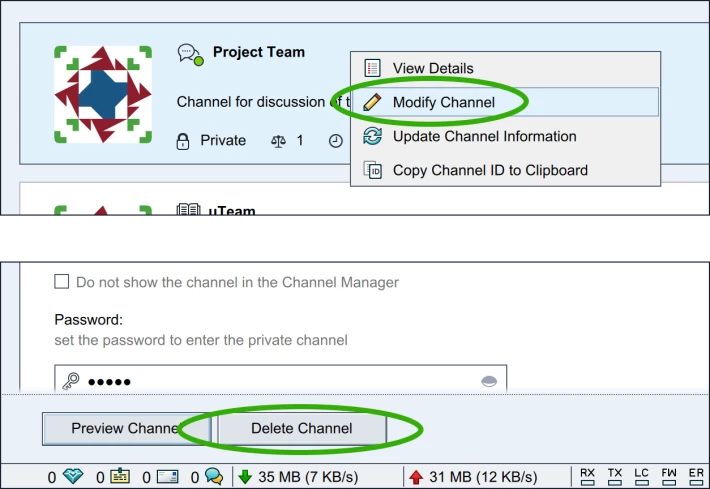
To delete a channel, go to "Channel Manager" ("Tools" → "Channel Manager") and select the "My Channels" on the left. Right-click on the channel you would like to delete and select "Modify Channel" followed by "Delete Channel" button. Confirm that you would like to delete the channel.
Channel Manager tab overview.
This is a brief overview of Channel Manager ("Tools" → "Channel Manager") tabs located to the left.
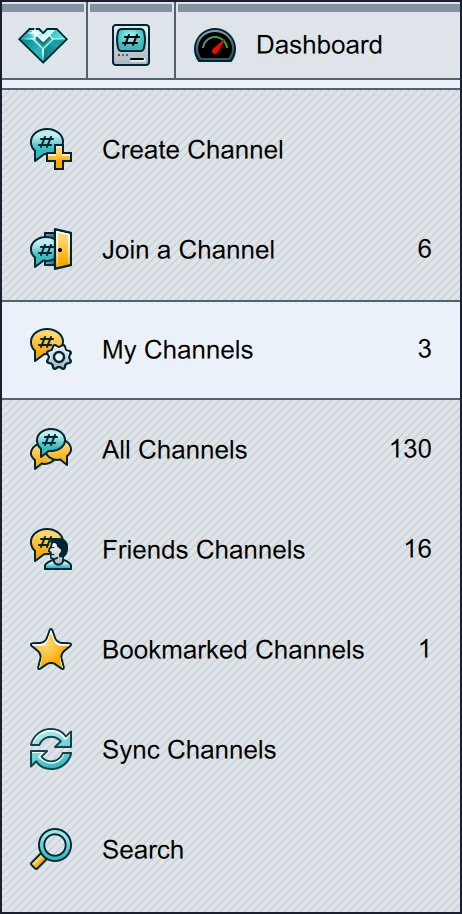
"Join a Channel" tab - allows you to join existing channels. You can search channels by channel ID, description, channel name, uNS name and so on.
Advanced search options include filtering your search by name, description, popularity, age, uTag, language, moderation, uptime and owner.
"My Channels" tab - displays the list of channels that you have created. You can sort by the status, popularity, number of guests, language, moderation status and age of the channel. You may also search and sort among your channels.
"All Channels" tab - this page displays the list of all available channels. Use search field to find the right channel for you. You may view of channels list, view details and join channels.
"Friends Channels" tab - this page displays the list of channels that your friends have created. Use search field to find the right channel for you. You may view channels list, view details and join channels.
"Bookmarked Channels" - this page displays your bookmarked channels.
"Sync Channels" - here you can see synchronization data on channels.
In the "Search" field you may search for channels in the similar fashion as in "Join a Channel" tab. You can perform both Basic and Advanced searches.
still if you have doubt regarding utopia p2p channel feature, please let me know in comments. thank you.





