
Introduction
Hey guys, welcome back to my Blog. In this video I am going to go over how to install an extension on your browser to help you when it comes to buying property and treasure hunting. If you are not familiar with Upland, I have left a link to my Tutorial video below so feel free to check that out. Also check out my Wombat Tutorial as well, as you can get paid crypto for playing games and Upland is one of them. So this is why I highly recommend signing up to Wombat before you even start playing Upland.
Taco Extension Guide --> Click HERE to watch
Taco Extension Discord --> https://discord.gg/MTsW6pgY
Wombat Tutorial --> Click HERE to watch
Wombat Link --> Click HERE to sign up
Upland Treasure Hunting Guide --> Click HERE to watch
Spark Staking Guide --> Click HERE to watch
My name is CryptoPar3nt and welcome to my Blog “Earn Crypto Online” where I show you how to make extra crypto online. So if you are interested in earning extra crypto by playing games, earning from web 3 apps and other great ways, then please take 1 second to like this article and follow my Blog.
Alternatively, you can check out my YouTube channel for more ways to earn crypto online. If you find my content helpful, feel free to like, comment and subscribe. Thank you.
**YouTube Channel: Click HERE**
Affiliate Disclosure:
Most of the referral links I include in my articles will give me some sort of commission. I appreciate the use of these and thank you for your continued support as this really helps me and my family.
================================
Video Disclosure:
This is NOT financial advice and I am NOT a financial advisor, This article is for entertainment purposes only. Always do your own research. So sit back, relax and enjoy the reading.
What is Taco Extension?
I have only just found out about this extension and I have found it very useful. This is why I want to share it with you guys and show you how to set it up. The extension does two things. It shows you the UPX fee for all the properties in the area you have zoomed into and it also shows you the prices of properties for sale along with markup percentages. (see pic)
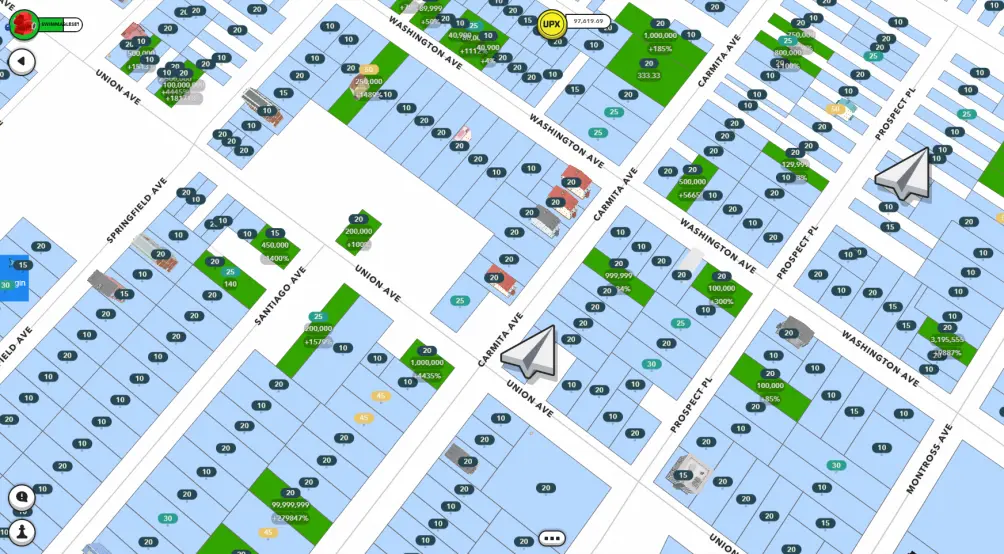
This is a very useful tool and it can save you a lot of time if you are looking to buy properties or if you are treasure hunting and want to land on a property with the lowest UPX fee.
How to Install?
The Taco Extension is Chrome based, but I run it on Brave and it works fine. To install it, the first thing you need to do is join this discord server. I have left a link for this at the top of this article. After you have joined the server, look for a channel called “MC Town Square” and click on “taco-tools-guide”. It will bring up this picture (see pic).
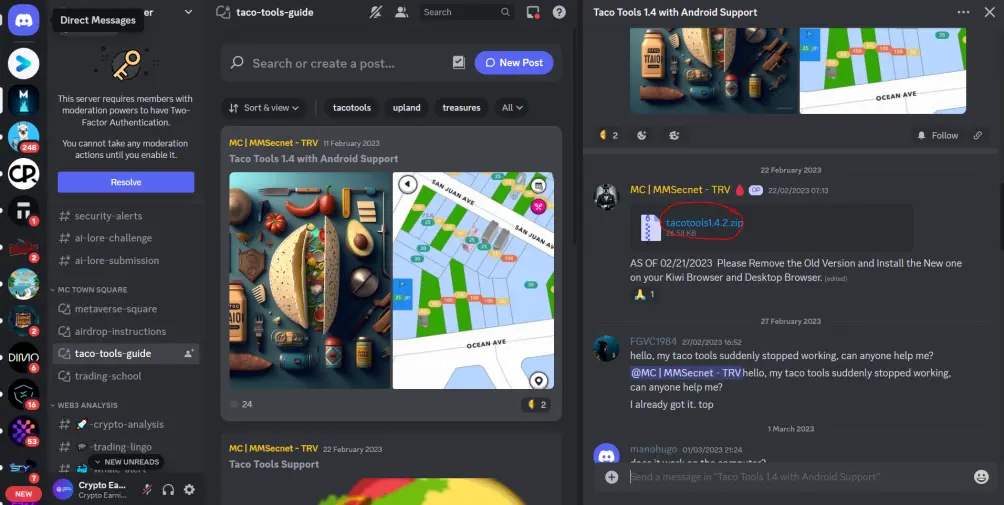
Click on it and it will open up another chat box on the right. If you scroll up a bit, you will see the zip file for the extension. It is a small file and takes seconds to download. Once it is downloaded, extract the zip file to your specified location.
Before you go ahead and install the extension, there is one important thing you need to do. Go back to the discord server and look for a channel called “taco-tools” and click on the green button called “Taco Me” (see pic).
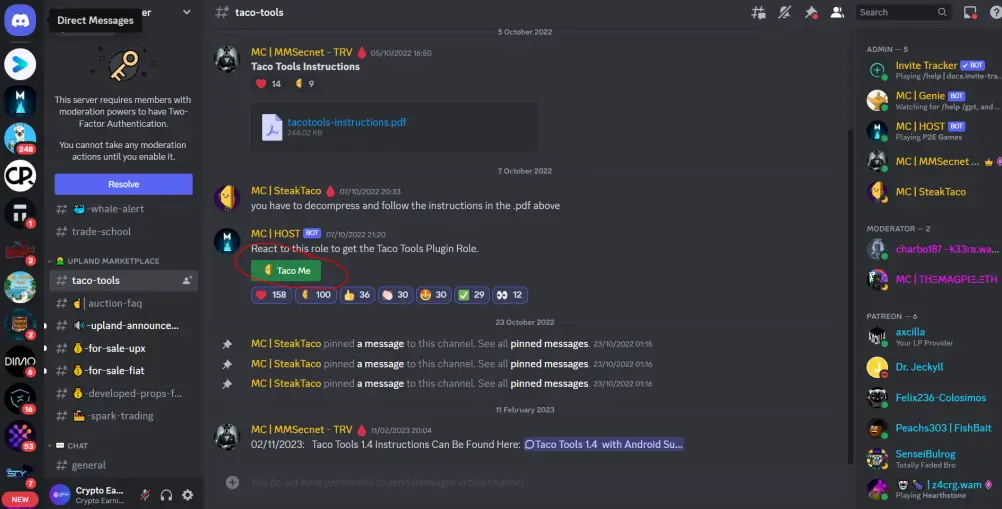
This will give you the plugin role which enables you to use the extension. Now you need to go to your browser, chrome and brave both work. Click on the 3 lines in the top right, this brings down a drop menu. Select “Extensions” which take you to this screen (see pic) in the top right turn on “Developer Mode”.

After you have done this, on the top left select “Load Unpacked”, find your unzipped file and then select it to add it to the browser. If everything has worked correctly, you should now see the extension on your screen. If you click on this jigsaw icon (see pic), you can pin the taco extension so it is easy to access.

Is it Working?
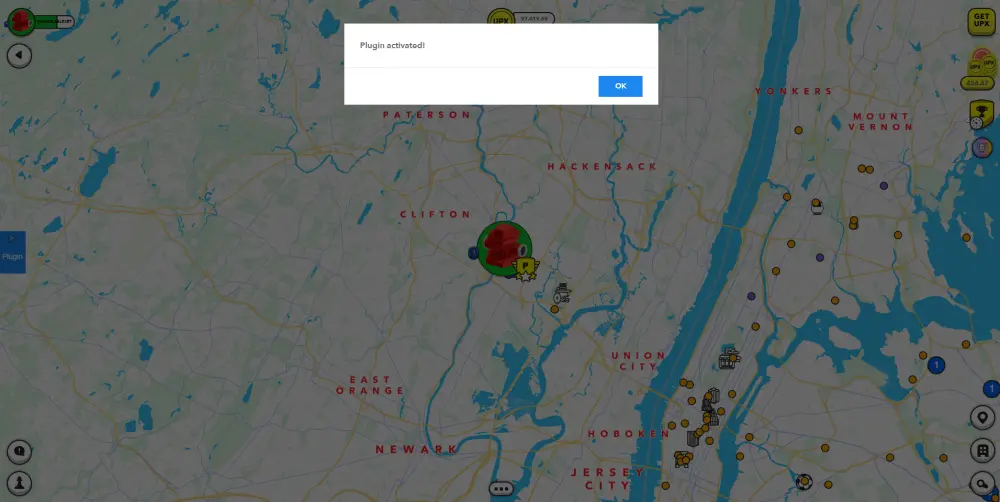
This extension is fairly easy to use, the most difficult part is actually getting it set up and installed. If you click on the Taco extension, it will ask you to login to Discord. Click on this and authorise the pop up from discord, it will then direct you to Upland where you can log in with your details. If you get a notification that pops up saying “Plugin Activated”, you have successfully installed the extension and it is working.
How to use the Extension
When you log into your Upland account and zoom right into an area, you will see every property appear with numbers on them.
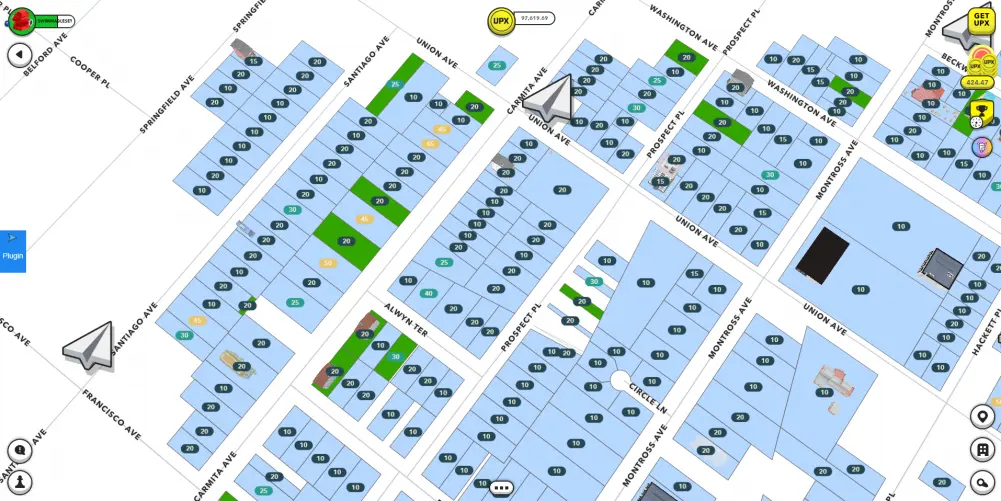
This is the fee that each property will take if you land on them, because I treasure hunt, I don’t want to see all of the property fees so I just let it show me the cheapest fee. To do this, click on the plugin icon on the left or press “P”. This will bring up a menu, click on this box here (see pic) to only show the cheapest UPX fees.
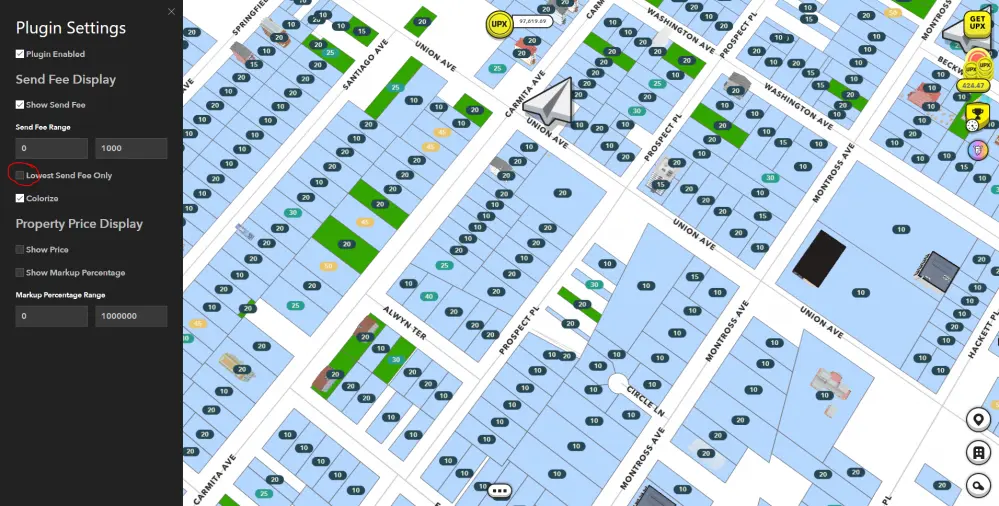
This is very handy when it comes to treasure hunting, this way you don’t waste time looking for the cheapest properties to land on.
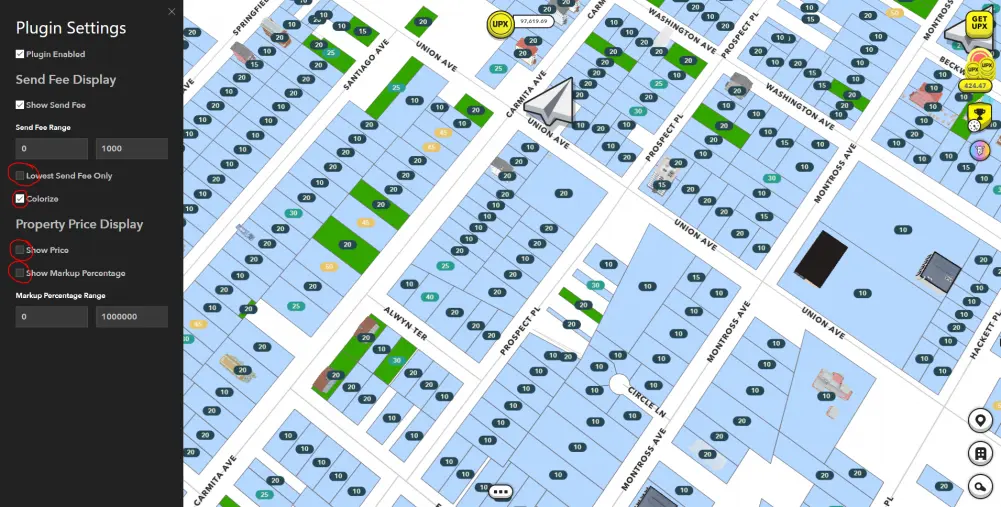
Another thing you can do with this tool is check prices of properties, you can select “Show Price” and “Markup Price”. This is useful when you are looking for a good deal and you don’t want to overpay on a property. If you feel like the plugin is slowing down your PC, you can untick this box called “colorize”, I find that it runs a bit smoother when hunting.
Summary
I hope this Upland Extension tutorial has helped you understand how it works and how to install it correctly. If you have any questions, leave a comment and I will reply back to you as quickly as possible. Thanks for reading and I'll see you in the next one.






