
I've been a big fan of Linux OS distros ever since Windows pissed me off royally with its move to subscriptions and the fact that I build older hardware computers as a cheap hobby. It fits right into my mentality of finding new purpose for things people would otherwise throw away because it's not "new" or modern enough. However, Linux is anything but a simple install and go, and the distros have a notable variance between them that you only fully realize once you've been working with one of them for a while.
Ubuntu LTS
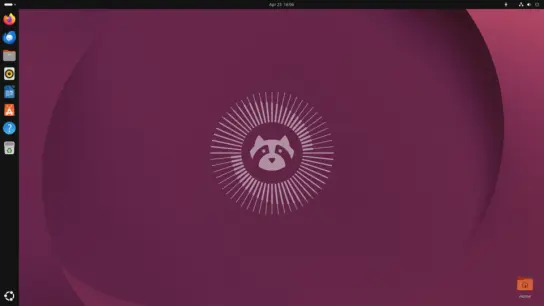
For anyone who knows nothing about Linux, Ubuntu LTS (long term support) tends to be the most common starting point. It's been around for a long time, has a significant amount of technical eyes and work, and it's fairly simple to install and get working. Built with essentially a Gnome approach, it comes with a standard complement of office productivity software, including Libre and various accessories. Basically, you get everything you need to run a Linux desktop and get started with learning how to do CLI commands in terminal, but even if you never scripted one single LS or CD command, you could still run Ubuntu in graphical mode and function just fine. But that's about it. The OS is very vanilla, and anything further, you have to go looking in the software options. You have two choices, use the included Snap App menu and download various apps, limited to what the OS menu provides, or you can script installs via terminal if you're a bit more adventurous.
Ubuntu LTS is primarily written for the most common hardware, but it has good compatibility with reading NTFS drives, NVIDIA-based GPUs and similar. It tends to have a bit more of a headache with AMD GPUs, even when downloading specific AMD drivers.
I started with Ubuntu myself, and learned plenty of beginner ropes on it, with lots of options in which to expand my education. The biggest gripe I had with Ubuntu was that LTS version 22 was somewhat unstable when it came time to update, and sometimes the kernel would get screwed up. That problem seemed to go away with LTS version 24, and its been running smooth since.
Ubuntu LTS 24 runs very well on older architecture and little issue. I've been using it on everything from a Ryzen 3 to a Ryzen 7, as well as AM4 and AM5 motherboards. DDR4 at 16gb is essential, and things run as they should smoothly with 32gb at least. So fill up those DDR4 slots on the board. Ubuntu comes with good support for multiple terminals, including the ability to tweak. The settings menu might seem a bit rookie-level, but it works fine for what you need to get going with hodge-podge equipment builds. It will be interesting to see what happens now that Ubuntu is making big changes on compatibility and the OS base of code going forward.
Ubuntu Studio
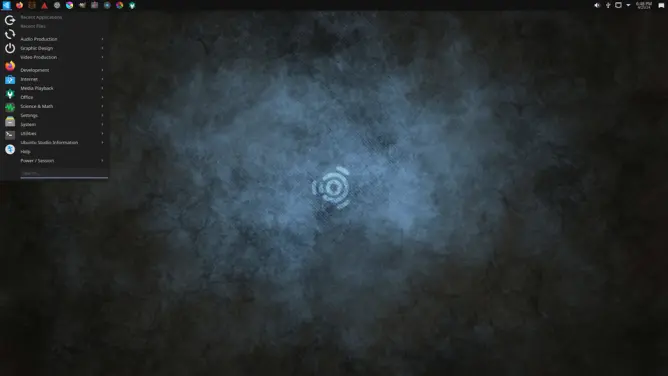
I really wanted this distro to work, and after hammering on it for about 4-5 months I've thrown in the towel. Ubuntu Studio was a great idea that in practice doesn't work at all. Here's the issue; most distros are built in ideal situations. That means the devs are using the best equipment possible and design the OS code and files to that equipment. Then it gets released and the OS is expected to work on everything else. Ubuntu Studio is a classic case where that definitely doesn't apply.
Unlike the standard Ubuntu, Studio is built on a KDE platform which is far more complicated to run. When I first loaded it, I thought a Ryzen 3 with 32gb DDR4 on a B450 motherboard was good enough. It seemed to work fine for all the other distros I've tested. Nope. Within minutes of completing the install, I would get hangs and freezes on the weirdest actions. Just opening a menu, looking at the file folder, or switching from connected Internet to turned off would hang the OS. Then I upgraded to a Ryzen 7 CPU. Much better response, but sure enough came the stupid hanging.
Most of the grief turns out to be the graphical side of things. Studio is tailored to an NVIDIA GPU setup, not AMD, which is what I was using. So, no surprise, processing conflicts of the weirdest, smallest kind cause hangs in the OS. Despite a very nice portfolio of pre-determined creativity apps covering art, photography, audio production and more, Studio just doesn't work consistently except maybe on premium state of the art PCs. It's a really nice-looking OS with a lot to offer, but the KDE build isn't going to work for the everyman PC.
Bodhi
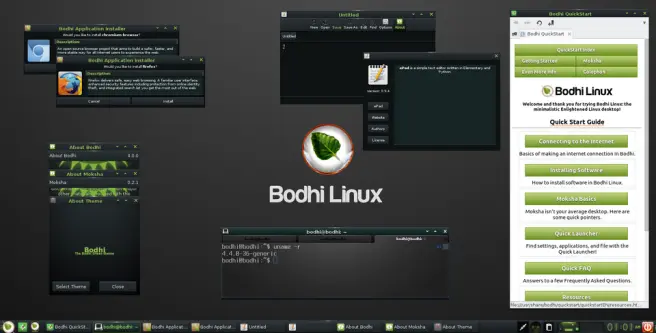
Dubbed the enlightened Linux OS, Bodhi is a stripped down version of Ubuntu-based OS Linux that works really well for older machines with space or processing limitations. It has a very modern feel to it, with multiple options for general appearance changes and format. Being an Ubuntu derivative, Bodhi uses many of the same app and software sources, so most of the Ubuntu apps work on Bodhi as well. You can choose to work with the internal software menu loader (which can seem a bit complicated), or just install direct through CLI terminal.
Bodhi runs very light for an OS, which makes it a good choice for machines running only a 0.5 GB of drive space and dated architecture. It has no issue running with a minimal 16GB RAM flash storage, but it goes lightening fast when you have much more. The packaged apps have some interesting offers as well as some generic duds. You keep and drop what works for you. With a recent version 7.0 Bodhi out now, there's a bit more to offer from lessons learned. I've personally found Bodhi very useful for resurrecting machines that got all screwed up with bad installs and somewhat corrupted drives, bringing them back to life on the cheap.
Updating runs through a file manager tool which can seem a bit confusing. The updater takes some getting used to, and even Bodhi recommends also updating directly in CLI with a combined "apt-get update && apt-get install" just to be sure everything got added. Because of the nuances of the settings tools and need to CLI is greater, I would peg Bodhi as more of an intermediate OS good for those experimenting out from Ubuntu with CLI experience and testing things on a build or an older machine they have as a spare.
Arch Linux
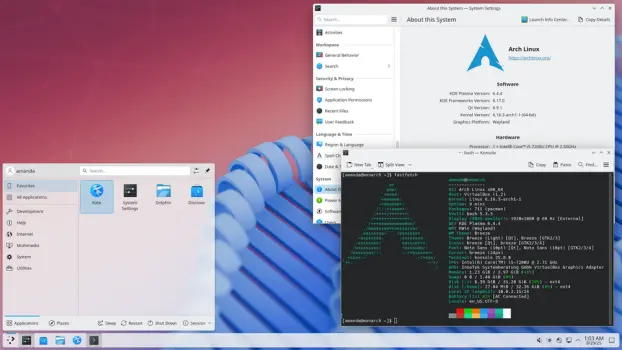
If you're looking for something that's going to give you immense mental pain, but feels like you climbed Mt. Everest when you get it working, Arch Linux is for you. This is the distro that really tests your ability to run a Linux OS without all the hand-holding present in other distros designed for rookie to intermediate level. I'll be honest, I haven't even gotten it fully working in GUI mode. I was successful at installing Arch Linux on a VM in terminal mode at least, and that was enough of a head-rattler for me. I haven't gone back since, but it's still there as a challenge for me to achieve on my roster of Linux Boy Scout challenges to achieve. It is definitely not recommended as a distro for beginners, mainly due to very technical support that you have to cobble together from different sources. Worse, not all the software sources work consistently, which also contribute to install errors. If you're getting into Linux, avoid Arch and get your feet on solid ground first with one of the other distros first.
LinuxLite
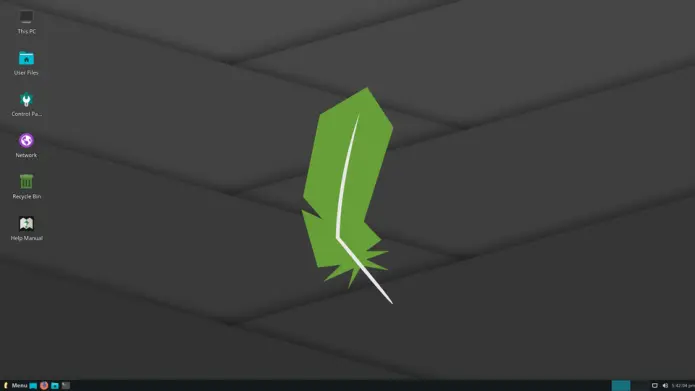
Just like what the name implies, LinuxLite is an extremely small OS, basically being another stripped-down Ubuntu platform. I got this OS working on a very old Acer mini-laptop from the early 2000s, and even without the flash storage needed to run GUI browser apps like Brave, it worked great operating in CLI and as a basic office productivity OS.
The LinuxLite environment is very smooth and Gnome-like, with easy choices for appearance selections as well as add-ons. Programs and apps can be added with a built-in selection program as well as through CLI. Given some of the old architecture limitations I had, LinuxLite made it very possible to build and OS style that relied heavily CLI-installed and CLI-command apps. I was able to build a text-based browser, email server, and more using LinuxLite, and still run Discord as well as other programs via GUI. The OS would probably be a good pick for a small system like a RasberryPi, but I'm not sure if there is a RasberryPI compatible version of LinuxLite out there currently.
The OS is definitely a good pick for those dealing with very limited computing capabilities, and the best part is that the distro comes free at cost. It can work as a beginner OS or an advanced platform; it just depends on how involved you want to get with your machine.
Fedora
I just installed Fedora version 44 on a machine last night after gutting Ubuntu Studio (read above) and starting over. I previously hadn't focused on Fedora in earlier choices because, honestly, I hadn't heard much about it. However, Fedora has been around for quite a while and has a solid amount of ongoing support. It comes in different versions as well, including a basic form and far more advanced premium OS form which costs money up front. You can always upgrade later though.
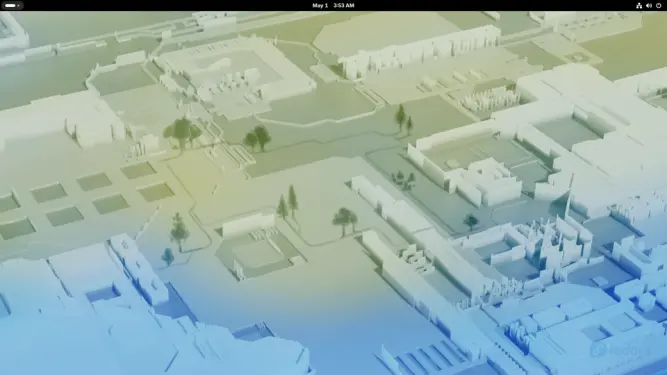
From the get-go, Fedora is a lot like Debian OS, with the menu hidden from the desktop until you trigger the need. If you like a clean, empty desktop except for what you're working on, this is an OS for you. There are other versions and variances of Fedora, however, that keep desktop menu bars visible. Generally, with the basic version, you click in a corner to get the menu, and you get your active bar at the bottom and then the rest of the apps in a moving menu on the screen temporarily. Once selected, it all disappears again except for the app you're working in. There's no folders, files or icons saved on the basic Fedora desktop for quick access, and no top bars for shortcuts either. MS Windows people will find this jarring.
As a package, Fedora installs very smoothly with the standard drive, location, timezone and login setup, and then it does the rest of the work. Once finished, the install shows the Fedora start screen desktop and you click as noted to make things happen. The standard complement comes with an office suite from Libre, sound, calendar, calculator and notepad accessories and few other generic tools. Most are similar to other apps and look just like gnome apps in Ubuntu.
However, once you get into terminal and CLI commands, things get different in Fedora. The BASH version used in Fedora is different from Ubuntu-based platforms, so you're going to have different commands. For example, instead of using apt-get update to check for new updates, in Fedora you use dnf. I mean, that's it, just dnf. It's weird. But, once you accept that Fedora is a different Linux world entirely, you just get used to it. I'm just going to be a confused doof switching commands between different Linux OS' in my situation.
Adding software is fairly easy through the built in flatpack menu system, which looks a lot like the app stores and menus in other distros. Most similar Linux apps are there, but some have different names. Stacer, a common system activity monitor app is named Acter instead for example. While it is possible to install from CLI, again the BASH command is very different and a bit more complicated for the unitiated. Fedora uses different sources than Canonical Ubuntu, so you have to get the addressing right. The GUI menu avoids this headache entirely, but then you're limited to what's in the menu listing only.
Otherwise, Fedora is very stable, no glitching, and runs pretty smooth. After adding apps, it's highly recommended to restart to give the OS a clean boot on all the new files added. I found it doesn't always start apps right away after downloading, especially those with dependencies that just got added in your install. Much of the menu system is similar to Ubuntu menuing, so it's not a big leap from that OS if shifting over.
One thing I did run into with Fedora was that you'll have to use Fedora's only media creator app or BalenaEtcher or similar to create a Fedora install USB to get started. I tried using Ubuntu's starter drive app, and while it could see Zorin and Bodhi OSI images, it would not recognize the Fedora OSI file. I ended up creating the starter USB to load Fedora on a Windows machine instead, ironically, using the Fedora media creator tool.
Zorin
Wow, for all the distros out there, this one is the most similar to MS Windows and probably the most stable to install. Zorin is a bit of a newer version of Linux, but it has a strong support and ongoing updating team. Zorin comes with multiple options starting with the Core version, which is very good for older machines and free. Then there is Zorin Premium, which has a cost but comes with a lot more options and apps included prebuilt.
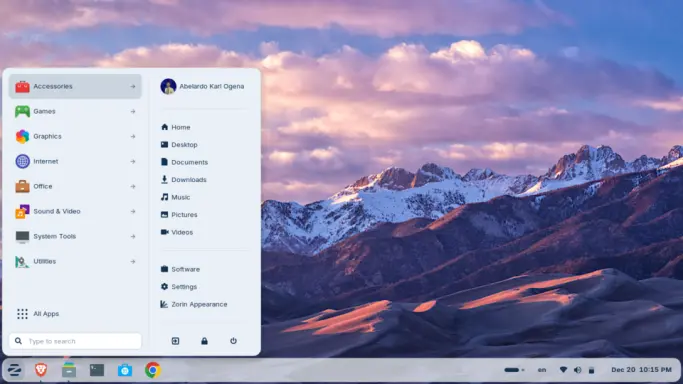
Once loaded, Zorin works with a task bar menu and drop down submenus, all pre-loaded with categories of apps packaged in the OS. It's fairly loaded with a lot of good choices, giving a former Windows person a lot to work with. That said, there is the built in App Menu selection as well. And the CLI terminal approach works for installations too, avoiding the Snap approach entirely if you want. Just make sure that when you run a CLI install, it completes 100 percent. I made the mistake of fouling up an install, and it fudged the libraries, causing me to have to reinstall Zorin to clean it out fresh. A patch fix was not doable via CLI.
I'm fairly impressed with the build on Zorin, and it works a lot better aesthetically than the more beginner level OS' like Ubuntu and Fedora. It also feels more professional as an OS, and lend itself far more to the intermediate user who knows a thing or too about Linux and wants to expand their machine but might be limited by older architecture.
Mint
Like Ubuntu Studio, Mint OS was a great idea that crashes in practice. While Mint can seem very attractive for Windows-type users, it has a consistent habit of crashing and kernel corruption. Mint uses a Flatpack system versus Snap for app loading and installation, as well as CLI terminal approach. Both work fine, but the Flatpack system gets a bit confusing with the amount of selection possible if you use their file upgrade manager tool instead of the Flatpack menu app program. Somewhere in the mix, when you start adding things onto Mint, something breaks. And then bad things happen. This happened to me three times trying to get Mint to work as a distro install. At certain point, you just resign yourself to the fact that we can't always have good things, and Mint is just not ready for prime time.
I know some folks sing the praises of Mint, and maybe it works a lot better on brand new machines. However, like Ubuntu Studio, the OS is not recommended for older systems, regardless of what is marketed.
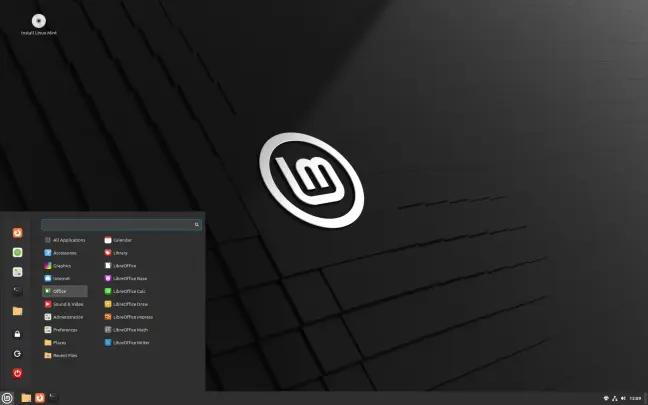
Image from linuxmint.com.
Debian
If you want a flashback to the 1990s, Debian OS is it. Being one of the oldest Linux OS out there, Debian continues to keep chugging along, using simplicity to provide stability. Debian has a long record of working as both a desktop OS as well as a server system, and you have some choices in install setup to do either or both.
The install process is a lot like going back in a time machine, using screens that harken back to the days of Windows 3.1 with little flashy bar monitoring dialogs and similar. Once you get through the requisite drive selection, Debian sets up with the classic desktop where you need to click to trigger the selection menu. It comes loaded with basic software for office productivity and accessory apps like calculator and calendar. It also has a built in browser and email server, but it's very generic. This, of course, will drive a user to immediately start adding more apps. Debian does come with a built-in app software selection program, and you can straight to terminal to do more. However, Debian also does things different than Ubuntu platforms, being written on an entirely different source system. So, while more of the BASH commands are the same, the software sources are different. That means, you may not be able to find the programs you were used to in other distros as they are not available on Debian sources. Oops.
The above is not to say Debian is bad, it was and continues to be used as a very solid server management OS that does a night-job as a desktop OS too. It's just not fancy. Debian loads very light and works on very old machines. As proof, I got it to work smoothly on an old HP chromebook laptop with only 20gb of space on it total. It's a very good Linux OS choice for experimenting and bring very old PCs or laptops back to life at least as a handy word processor or IoT platform.
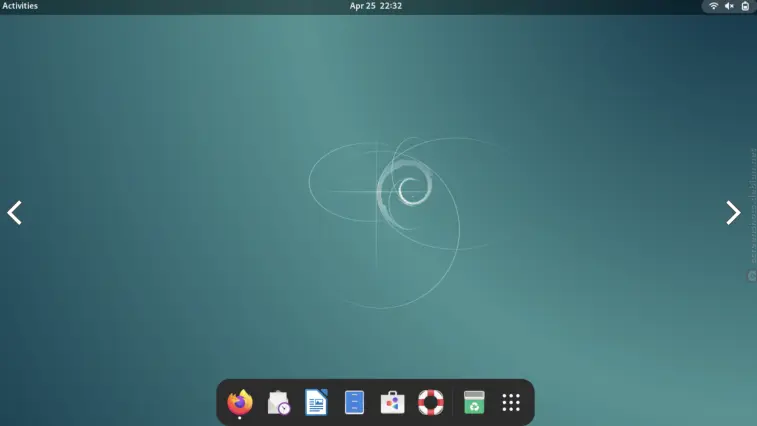
Image from screenshots.debian.net.
What Else is There?
Believe it or not, there are plenty of other distros beyond the menu above. Everything from pen testing and white hat hacker OS platforms to stripped down command-line only server OS' exist. The best thing about distros is that, if you don't like one, you can dump it and install another, usually for free. The biggest thing to remember is having a place to download the ISO file to, and then having a good media creator app to work with for the USB drive you will use to install the OS on a target machine. Remember, not every media creator app works with every ISO out there, so you have to play around a bit. Also, make sure to check that the hash signature on the download matches the distributor and is valid. ISO's are a nasty way to pass on malware to unsuspecting folks downloading from central repositories like Github and the like versus from the distro company directly. If you have a distro you like, comment below so I can take a look and possibly add it to this list for revisions. Thanks!
All other images are sourced from Wikipedia unless otherwise noted.
Links and Sources:






