So you own a Ledger Nano and bought some VET tokens.
You want to store your VET tokens on your Ledger Wallet and discovered that Ledger only supports the new VeChain Sync App, which is a desktop app for Windows, Mac or Linux
Did you know you can also set up your VET Ledger Wallet on the VeChain Thor mobile app?
There is a feature called "observe address" on the VeChain Thor app, which allows you to keep track of your VET wallets and do some activities on the wallet, it also works with the one you set up on Sync with your Ledger Nano. It won't let you do transactions anyway.
Unfortunately there is no clear guide on how to do that, or precisely, the VeChain guide is outdated because it is based on an obsolete and no longer available web app called VeForge Vault and even the VeChain Thor app proposes a generic procedure and it does not specify where to operate it.
Now, here is how to do it using the Sync desktop App.
- First you have to set up a Ledger Wallet on your Sync App, it is relatively easy, but if you need help here is a guide
- Now that you set up a Ledger VET Wallet on your Sync Desktop, open a new tab in the Sync app (just like you would do in your browser) and select the bottom left icon called Manager
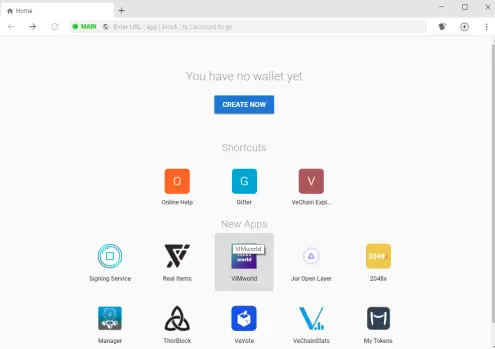
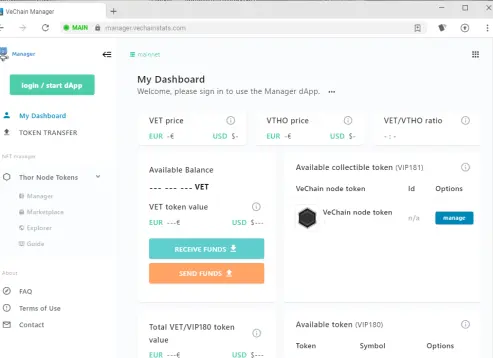
- Now Log In in the Manager App clicking on the login / start dApp button in the top left
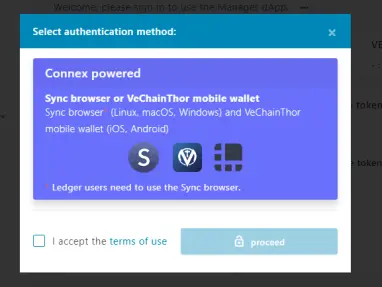
- You will have to get through an authorization process with your Ledger Nano, read and accept the terms and click on "proceed"
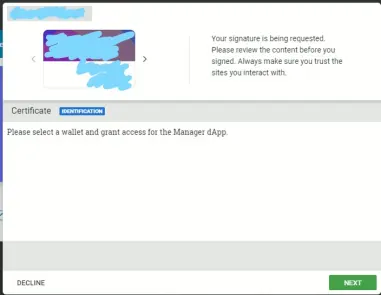
Select the desired Ledger Wallet clicking on the right and left brackets, then click NEXT
- Compare on your Ledger Nano the letters and numbers which appear on the screen, then confirm with your Ledger Nano. You will now be logged in the Manager dApp and ready to go for the next steps.
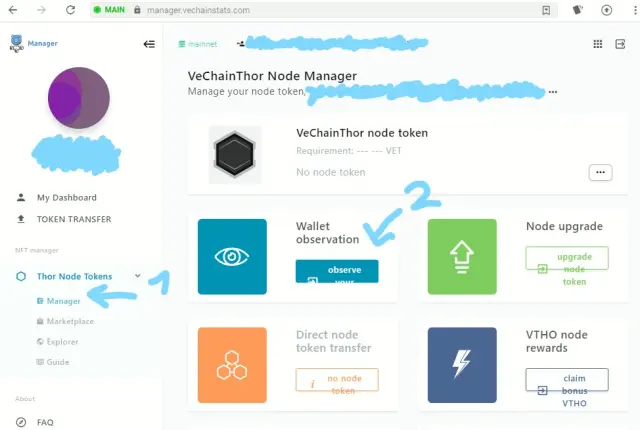
- First (1) select "Manager" in the left menu under "Thor Node Tokens" then (2) click on "observe" in the Wallet observation card.
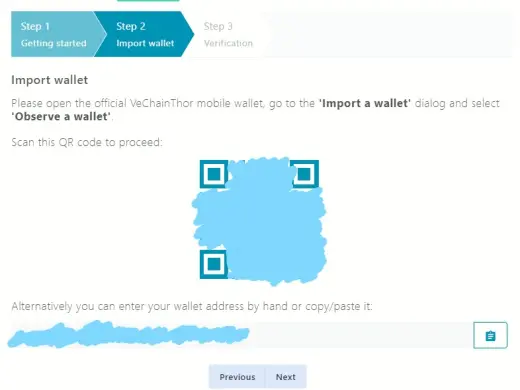
- Follw the steps, which will require you to scan a QR code proposed by Sync with your mobile camera. You will have to open the VeChain Thor app and choose "Me" in the bottom right, then "Manage Wallets", then "Import a wallet" and "Observe a wallet". Scan the QR you see in Sync and click "Next" in Sync.
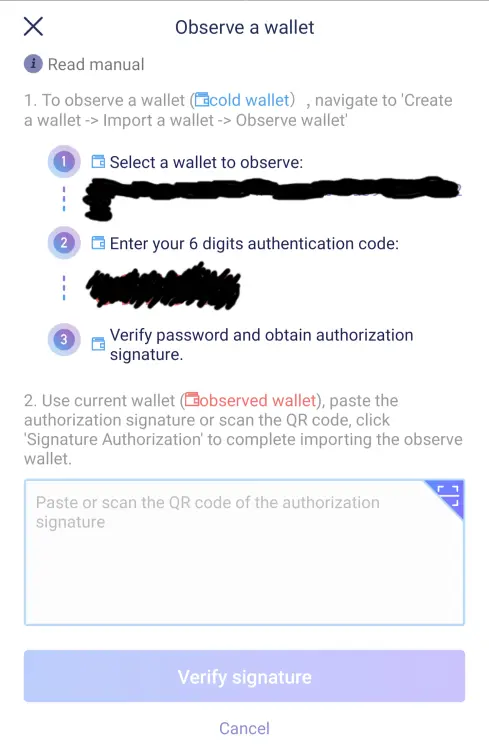
- Once you scan the QR, VeChain Thor will show you a code that you will have to put in Sync (see the picture down here) and confirm with your Ledger.
- Enter the code in Sync, in the screen you see down here, Sign with your Ledger and finish
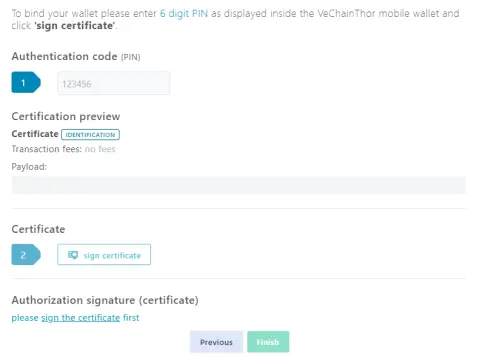
The Sync app will give you back a QR code again (a bigger one) to scan with the VeChain Thor app.
And you are done! now you can follow your VETs both in Sync and in your VeChain Thor mobile app.
Enjoy!