Hey There!
This post will cover Python Installation.
So let's get right to it.
Python Installation:
- 1. Go to the Python Download link, here.
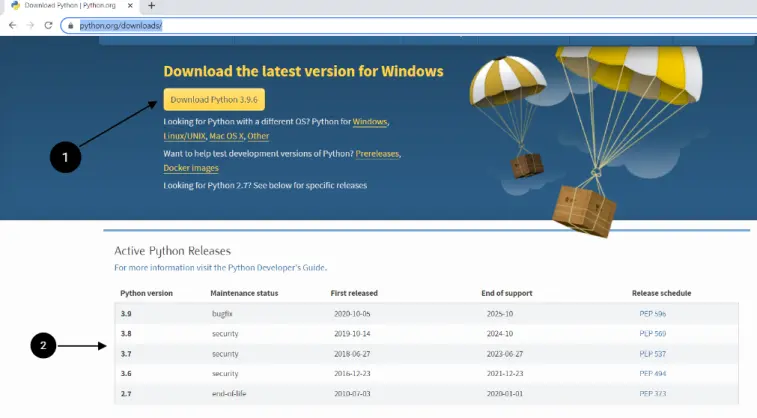
If you want the latest version of Python then click on 1. If you want the specific previous version the check section 2 of the image and download the specific version.
- Once the download is complete then open the downloaded .exe file.
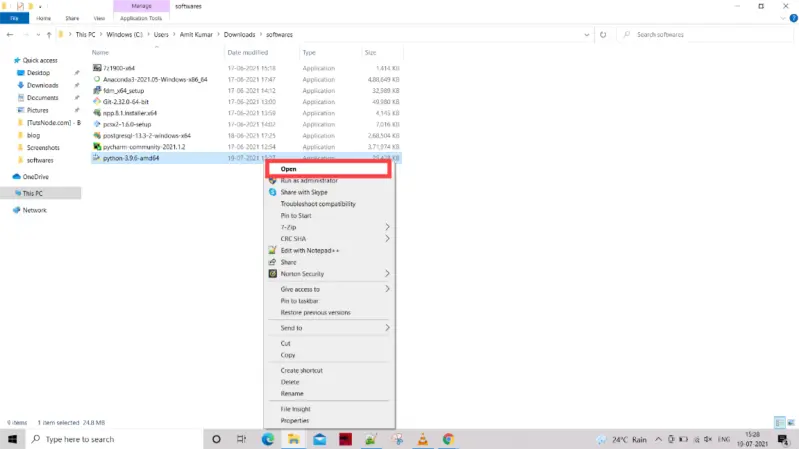
- You will be taken to the setup page.
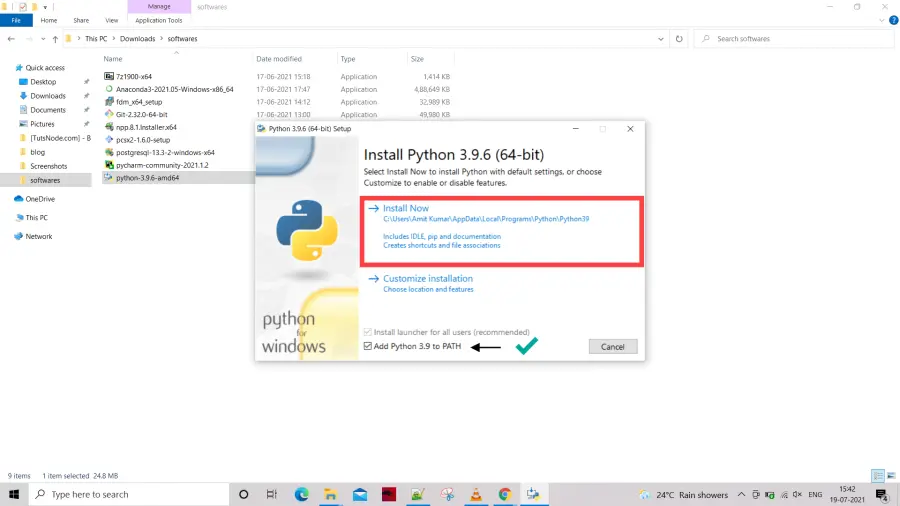
Tick the Add Python to PATH to update the PATH Environment variable automatically so that you don't have to add it manually. Then click on Install Now and your installation will start.
- Once the setup is complete you will be prompted with the below window.
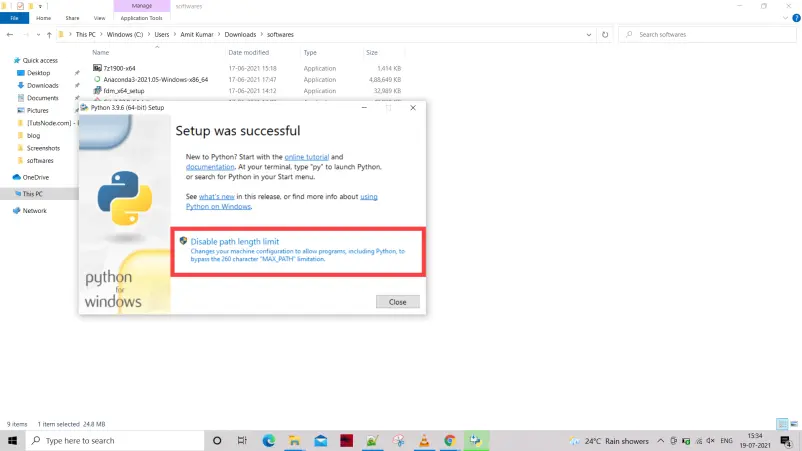
Here you can see that you are prompted an option to Disable the path length limit. Windows(which doesn't happen in mac or Linux ) don't allow path size to be MAX_PATH >260 chars which sometimes causes errors while installing python packages when python is installed in the user's AppData directory as the path size increase the threshold. This option will disable the path limit which will help resolve MAX_PATH issue. But be cautious that removing this limit devoids your system's backward compatibility with previous versions of windows software. Another way of tackling this MAX_PATH issue is to create a shorter directory if you don't want to disable this option.
- Python is installed in your system Click on Close.
- To Verify if Python is installed in your system or not, press `Windows key + R` and type cmd and Enter. in the command window type `python` you will be prompted with Python Shell, here you can see your python version.
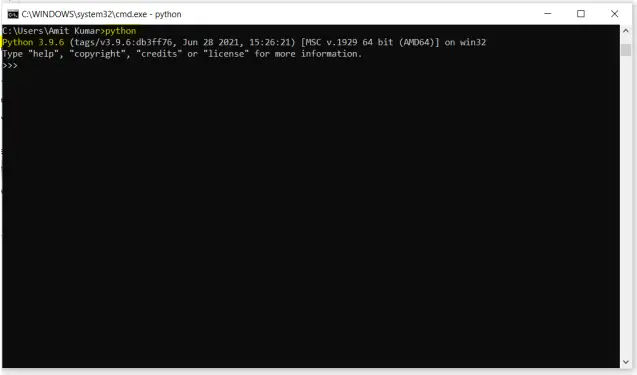
- Type quit() to exit Python shell or close the window.
Finally, Python is Installed in your system and you can start writing and learning to code.






