If you are like me you perhaps have a folder on your PC and within that folder you have a folder for each piece of mining software you own and use at various times. I personally over a dozen different mining software that I use of have used from xmr-stak to Wildrig-multi and T-Rex miner. Each time I want to mine a coin that I have yet to mine I must thumb through the documentation of each to see which algorithms they can mine. I then have to create a batch file for that specific miner and then I have to go into that folder and launch the miner using the batch file. Well that just gets tedious and boring. What if I could put all those batch files in one folder and create a desktop shortcut? We can.
We can create a unique system variable to each miner executable file (.exe) and then it does not matter where we place our batch files they will work. We can put them in a folder on our desktop or in our pictures directory. To create a system variable in windows simply type into the search bar "control panel" to access the control panel and then in the search look for environment then click on edit system environmental variables. This brings up your System Properties dialog and you can go over the the Advanced tab and at the bottom we fine the Environmental Variables button. Click on it.
As a matter of good practice we only want to created new variables in the User variables section. If we click on New we have the option to create a variable by name and assign it a value by pointing to a file or directory. In this example, we will name the variable PhoenixMiner and point it to PhoenixMiner.exe.
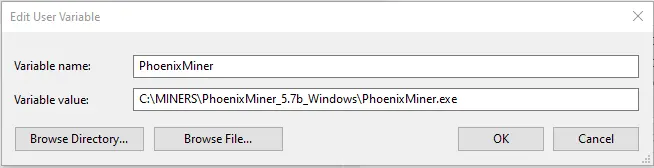
To make use of our new system variable we can now edit all out batch files for Phoenixminer.
%PhoenixMiner% -pool us1.ethermine.org:4444 -wal 0x000000000000000000000000000000000000 -worker Rig01 -epsw x -mode 1 -log 0 -mport 0 -etha 0 -ftime 55 -retrydelay 1 -tt 79 -tstop 89 -coin eth
pause
We access system variables using % % around the variable name. So how does this help us out? Now we can create a directory on our desktop and within it we place sub directories for the coins we mine such as Ethereum. We can use PhoenixMiner for Ethereum, but it does not support KAWPOW and so we create a second directory for Ravencoin and we repeat the process to create a system variable for NBMiner.
%NBMiner% -a kawpow -o stratum+tcp://stratum-ravencoin.flypool.org:3333 -u RN0000000000000000000.Rig01
Okay I get it maybe this is too much for some people. We still have another fun option that can yelp you out and that is to created a shortcut on the desktop to start PhoenixMiner. Lets do it!!!
Right click on PhoenixMiner.exe and go down the menu and press Create Shortcut. The new shortcut will be in the same directory so lets just drag it onto the Desktop with our mouse. Lets us set this shortcut up to mine Ethereum for us using the example listed above. Right click on the new shortcut and slide down the menu and click on properties. The shortcut properties dialog opens and we are already on the Target: entry which is what we are going to edit.
On my system, for example, the target path of the shortcut is C:\MINERS\PhoenixMiner_5.7b_Windows\PhoenixMiner.exe
We are going to modify the target path to mimic our batch file so we replace it with this:
C:\MINERS\PhoenixMiner_5.7b_Windows\PhoenixMiner.exe -pool us1.ethermine.org:4444 -wal 0x09ab3972d0873F5D88FCea4e04DBB9Aa3Eaf4B15 -worker Rig01 -epsw x -mode 1 -log 0 -mport 0 -etha 0 -ftime 55 -retrydelay 1 -tt 79 -tstop 89 -coin eth
After we edit the path we simply click on apply and close the dialog. We can then just right-click and rename our shortcut to MineEthereum.
You can get creative with your shortcut names and make as many as you want. For example you can include _AMD or _NVIDIA if you only use certain types of cards on certain coins.