As I mentioned in the previous episode, today we’re continuing the Minecraft topic and my expanded “Underground Cinema.” Today I’ll show the results of the work and an example use case. I’ll also show how to make a simple pack that can replace something in Minecraft’s item database. (With this method, we can’t add anything—we can only replace an existing element with a new one.)
What we’ll be making is a so-called “data pack.” In the sources, I added a link to the wiki where you can read more about it. For generating files for experimentation, AI tools work very well, so you can use them. I also used them for this, as well as to generate the textures themselves—they aren’t perfect, but they show how you can unleash your creativity.
Example File:
{
  "pack": {
    "description": "Music Disc Blogelist (1.21.10)",
    "pack_format": 69,
    "min_format": [
      69,
      0
    ],
    "max_format": [
      69,
      0
    ]
  }
}
value in "pack_format" is very important, each Minecraft version, has it own and you need to know, which one is correct. Event "AI Tools" has problems with write proper value. It is good to understand this and check in source below.
This is example from "Music Disc", which we replaced music within a game to give possibility to use own within a game. This one I can not share, but I can share my "ugly piano" ;). You can download example file here.
Example data pack:
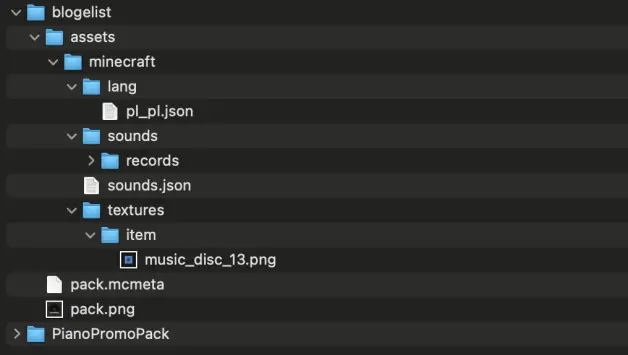
You can see:
- If you need translation to different language (optional for quick use) -> lang
- In "sounds/records" I uploaded my song in ogg file.
- textures/item(block) it is the most important, there are "png" files, which you will see within the game.
- pack.mcmeta is meta file with package definition.
Complete definition you can read in the wiki.
Locations:
General rule:.../.minecraft/resourcepacks/
Usually you drop in a .zip (don’t extract unless the pack author says so), then enable it in:Options → Resource Packs.
Windows
C:\Users\<YourName>\AppData\Roaming\.minecraft\resourcepacks\Quick access: Win + R → %appdata%\.minecraft\resourcepacks
macOS
~/Library/Application Support/minecraft/resourcepacks/Finder: Go → Go to Folder… → paste:~/Library/Application Support/minecraft/resourcepacks
Linux
~/.minecraft/resourcepacks/
Example in Game
Pack Active
Ready example within a video:
Pack Inactive
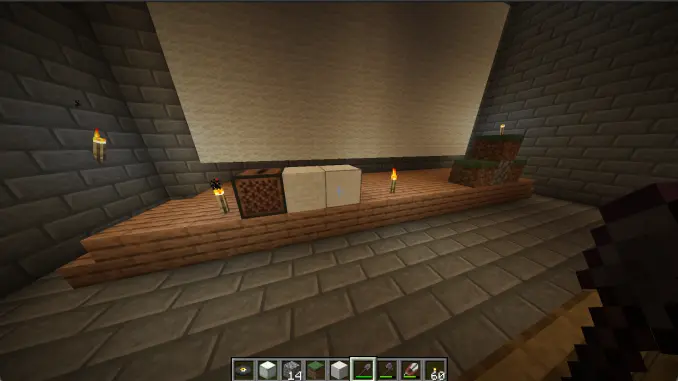
The same elements are still on the map, but we can see, which elements we replaced by our Minecraft mod.
Final words
It was my experiment. I am not an expert from this matter. What is still problematic for me is difference between resource pack and data pack. For productive use you can learn difference. For me it was important to make it just work as first experiment.
More: