
With this article you'll learn how to setup the compose key in order to insert nearly every character you'll ever need without doing stressful copy-paste. This guide works for Linux running Xorg.
What is the compose key?
The compose key is pressed to insert a character that is not present on the keyboard using a mnemonic sequence of other keys.
It may sound complicated, but it's not. Let's see an example: to insert the Spanish ñ all you have to do is to press in sequence compose + n + ~. Despite the logic is the one just seen, sometimes you can't discover how to type a particular character just by trying reasonable combos. You can find a good list to use in those cases is on fsymbols.
Now you could tell me: on my keyboard I see no compose key, and you would be perfectly right. In fact it was present only on UNIX workstations, but since Windows and MacOS don't have support for it natively it passed into the oblivion. However the compose key is still supported on Linux by Xorg, where it can be configured to be any of the non essentials keys, or a combination of them, as we will see in a moment.
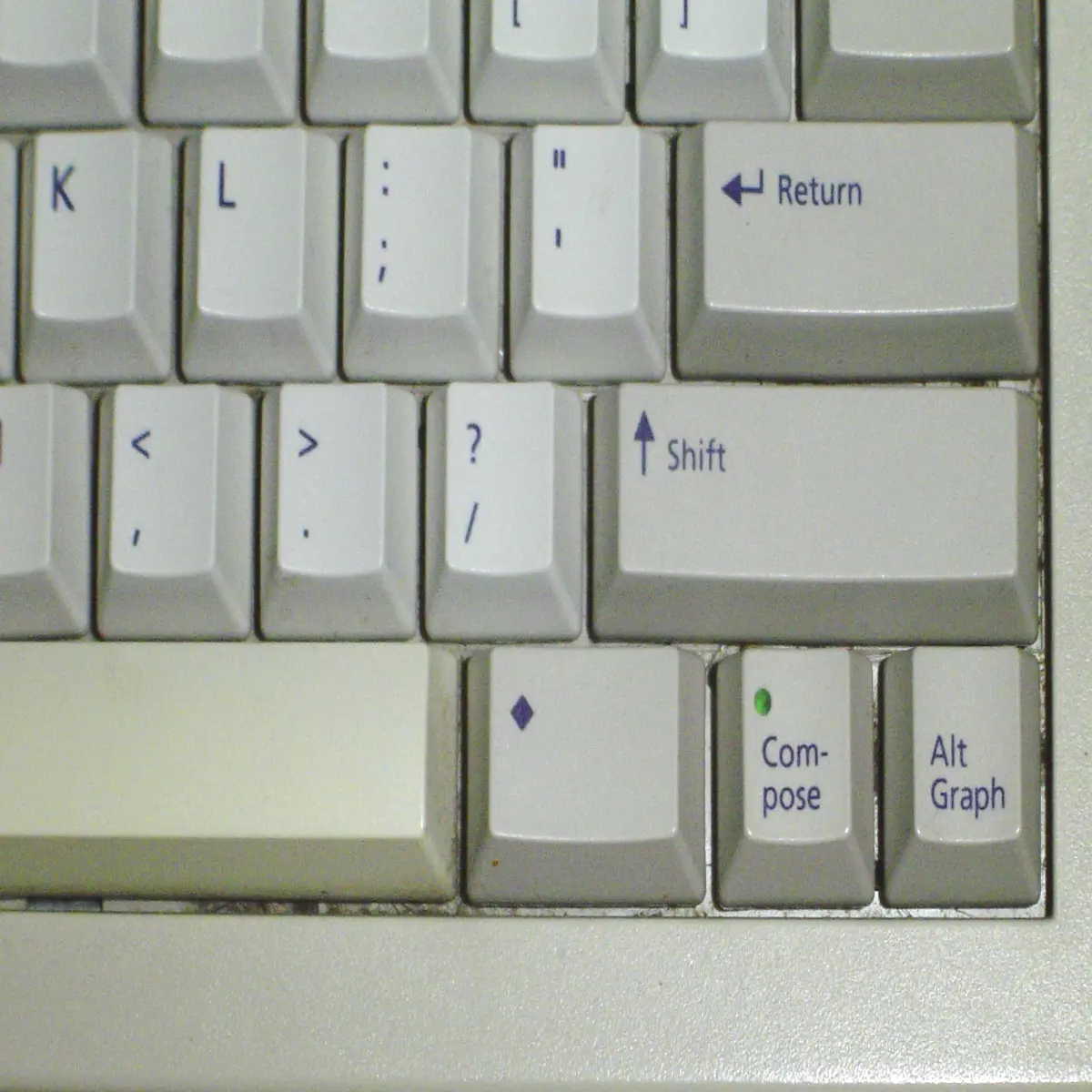
Compose key on Sun Type 5c keyboard (Author: Felix the Cassowary CC BY-SA )
How to set it up
In Xorg the compose key is by default the combo Shift + Alt Gr, which makes it very uncomfortable for daily use. Thankfully you can set any of the available keys as your compose key.
You can discover what keys are available using:
$ grep "compose:" /usr/share/X11/xkb/rules/base.lst
On my system the output is the following:
compose:ralt Right Altcompose:lwin Left Wincompose:lwin-altgr 3rd level of Left Wincompose:rwin Right Wincompose:rwin-altgr 3rd level of Right Wincompose:menu Menucompose:menu-altgr 3rd level of Menucompose:lctrl Left Ctrlcompose:lctrl-altgr 3rd level of Left Ctrlcompose:rctrl Right Ctrlcompose:rctrl-altgr 3rd level of Right Ctrlcompose:caps Caps Lockcompose:caps-altgr 3rd level of Caps Lockcompose:102 <Less/Greater>compose:102-altgr 3rd level of <Less/Greater>compose:paus Pausecompose:prsc PrtSccompose:sclk Scroll Lock
To set the selected key you run the following command (in this case using Caps Lock):
$ setxkbmap -option compose:caps
I use this configuration myself and I think it is very comfy, because Caps Lock is a big key in a nice position and if you know how to touch type you don't use it very often.
A good alternative can be the Right Alt key, which trades a bit of comfort with the ability to insert an UPPERCASE sequence for example to type acronyms.
Note that this command is forgotten between reboots, so it is better to add it to your .xinitrc file, in order to be executed at every Xorg launch.







