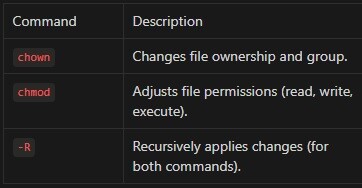
When working with files and directories in Unix-like systems, two essential commands, chown and chmod, take center stage. Although both deal with file access, their functionality differs significantly. Let’s explore the differences and how to use them correctly.
What Does the chown Command Do?
Simply put, the chown command changes the owner of a file or directory and assigns a group that will have access to the resource. For example, to transfer a file to the user admin and assign the group staff, use the following command:
$ chown admin:staff document.txtThis command changes the file owner to admin and assigns the staff group, allowing its members to work with the file.
Useful chown Flags
R— Recursively changes the owner and group (applies to all files and folders within a directory):
$ chown -R admin:staff /var/www/- -from=OLD_OWNER — Changes the owner only if it matches OLD_OWNER:
$ chown --from=olduser newuser file.txt- To change only the owner without modifying the group:
$ chown admin file.txt- To change only the group while keeping the owner unchanged:
$ chown :staff file.txtWhat Does the chmod Command Do?
Now let’s move on to the chmod command, which controls file permissions. It manages read, write, and execute rights, determining who can perform specific operations on a file.
Symbolic Permission Notation
The chmod utility uses symbolic permissions (rwx) to control access:
r(read) — Allows reading the file.w(write) — Allows modifying the file.x(execute) — Allows executing the file as a program.
For example, to grant the owner full access (read, write, execute) while allowing the group only to read:
$ chmod u=rwx,g=r,o= file.txtHere:
u=rwx— The owner can read, write, and execute the file.g=r— The group can only read the file.o=— Other users have no access.
Numeric Permission Notation in chmod
Each permission is assigned a numeric value:
4— Read (r)2— Write (w)1— Execute (x)
To set permissions, sum the respective values:
7(4+2+1) — Full access (rwx)5(4+1) — Read and execute (r-x)4— Read-only (r--)
To assign the same permissions as in the previous example:
$ chmod 740 file.txtHere:
7— Owner (rwx)4— Group (r--)0— Others (no access)
Useful chmod Flags
R— Recursively change permissions for a directory and all its contents:
$ chmod -R 755 /home/user/scripts/- -reference=FILE — Copy permissions from another file:
$ chmod --reference=example.txt newfile.txtImportant Security Considerations
-
Avoid using
chmod 777unless necessary ⚠️This grants full access to all users, potentially leading to security risks.
❌ Unsafe:
$ chmod 777 script.sh✅ Safer alternative:
$ chmod 755 script.sh-
Check permissions before modifying them
Before changing permissions, check the current ones:
$ ls -l file.txt3. Backup before modifying critical directories
When changing permissions in sensitive locations like /etc/ or /var/www/, create a backup first.
Summary
Example of proper peSummaryrmission configuration:
$ chown -R www-data:www-data /var/www/html
$ chmod -R 750 /var/www/html
Using chown and chmod, you can efficiently manage file and directory access, ensuring system security and ease of use.