
Hello, today I would like to share with you how to create an Ethereum wallet with MyCrypto. When you participate in making money or publishing articles on Publish0x, in order to withdraw money to your bank account, you must use an Ethereum wallet. So let's find out what is Ethereum and MyCrypto?

- Ethereum: Ethereum is a popular currency thanks to the smart contract feature that can be applied to raise funds through the form of ICO. And since most platforms are based on Ethereum, when distributing coins to user wallets, they must use the Ethereum wallet address.
- MyCrypto: MyCrypto is described as a free and open source Client interface. Here users can interact directly with the blockchain while maintaining full control of their keys and funds. MyCrypto also emphasizes that the service is not a bank, and users will be solely responsible for the security of their funds.
In this article I will share with you:
1. / How to download MyCrypto.exe File to your computer
2. / How to create a wallet with MyCrypto
3. / How to use MyCrypto wallet
4. / How to send money with Mycrypto
5. / Secure Mycrypto wallet
6. / How to link Mycrypto wallet address to Publish0x account
--------------
1. / How to download MyCrypto.exe File to your computer
+ STEP 1: You access the following link https://download.mycrypto.com/
+ STEP 2: At the interface screen of the website, click "Download Now", or choose MacOS or Windows.

+ STEP 3: When you download the file, run the installation program like other software.

2. / How to create a wallet with MyCrypto
First, click on Create New Wallet position column on the left and then next to Step 1:
+ STEP 1: Click Generate a Wallet (Create New Wallet)

+ STEP 2: After you have clicked on Generate a Wallet, the interface will appear as below:

- Method 1 - Create wallet with KeyStore File: It's very easy, you just need to select "Generate a Keystore File", then enter the Password for your wallet. Note: the password is at least 9 characters and must be complicated. Next, click "Download Keystore File" to download the Keystore file to your computer. Later you will log in the wallet with this File. Absolutely do not share files with anyone and store them carefully.

- Method 2 - Create wallet with Mnemonic Phrase: choose "Generate a Mnemonic Pharase".

The screen will then display the wallet's Mnemonic Pharase, which is used to log in or recover the wallet. You can choose between 12 words or 24 words. After saving these words carefully, click "Confirm Phrase".

3. / How to use MyCrypto wallet
When opening the wallet, you will have the following access ways:

- Ledger: access your wallet with your Ledger Nano S hardware wallet or Ledger Blue.
- Trezor: access your wallet with Trezor One or Trezor T.
- Parity Signer: connect your wallet through the Parity Signer application on your phone.
- View Address: view the account of any wallet, no transaction rights.
- Private Key: access the wallet with the secret key.
- Keystore File: access the wallet with your secure file and password.
- Mnemonic Phrase: use security keyword.
In the left column menu you will have the following options:
+ View & Send: access your wallet and perform deposit operations.
+ Create New Wallet: open a new wallet.
+ Contract: access to smart contracts.
+ Sign & Verify Message: sign and confirm the signature, use when you need proof of ownership of the wallet.
+ TX Status: check transaction status.
+ Broadcast Transaction: make a signed transaction (offline) to put it on the blockchain.
I often use the Keystore File and Mnemonic Pharase to access:
- Access with Keystore File: Choose Views & Send -> Keystore File. Then click on the SELECT WALLET FILE item to upload the Keystore file that you downloaded in the wallet creation step. Mycrypto will ask you to enter the password of the wallet. Then Click "Unlock" to be able to access the wallet.

- Access with Mnemonic Phrase: Please enter 12 or 24 your secret words, then enter your password. Then click choose address.

4. / How to send money with Mycrypto
This is the interface when you access the wallet. You will see the following information:

+ Address: Your wallet address
+ Balance: Balance of ETH
+ Transaction History: is the transaction history
To transfer money, please notice the middle box that has "Send Transaction" and enter all information of the transaction:
- Select: Currency, ETH or Token types .....
- To Address: Address of receiving wallet
- Amount: The amount to be transferred
- Transaction Fee: Gwei transaction fee, you can click on each button to change the fee
- Gas Limit: Gas

Then, click on "Send Transaction" and confirm to start the transfer.
5. / Secure Mycrypto wallet
When using the Mycrypto wallet, you need to do the following to protect the wallet:
+ Password: You can set any password but need to meet the following factors:
- There are letters and numbers
- There are uppercase and lowercase characters
- Password is 8 characters or more
- The password contains special characters like!, @,%, $, ^ ...
+ Keystore File: This is a file that needs to be stored in a safe place. Please save to USB or a computer without Internet connection.
+ Private Key Information: This is a normal but very important line of numbers, print it out and store it carefully.
6. / How to link Mycrypto wallet address to Publish0x account
+ STEP 1:You access the Mycrypto wallet and copy the wallet address
+ STEP 2: You access to publish0x account -> Dashboard -> Payments
+ STEP 3: Paste the Mycrypto wallet address into the Add address section in Payments. As my account has linked the address, so I don't see the button to add payment address anymore. You need to pay attention to just add the payment address of one currency, other cryptocurrencies automatically update Mycrypto's address as well.
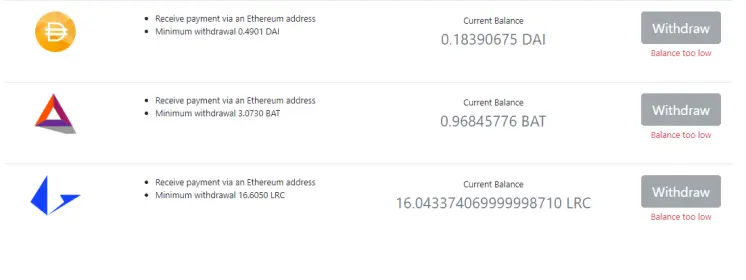
So in this article I have introduced and instructed you how to register for Mycrypto wallet to receive cryptocurrency payments from the Publish0x project as well as many ETH payment projects. If there is a problem you do not understand please comment below this article for us to discuss. Good luck!






