
This guide will provide a walk-through for trading on the Interdax platform, covering all the features on offer.
Registering an Account with Interdax
To get started trading on Interdax, head over to https://www.interdax.com and log in or sign up.
Submit your email address, name, country, and agree to our Terms of Service and Privacy Policy.
You can then activate your account by using the email sent to you.
Deposits and Withdrawals
Once you’ve logged in, you’ll access Interdax’s trading interface, which comprises various panels.
To start trading, you must deposit some BTC. Click on the ‘Deposit’ button on the top right-hand side (highlighted below). Your trading account will be credited after the transaction has two confirmations.
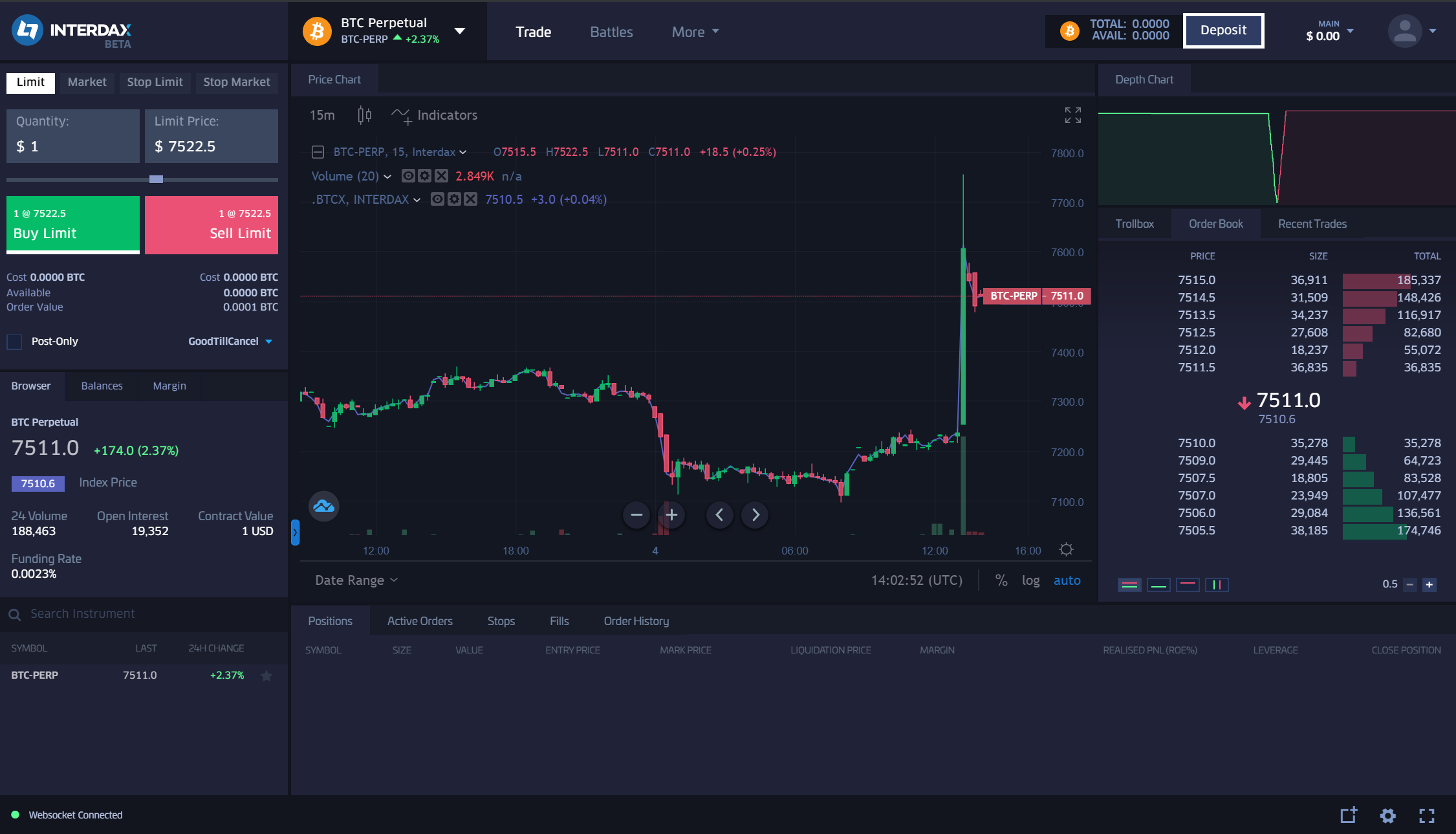
You can also click on the profile menu and navigate to the deposit page from there.
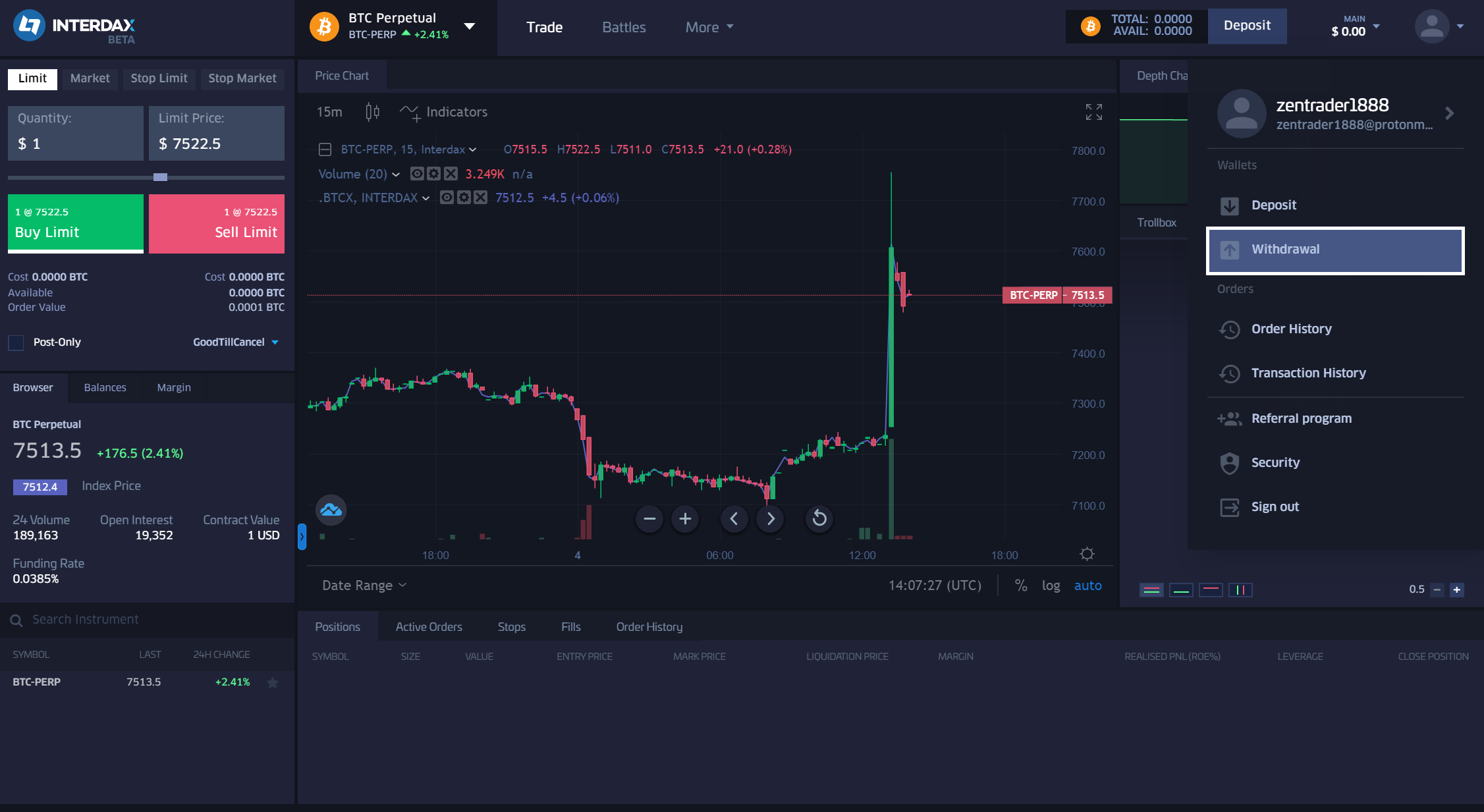
Withdrawals are processed once per day at 12:00 London time. Navigate to the profile menu and click on ‘Withdrawal’. Enter your bitcoin address and the amount, then click submit.
Security
Once you know how to deposit and withdraw your funds, you’ll want to secure your trading account. You can manage the security settings using the profile menu.
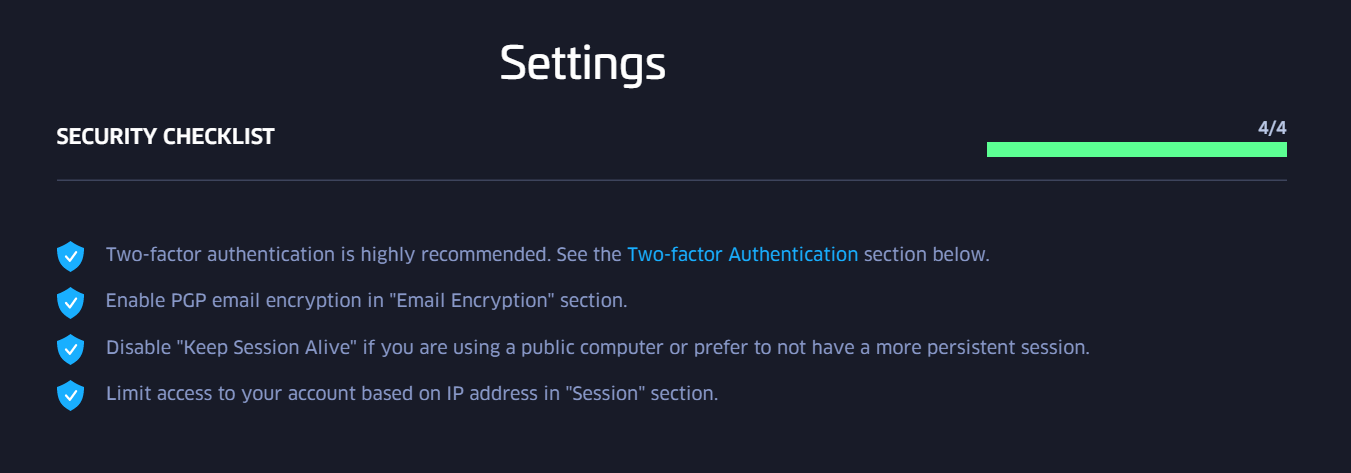
For maximum security, ensure you complete the checklist shown above (which includes enabling PGP for all email correspondence with Interdax, enabling two-factor authentication, limiting access to your account based on an IP address, and disabling keep session alive).
Visit the Security section of our Help Centre if you need help to complete the checklist.
Charting
Interdax incorporates TradingView charts directly into the interface.
You can apply technical indicators on the chart, change the chart type (e.g., from a candlestick chart to a bar chart) and analyse price action on different timeframes.
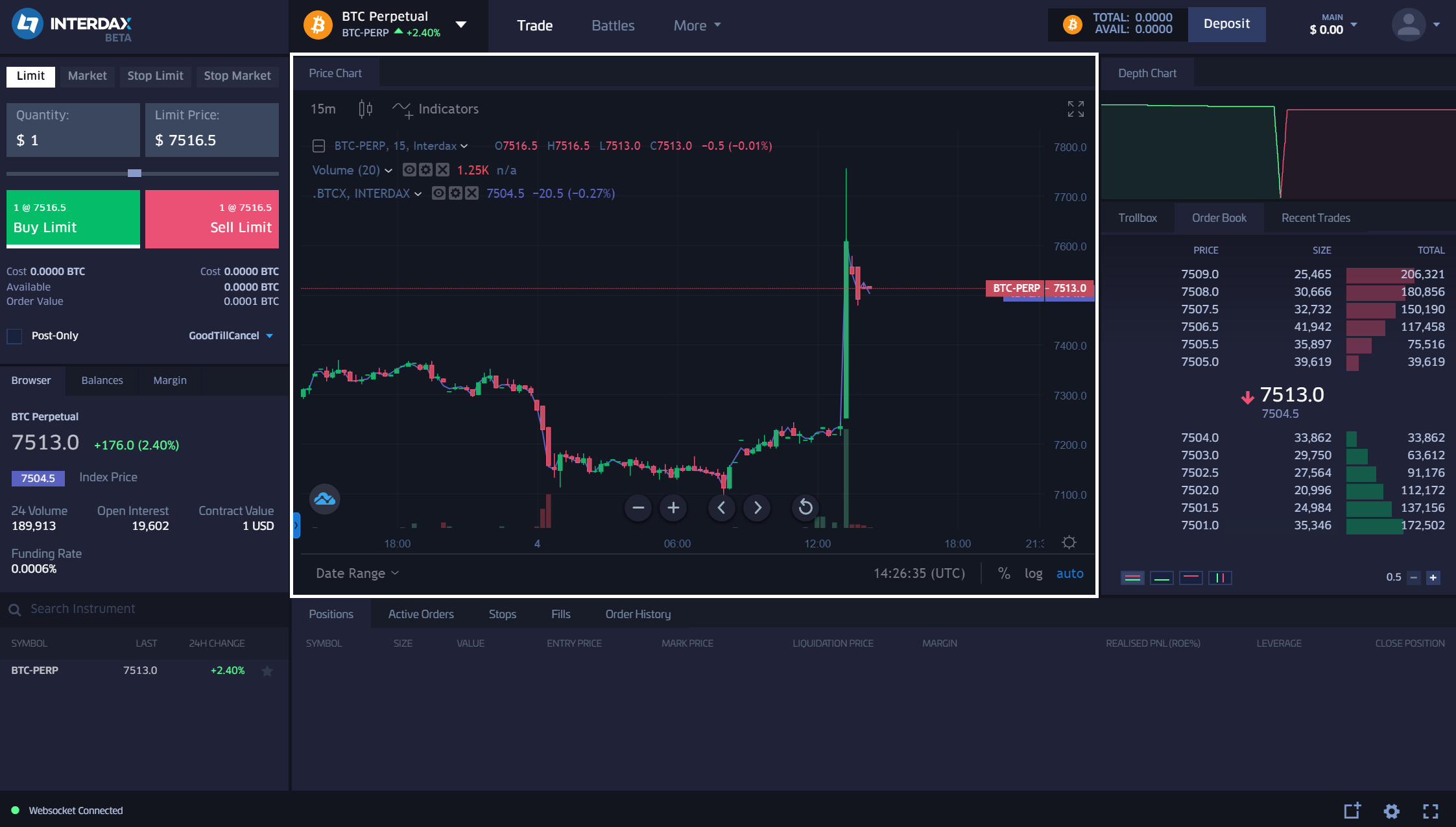
To draw on the chart, click on the blue arrow at the bottom left-hand side for lines, channels, and other drawing tools.
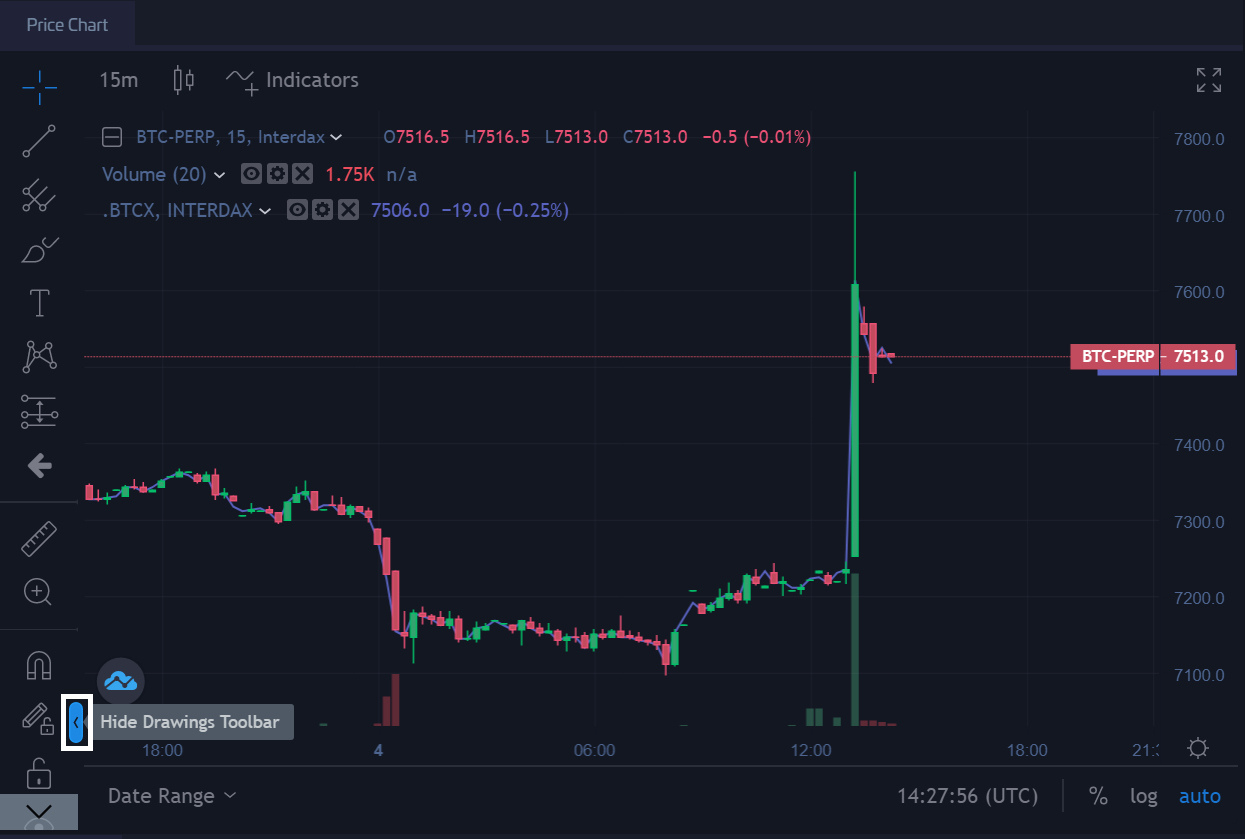
You can also maximise the trading chart with the full screen option on the top right-hand side of the panel.
Check out the trading resources section of our Help Centre for guides on charting and technical analysis.
Placing an Order
Once you’ve got funds in your trading account and have analysed the price action, you’re ready to place an order.
Selecting an Instrument to Trade
The instrument panel allows you to select the contract you want to trade (highlighted below).
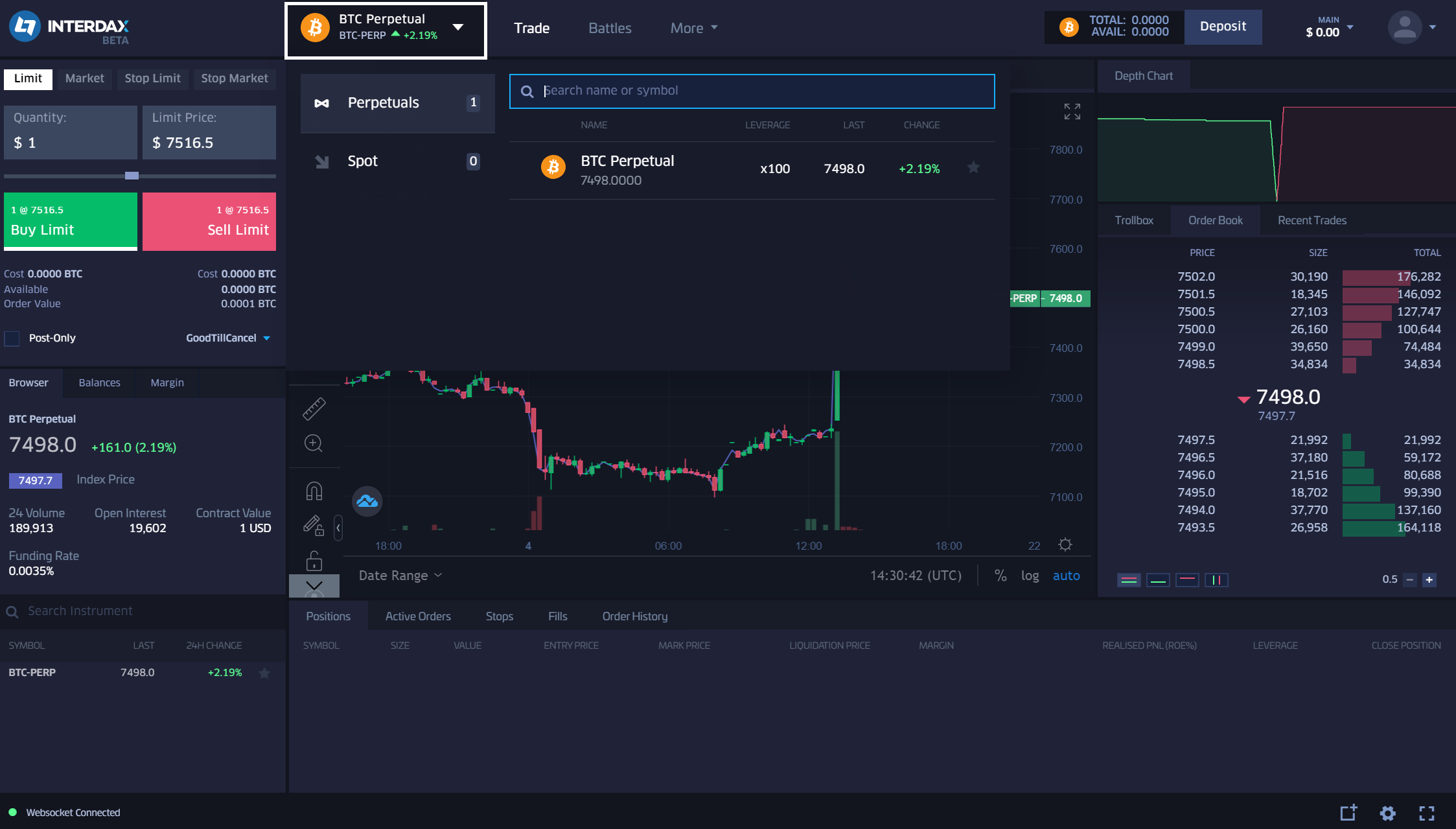
At present, just the bitcoin perpetual contract (BTC-PERP) is on offer, but more cryptocurrency perpetuals will be added (along with spot markets) in the upcoming months.
If you’re new to cryptocurrency trading, check out our cryptocurrency FAQs here.
Before placing an order, you may want to check the order book and recent trades, which are found in the order book panel.
Examining the Order Book and Recent Trades
This panel shows the order book for the instrument you are trading, as well as the current index price, last traded price, bids/asks and order book depth.
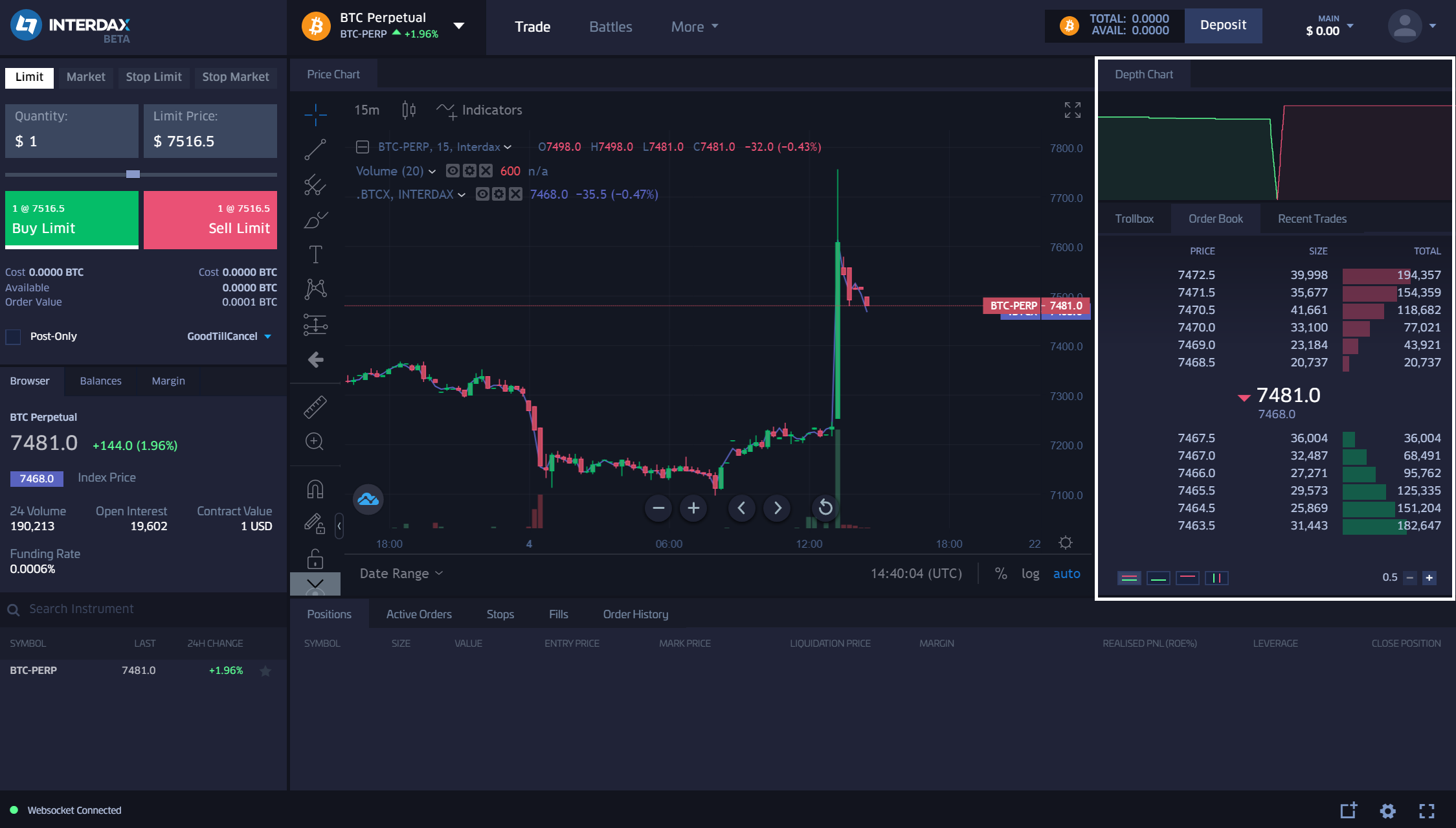
Use the ‘+’ and ‘ -’ buttons at the bottom right-hand side to change the price increment on the order book. In the screenshot above, the cumulative value of orders on the book are shown for each $0.50 price interval. Click on ‘+’ to increase the price increment.
The recent market activity is shown by the ‘recent trades’ tab.
The platform UI is also fully customisable, where each tab/panel can be maximised, separated from one other or removed completely.
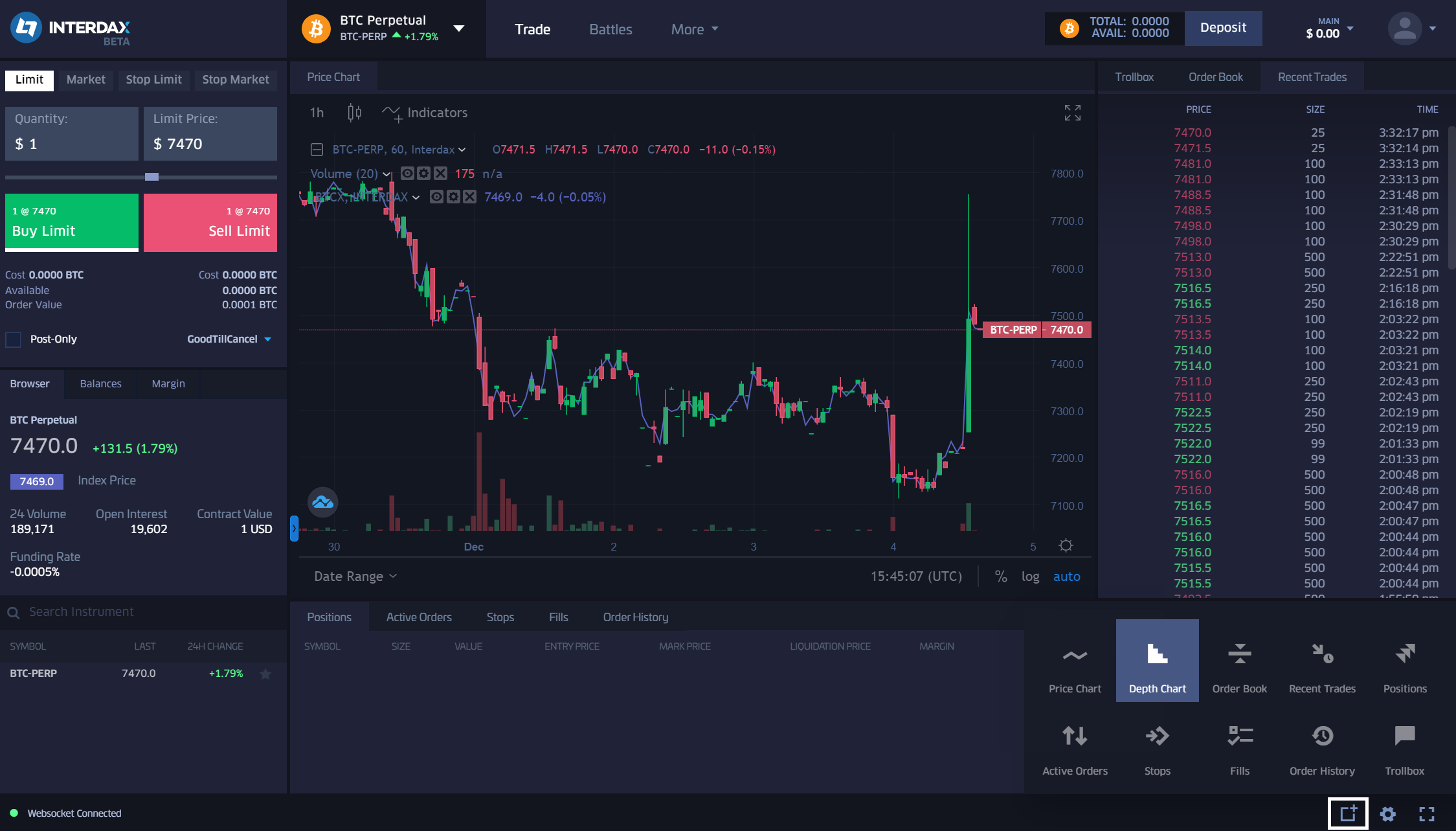
To replace a panel you have removed, click on the ‘Add Panel button on the bottom right-hand side. Then drag the panel onto the chart where you want it to appear. You can also move and resize existing panels by clicking onto the tab and dragging it.
Submitting an Order Using the Order Panel
Once you’ve looked at the order book, you’ll have a good idea of the prices at which your trade will be filled.
Use the order panel to select different order types (market, limit, stop-limit, and stop market) and enter the quantity you want to trade. BTC-PERP is an inverse contract, meaning that to enter a position with a value of 1 BTC, you’ll need to buy 7,500 contracts (if the price is $7,500).
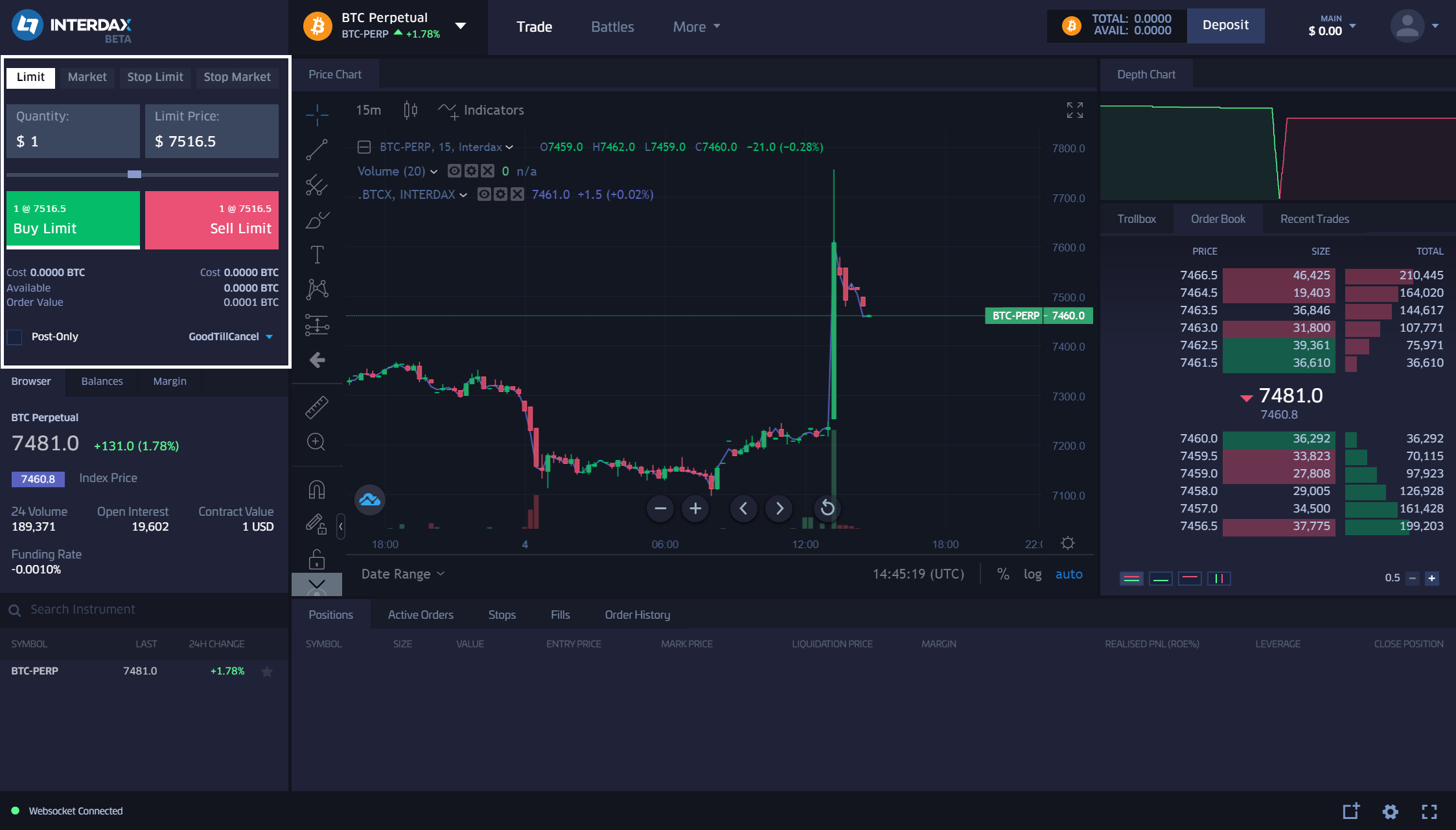
The order panel also displays the cost and value of your order as you input the position size into the quantity box.
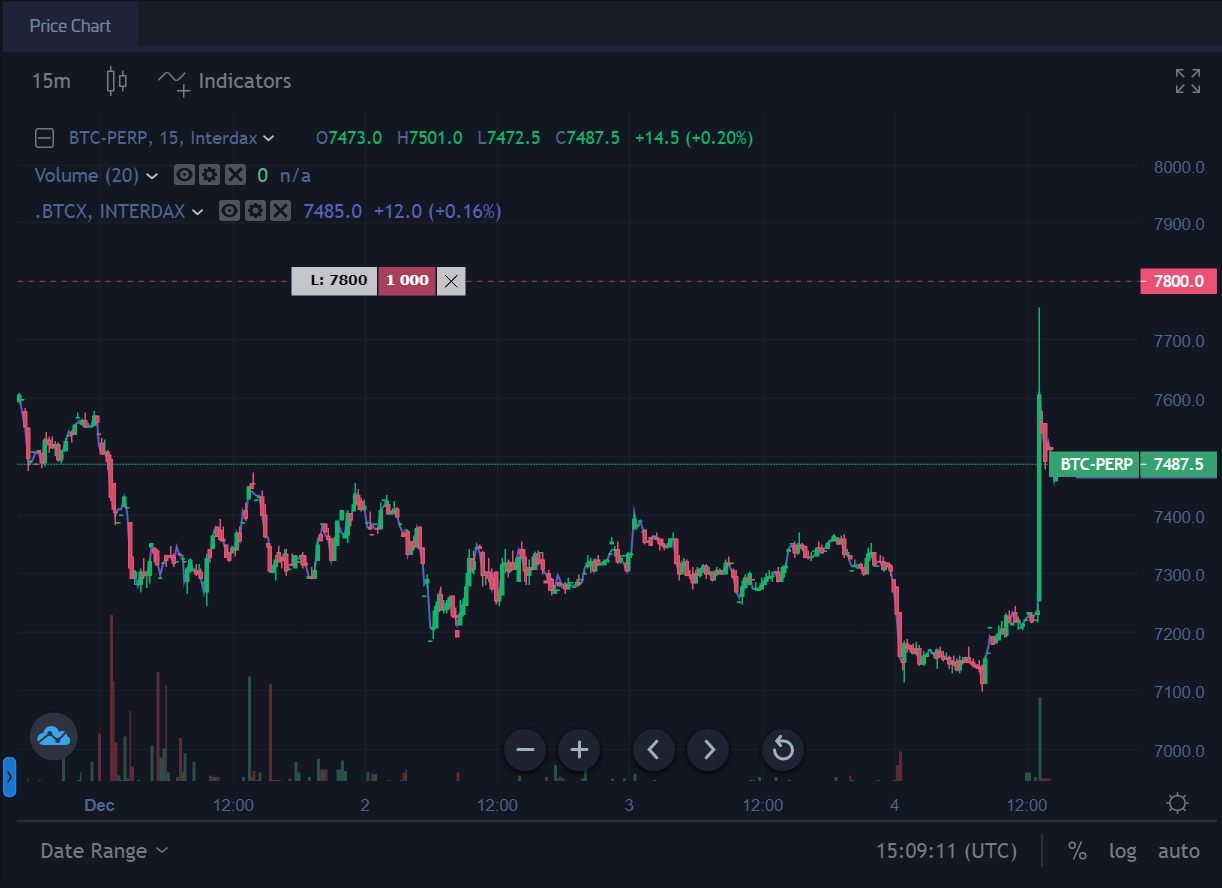
Any open positions or limit orders (along with the direction, position size and realised PnL) will also be displayed on the trading chart with a horizontal line.
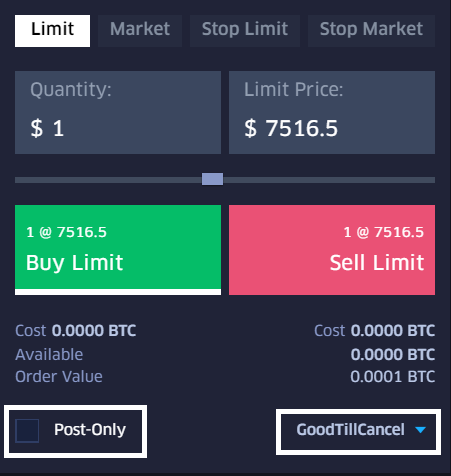
For limit orders, the time in force options allows you to specify how long a limit order should be active for. If the post only option is used, your order is not executed immediately against the market and ensures you receive a market maker rebate.
Specifying Leverage with Sub-accounts
There are two ways you can specify leverage; position sizing and sub-accounts. You can create a sub-account and allocate funds there to modify the leverage and isolate any losses from your main account.
The balance and the name of the trading account currently in use are displayed by the account menu (highlighted below).
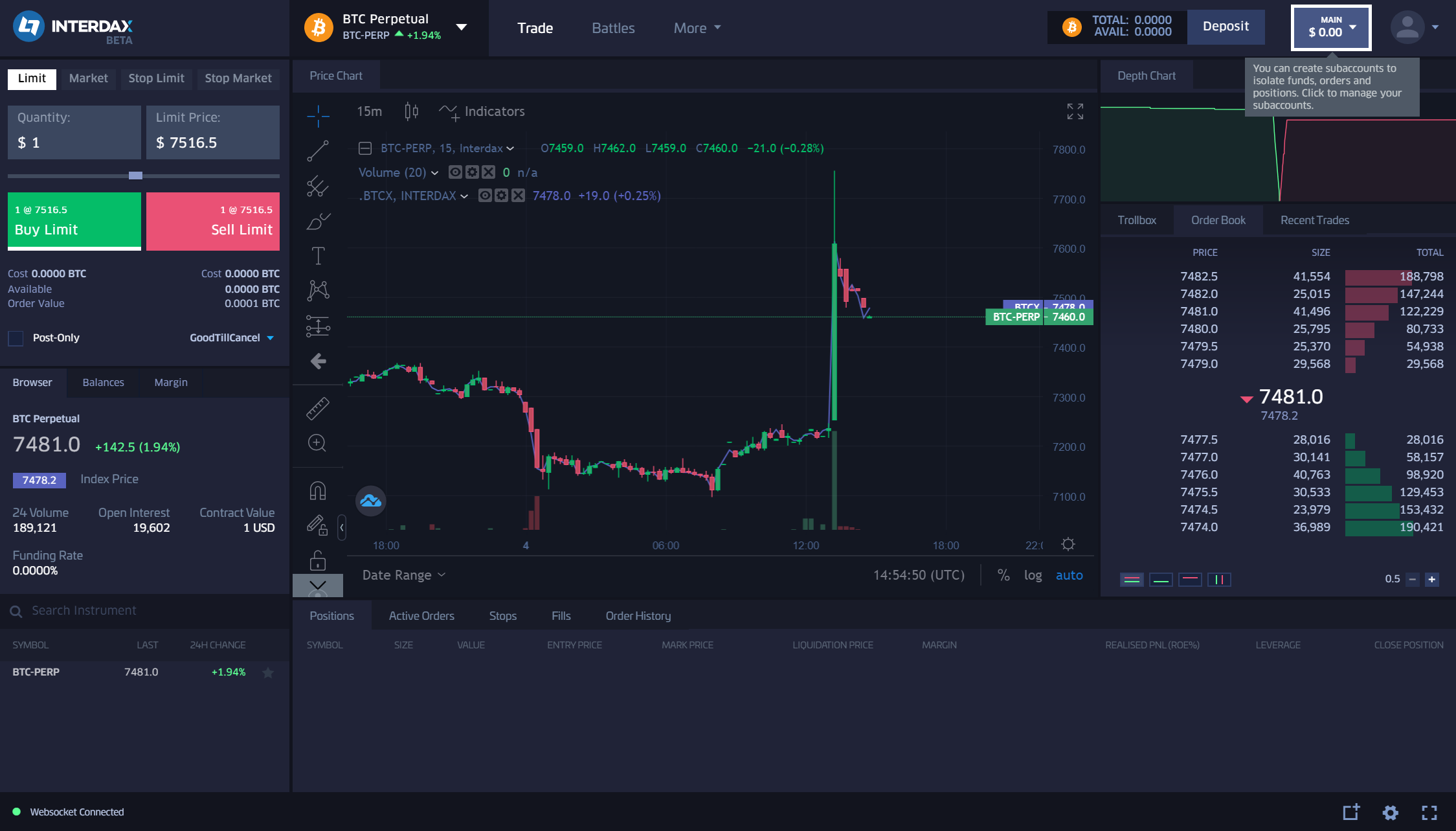
Go to the account menu and click on ‘New’ to create a sub-account. Name the sub-account and then you can use the transfer button to move funds between different accounts.
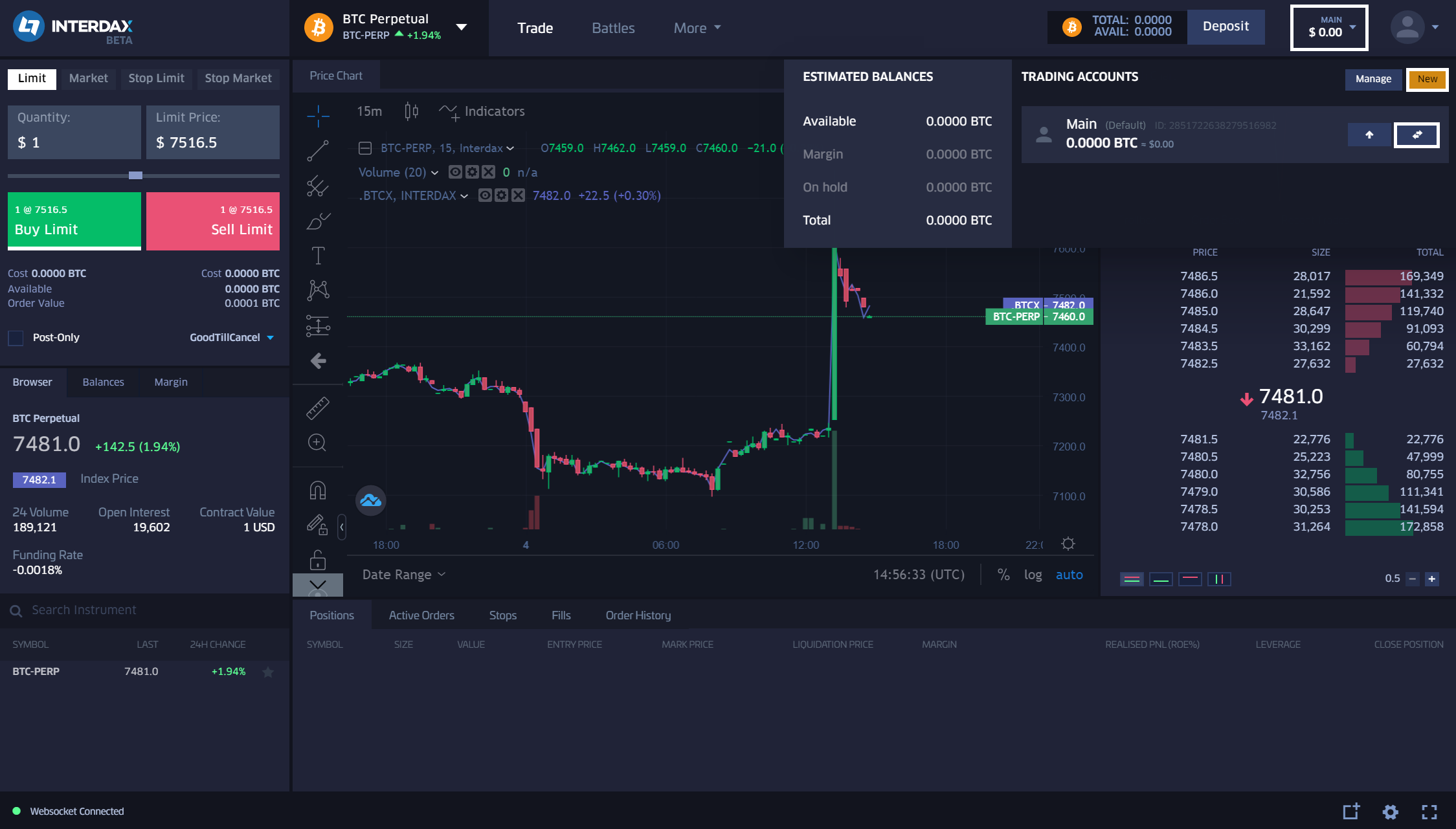
Suppose you have 5 BTC in your main trading account. You can move 1 BTC to a sub-account and enter a position of 75,000 BTC-PERP contracts to specify a leverage of approximately 10:1. The PnL of your position will be isolated from the 4 BTC that remain in the main trading account.
If you had entered a position of 75,000 contracts with 5 BTC in your main account, your leverage would have been near 2:1.
Managing Positions
Once your order has been filled, you can manage your position using the positions panel at the bottom of the interface.
The positions panel displays your active orders, stops, fills and order history (as well as any open positions).
Once you submit an order, it will appear in the relevant tab of the positions panel, i.e., a market order will appear in the positions tab once submitted while a limit order will appear in active orders (if not executed immediately).

You can also use the positions panel to cancel orders and close positions with market orders. To cancel an order, click on ‘Cancel’ in the Active Orders tab.

The positions tab above shows the position size, the position value, entry price, mark price, liquidation price, used margin, and realised PnL (Profit and Loss).
The trading account you are using is also displayed along with two buttons to close your position (highlighted above). You can use a limit order to exit your position by entering a limit price in the grey box and then click on ‘Close’. Alternatively, you can exit immediately at the best available price by clicking the ‘Market’ button.
Profit and loss is settled continuously, meaning you can open another position with the profits from an open position.
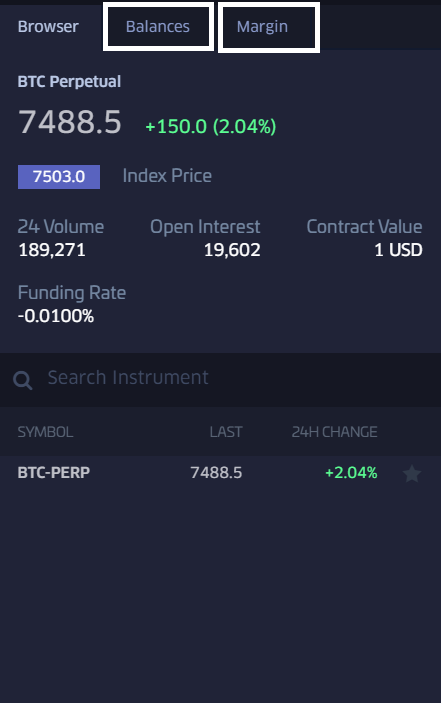
You can check the used and available margin, your balances, and the real-time information on Interdax’s BTC-PERP contract using the browser panel.
Trading Battles
Interdax is not just a high-performing platform to trade cryptocurrency. Our Battle Arena combines the social aspect of gamification with trading to make things more exciting.
To visit the Battle Arena and compete against other traders to win bitcoin prizes, click on ‘Battles’.
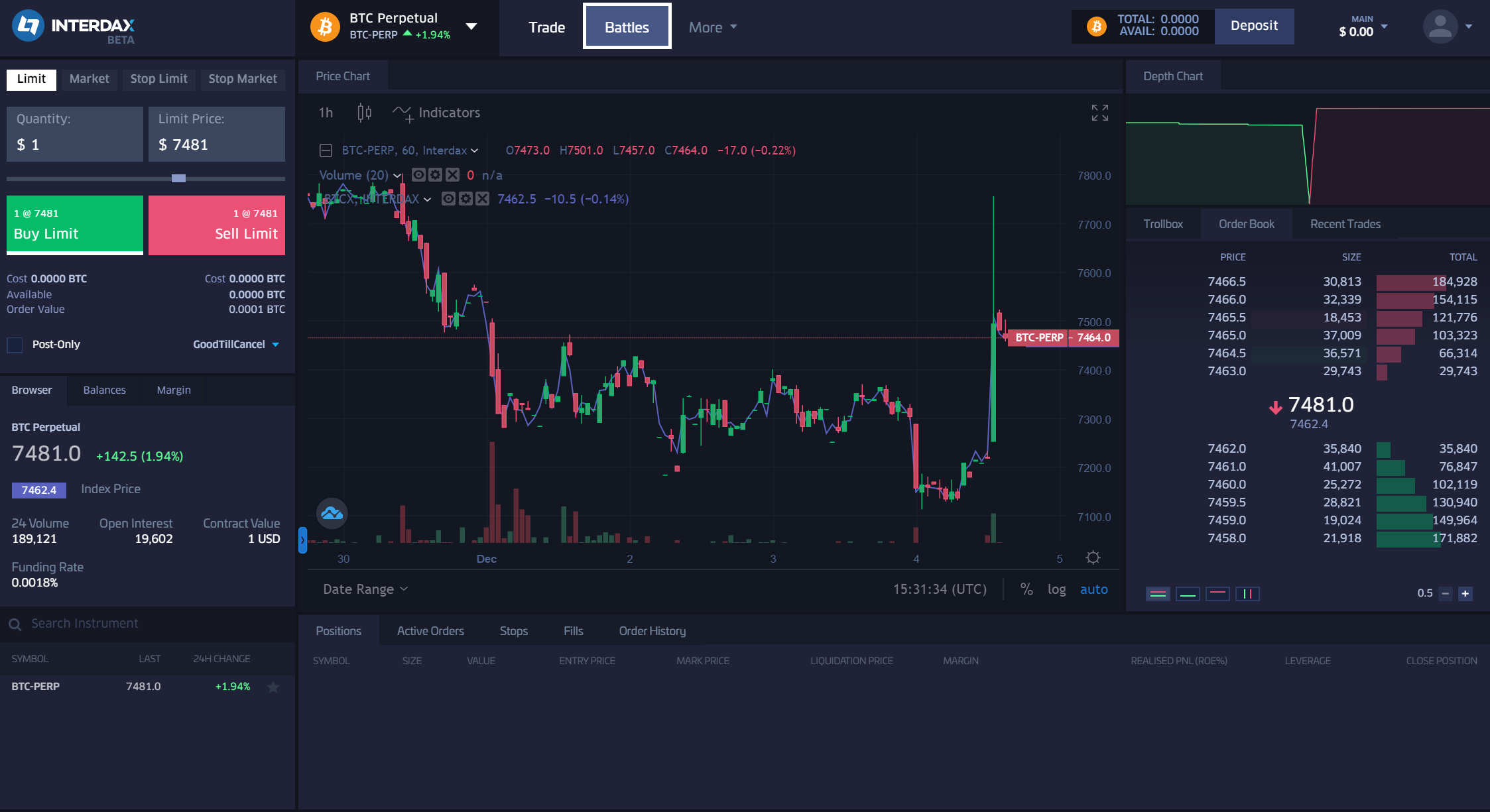
Once you click on ‘Battles’, you’ll be taken to the Battle Arena, where you can join upcoming battles, watch live battles, and view the results of past competitions.
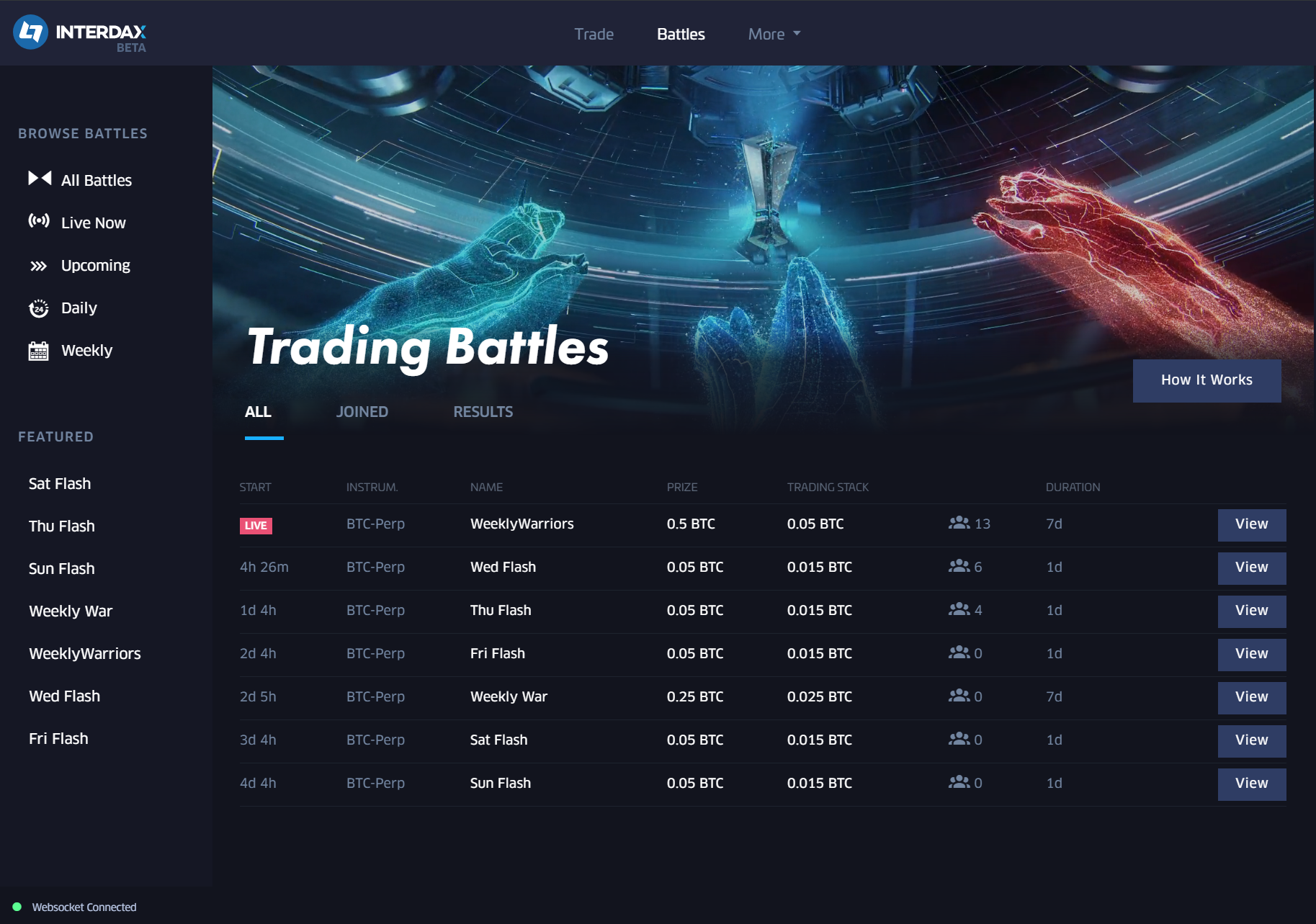
The trading stack is the amount of BTC needed to enter the battle. Any open positions at the end of the battle will remain open. You’ll earn prizes if you place high enough and also keep any profits made from your trades.
Any winnings will be paid out automatically to your trading account.
To find out more about Interdax’s battles, check out our Trading Battles Guide.
Help & Support
If you need any help, you can check the guides we have available by clicking on ‘More’.
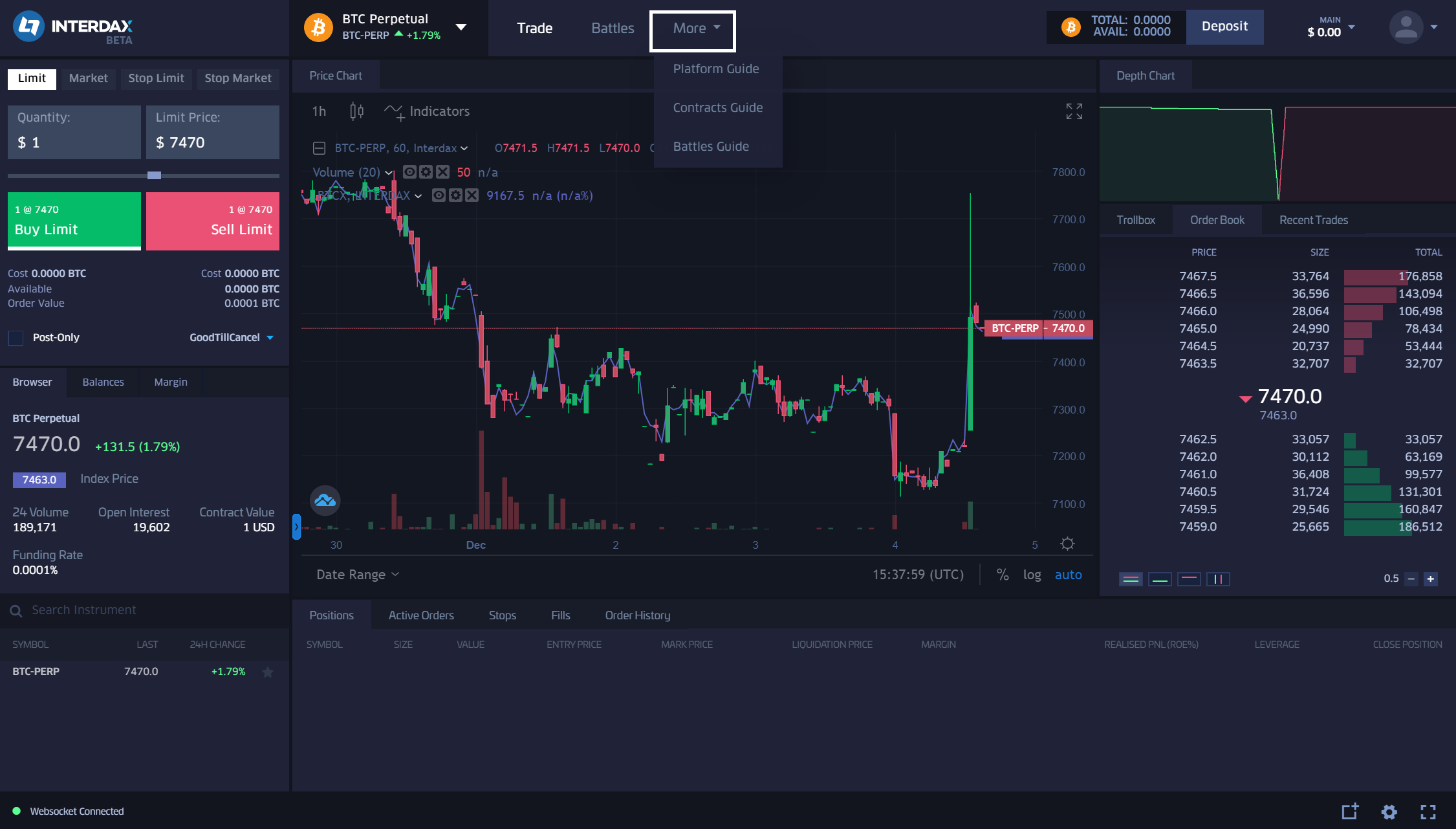
- The Platform Guide outlines the platform’s features and how to’s.
- The Contracts Guide outlines the mechanics of Interdax’s bitcoin perpetual contract.
- The Battles Guide outlines everything you need to know to compete in our trading battles.
For support, please contact [email protected].
Follow us on Twitter, Telegram, and Medium to receive the latest news and announcements from Interdax.
We hope you enjoyed our walk-through of the Interdax exchange!
This article originally appeared on Medium: https://medium.com/interdax/a-beginners-guide-to-trading-on-interdax-9cafbcebbb71






