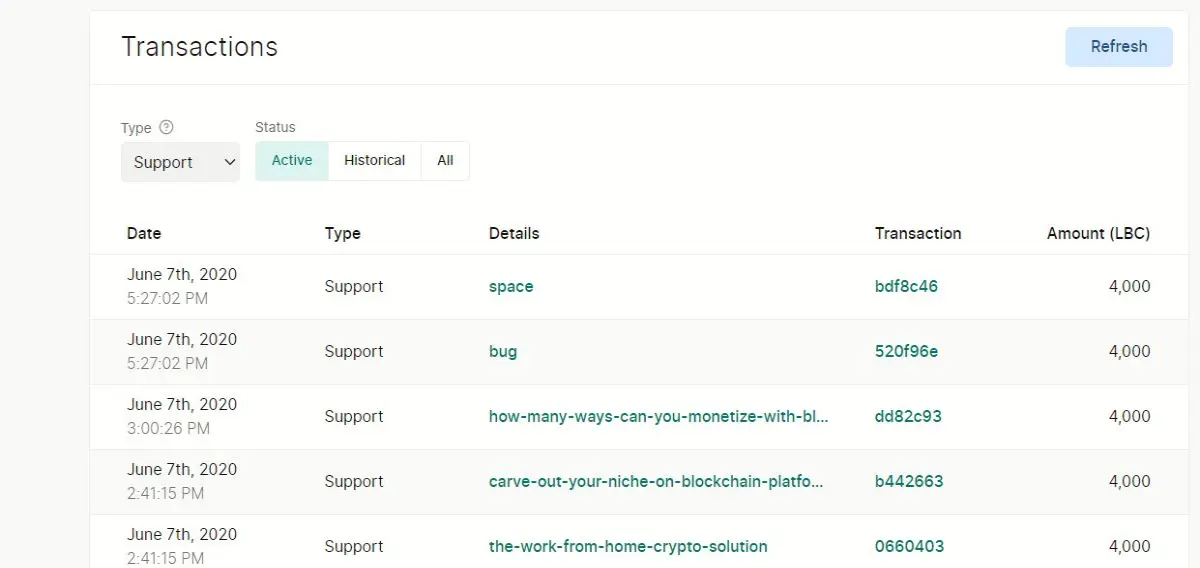
We recently covered how you can use the command terminal in Windows to claim all of your tips with one command. Today, we will cover revoking or removing your supports with one command because if you’re like me, then you’re running many supports at once and this will make your life way easier.
Watch this on LBRY: https://lbry.tv/@HowToLBRY:e/code:3
• First you need to open your command prompt. You can do this by searching on your system or typing CMD.
• Then ensure you know where you LBRY file is. By default it's typically in your program files
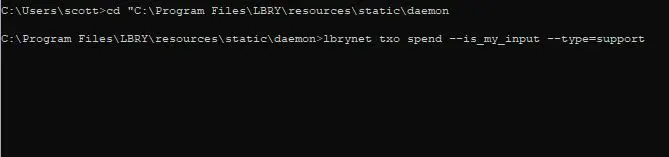
• Using the code below, copy and edit it to match your LBRY location (this is it by default on Windows):
> cd "C:\Program Files\LBRY\resources\static\daemon
• Next you’ll enter the command that actually revokes all of your supports:
> lbrynet txo spend --is_my_input --type=support
• Now all of your supports should be revoked and your LBC returned to your wallet
*Keep in mind that this is only for Windows computers and you can achieve in a very similar way on Linux and Mac but it will slightly vary.*
You can also refer to this LBRY command line guide: https://lbry.com/faq/how-to-cli
Revoke Supports Code:
> cd "C:\Program Files\LBRY\resources\static\daemon
> lbrynet txo spend --is_my_input --type=support
I hope this helps you learn the inner workings of LBRY and give you the tools, tips, and tricks you need to succeed in your ventures here. Please comment on any video or on the channel any topics you’d like to see that aren’t listed or anything you need help with!