
At best, passwords and security seem to be a source of anxiety for most people. It's so annoying when you forget a password. It seems to always happen when you need to get something done urgently too. But that's nothing compared to getting hacked. Many of us just put it out of our minds... password security is one of those things that isn't a big deal until it is, and then it's a really big deal all of a sudden. It's time to face your fears. I'm not trying to be preachy here, but if you aren't using a password manager you're doing it wrong. This isn't going to be about which is the "best" Password Management solution. Even pen and paper could work- it comes down to personal choice, and I'll leave you to DYOR (do your own research) and choose for yourself. It will mainly come down to a tradeoff of better security vs. more convenience.
This post is going document my personal password management regime. As a privacy consultant, I'm trying to set an example. If I can't do it right, how can I expect others to? My way may be overkill or unworkable for you, but I hope it at least gives you something to think about. If you identify a fatal flaw in it, please leave a comment instead of hacking me, lol! I'm an old-school computer engineer, with 40 years of computing under my belt. I am cynical and suspicious and very intentional when it comes to letting tech into my life. It has to solve the problem at hand, be rock solid and secure, and not be a pain in my ass, or I'm ditching it. I want less stress in my life, not more of it. Here's how I do it...
Best practices
I have two categories of passwords. Ones I must remember, and ones I let the password manager remember. I only remember three passwords:
- Computer login
- Email login
- Password manager login
The passwords that must be remembered need to be strong, but I also have to be able to remember them, and my memory kind of sucks. Rule of thumb is, non-obvious 25+ character passwords can't realistically be brute-forced. Because I'm paranoid, I shoot for 30-40 characters. I pick a meaningful/memorable phrase of unrelated words, then make an acronym out of the first letter of each word in the phrase, and concatenate them. Choose a themed phrase that comes into your mind intuitively. Here's an example: Let's say your a fan of the movie Office Space. You might choose a phrase like "stapler red birthday cake burn down building".... my password would then become:
srbcbdbstaplerredbirthdaycakecopierburndownbuilding
This is a cute example, but I don't love this password because it has too many small words. I try to make my phrase consist of bigger words, so I need less of them. At the end of the day, it doesn't really matter what system you use. Everyone's brain works differently. Just make sure you have 25+ characters consisting of unrelated words, and you can rest easy. The password manager will do the rest.

Password manager - KeepassXC
I use KeepassXC (kpxc) installed locally on my well locked-down primary computer. My passwords are not on the cloud, and not synced with other devices. I do not have any type of browser integration. I keep the password manager open while I'm actively using my PC, and I copy and paste usernames and passwords as I need them using Ctrl-B/Ctrl-V for the username and Ctrl-C/Ctrl-V for the password. I configure kpxc to clear the password from the clipboard after 10 seconds and to lock the database after 10 minutes of inactivity.
I allow kpxc to create random 30-character generated strings consisting of upper case, lower case, numbers, symbols, and special characters. Some websites have horrible password rules, in which case I sometimes have to change the password generation rules to a shorter string, or use less special character types.
Backups
Backups of the kpxc database are the the first thing I want to discuss, because the primary weakness of my approach is that the password database only exists on the hard drive of my primary computer. If it becomes corrupt, or my hard drive blows up, well... that would be bad. I back up the data file as part of my regular daily, weekly, and monthly onsite and offsite (Wasabi) backups. I also have a thumb drive backup in secure fireproof storage that I refresh monthly, or after I add an important password. Some people export the database to HTML and print and securely store it, in the event of their death. I just trained my wife on the kpxc basics instead!
Organization
I try not to go crazy with too many category group/folders, but since I have to manually copy and paste, good organization is needed so I can quickly drill down to the account I need. The stuff I use most is up at the top, least used on the bottom. You don't have to be super organized if that' s not your style-- Keepass XC has a search bar at the top, which I also use a lot. Here's a look at my categories for inspiration:
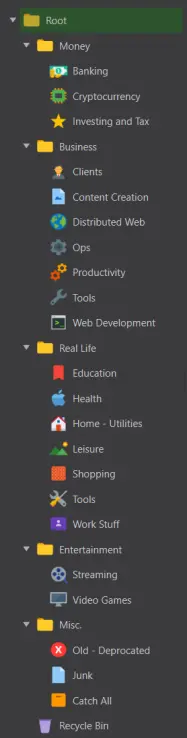
Homesteadhacker's category Groups
UserID and email aliases
Only personal acquaintances get my "real" email addresses. One thing that you get "for free" when you use a password manager is that it's trivial to use different email aliases or id's for different sites. For anything I sign up for, I use email aliases. I only use a few in my regimen, but some people go crazy with this and create a unique alias for every site, so they can pinpoint exactly who sends them spam if it ever shows up in their inbox. Neat idea, but for me that would be too much of a pain to create and manage all those aliases. I do use this technique, but only when I need to sign up for something that looks potentially spammy.
Cryptocurrency keys
I don't want to say too much about this. This is not legal advice, and if you are a whale you can just laugh at this section and store your seeds in a custodial vault, or perhaps in your lair? Seriously though, I do use kpxc for "convenience" wallets (like metamask) that contain small amounts of cryptocurrency. I put private keys in the password field and public keys in the username field. For any wallets with a meaningful amount of money, you need to DYOR (do your own research) or better yet, work with a privacy consultant so that you have a solution that fits your needs.
Notes
This may seem obvious, but for the longest time, I never used the Notes field in kpxc. Eventually, I found myself using the "notes" field liberally. Notes about when an account renews, or to keep track of subscription charges, etc.
What about your phone?
OK This is the part of the post where you might think "this dude's crazy." I know this won't be for everyone, but I feel that too many people, myself included, use smartphones mostly as a dopamine hit. I think they can be quite intrusive and distracting and can become downright addicting for many people (especially young ones!) At the end of the day, I mainly just want to use my phone as a phone.
As I mentioned before, I am very intentional about letting tech into my life. I have found that most things really can wait until I get back in front of my computer. I am on a journey to get off of the centralized web and the big 5, as much as possible. I am also trying to have a healthier relationship with other devices, especially smartphones. I haven't been able to get rid of my iPhone yet, but I am actively working on a strategy to one day go to a flip phone. The hardest features for me to let go of are the camera and the convenience of 2FA without needing a key fob.

Two-Factor Authentication
If available, I always use Two-Factor authentication (2FA) with an app. Often a phone number is also required, I use a VOIP number for this. There are lots of good 2FA apps, but these days I prefer Authy. One thing that is very important for your security is to make sure that multi-device is disabled. A quote from the Authy web site:
When you first create an Authy account, multi-device is enabled by default. This means you'll be free to setup another device to use your same Authy account and 2FA tokens. All you'll need to do is download and install Authy on the desired device, add your phone number, and allow this new device on your original Authy installation.
In fact, we recommend all Authy users to take advantage of this feature, and install Authy on another device to use as a backup. Once you have a backup installation setup through multi-device, you'll be covered in case you lose access to one of the devices. Losing your phone or a crashed laptop will no longer prevent you from accessing your secured online accounts.
Well, I hope you enjoyed reading about my approach to password management. The theme I have settled on for my first few posts is trying to make privacy, decentralization, and cryptocurrency approachable for more people. Folks seem to enjoy these posts, so I'm going to keep it up for a while. A good friend of mine requested that I explain how bitcoin mining works... So that will be my next post.
Until then I wish you the best, from my homestead to yours!





