
Welcome back to the FreeBSD tutorial that we wrote on publish0x.
In this FreeBSD tutorial, we will explain in full about the process of installing, configuring and running the Tomcat Web Server on FreeBSD 14.1.
Before you read the contents of this article, it's a good idea to know what Tomcat is.
A. What is Apache Tomcat
Apache Tomcat is a suite of server programs from the Apache Software Foundation designed for testing, debugging, and running Java-based web applications. It is commonly referred to as a container for servlets, which are additional components that extend the functionality of a web server and allow it to run Java-based applications.
The name Tomcat was chosen by James Duncan Davidson, the developer's architect. The choice of the name is connected with the tradition of publishing house O'Reilly to put pictures of animals on the covers of books. Knowing that the first Tomcat tutorial would be published by him, Davidson decided to name the software in honor of some special animal - independent, resourceful and able to stand up for itself.
Apache Tomcat should not be confused with Apache HTTP Server - the functionality of the products is different. Apache HTTP Server delivers static and dynamic web pages to the browser, which are usually generated by PHP applications, such as WordPress. However, Apache HTTP Server does not support Java servlets and JSP pages. Tomcat container, on the contrary, was originally created to work with content generated by Java applications.
B. System Requirements
OS: FreeBSD 14.1
Hostname: ns4
IP Address: 192.168.5.71
Java version: openjdk version "20.0.2" 2023-07-18
Tomcat version: tomcat9
C. Tomcat Installation Process on FreeBSD
Because Apache Tomcat uses the Java programming language, the main requirement for installing Apache Tomcat on a FreeBSD server is that Java OpenJDK has been installed correctly. In this article we will not talk about Java OpenJDK, we assume you have installed Java OpenJDK on your FreeBSD server.
The Tomcat installation in this article will use the FreeBSD ports system. With the ports system, all Tomcat dependencies can be installed completely. Below are the commands that can be typed for Tomcat installation.
The Tomcat installation process in this article will use the FreeBSD PKG package. With the PKG system, the installation process is faster and you can immediately configure Tomcat. Run the command below to install Tomcat.
root@ns4:~ # pkg install www/tomcat9
D. Tomcat Configuration
The next step after the installation process is the configuration process. The first step to configure Tomcat is to create a Boot Start UP rc.d script. Type the following command in the "/etc/rc.conf" file.
root@ns1:~ # ee /etc/rc.conf
tomcat9_enable="YES"
tomcat9_java_home="/usr/local/openjdk20"
tomcat9_catalina_user="www"
tomcat9_catalina_home="/usr/local/apache-tomcat-9.0"
tomcat_catalina_base="/usr/local/apache-tomcat-9.0/conf/server.xml"
tomcat_catalina_tmpdir="/usr/local/apache-tomcat-9.0/temp"
tomcat9_classpath=""
tomcat9_java_opts=""
tomcat9_wait="30"
tomcat9_umask="0077"
Now we test whether Tomcat manages to run well on the FreeBSD server. Type the following script.
root@ns1:~ # service tomcat9 restart
Stopping tomcat9.
Waiting for PIDS: 3291.
Starting tomcat9.
From the results of the script above, if we read, Tomcat has successfully RUNNING on the FreeBSD server, we can see this from the words "Starting tomcat9". Then what else do we have to do after Tomcat RUNNING. The next step is the step we have been waiting for, namely running Tomcat.
E. Running Tomcat
The main configuration file or Tomcat config file is in the "/usr/local/apache-tomcat-9.0/conf" folder. By default Tomcat runs on Port 8080 and IP Address 127.0.0.1. Because the loopback IP cannot be remote from a Windows computer, we will replace the loopback IP 127.0.01 with the Private IP of our FreeBSD server computer, in this article the FreeBSD Private IP is 192.168.5.71. To change the IP, edit the file "/usr/local/apache-tomcat-9.0/conf/server.xml".
By default IP 127.0.01 is not written in the script file. Below is an example of the original script before we edited it.
<Connector port="8080" protocol="HTTP/1.1"
               connectionTimeout="20000"
               redirectPort="8443"
               maxParameterCount="1000"
               />
Now add IP 192.168.5.71, so the script will change as follows.
<Connector port="8080" protocol="HTTP/1.1"
               connectionTimeout="20000"
               redirectPort="8443"
	       address="192.168.5.71"
               maxParameterCount="1000"
               />
For security reasons, access to the Tomcat Manager and Host Manager applications is locked to localhost (the server on which they are deployed), by default. Edit the file "/usr/local/apache-tomcat-9.0/conf/tomcat-users.xml".
<?xml version="1.0" encoding="UTF-8"?>
<tomcat-users xmlns="http://tomcat.apache.org/xml"
              xmlns:xsi="http://www.w3.org/2001/XMLSchema-instance"
              xsi:schemaLocation="http://tomcat.apache.org/xml tomcat-users.xsd"
              version="1.0">
<role rolename="manager-gui"/>
<user username="tomcat" password="router" roles="manager-gui"/>
<role rolename="manager-status"/>
<user username="robot" password="router" roles="manager-status"/>
<role rolename="admin-gui"/>
<user username="admin" password="router" roles="admin-gui"/>
</tomcat-users>
For the Tomcat Manager application, type the following script in the "/usr/local/apache-tomcat-9.0/webapps/host-manager/META-INF/context.xml" file.
<?xml version="1.0" encoding="UTF-8"?>
<Context antiResourceLocking="false" privileged="true" >
  <CookieProcessor className="org.apache.tomcat.util.http.Rfc6265CookieProcessor"
                   sameSiteCookies="strict" />
  <Valve className="org.apache.catalina.valves.RemoteAddrValve"
allow="127\.\d+\.\d+\.\d+|::1|0:0:0:0:0:0:0:1|192.168.5.71"
allow="127\.\d+\.\d+\.\d+|::1|0:0:0:0:0:0:0:1|192.168.5.*"
  <Manager sessionAttributeValueClassNameFilter="java\.lang\.(?:Boolean|Integer|Long|Number|String)|org\.apache\.catalina\.filters\.CsrfPreventionFilter\$LruCache(?:\$1)?|java\.util\.(?:Linked)?HashMap"/>
</Context>
For the Tomcat Manager application, type the following script in the "/usr/local/apache-tomcat-9.0/webapps/manager/META-INF/context.xml" file.
<?xml version="1.0" encoding="UTF-8"?>
<Context antiResourceLocking="false" privileged="true" >
  <CookieProcessor className="org.apache.tomcat.util.http.Rfc6265CookieProcessor"
                   sameSiteCookies="strict" />
  <Valve className="org.apache.catalina.valves.RemoteAddrValve"
allow="127\.\d+\.\d+\.\d+|::1|0:0:0:0:0:0:0:1|192.168.5.71"
allow="127\.\d+\.\d+\.\d+|::1|0:0:0:0:0:0:0:1|192.168.5.*"
  <Manager sessionAttributeValueClassNameFilter="java\.lang\.(?:Boolean|Integer|Long|Number|String)|org\.apache\.catalina\.filters\.CsrfPreventionFilter\$LruCache(?:\$1)?|java\.util\.(?:Linked)?HashMap"/>
</Context>
The next step is to restart Tomcat.
root@ns1:~ # service tomcat9 restart
Stopping tomcat9.
Waiting for PIDS: 3291.
Starting tomcat9.
It's time to run Tomcat, because Tomcat is a Web server, to run Tomcat we open Google Chrome, Yandex or another browser. In the address bar menu, type the IP above, namely "http://192.168.5.71:8080". If there is nothing wrong with the configuration above, the Tomcat dashboard will appear in your web browser.
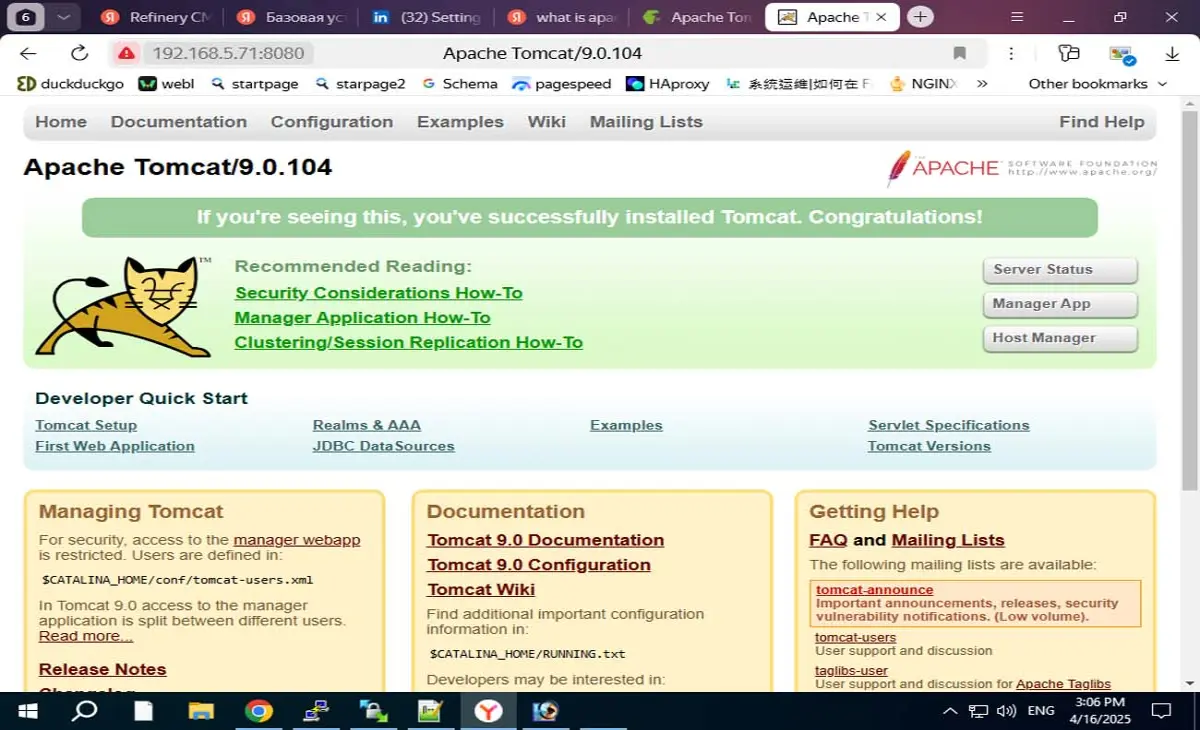
Apache Tomcat is a powerful, versatile, and reliable web server that has proven its worth in the world of web hosting. Its compatibility with Java applications, advanced features, and active community make it the first choice for many open source users and web developers. From small businesses to large enterprises, Apache Tomcat is trusted to provide fast performance, security, and high scalability.






