
I2P (Invisible Internet Protocol) is a universal anonymous networking layer. All communication over I2P is anonymous and end-to-end encrypted, participants do not reveal their real IP addresses.
On OpenBSD systems, I2Pd is packaged in the official OpenBSD repositories. You can install the latest version of I2P with the PKG package or the Ports system. To speed up the installation process, we recommend using the PKG package.
1. System Specifications
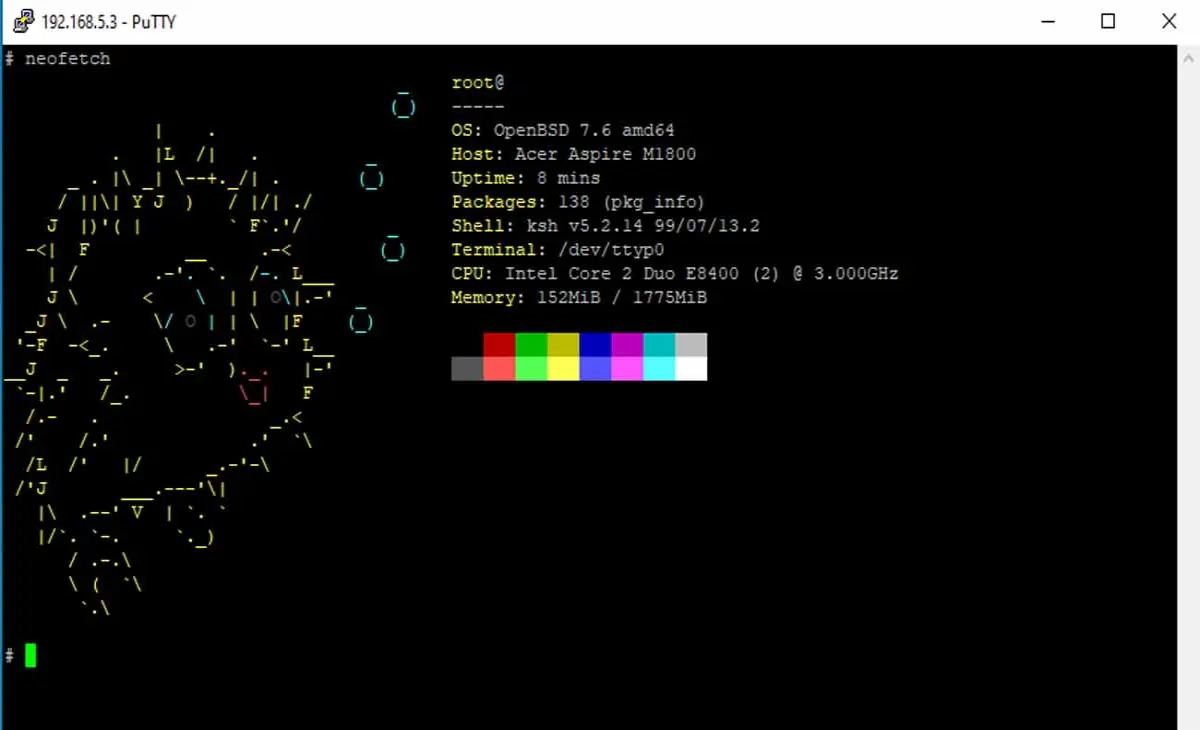
2. I2P Router Installation
The installation process is the most important part of all I2P processes. In this process there are many things you have to do, including:
a. Install I2P Dependencies
The first step you must do before installing I2P, you must install dependencies so that I2P can run normally. There are many dependencies that you must install to support I2P. Among all the dependencies, Java dependencies are very important. Run the following command to install Java.
ns2# pkg_add jdk
Once you have installed the Java JDK, continue by installing java-tanukiwrapper which we will use to troubleshoot a number of common problems that occur in many Java applications installed on Unix systems such as OpenBSD.
ns2# pkg_add java-tanukiwrapper
b. Install I2P
Then we continue by installing the main application that we will install, namely I2P. There are two ways to install I2P on OpenBSD, namely with the PKG and Ports packages. In this article we will install I2P with the PKG package.
ns2# pkg_add i2p
3. I2P Configuration Process
In the configuration process, the first step we have to do is set up I2P so that it can run perfectly on OpenBSD. The first step you have to do is run the following command to run I2P.
ns2# /usr/local/bin/i2prouter start
After that, you activate I2P, with the two commands below.
ns2# rcctl enable i2p
ns2# rcctl restart i2p
a. Change/edit Files in /var/i2p
Although you have installed I2P and activated I2P, I2P cannot be run yet. In order for I2P to run properly, there are several files that you must change the script for.
In the /var/i2p directory, find a file named "clients.config.bak". Then you change only part of the script from the "/var/i2p/clients.config.bak" file, as in the following example.
clientApp.0.args=7657 ::1,127.0.0.1 ./webapps/
change to
clientApp.0.args=7657 ::1,192.168.5.3 ./webapps/

clientApp.4.args=http://127.0.0.1:7657/
change to
clientApp.4.args=http://192.168.5.3:7657/
b. Change the files in /var/i2p/clients.config.d
Apart from the files mentioned above that you have to change, you also have to change several files in "/var/i2p/clients.config.d". Look for the file "/var/i2p/clients.config.d/00-net.i2p.router.web.RouterConsoleRunner-clients.config", then change the script as in the example below.
clientApp.0.args=7657 ::1,127.0.0.1 ./webapps/
change to
clientApp.0.args=7657 ::1,192.168.5.3 ./webapps/
After that, you also change the file "/var/i2p/clients.config.d/04-net.i2p.apps.systray.UrlLauncher-clients.config".
clientApp.0.args=http://127.0.0.1:7657/
change to
clientApp.0.args=http://192.168.5.3:7657/
After that, you open the file "/usr/local/bin/i2prouter". In the file, look for the script "#ALLOW_ROOT=true". Remove the "#" sign in the script.
#ALLOW_ROOT=true
remove "#"
ALLOW_ROOT=true
c. Reboot I2P
The last step is you have to reboot your OpenBSD server, the goal is so that all configurations can be applied immediately in OpenBSD.
ns2# reboot
4. How to Run I2P
Now we come to the final step, and this step is the step we have been waiting for. In this step we will run I2P. To run I2P you must use the Google Chrome, Yandex, Opera or other web browsers. In this article we will run I2P on Google Chrome, because it is commonly used by most people.
Before you open Google Chrome, run the following command.
ns2# /usr/local/bin/i2prouter restart
After that, on the Google Chrome address bar menu, type the IP "192.168.5.3:7657", then press the enter button. The results can be seen as shown in the image below.
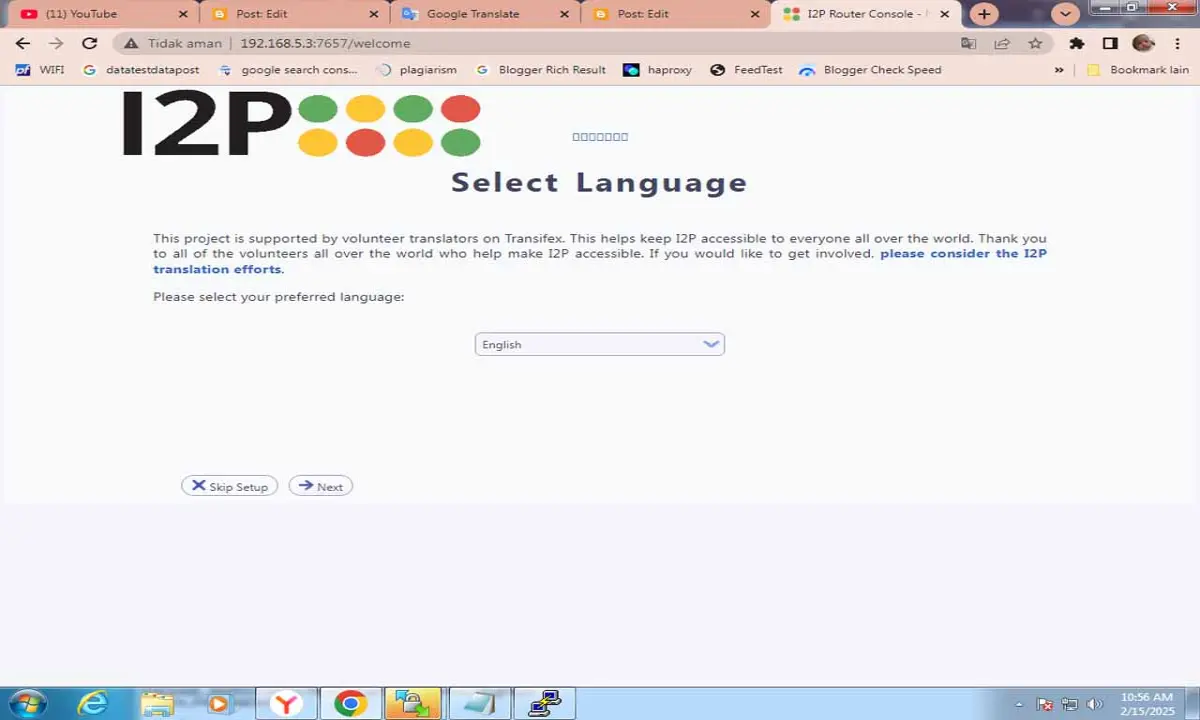
After appearing like the image above, you just have to follow the wizard menu displayed by I2P.
Congratulations...! You have successfully installed I2P on OpenBSD.






