
Curl stands for Client URL, a popular command-line tool used to transfer data from multiple sources using URL syntax. It supports multiple protocols such as from servers using multiple protocols including HTTP, HTTPS, FTP, FTPS, IMAP, IMAPS, POP3, POP3S, SMTP, and SMTPS, making it a versatile tool for developers and system administrators. It is also used to transfer data using multiple network protocols. It is a great utility for developers to test APIs, upload or download files, and more.
In this post, we will explain the process of installing and configuring CURL on Windows.
1. System requirements
Before proceeding with the Curl installation on Windows, make sure the following prerequisites are met:
- Windows 7 or later.
- Administrative privileges to run the installation.
2. CURL at a Glance
Curl is a command line tool widely used by developers, administrators and DevOps in their automation scripts and API tests to push data to and from servers. Curl allows you to send data from the command line to the server, as well as download and save data to disk.
Curl supports all popular protocols including HTTP, HTTPS, FTP and SFTP, has built-in proxy support, certificate validation, rate limits and works on almost all platforms such as Linux, Windows, FreeBSD, NetBSD and macOS. It is free and used by many applications.
CURL supports various features, including:
- Data fetching and sending: cURL lets you fetch data from a URL (e.g., download a web page or file) or send data (e.g., submit form data or interact with an API).
- SSL/TLS Security: Supports secure data transfer using SSL/TLS, ensuring encrypted communication over HTTPS, which protects sensitive information from being intercepted. See our previous post about CURL.
-
Proxy support: Can route requests through a proxy server, allowing users to anonymize their IP, bypass geographic restrictions, or test their application performance in different locations. See more information on how to use cURL with a proxy.
-
Data compression and decompression: Supports handling of compressed data formats such as gzip or deflate, allowing for faster data transfers and reduced bandwidth usage by sending or receiving compressed content.
-
Authentication for restricted resources: Provides options for various authentication methods (e.g., Basic, Bearer, OAuth), allowing secure access to protected resources such as APIs, private servers, or websites with restricted access. See the page on how to use basic authentication with cURL for best practices and common issues to avoid.
3. Installing Curl command in Windows
In this section we will explain the method to install Curl command in older or newer versions of Windows.
3.1. Method 1: Manual Installation
Download the Curl executable file by visiting the official download page of the Curl website. Download the appropriate version for your system and look for the zip file for Win64 or Win32.
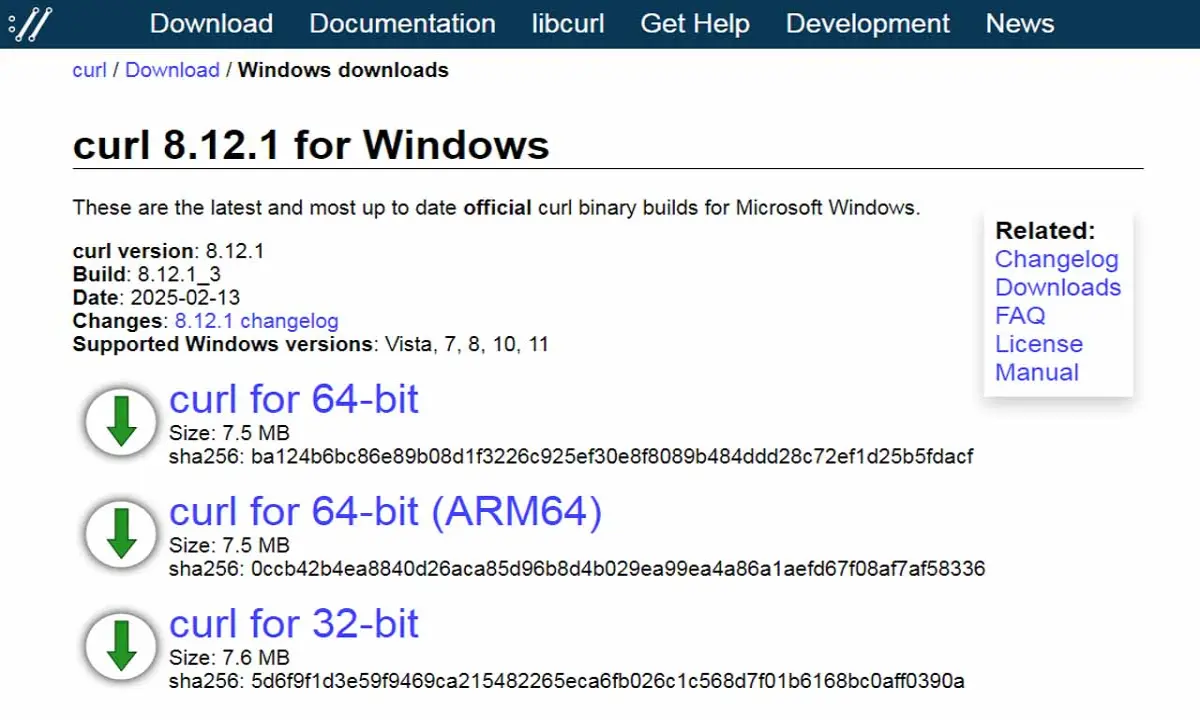
Once the download is complete, extract the CURL file in ZIP format to a folder location of your choice, for example C:\Curl.
3.1.1. Creating a CURL PATH in Windows
This step allows you to run the curl command from any directory in your Windows command prompt.
- Click System Properties in the Start menu.
- In the System Properties window, click Environment Variables.
- Under System Variables, find and select the Path variable, then click Edit.
- Click the "New" button, and add the path to your Curl installation, for example C:\Curl\bin.
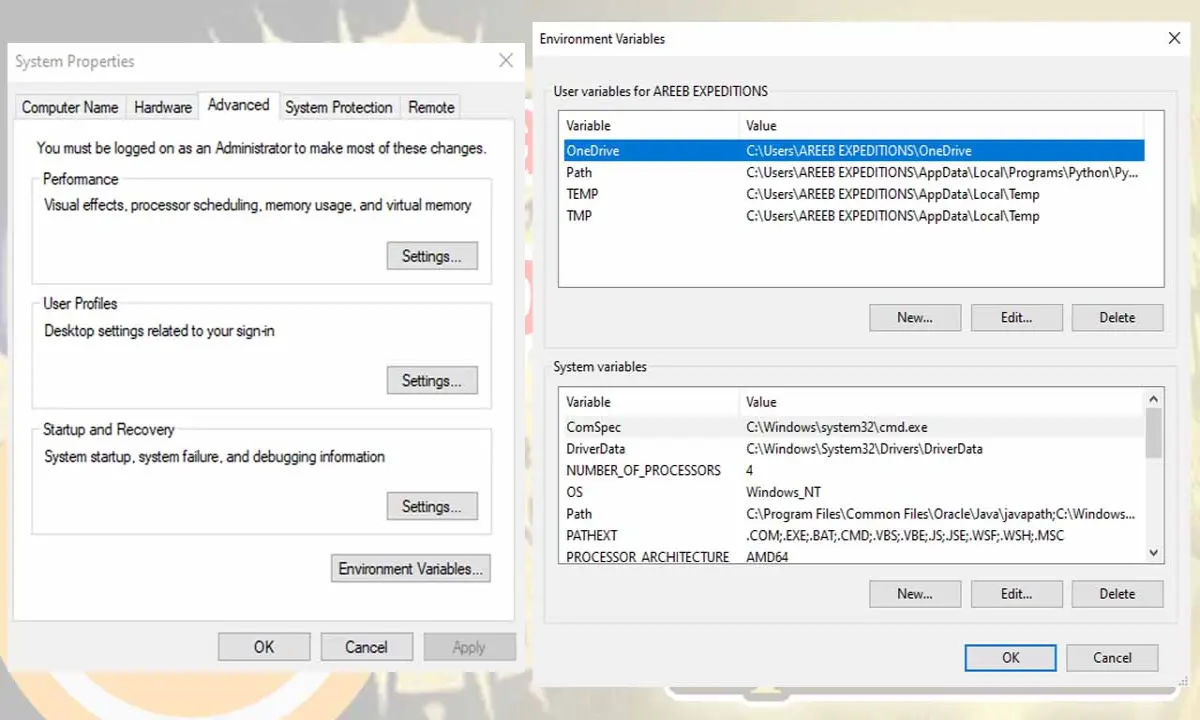
Once you have set the CURL PATH, you can check whether CURL is installed or not by checking the CURL version from your Windows Command Prompt.
curl --version
3.2. Method 2: Using Windows 10/11 Command Line
- Windows 10 and later versions come with Curl installed. To check if Curl is installed on your system:
Open the Start menu. - Type cmd and open Command Prompt.
- In the Command Prompt window, type curl --version and press Enter.
- If Curl is installed, its version number will be displayed.
3.3. Method 3: Using Chocolatey Package Manager
If you prefer to use a Windows package manager like Chocolatey, open a Command Prompt as administrator. Paste the following command and run it:
Set-ExecutionPolicy Bypass -Scope Process -Force; [System.Net.ServicePointManager]::SecurityProtocol [System.Net.ServicePointManager]::SecurityProtocol -bor 3072; iex ((New-Object System.Net.WebClient).DownloadString('https://chocolatey.org/install.ps1'))
Wait for Chocolatey to install. In the same Command Prompt window, type the following command.
choco install curl
Chocolatey will download and install Curl. Once the installation is complete, verify in Command Prompt to check if the installation was correct.
Whether through manual download or using Chocolatey, installing Curl on Windows is easy and enhances your ability to interact with web services directly from the command line. Remember to always download software from official sources or trusted package managers to ensure security.






