
How to use your KeepKey hardware wallet on a new computer.
So you just got a new laptop or computer and want to use your KeepKey hardware wallet? Have no worries! KeepKey makes it easy to access your coins from any device. Please note, this guide assumes your KeepKey is already setup and you just want to access it from a new PC. Just follow the 3 easy steps below and you’ll be trading in no time. Before attempting this make sure you have your private key written down in a safe place incase something goes wrong.
Step 1:
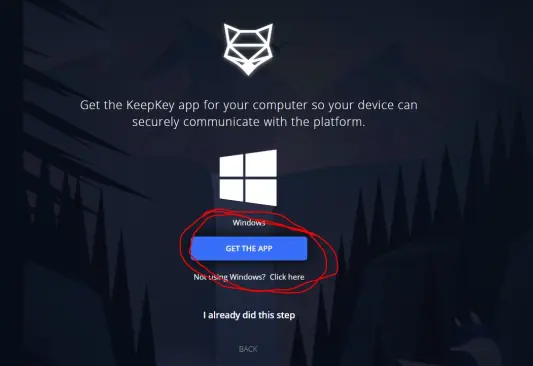
Download KeepKey Updater.
You will need to download the KeepKey updater from this link:
https://beta.shapeshift.com/updater-download#
After downloading and running the software, plug in your KeepKey and make sure your KeepKey is up to date.
Step 2:
Login to your account on Shapeshift.
After you checked and made sure that your KeepKey is up to date. Go ahead and login to your Shapeshift account:
https://shapeshift.com/

Step 3:
Connect your KeepKey
Once you are logged into your account on your new PC. You will notice that your balance is $0.00 and in the top right it says “disconnected”. Next Plug in your KeepKey to your laptop. Click the menu in the top right and select “Switch Wallet”. After selecting switch wallet, you will need to confirm your choice. It will start syncing to your KeepKey and you will need to type in your 4-digit pin. After you type in your 4-digit pin just wait for the process to complete.

Congratulations! You are ready to use your KeepKey hardware wallet on a new computer.
(All Images in this article are property of Shapeshift.)






