
In Ethereum, an account and wallet are the same thing and they have two keys, public and private and pretty straight forward and easy to understand. But that is not the case for EOS. EOS has solid concepts for account, key pairs and wallets and they are slightly different with other blockchains.
Once an EOS account is created, 2 permissions came with it: Owner and Active. For each permission, you need to assign a pair of keys to it. Intially the owner and active has same key pairs and this is not safe because anyone that has the owner key pairs controls the account.
The role of wallet in EOS is only to store the keys. Example of EOS wallets are GreyMass EOS Voter wallet , SimpleEOS wallet and Scatter
The person that has access to the owner key pairs controls the account. Always keep your OWNER key pairs safely in cold storage!!
If you feel that currently your active permission key in your wallet has been compromised, this guide will be helpful to you and show you how to change the active permission keys. I will use Scatter and block.io to explain the steps.
Firstly, you need to create your OWNER permission in your wallet ( if it is not there) in order to change your active permission. Remember that only the owner has the power to change the permissions. The steps are as below:
- You need Scatter desktop client installed. If you are installing Scatter for the first time please remember to keep the Scatter backup phrase securely written somewhere. Now lets start.....
- Open Scatter and click on add keys
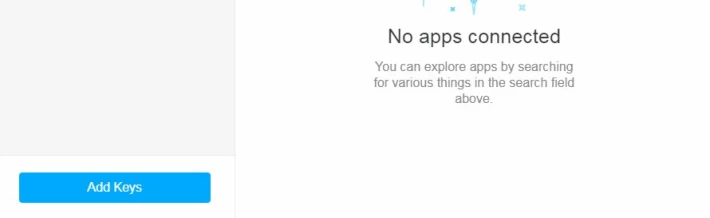
- Click on create new EOS account. This will generate a new key pair for you.
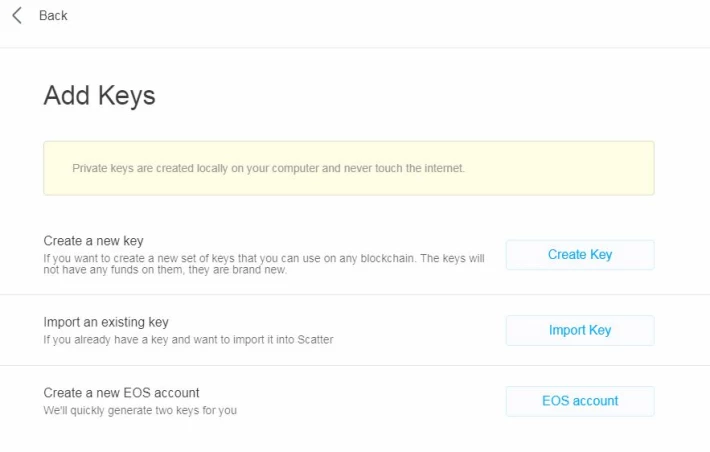
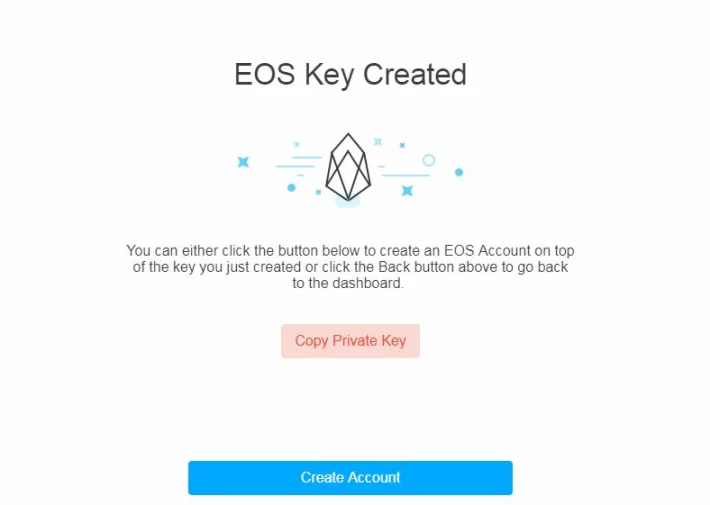
- Click on "copy Private key" and save it in a notepad. You can print it out and keep a hard copy. You need to use both keys (public and private) later on to set your new active permission.
- Now click on back. It will ask you if you want to remove the keys you just generated a moment ago. Press yes, because you are not creating an account but only generating the key pairs that you are going to use later.
The following steps will show you how to create an OWNER account in Scatter using your ORIGINAL public and private key pair that you got when you FIRST opened EOS account. These steps are only needed if you do not have the OWNER key stored in Scatter.
- Click on import existing keys, then import private keys as text.
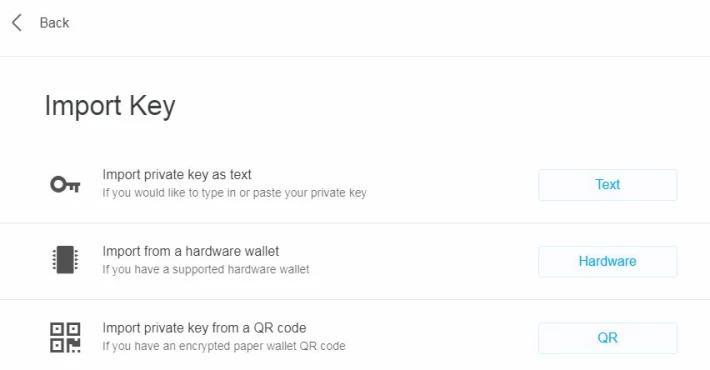
- Enter the original private key for OWNER . This is the key that you got when you first open EOS account. If you entered correctly, Scatter will accept and create a new key-name identifier.
- Now go to website : https://bloks.io and click login . It will open up Scatter and now you have to login with the owner account ( the one that you just created by importing the owner key). In other words you are logging in with your owner permission.

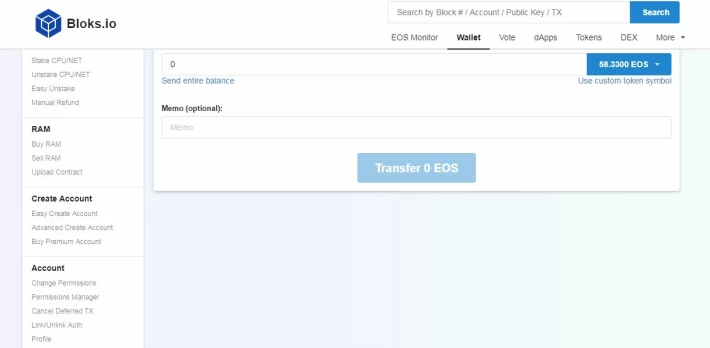
- Now in block.io, click on wallet tab. Go down to account on the left panel and click on change permission.
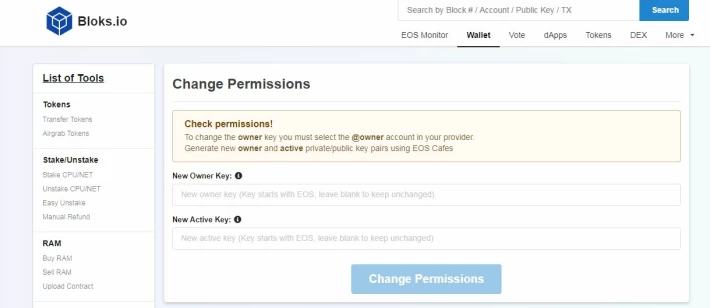
- Now it is the time for you to use the new key pair that you generated using Scatter earlier. Copy ONLY the PUBLIC key and paste it under " New Active key". Then click change permission.
- Scatter will pop up and you need to press "Allow".
- Don't wait long time to press "Allow" and make sure you have enough RAM to carry out the transaction.
What we have done is creating a new ACTIVE permission for the account in block.io using OWNER permission from Scatter and the transaction was registered in the blockchain. We have to do a few more steps. We have to store the private key for the same ACTIVE permission in Scatter so that in future we can log in to block.io directly from Scatter using the active permission.
After that we have to delete the OWNER private key in Scatter wallet. It is safer to remove OWNER key in Scatter because we do not want to compromise our funds. Whenever we need it again, we just create the OWNER permission using the same steps.
- Back to Scatter again and click add keys. Then click on import an existing keys as text.
- Now copy ONLY the Private key that you generated earlier using Scatter. We are storing the private keys of the active permission in Scatter wallet.
- Once above step is completed, Scatter will create a new key-name identifier that holds your active permission PRIVATE key.
If you want to check whether this key works, you can go back to block.io and login. Scatter will pop-up and now you select the new active permission that you created. You can perform a new transaction such as buying a small amount of RAM, just to confirm the new permission is working .
-
If all is OK, then go back to Scatter and now we have to remove the OWNER permission private key.
It is better to leave your OWNER key completely off Scatter. Having it there opens up possibility to be scammed. -
In scatter, click the key-name that link to OWNER account. Make sure it is OWNER account. Then click on " unlink account button".
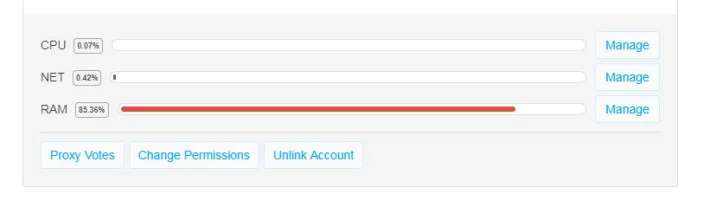
A pop-up will ask your permission to remove and you click on " Owner " authorities option button.
Now, you will no longer see that account on screen.
That is it. You have created a new ACTIVE permission which is NOT the same as OWNER and also deleted OWNER account in Scatter.





