
If you have a Metamask cloud wallet but you haven't really explored it yet beyond ETH deposits, doing so is worth the trouble. It can be expanded to dozens of cryptocurrency networks based off of ether blockchain, and now with Snaps you can do even more with Metamask. We'll take about Snaps in part two of this article series.
A network is essentially where a given token or cryptocurrency coin resides in a blockchain system. The most common that people are familiar with are Bitcoin, Litecoin and Ethereum. The network itself goes by a different name, but all the tokens associated with that "family" work on the same network. Others are variations of an original network. So Polygon and Matic, for example, work off of the ether network which started ETH. So, you're able to use the same Metamask address for both when receiving an depositing.
Adding Another Token on Metamask
To simply add a token on an existing network, go to the bottom of the current Metamask page and find the "Add Token" link. That opens up the menu for new coins. Remember, the token you are adding has to be on the same network you already on. Metamask default starts on Ethereum unless you have already changed it to another, like Polygon, for example:

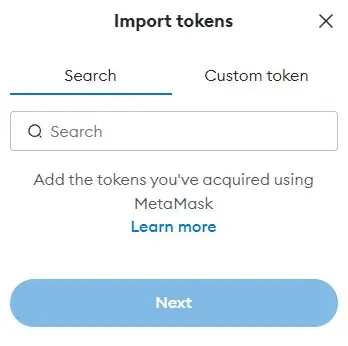
Next, you then can click Custom Token to add a coin that doesn't come up on the pre-determine Metamask search option shown above:

Here you add the token and token information. Where do you get that? It's available either from the token provider's web page or on the given network explorer page. Search for the token and then look for the smart contract link. Copy that link and paste it in the Token Contract Address field above. The rest should popular automatically. If not, then you have to look it up with a bit more research.
Adding a Network on Metamask
Adding a new network is a bit similar to adding a token, but the feature is in a different area of the wallet tool. First, you need to click on the network pull down menu and pick "Add a network".
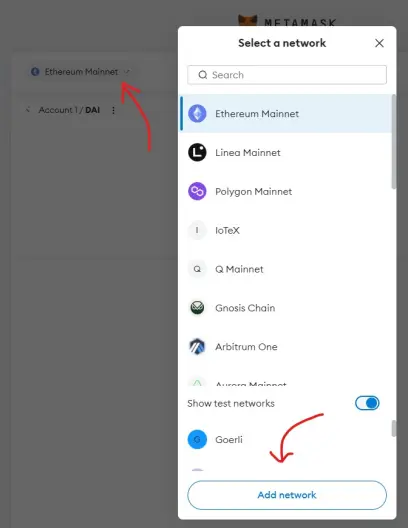
Once in the network add menu, you either pick from one of the pre-determine networks already provided, you add a custom network.

Custom network require the RPC address and related coding to connect to. Be careful with these as scam networks do exist. Connecting to one can open up your wallet for behind-the-scenes attacks. Where do you get the network information? It does take a bit of looking around. Again, network explorer sites are a good place to start, but you may need to go further and go to the actual token/network provider's page for the network information. This is especially true for new networks versus the traditional, well-established ones.

Non-Ether-Based Networks
For a long time, it wasn't possible to put other tokens on Metamask that didn't have a relationship with the Ethereum blockchain. It was possible to add any related network, and that followed the basic path of either automatically adding it if the network showed up on the Metamask menu or it was manually added.
Now, with Metamask Snaps, the option to add different networks other than ether-based becomes more a reality. It also means folks need to be a lot more careful if using Metamask as their primary digital wallet. Personally, I used it as a front-face wallet, and then keep my primary deposits and balances in other wallets I don't connect to networks or DEXs. This 2-layer or even 3-layer approach avoids a lot of click-drain traps that will become even more prevalent with more network connections.
I'll cover Metamask Snaps in a follow-up article to this once I get my head around them and how they work.






