
The below are what-ifs and simple things you can do to make your life a bit more protected with your computer, especially now with hacks waiting everywhere online. Not everyone is your friend, but not every one of these risks will happen either. Be smart and aware instead of comfortable and ignorant.
Step #1: Set complex passwords where it counts
Use a strong password that is at least 15 digits. Make sure to use a special symbol as well. Brute force hack programs can guess passwords made of normal words within minutes to an hour at the longest. Using a complex password could take years to hack, even with software. For example, use something like:
Memyself2024UTD2024@@##
It makes a mess of a password that can’t be guessed easily.
Activate a screen lock when you aren’t using your computer but when it’s on. This is easy to use. Type Windows symbol + L on your keyboard, and it locks your screen. Then to get in, you just use your password again. Linux OS' have a similar lock feature in their power-on/off menu.

There is a lot of advice to go to single sign-on tool to avoid passwords altogether, but personally I think they’re still vulnerable. If the single-sign on tool gets hacked, so do all your passwords. I personally keep separate passwords for everything, and then I keep my list for them on an encrypted file. Then I back up the file with everything else on a physically separate storage in case my laptop breaks (which happens more than you think).
DON’T:
- Recycle the same passwords across different accounts.
- Share your passwords with others, including colleagues.
- Do not use online password managers or auto-remember features in browsers and websites—these are susceptible to being hacked because the company that provides the tool gets hacked and loses your information stored in their database.
Step #2: Update your programs, browser, and laptop security software regularly.
On your Windows computer in the Settings, there is an Update and Security screen. Run this regularly. Your antivirus and firewall will work automatically but you can still do a scan from the same screen with the other settings for Security. Linux is a bit different; mainly you want to make sure your OS is regularly updated and the most current version (sudo apt-get update is your friend).
Your biggest risk of a virus or trojan tends to be what you download from email or the Internet. Try to keep your download files restricted to what comes into your known account. For those in school, the university should be using some kind of filtering for anything entering its network. Open Internet downloads are the riskiest.
NEVER, EVER plug in a USB from someone else or if you find it on the ground outside. This is a cheap, common way to hack people with so called “lost” USBs. It even happens with discarded hard drives. Some folks are dumb enough to think this is a treasure that just needs to be formatted. If you need to have someone send you something, have them email it instead.
DON’T:
- Indiscriminately download files or visit dubious webpages.
- Leave security software and virus definitions out-of-date.
- Don’t accept or plug in unknown USB flash drives.
Step #3: Encrypt your hard drive and back up your data
You’re going to want to get some software to encrypt your critical files. This essential jumbles up the data on protected files so they can’t be read even if obtained and copied. You can only decode encrypted files with your own password using the software. Folder Lock is what I use, and it works very well. Easy to use and password-protected. There are other encryption tools available. Windows also provides Bitlocker, but I haven’t used that and I’m not sure it comes on the basic Home version.
Step #4: Increase your authentication
Where you can, use MFA – multi-factor authentication. A combination and a random code generator on your phone is very powerful. There are a couple of tool options out there. Any of the big name ones will work. It’s just a simple app that generates a random code, and when you set up your account with password and MFA, you identify you’re using that app as security tool via a QR code. Then you scan the code the account gives you with your authenticator app, you type the code your app generates, and your app is then synced with whatever account you’re using MFA on. Most accounts walk you through the set up.
The old security tools like security questions are weak, easy to guess, and fail to protect. MFA is the better approach.

Step #5: Stay private when in public.
When in a crowd, try to keep your screen private. Have your back to a wall or corner, avoid places with a camera above you, and don’t let others see you typing, especially when putting in a password. You’ll be amazed how many people try to see what you’re doing if you’re conscious of it. Some use privacy screens, which obscure the view from side angles.
If your laptop has a webcam, cover the lens with masking tape when not being actively used. Some Internet connections can stay active even when you think they are disconnected, and that leaves an open camera into your location, including your private bedroom depending where the laptop is left open. The built-in notice and light of an active camera is not automatically accurate.
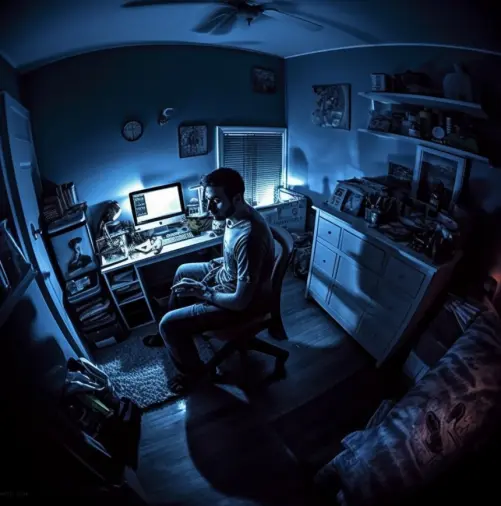
Step #6: Improve your laptop’s physical security.
Don’t leave your laptop alone. Instead, assume everyone around you is a thief.
It takes seconds for a laptop to be stolen and disappear, or worse be hacked. If you’re in a group you trust and you get up, lock your screen or better, close the lid when you step away, even for a moment.
Cafes, libraries and social places are great locations for grab-and-runs. Look at your surroundings when you sit down and ask yourself, how will you stop someone from grabbing your phone or laptop and running away in that moment? It will force you to change.
If you’re going to use location-tracking software on your device, make sure it actually works. Too many folks forget to turn it on before the item is stolen. Additionally, cross-syncing opens your location up to anyone who can see your device. So, be careful whom you share that info with. It’s become a problem in abusive relationships, for example.
If you have a friend or significant other who suddenly gets pushy to access your devices, that’s a real big red flag to back away and break it off. No one needs to know your access or get into your device to maintain a relationship.
You won't stop every hack but a bit of prevention makes you harder to get at, and there are much easier victims that then become more attractive. Be the pain in the arse with tech, and your life will be easier.






